
How to Disable Phone System for Subaccount/Location (LC to Twilio)
This article outlines the process for disabling the Patient Copilot (LC) Phone System for a specific subaccount or multiple subaccounts in Patient Copilot and transitioning to Twilio. It is crucial to follow these steps to prevent losing phone numbers during the transition.
Key Considerations Before Disabling Phone System
1. Releasing Existing Phone Numbers (If Retaining Them)
Before disabling Phone System for a sub-account, customers must contact Twilio Support to release their phone numbers from Phone System.
- If customers want to retain their existing phone numbers, they must follow the process outlined in this guide before switching from Phone System to Twilio.
- If customers do not need to retain their existing phone numbers, they can proceed directly to step 2 and submit the disable request form. IMPORTANT: Failure to release phone numbers before disabling Phone System will result in permanent loss of those numbers.
2. Ensure the Twilio Account is Ready
Before initiating the switch, ensure that you have an active Twilio account with the necessary credentials (Account SID and Auth Token) to integrate with Patient Copilot.
What is the Phone System?
The Phone System is Patient Copilot’s built-in telephony service that provides call and messaging capabilities directly within the platform. While it offers convenience, some agencies may prefer to switch to their own Twilio account for direct control over phone services. For a detailed overview of the Phone System, refer to What is LC - Phone System?
Getting Started with Disabling Phone System
Disabling the Phone System for a sub-account allows you to transition to Twilio for managing your phone services. This process requires careful preparation to avoid losing phone numbers. If you want to keep your existing phone numbers, you must release them first by contacting Twilio Support. Otherwise, you can proceed directly to the disable request form.
Step 1: Release Phone Numbers (If Needed)
Before disabling Phone System, you must ensure that any existing phone numbers you wish to retain are released from Phone System. This is a mandatory step if you want to keep the numbers, as they will be permanently lost otherwise. To complete this step:
- Contact Twilio Support and request the release of phone numbers from Phone System. 2. Follow the steps outlined in this guide to complete the number release process. 3. Verify that the numbers have been successfully released before moving forward. IMPORTANT: If you do not need to retain old numbers, you can skip this step and proceed directly to Step 2.
Step 2: Locate Your Sub-Account (Location ID)
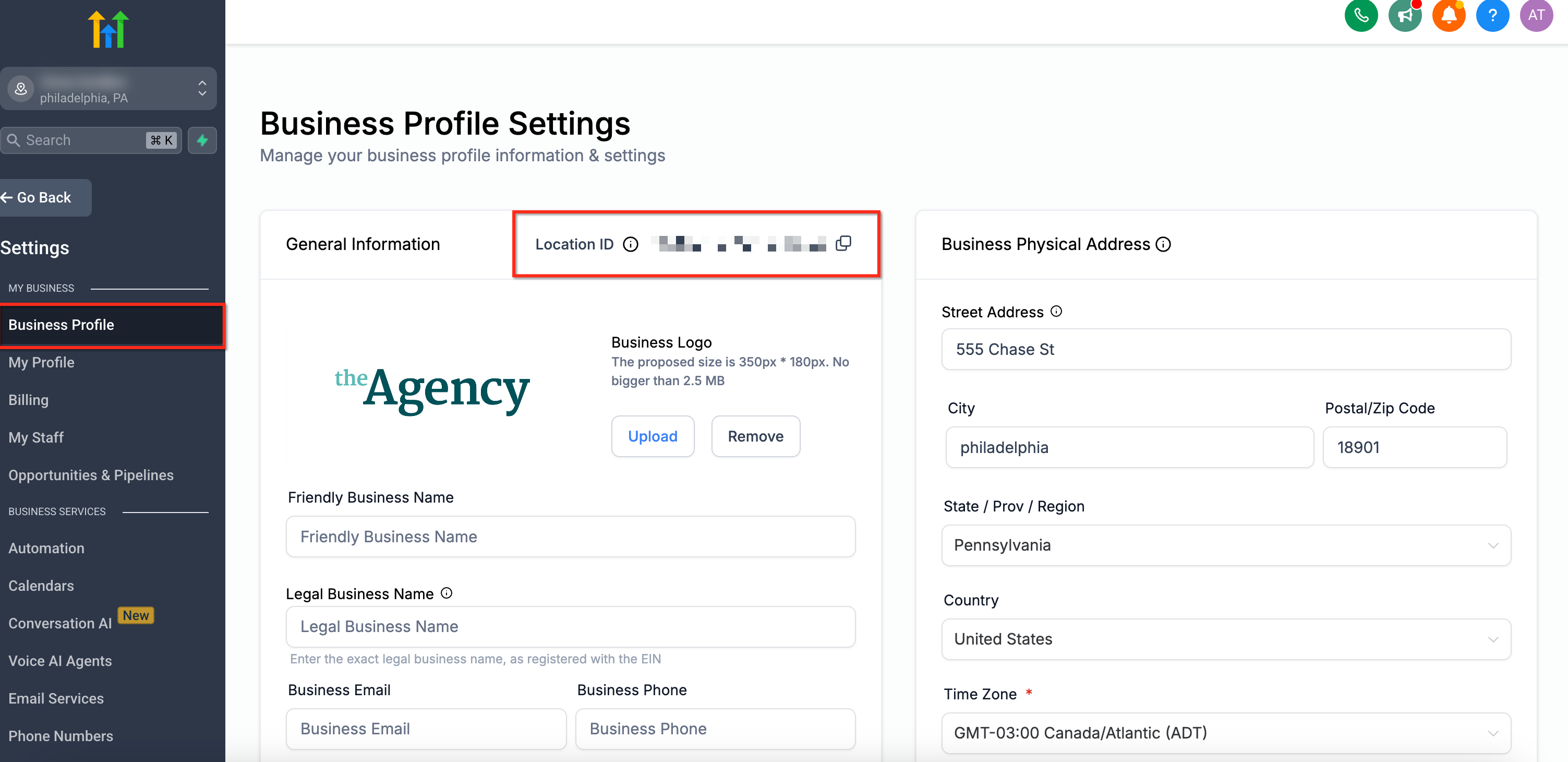
Before proceeding, you must identify the Location ID of the sub-account you want to disable Phone System. Navigate to Settings → Business Profile and locate the Location ID (copy this for later).
Step 3: Obtain Twilio Credentials
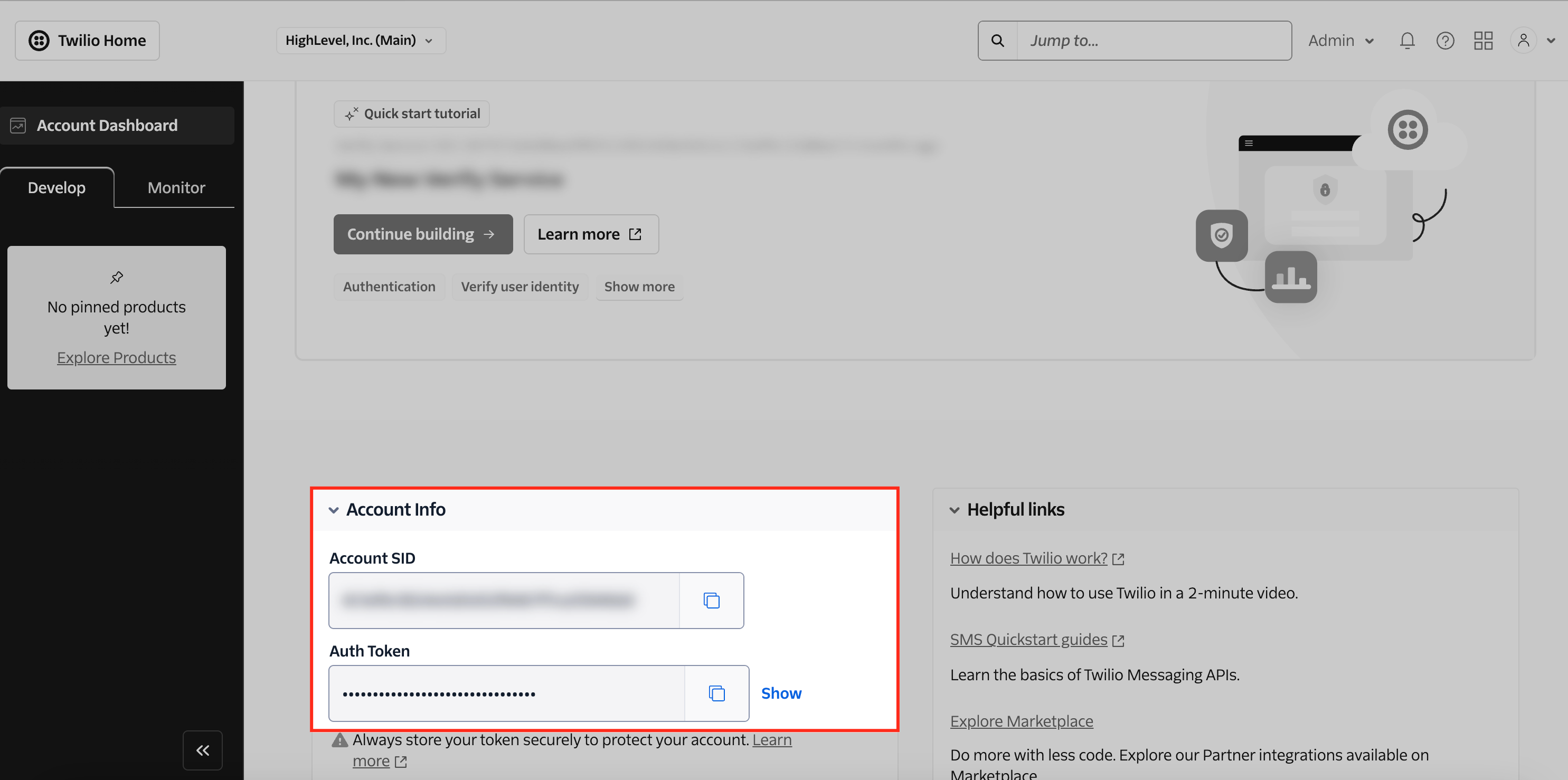
Since Twilio will be the default phone provider after disabling Phone System, you need to gather your Twilio Account SID and Auth Token. Log in to your Twilio account (Twilio Console). In the Twilio Dashboard, on the homepage itself, locate the Account Info i.e. the Account SID and the Auth Token. **
**
Step 4: Submit the Disable Phone System Form
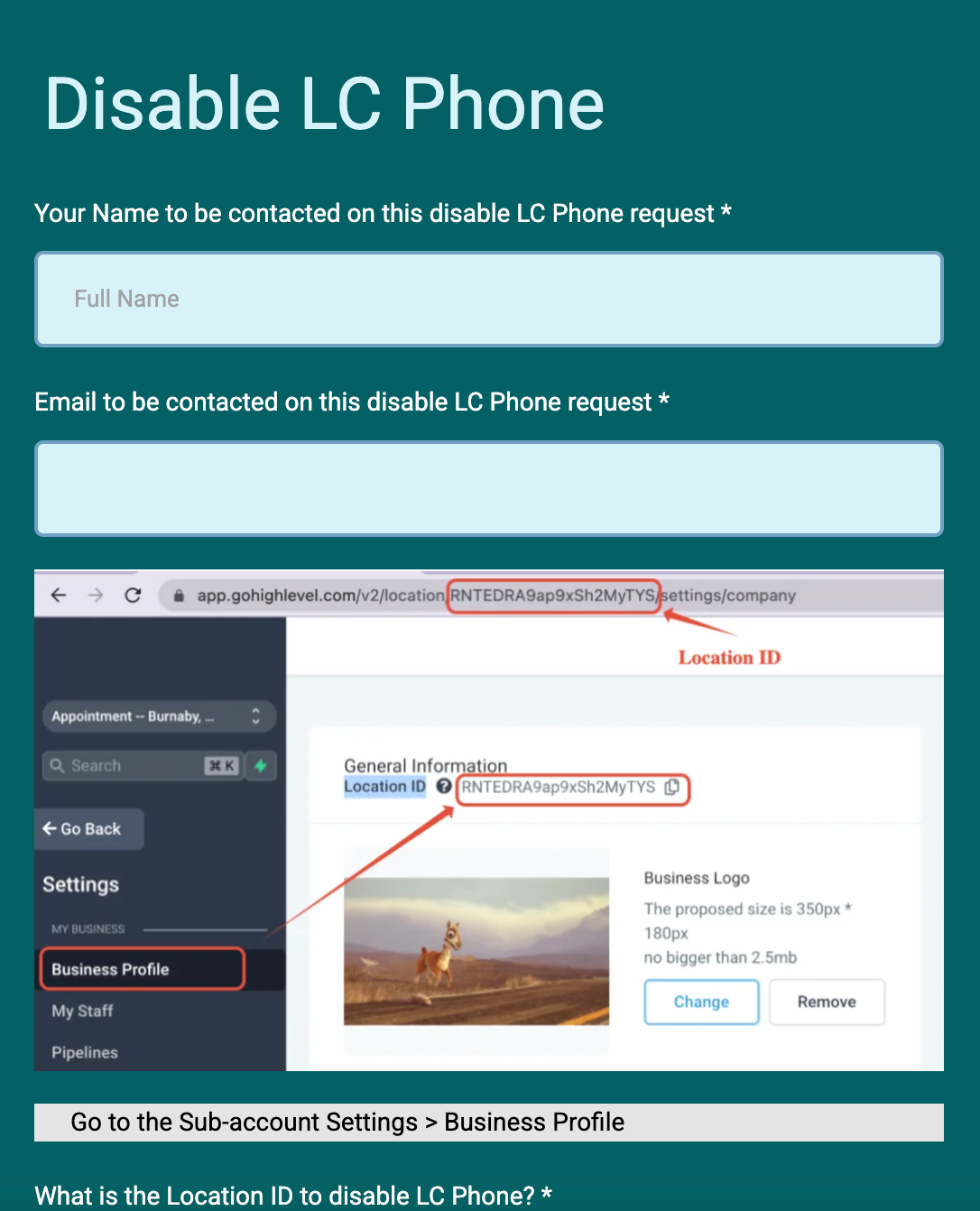
Now that you have your Location ID, Twilio Account SID, and Auth Token, you can submit the request to disable Phone System. Open the Disable Phone System Form and fill in the following details: Sub-Account ID (Location ID), Twilio Account SID, and the Twilio Auth Token, and now submit the form.
What Next?
Once you submit the Disable Phone System Form, our high-level support team will review your request and proceed with the necessary steps to disable Phone System for your agency. If any additional information is required or there are updates regarding your request, we will contact you via the email address provided in the form. If you have any questions or need further assistance during this process, feel free to reach out to Patient Copilot Support for guidance.
Frequently Asked Questions
Q: What happens if I don’t release my phone numbers before disabling Phone System?
The numbers will be lost permanently. It is critical to follow Moving numbers to an Phone System Sub-account from the client’s own Twilio account and contact Twilio Support before proceeding. Q: Can I disable Phone System for multiple sub-accounts at once? No, each sub-account must be processed separately by submitting individual requests. Q: How long does it take for the disablement to be processed? Processing time varies, but you will receive confirmation once completed. Q: Can I revert back to Phone System after switching to Twilio? Yes, but you will need to submit a request to Patient Copilot support to re-enable Phone System for the sub-account.