
How to add/link a new payout method for Affiliates
Both Admins and Affiliates can easily add PayPal or Bank as a payout method. Follow the steps below:
For Admins
Step 1: Go to Affiliate’s Profile Page
- Access the Affiliate’s profile page in the Affiliate Manager.
Step 2: Navigate to Payout Method Tab - Scroll down and switch to the “Payout Methods” tab.
Step 3: Add Payout Method - Click on “Add Payout Method.”
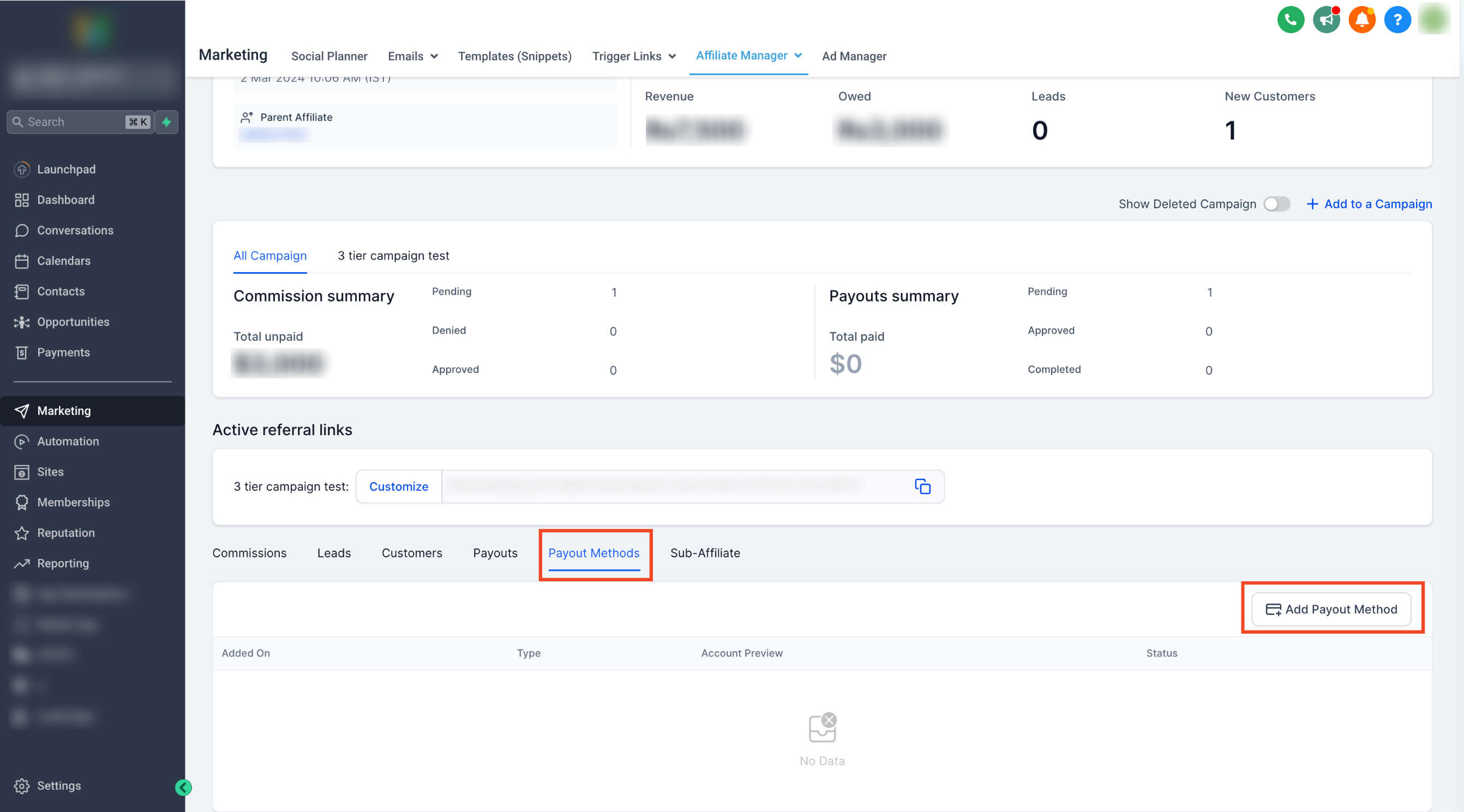
Step 4: Choose the payout method and add the required fields
- For PayPal: Enter the affiliate’s valid PayPal email ID.
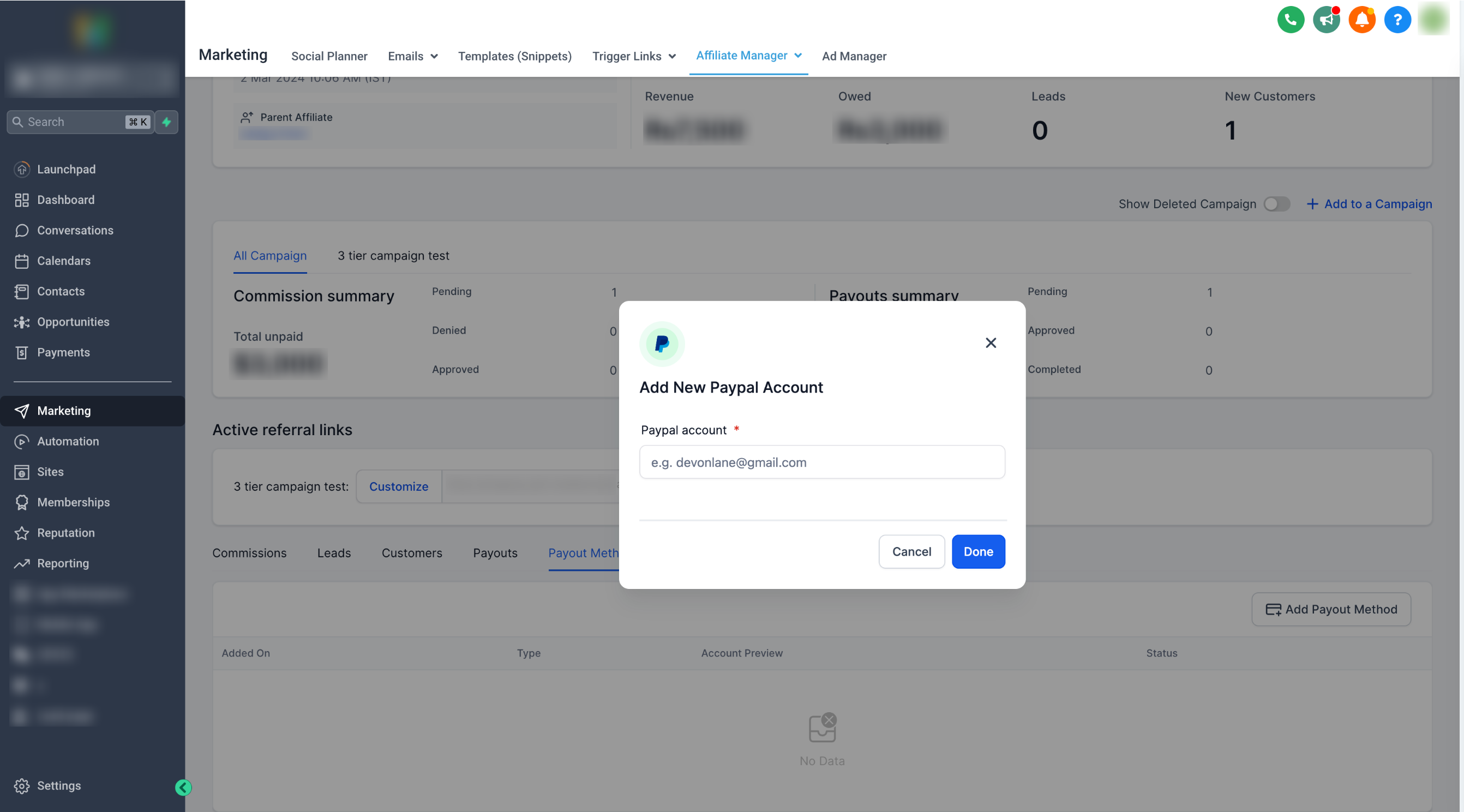
- For Banks: Select the country and fill the required details
Step 5: Click Done - Once entered, click on “Done” to save the payout method.
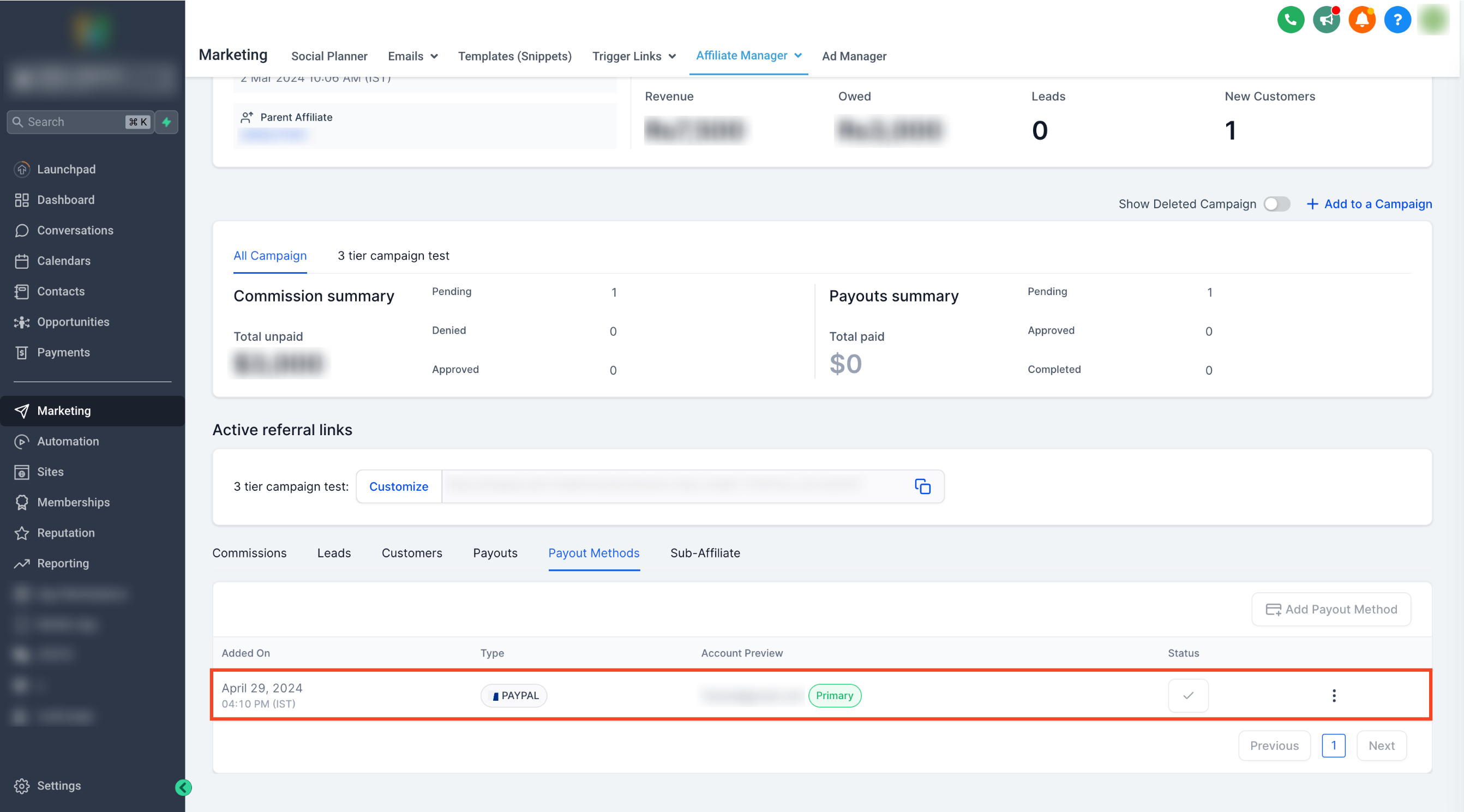
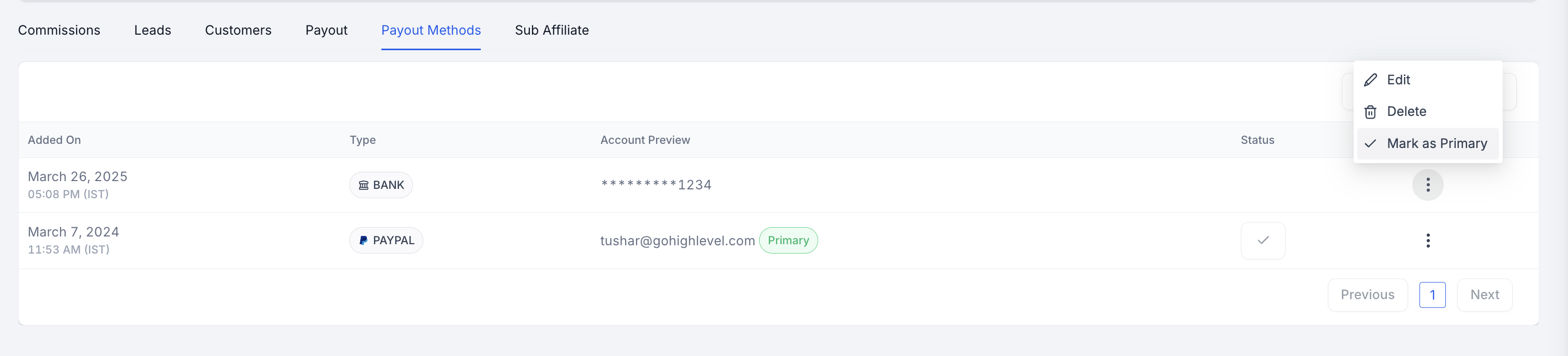
- You can add multiple payout methods for an Affiliate and select one as a primary payout method.
For Affiliates
Step 1: Access Affiliate Portal
- Affiliates can log in to their portal using the magic link provided.
Step 2: Navigate to Commissions Tab - Switch to the “Payout Methods” tab within the portal.
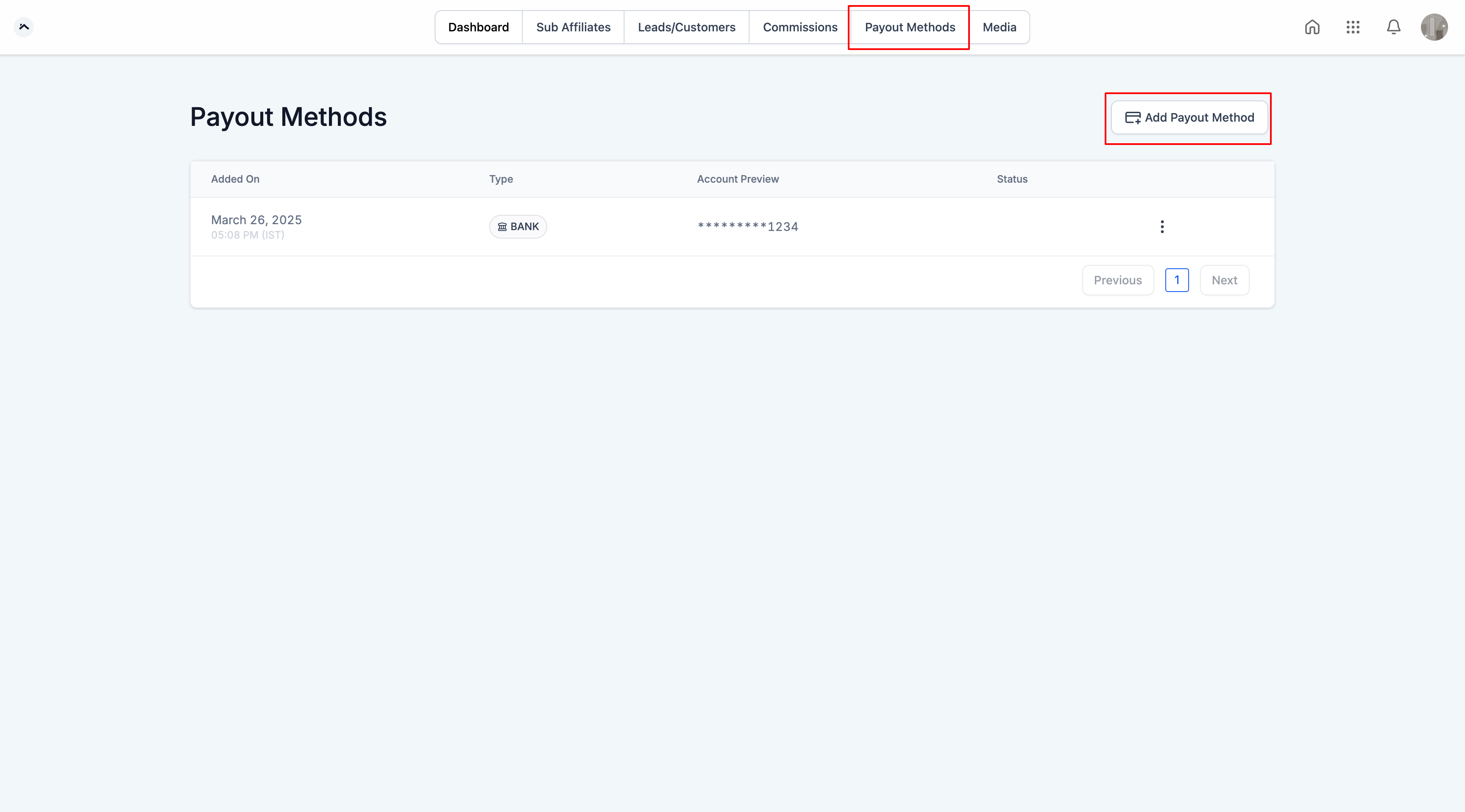
Step 3: Add Payout Method - Click on “Add Payout Method.”
Step 4: Choose the payout method and add the required fields
- For paypal: Enter valid PayPal email ID.
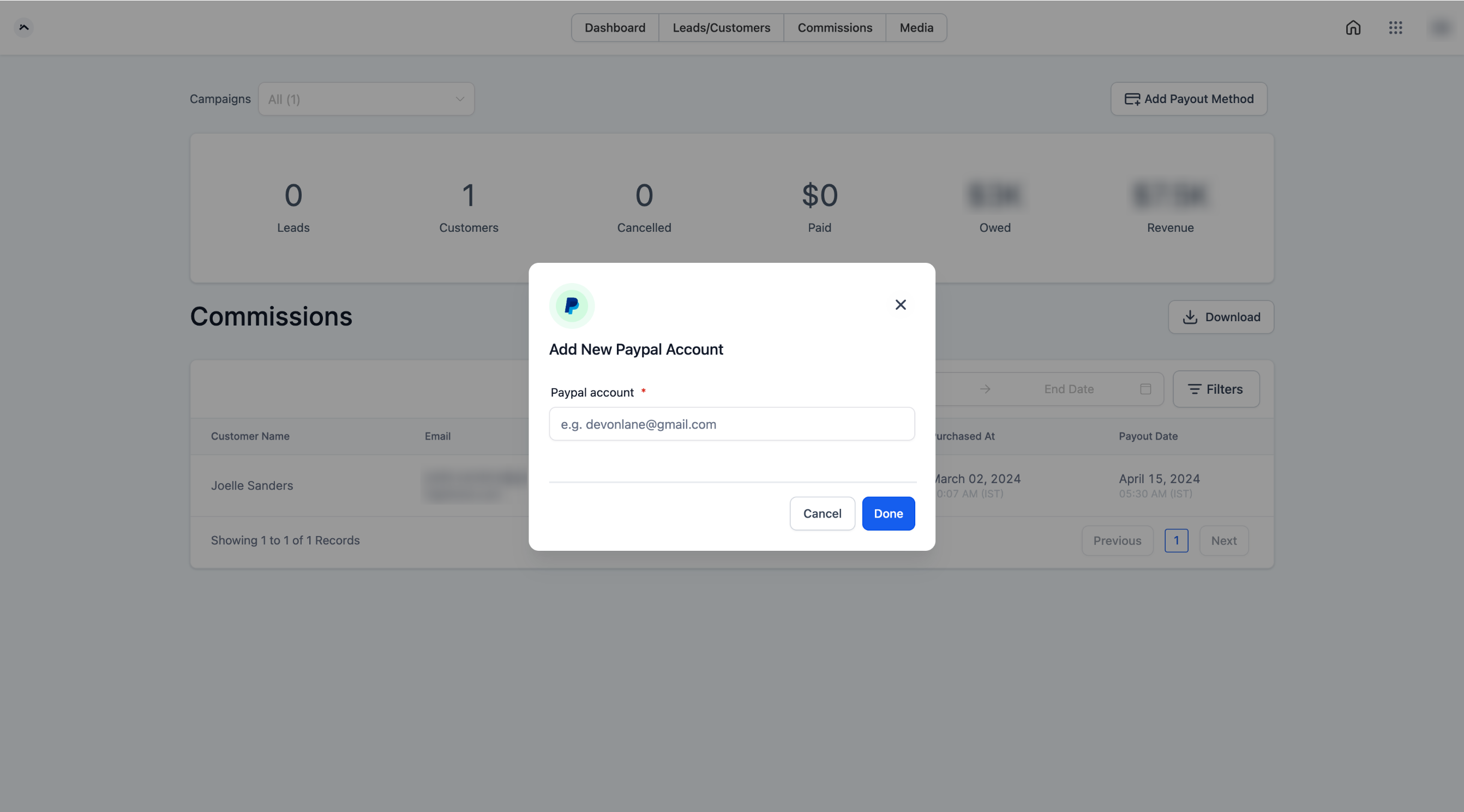
- For Banks: Select the country and fill the required details
Step 5: Click Done
- Once entered, click on “Done” to save the payout methods. Please Note: Currently, PayPal APIs do not support account validation, so please exercise caution and ensure that valid PayPal email IDs are added for the affiliates.
What’s Next:
- How to Set Up and Pay Affiliates Using PayPal Auto Payouts
- FAQs for Affiliate Payouts Was this article helpful? That’s Great! Thank you for your feedback Sorry! We couldn’t be helpful Thank you for your feedback Feedback sent We appreciate your effort and will try to fix the article