
How to send WhatsApp Media: Images, Videos, Audio, Document via Workflow
With the WhatsApp Media action, you can automate the delivery of multimedia content—images, videos, documents, and audio—directly from a Patient Copilot Workflow. This guide walks you through prerequisites, setup, best practices, and troubleshooting.
How to send media via Workflow NOTE:
You can send WhatsApp media only when the 24 hour customer service window is open Step 1: Go to Automation > Search WhatsApp Media
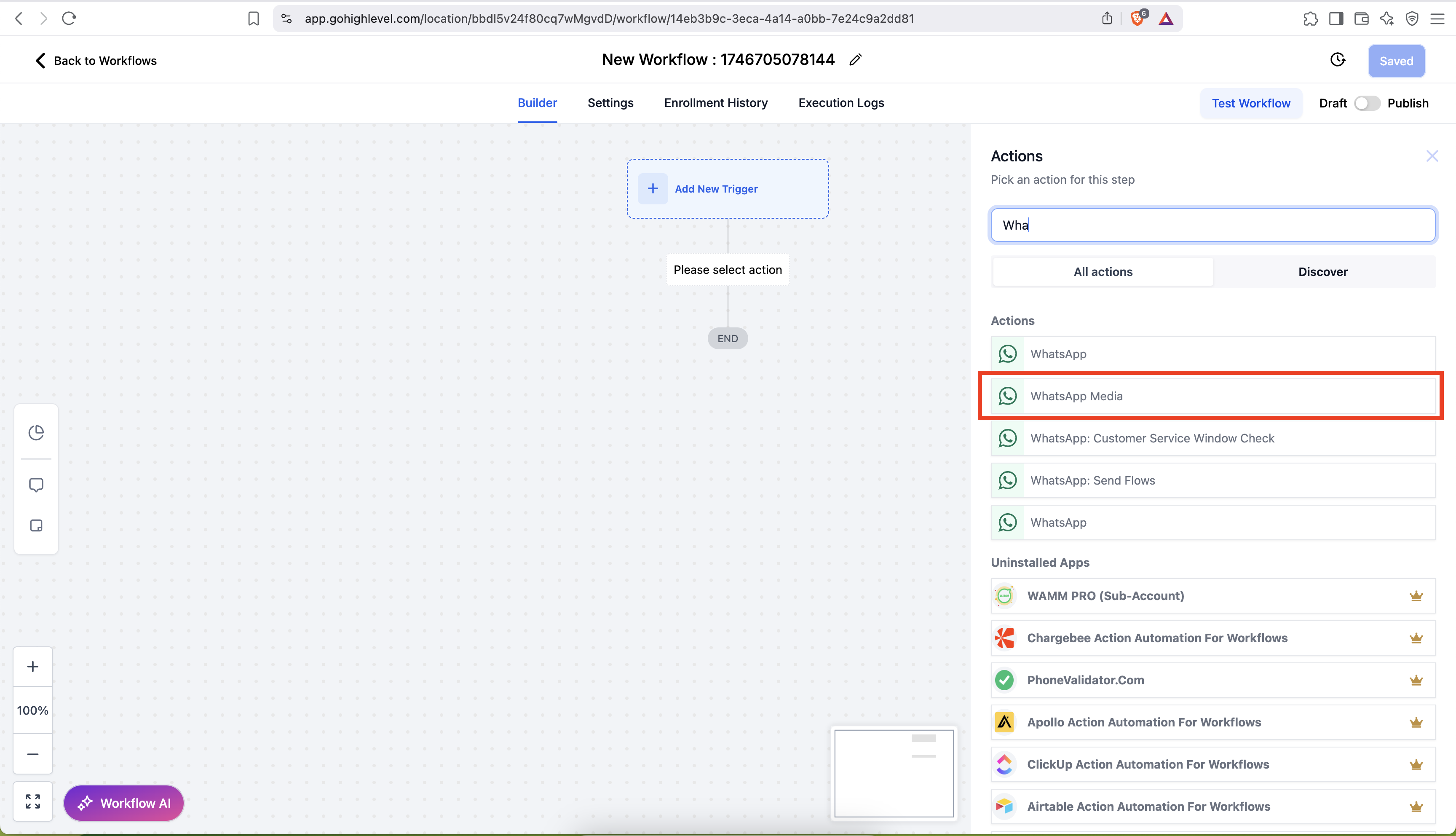
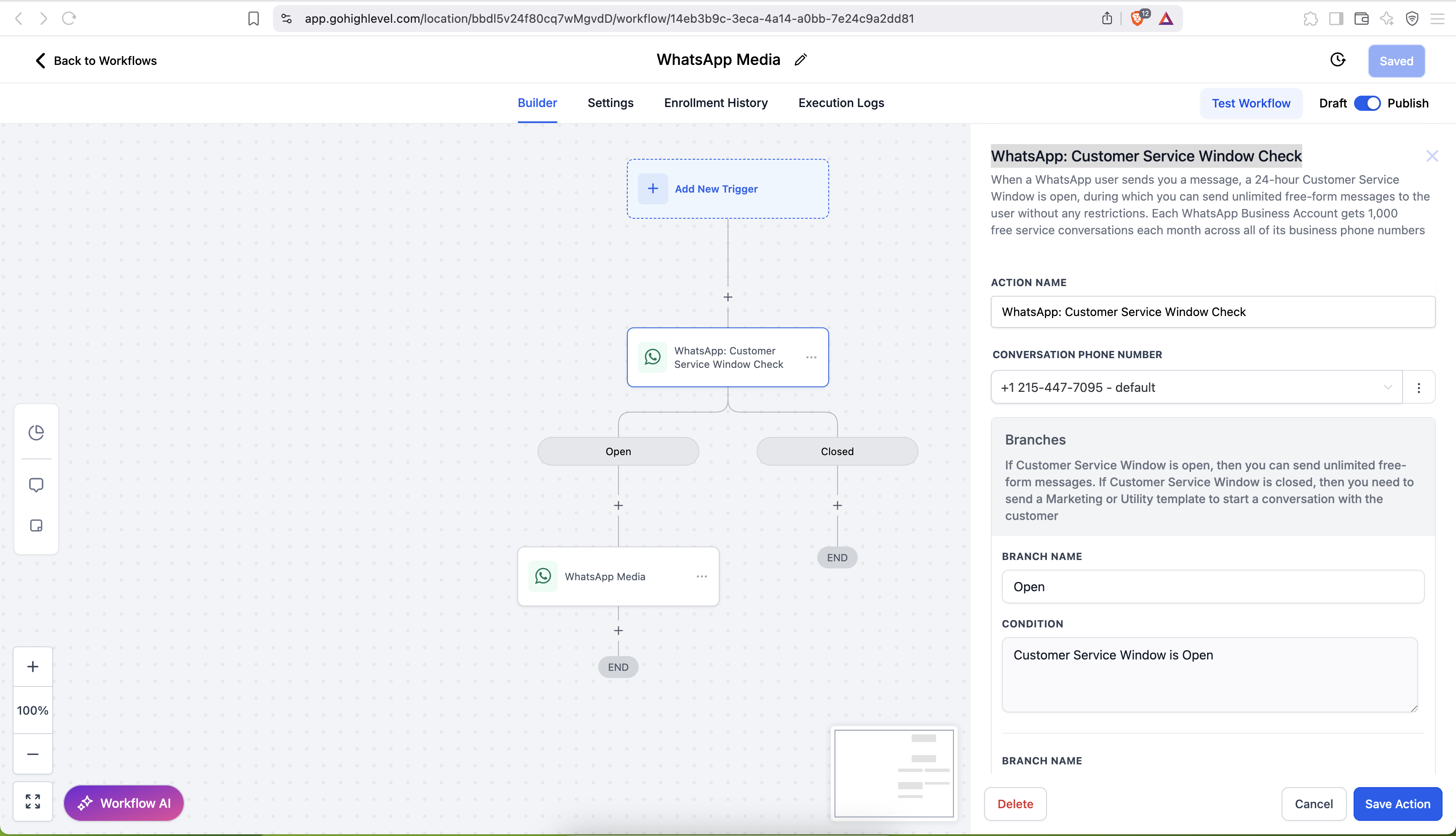
Step 2: Add WhatsApp: Customer Service Window Check
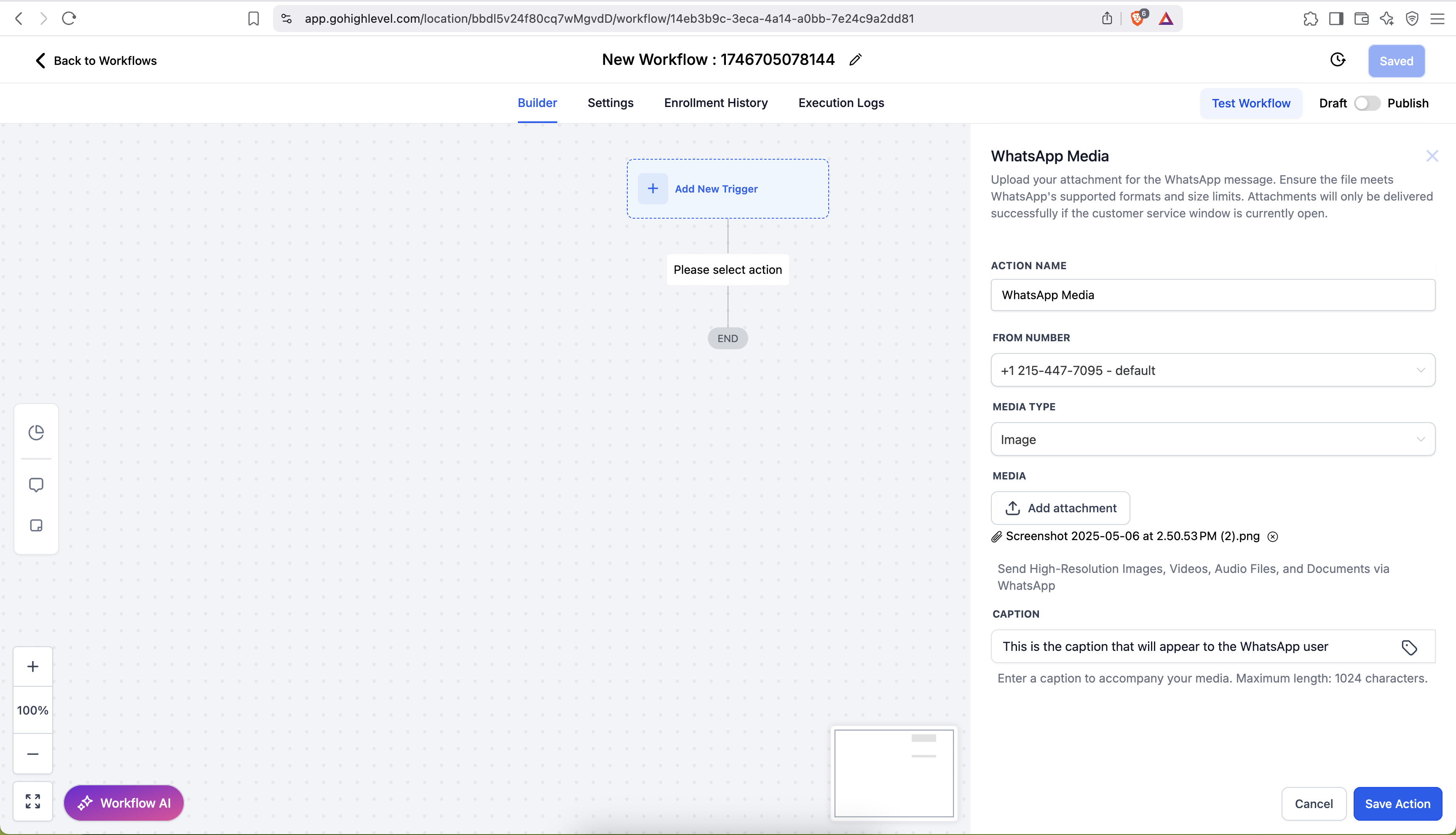
Step 3: Select the FROM number, Media Type, Upload the media and add the captions
Frequently Asked Questions (FAQ) Q1: When can I send WhatsApp media messages? A: Media messages can only be sent while the 24-hour Customer Service Window is open. The window opens each time the customer sends an inbound WhatsApp message and lasts for 24 hours from the timestamp of that message.
Q2: Are media messages free inside the 24-hour window? A: Yes. All media (images, videos, documents, and audio) sent during an open service window incur no additional cost and you may send an unlimited number of media messages.
Q3: What happens if I try to send media after the 24-hour window closes? A: The media message will fail. To re-open the window, you must send a WhatsApp template (marketing or utility) that is approved for outbound messaging to the customer.
Q4: What media file sizes are allowed?
- Images: JPEG or PNG ≤ 5 MB
- Videos: MP4 or 3GP ≤ 16 MB (H.264 video + AAC audio)
- Audio: AAC, AMR, MP3, M4A, or OGG (OPUS) ≤ 16 MB
- Documents: TXT, PDF, DOC/X, PPT/X, XLS/X ≤ 100 MB Trying to send files larger than these limits will result in an error from the WhatsApp API.
Q5: Can I add captions to every media type? A: Captions are supported for images, videos, and documents. Captions are not supported for audio files; any text entered in the caption field for audio will be ignored. Q6: How long is WhatsApp media available for download?
- Inbound Media (received from users): Available for 7 days from the time it was sent.
- Outbound Media (sent by your business): Available for 30 days from the time it was sent. After this period, the media link will expire, and the file can no longer be accessed or downloaded. Tip: If you need to retain important media for longer, consider downloading and storing it securely within the 7- or 30-day window.