
How to change the Timezone for a Dashboard (Logged in User)
Say goodbye to data discrepancies and hello to personalized data viewing with the Timezone Switcher for Dashboard!
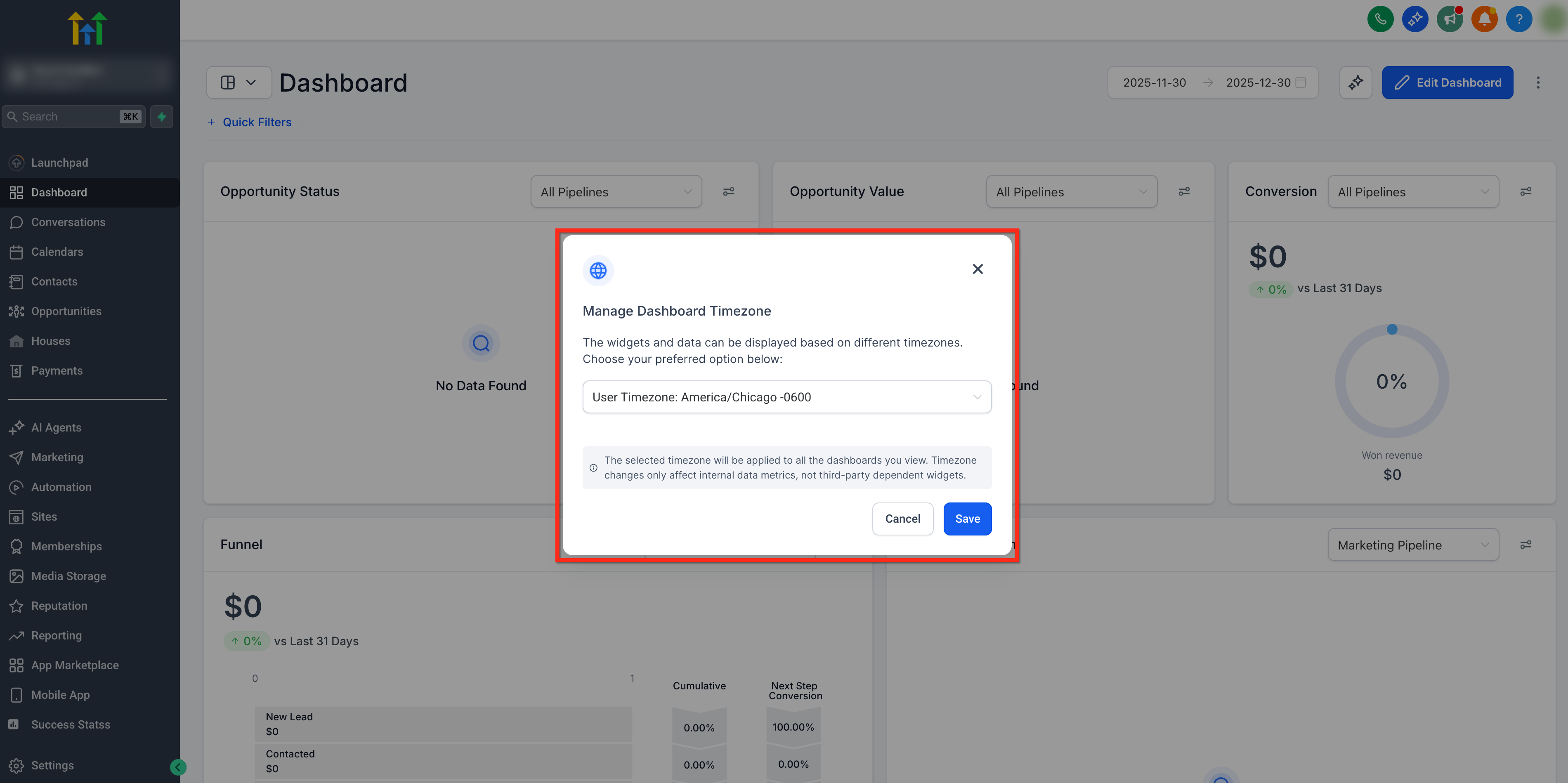
Important Notes - The selected timezone will be applied to all the dashboards you view.
- Timezone changes only affect internal data metrics, not third-party dependent widgets
- To learn more about the Custom Dashboards, click here!
How to Change the DashboardTimezone
Follow the steps below to change the timezone shown on the dashboard for the logged in user!
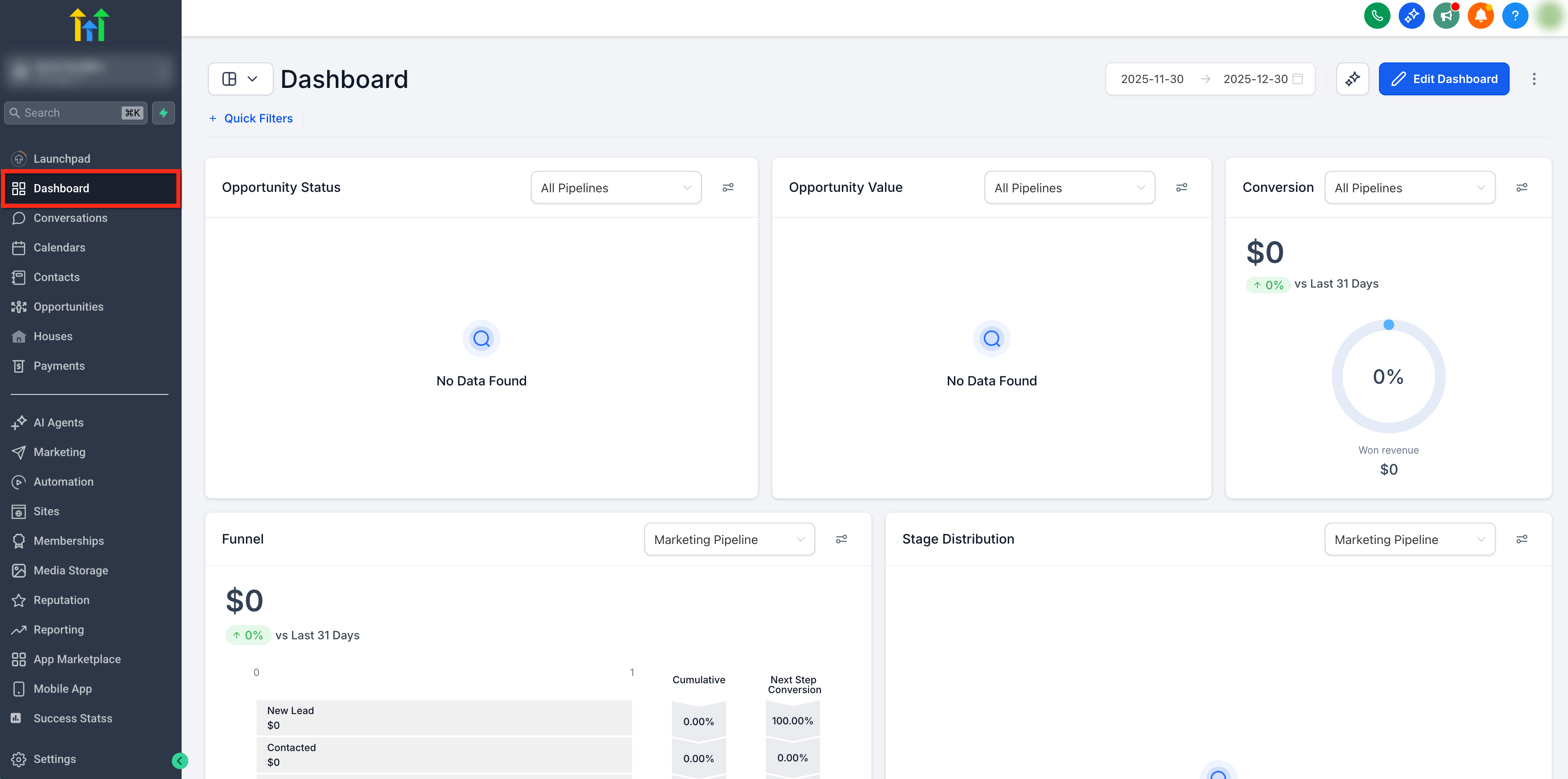
Step 1: Open Your Dashboard
Whether it’s your private dashboard or a shared one, navigate to the dashboard you want to customize by selecting Dashboard on the left-side navigation bar.
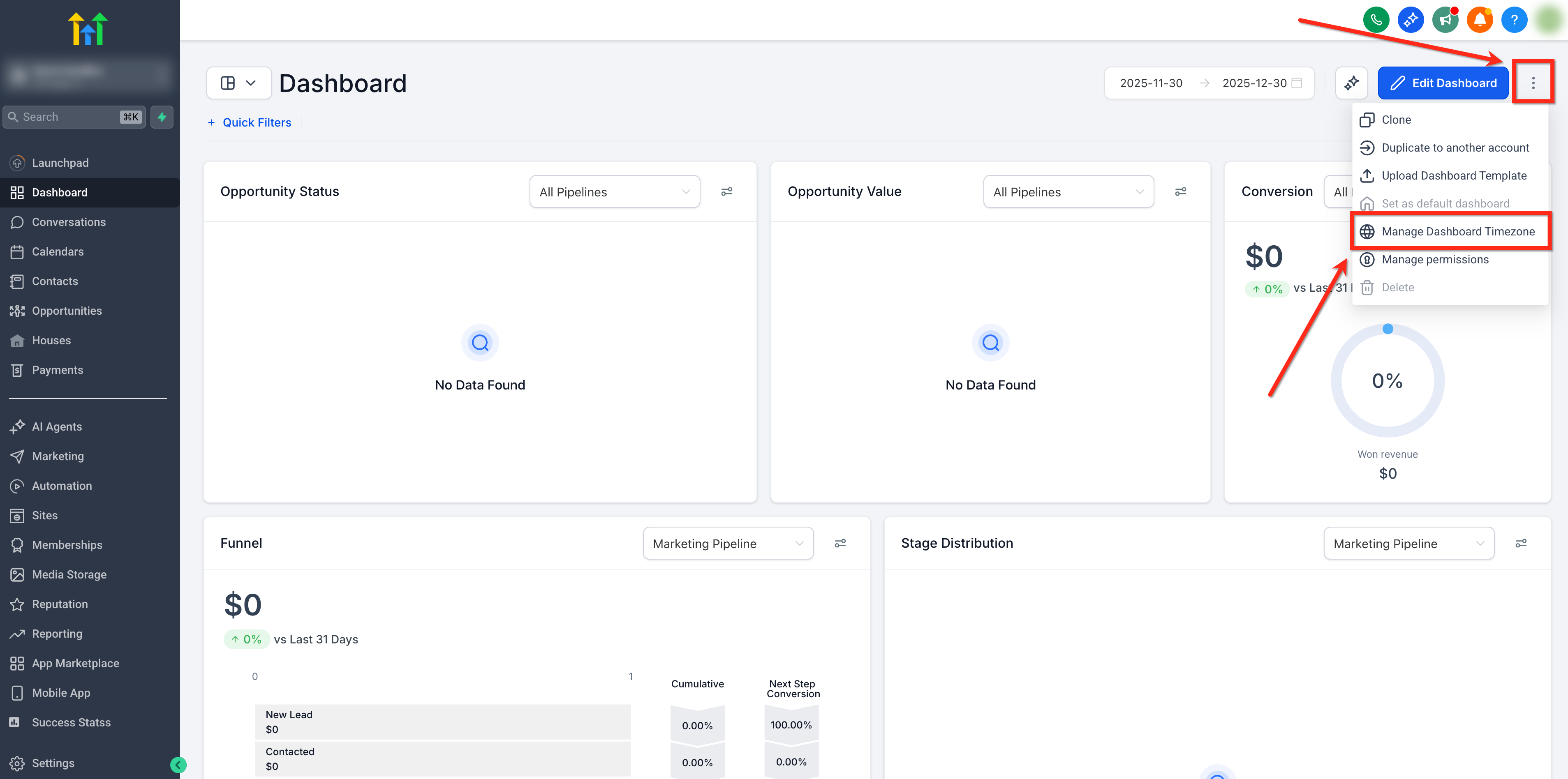
Step 2: Access Timezone Settings
Click on the 3-dot menu icon located on the top right corner and select Manage Dashboard Timezone from the dropdown
Step 3: Choose Your Timezone From the dropdown menu, select your preferred timezone then save your changes.
Was this article helpful? That’s Great! Thank you for your feedback Sorry! We couldn’t be helpful Thank you for your feedback Feedback sent We appreciate your effort and will try to fix the article