
Creating and Managing LinkedIn Ads in Patient Copilot Ad Manager
The Patient Copilot Ad Manager allows you to create, launch, and manage LinkedIn ad campaigns without leaving your workspace. By connecting your LinkedIn Ad Account, you can design lead-generation or website-traffic ads, monitor campaign performance, and manage budgets all alongside your Google and Meta ads from one unified dashboard.
Key Benefits of LinkedIn Ads in Patient Copilot
Running LinkedIn Ads within Patient Copilot saves time, improves reporting accuracy, and ensures your campaigns reach the right business audiences with minimal effort.
- Unified Dashboard: Manage Google, Meta, and LinkedIn ads in one place.
- Native Lead Gen Sync: LinkedIn Lead Gen Form submissions automatically flow into Patient Copilot CRM.
- Advanced Targeting Filters: Reach audiences by job title, seniority, company size, industry, skills, and more.
- Real-Time Previews: Instantly review desktop and mobile layouts before publishing.
- Granular Reporting: Track CPC, CPM, CPL, conversions, and spend per campaign, group, or ad.
Connecting your LinkedIn Ad Account to Patient Copilot Ad Manager allows you to publish, manage, and track ads directly through LinkedIn’s Campaign Manager API. This connection ensures all leads, campaigns, and metrics sync automatically with your CRM.
Pre-requisites
Before connecting, confirm that:
- LinkedIn Ad Account is active in LinkedIn Campaign Manager.
- LinkedIn Company Page is linked to your ad account. Learn how.
- Access Permissions You must have:
- Campaign Manager access to the Ad Account.
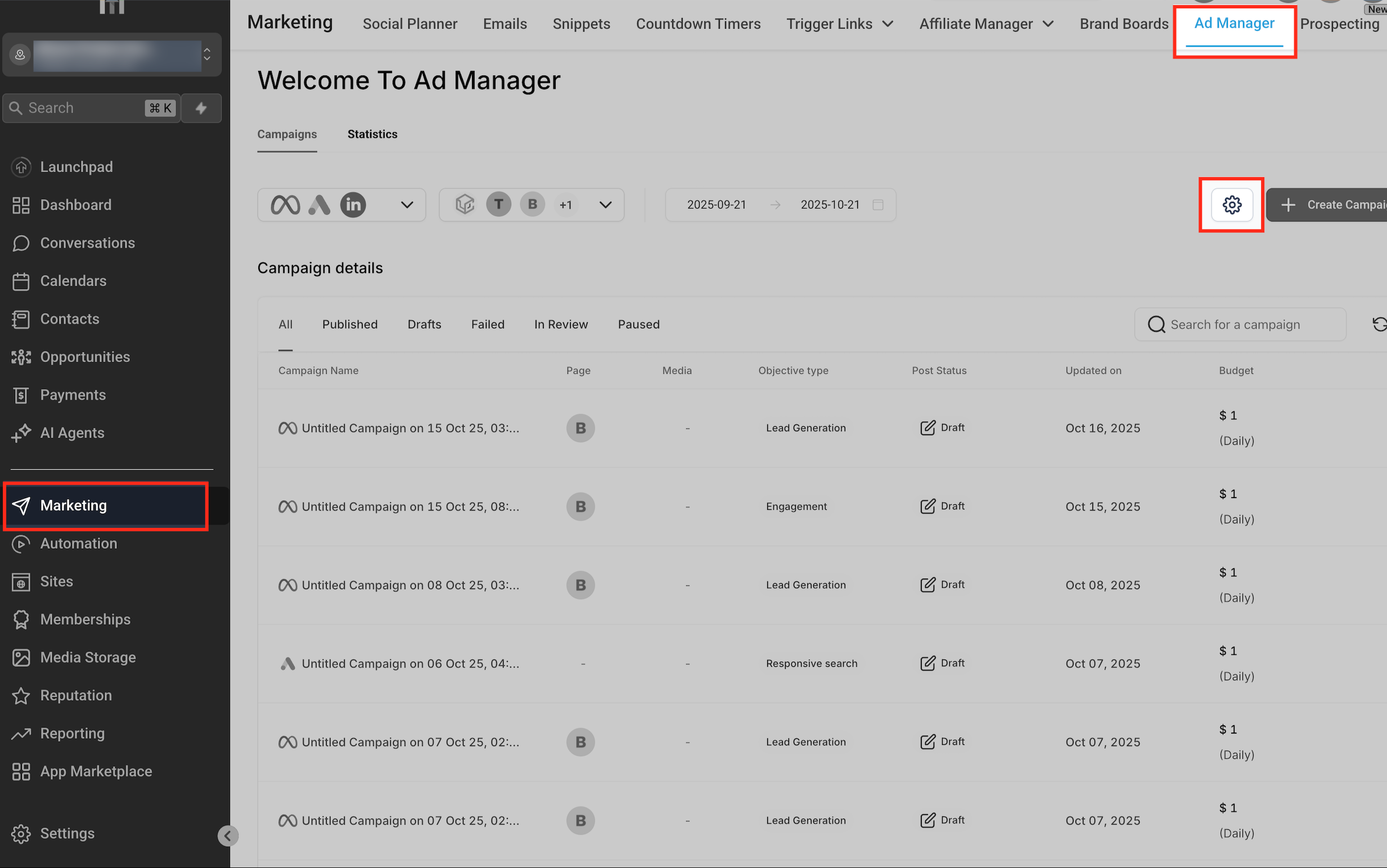
- Admin access to the LinkedIn Company Page. Open Ad Manager Settings To begin, navigate to Marketing › Ad Manager, then click the Settings gear icon in the top right corner of the dashboard. This opens the Ad Manager Settings page where you can configure or connect ad accounts across supported platforms like Meta, Google, and LinkedIn.
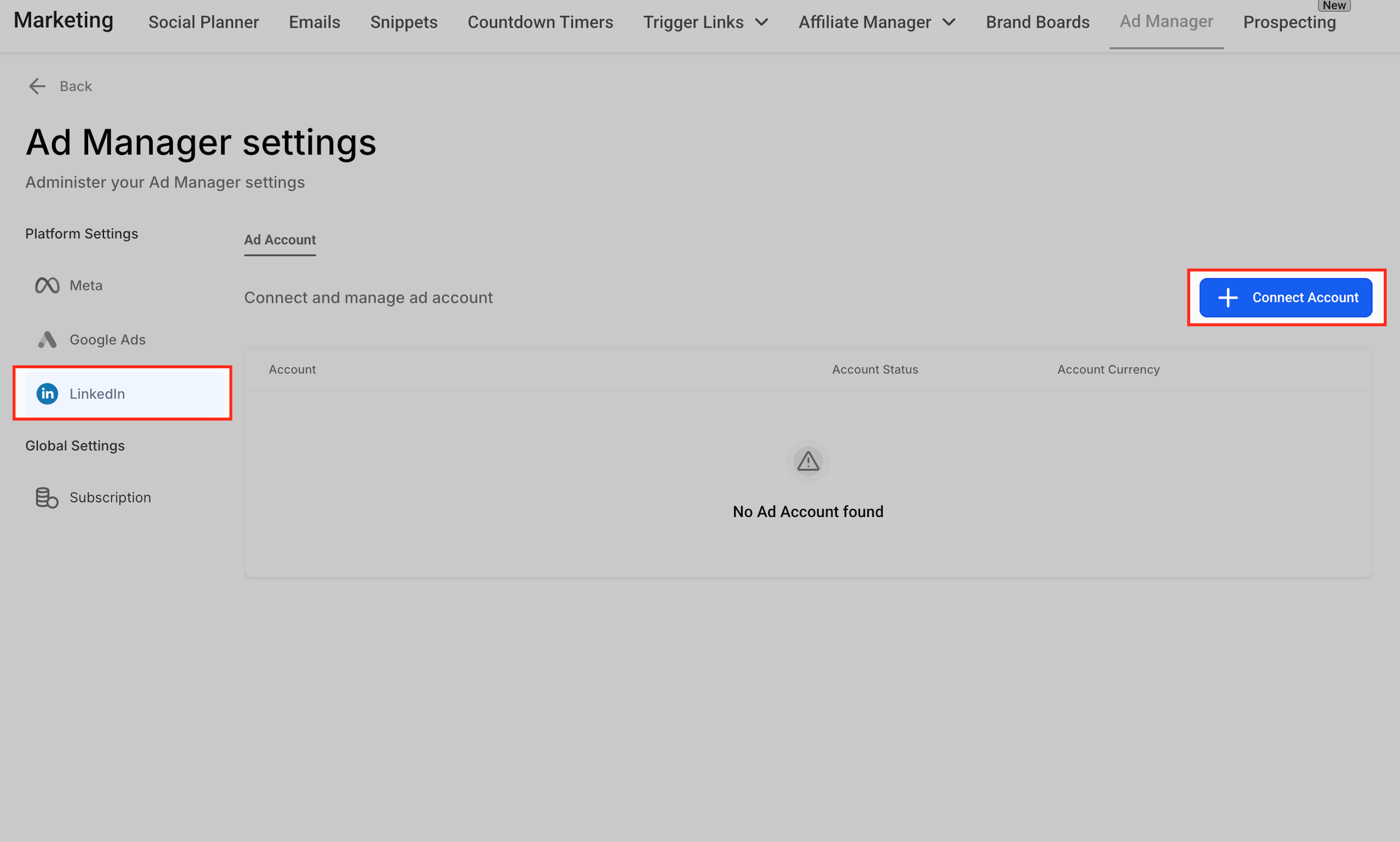
Select LinkedIn Platform On the left side of the Ad Manager Settings page, click LinkedIn under the Platform Settings section. Then click + Connect Account on the right-hand panel to start linking your LinkedIn Ad Account.
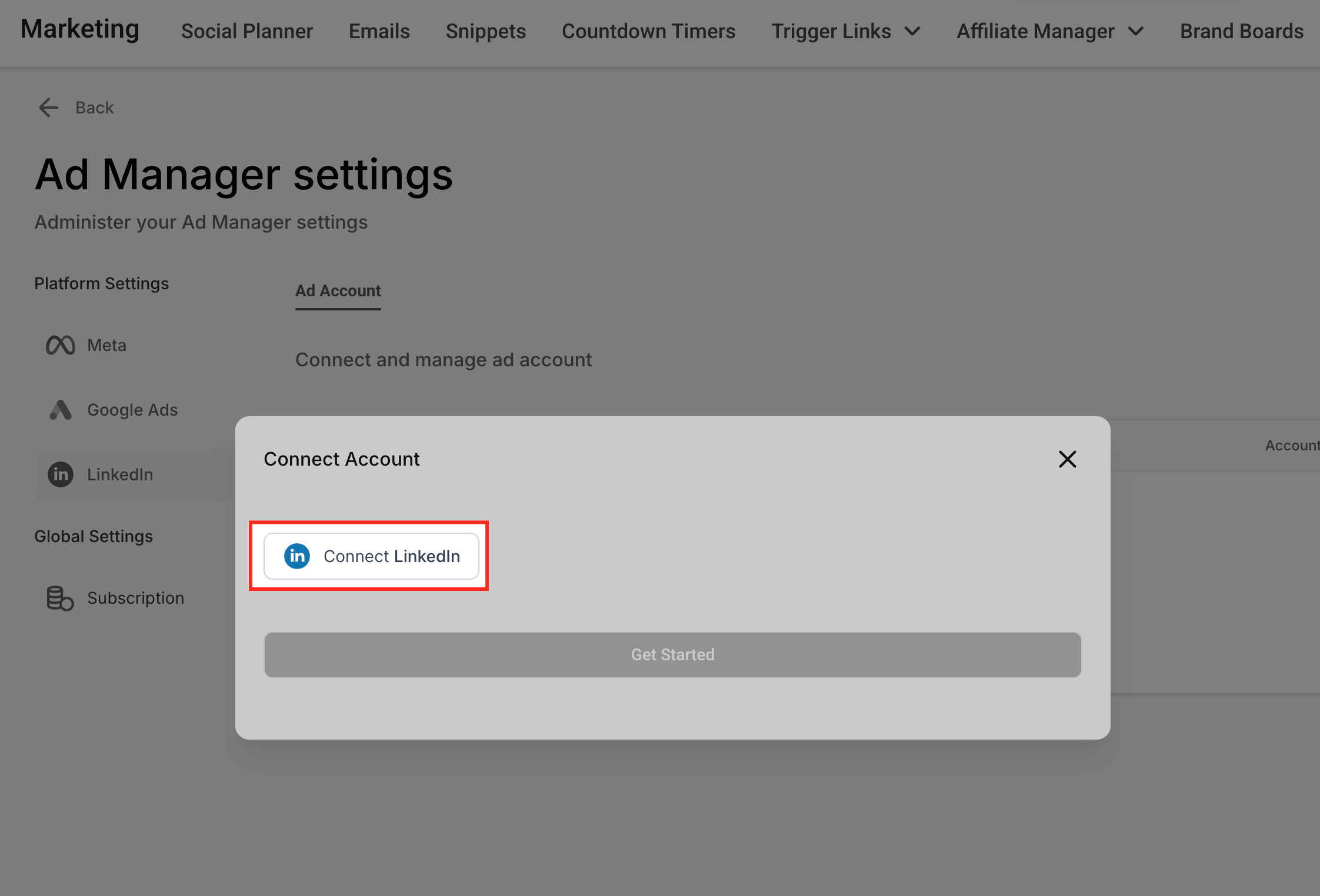
Connect Your LinkedIn Account A pop-up window will appear prompting you to connect your LinkedIn account. Click Connect LinkedIn to open a secure login window where you can sign in and authorize Patient Copilot to access your LinkedIn Ad Account.
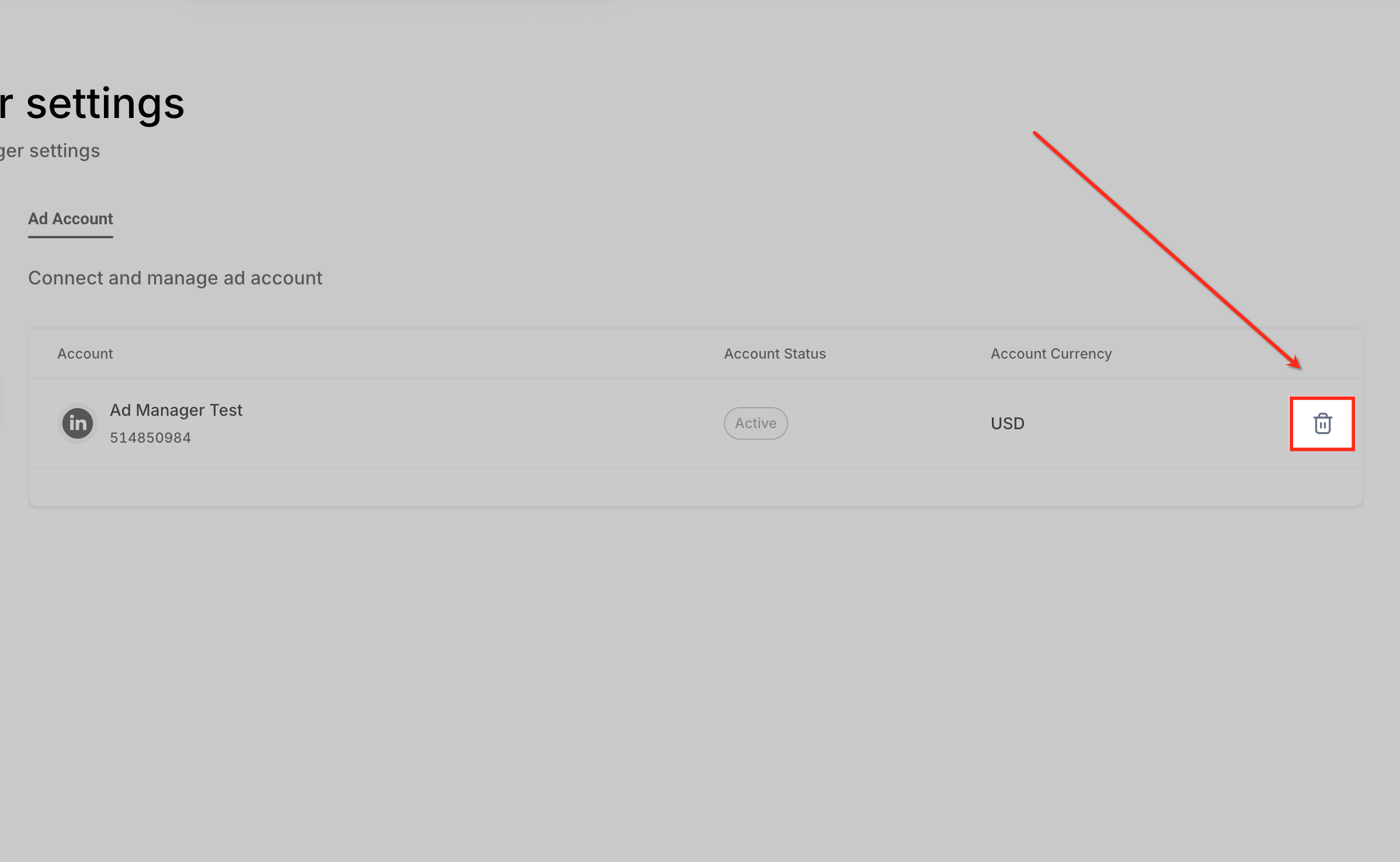
Confirm Successful Connection After signing in and granting permissions, your LinkedIn Ad Account will appear in the LinkedIn section under Ad Manager Settings. You’ll see the account name listed with a green Active status and the associated currency (e.g., USD), confirming that your LinkedIn account is now successfully connected to Patient Copilot Ad Manager.
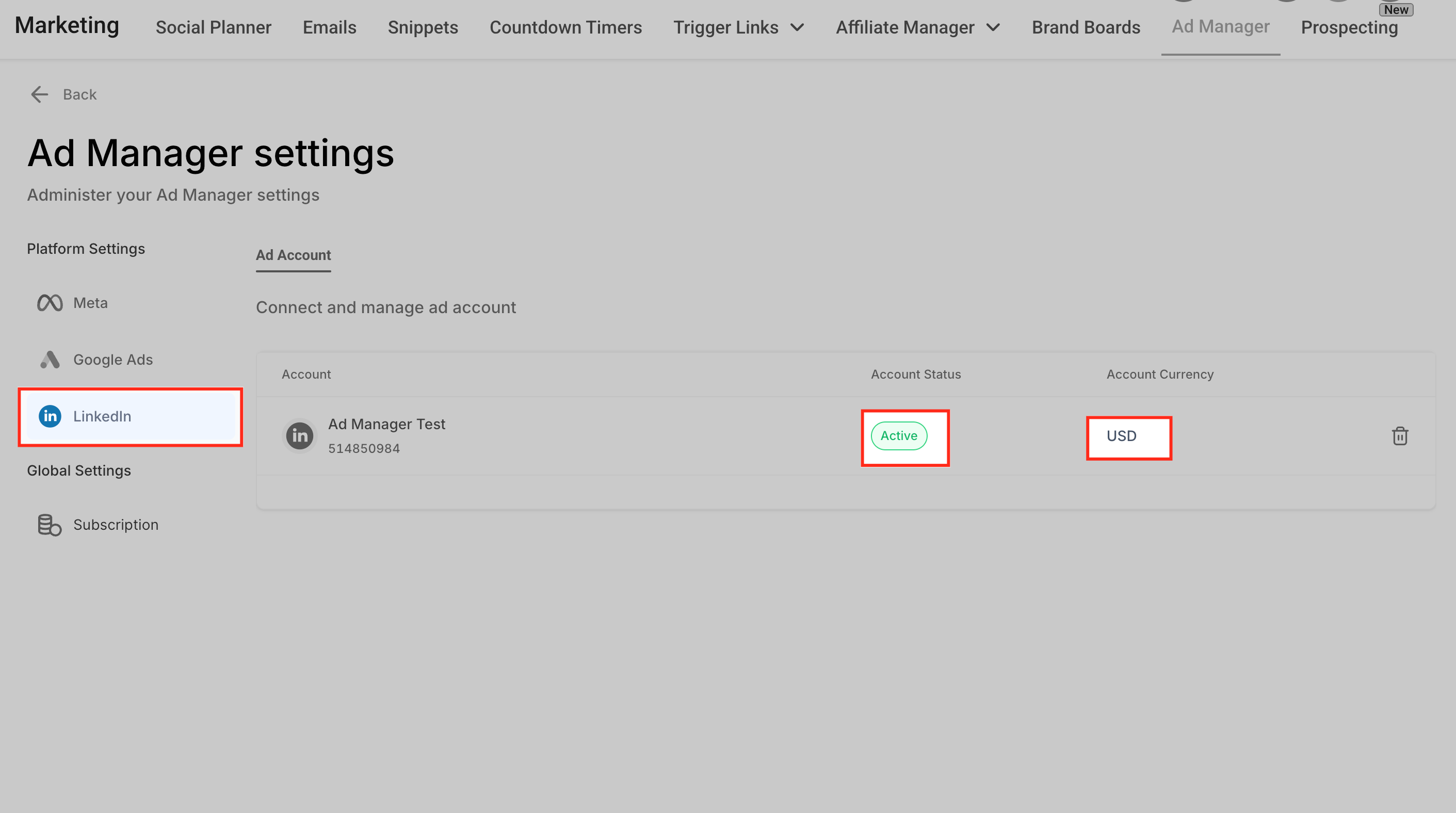
**Notes & Best Practices If your ad account doesn’t appear, check your admin permissions. Each LinkedIn Ad Account must be linked to a Company Page. To disconnect or reconnect, click the bin icon beside the connected account in settings.
**
Campaign Structure in LinkedIn
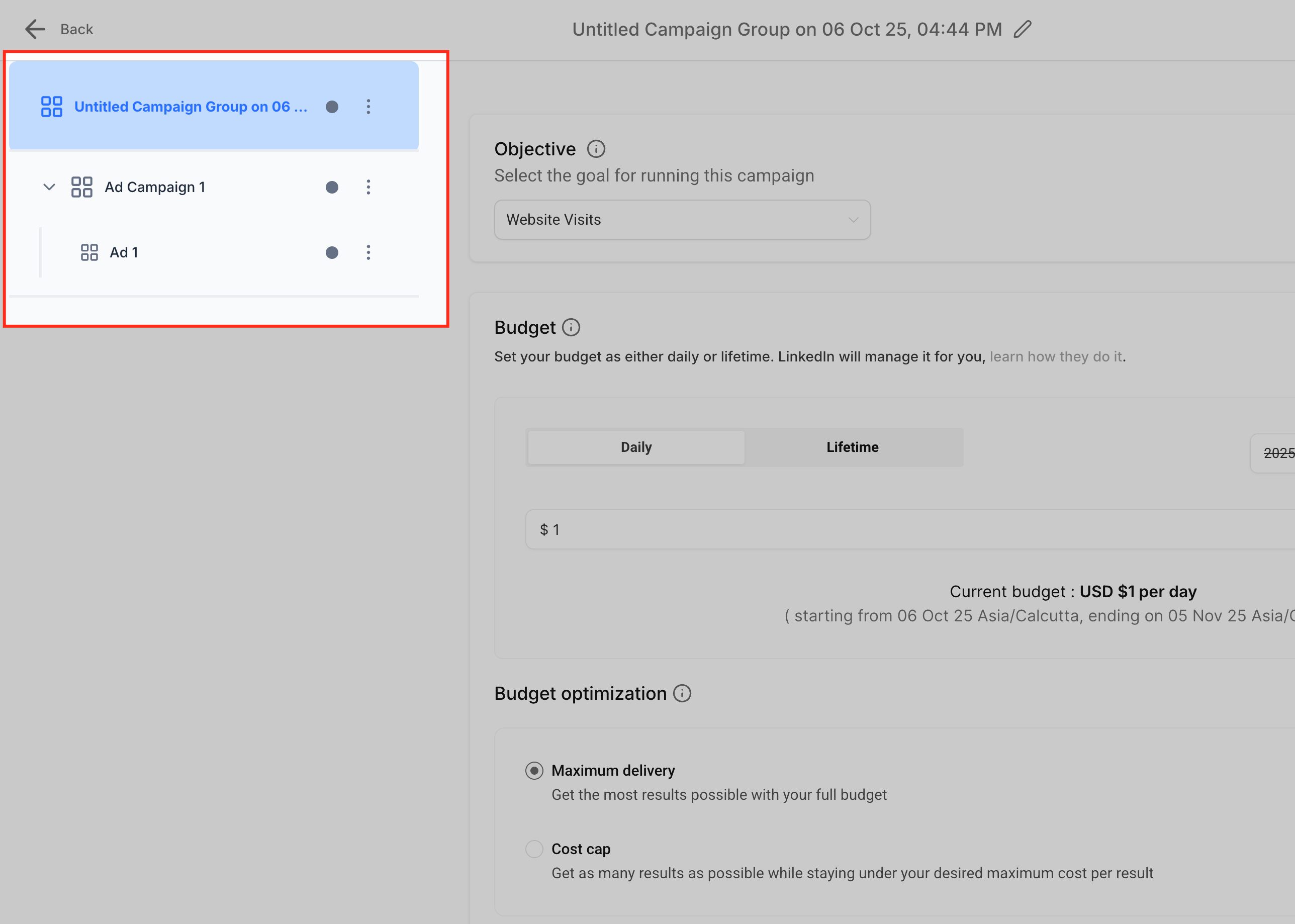
LinkedIn uses a three-tier campaign hierarchy that Patient Copilot mirrors inside Ad Manager. Understanding this structure helps organize campaigns efficiently for tracking and budgeting.
- Campaign Group – Top-level budget container.
- Campaign – Objective, targeting, and spend layer.
- Ad – Creative assets and copy. Multiple campaigns can exist within one group, and each campaign can include multiple ads for A/B testing.
Supported Campaign Objectives
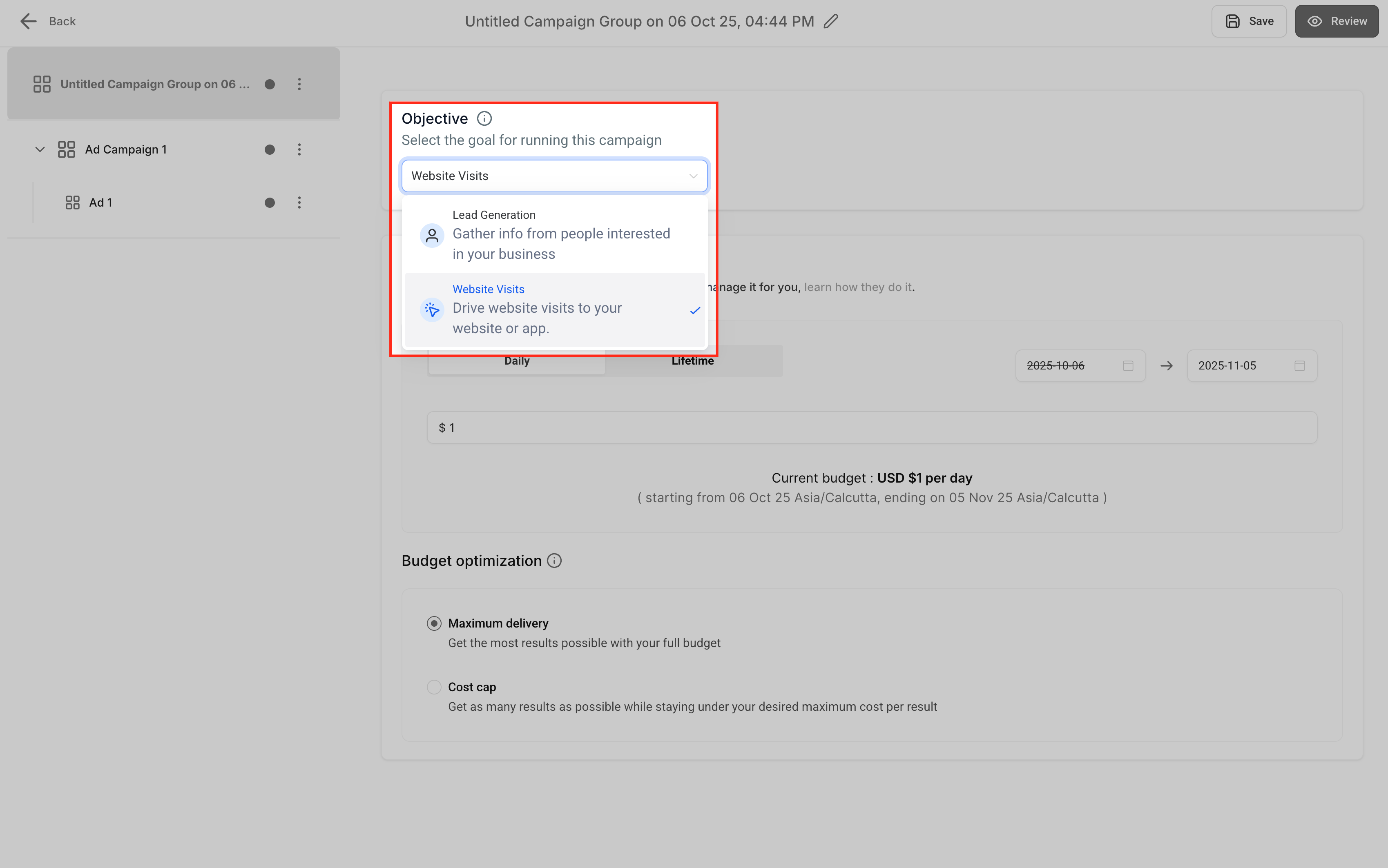
Choosing the correct campaign objective ensures that LinkedIn optimizes delivery based on your marketing goal.
| Objective | Purpose |
|---|---|
| Lead Generation | Capture qualified B2B leads through LinkedIn Lead Gen Forms that automatically sync with Patient Copilot. |
| Website Traffic | Drive verified clicks to your website and validate landing pages before publishing. |
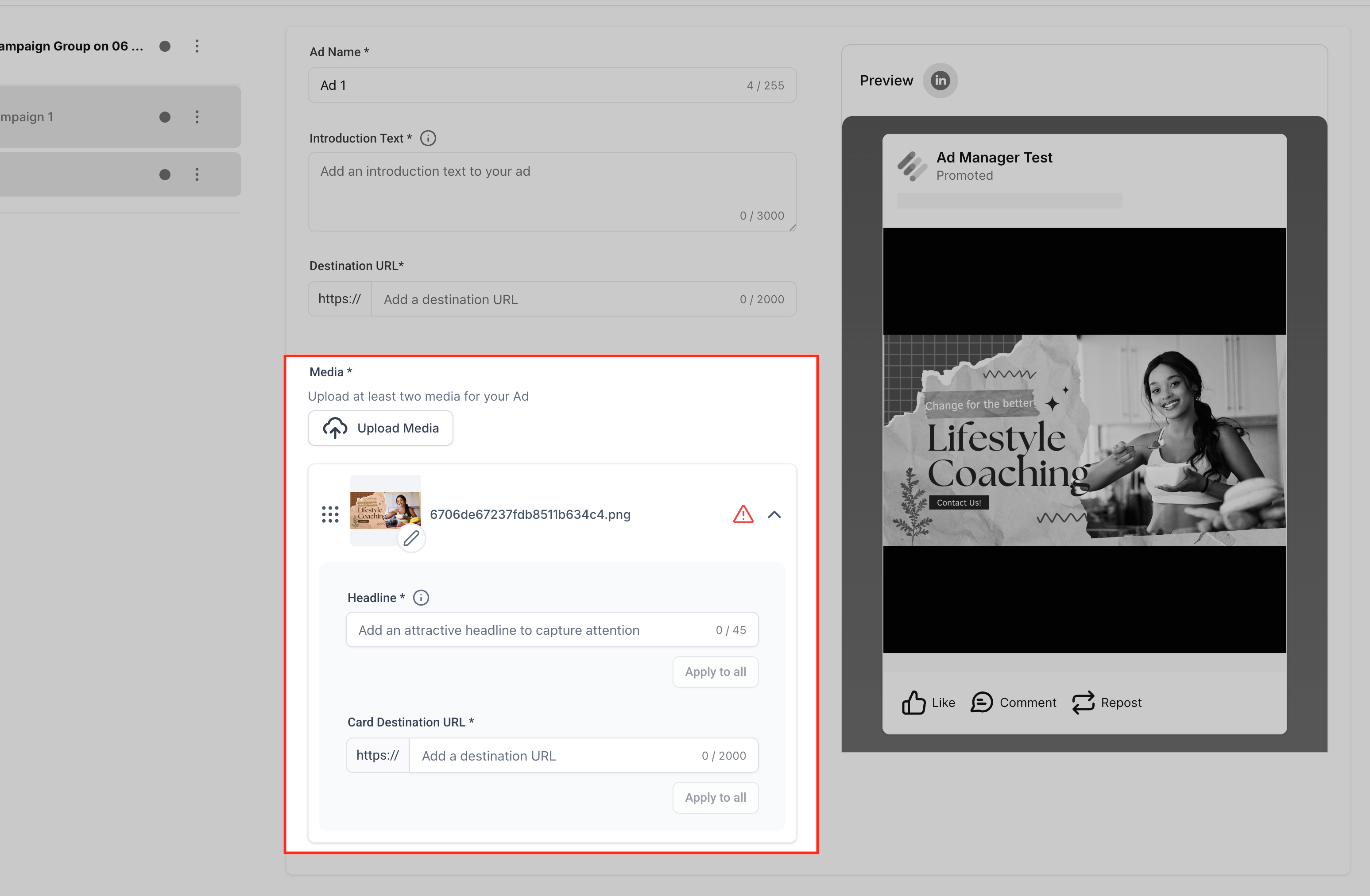
Patient Copilot enables you to build visually engaging ad creatives directly in Ad Manager while previewing how they’ll appear to LinkedIn users.
- Choose an ad format: Single Image, Single Video, or Carousel.
- Add ad components: Introduction, Description, Headline, CTA, and Destination URL.
- Carousel ads allow unique headlines and URLs for each card.
- Use the Live Preview Panel to confirm your ad layout for desktop and mobile before publishing.
Audience Targeting
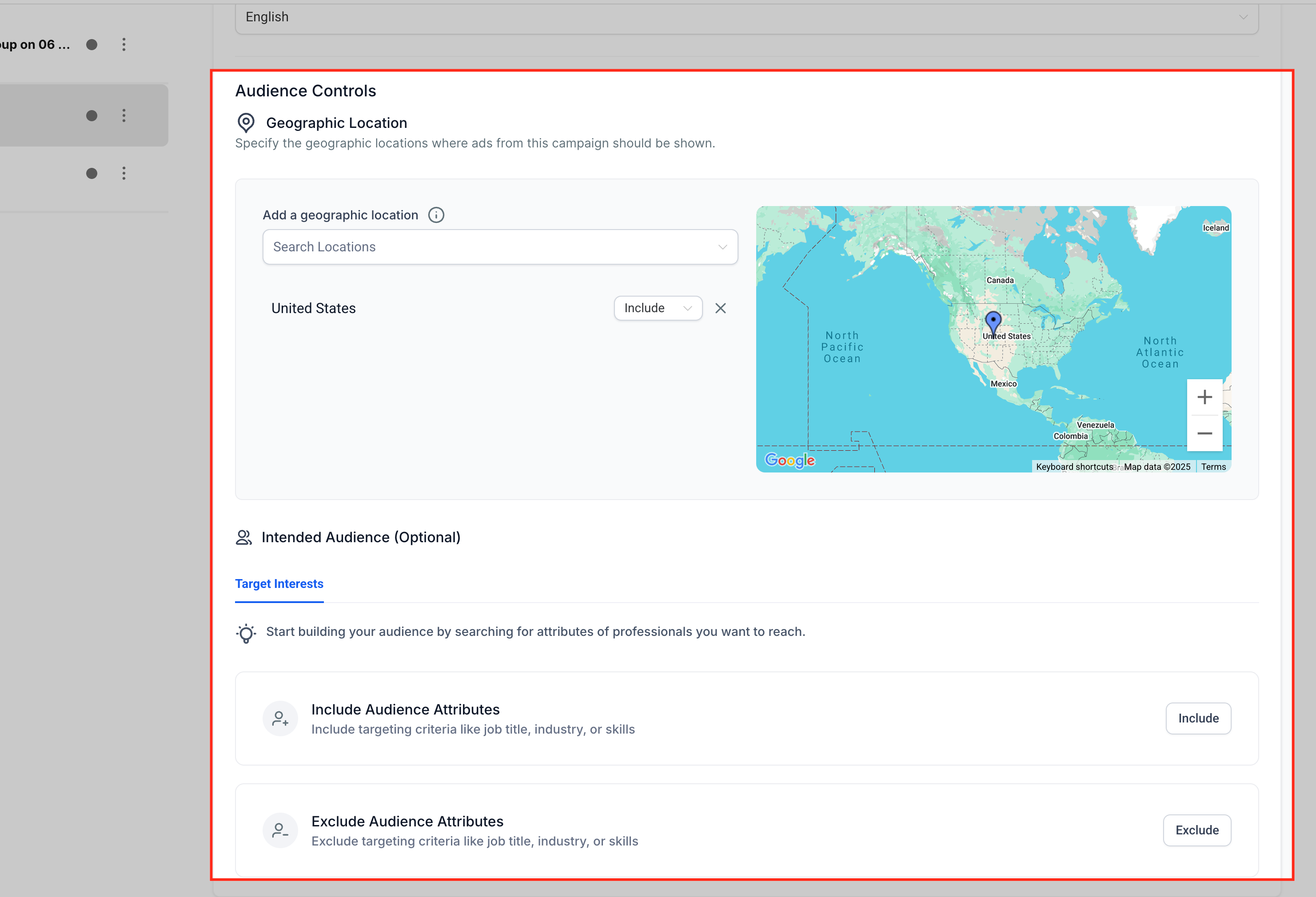
LinkedIn targeting options allow precise audience selection, helping you connect with decision-makers and industry professionals relevant to your offer.
- Begin with a mandatory geographic location.
- Refine targeting by Job Title, Industry, Company Size, Education, Skills, Seniority, Interests, or Traits.
- Create up to three attribute groups using:
- OR logic within each group.
- AND logic between groups.
- Include or exclude attributes for advanced targeting control.
Budget & Schedule
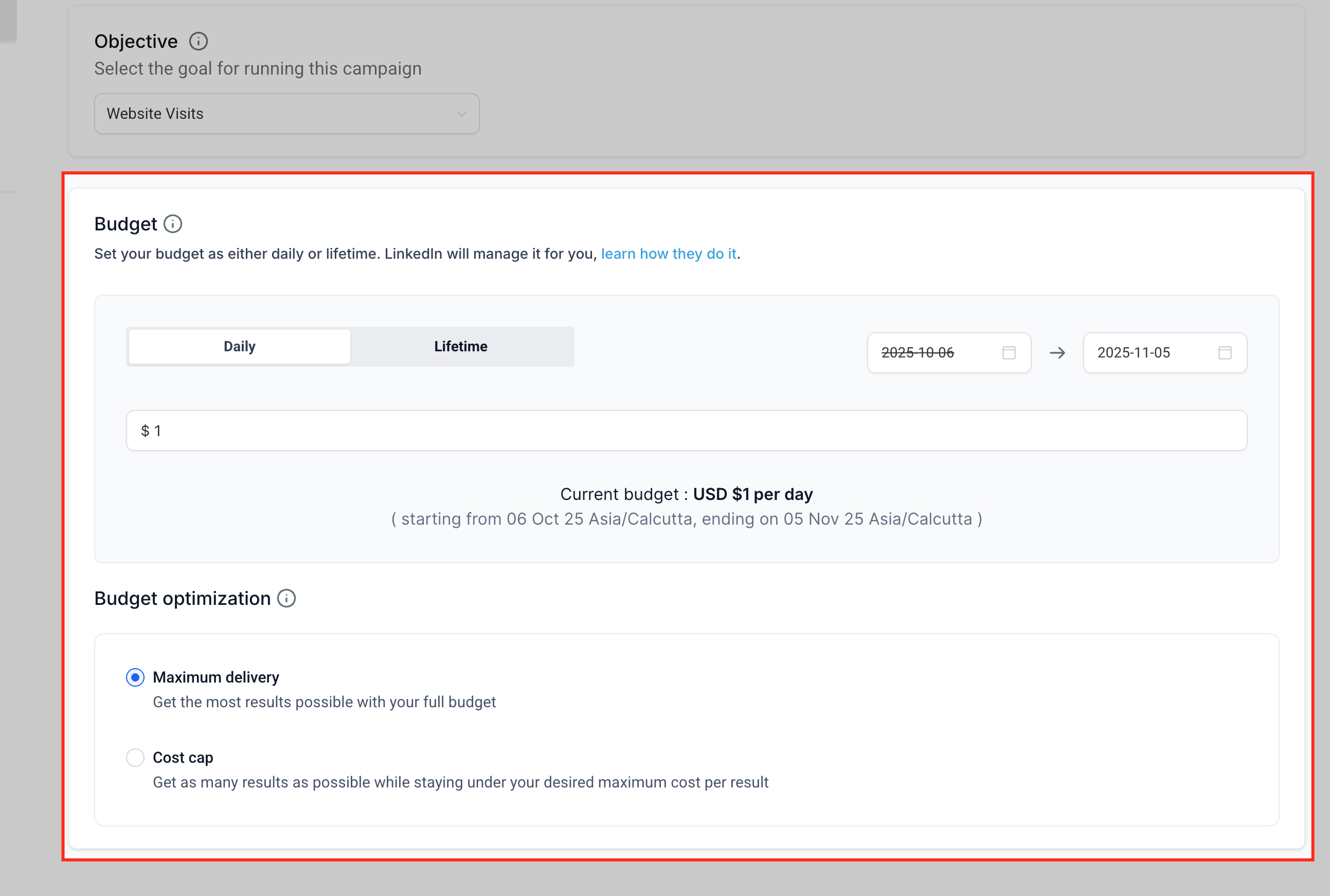
Patient Copilot lets you set and adjust budgets and scheduling parameters directly from Ad Manager, ensuring your campaigns align with your financial and time-based goals.
- Set a Daily or Lifetime budget at the Campaign Group level.
- Choose optimization mode: Maximum Delivery (default) or Cost Cap.
- Launch campaigns immediately or select specific start and end dates for scheduled promotions.
Managing Campaigns and Performance Dashboard
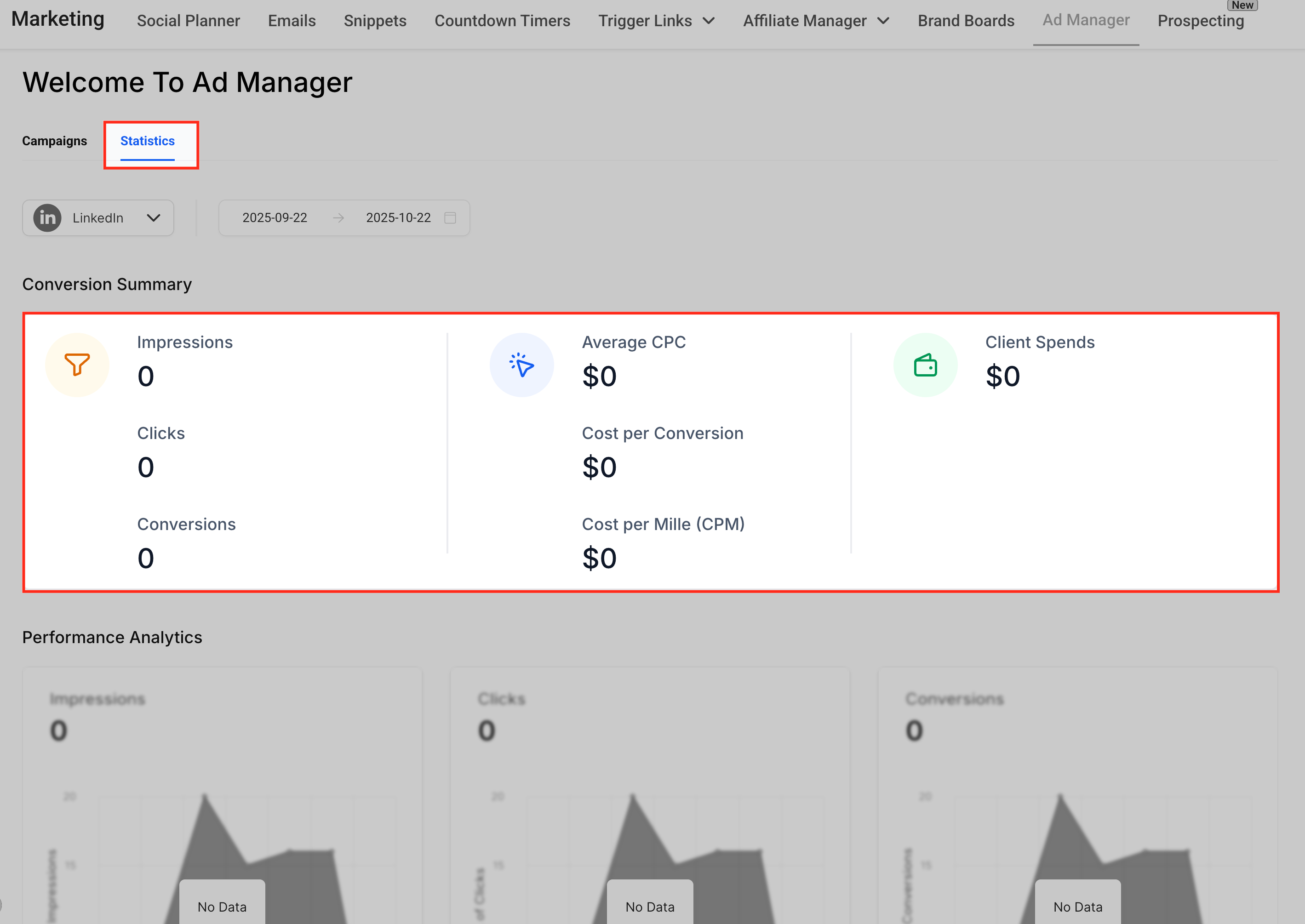
The Performance Dashboard helps you monitor and manage all active LinkedIn campaigns from a single screen. You can view key metrics, pause or edit campaigns, and export detailed reports.
- Go to Ad Manager › Statistics › LinkedIn tab.
- Track metrics such as Impressions, Clicks, CTR, CPC, CPM, CPL, Leads, Spend, and Conversions.
- Drill down from Campaign Group to Campaign or Ad level for deeper insights.
- Pause, resume, or edit campaigns directly from the dashboard.
After connecting your LinkedIn account, you can build your first campaign directly from Ad Manager. Follow these steps to create and publish your ad. 1. Go to Marketing › Ad Manager › Settings › LinkedIn and click + Create Campaign. 2. Select your campaign Objective (Lead Generation or Website Traffic). 3. Add creatives: image, video, or carousel, including headline, description, CTA, and destination URL. 4. Define your Audience Targeting parameters. 5. Choose Daily or Lifetime Budget, optimization mode, and schedule. 6. Review the campaign summary and check the live preview. 7. Click Publish — Patient Copilot pushes your campaign to LinkedIn Campaign Manager and begins tracking results immediately.
Frequently Asked Questions
Q: Do I need Admin access on the LinkedIn Page to connect the ad account?
Yes. You must have “Campaign Manager” or higher access, and the Page must already be linked to the Ad Account. Q: Can I connect multiple LinkedIn Ad Accounts to one Patient Copilot sub-account? Yes. You can connect multiple accounts and toggle between them under Ad Manager › Settings › LinkedIn. Q: Where do LinkedIn leads appear inside Patient Copilot? Leads from LinkedIn Lead Gen Forms automatically appear under Contacts with the source “LinkedIn Ads.” Q: My LinkedIn account isn’t appearing—what should I check? Verify that you have admin-level permissions on the ad account and that it’s linked to a valid Company Page. Q: Can I disconnect and reconnect my LinkedIn account? Yes. Click the bin icon under Settings › LinkedIn to remove or reconnect an account. Q: Are carousel ads supported for all objectives? Yes—carousel format is available for both Lead Generation and Website Traffic campaigns. Q: What happens if my LinkedIn ad is disapproved? The ad’s status displays as “Rejected” in Patient Copilot, along with LinkedIn’s feedback for resubmission.