
Upsell Products in Online Store checkouts
Store owners can now increase their average order value by upselling additional products after users complete their checkout. In a few clicks, store owners can build upsell funnels for their entire customer journey from Checkout Page to Thank You Page and maximize revenue on every sale.
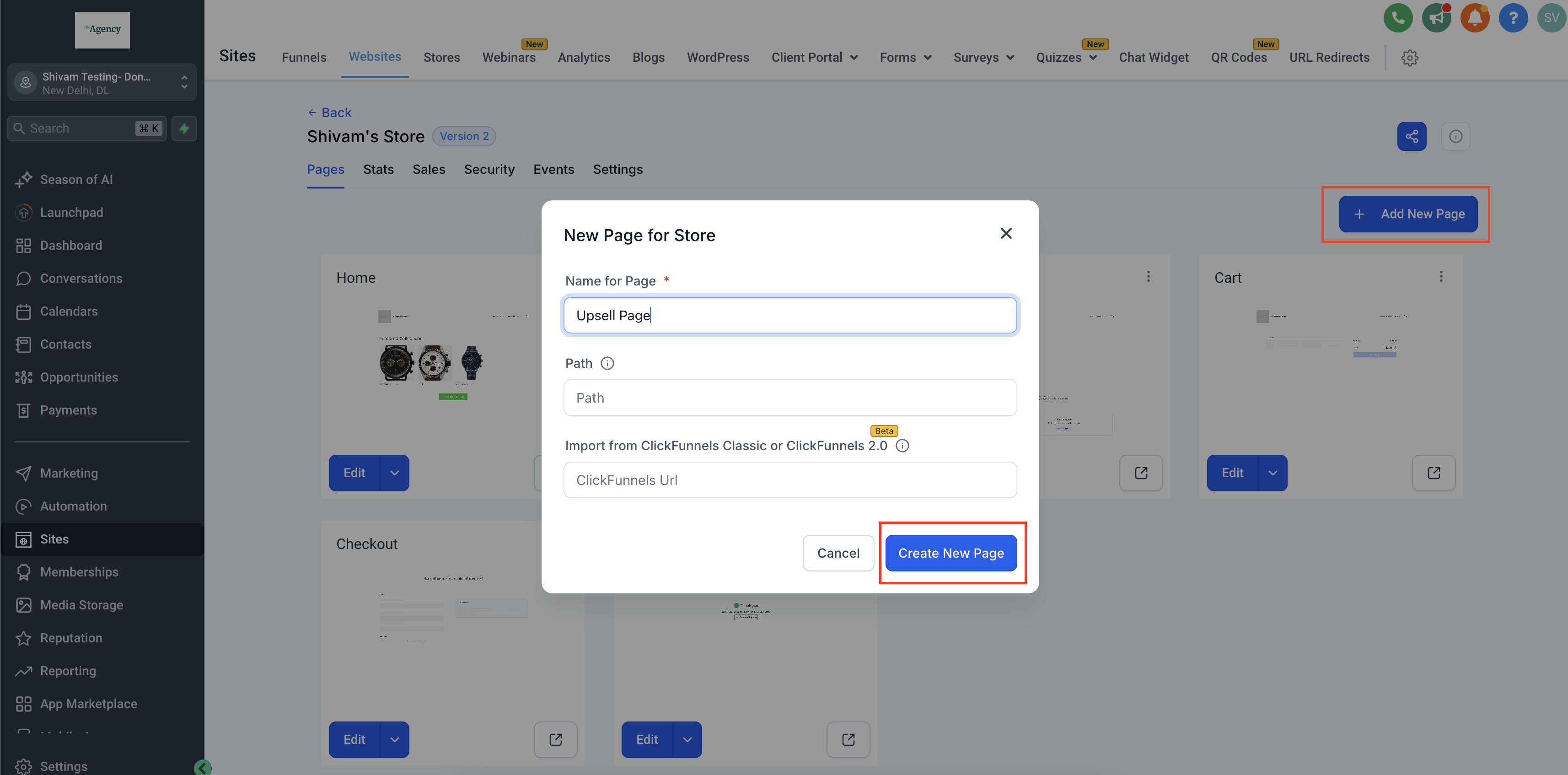
- Upsell page: Create a new page for Upsell along with the current store pages. Add a full width section and a row in it.
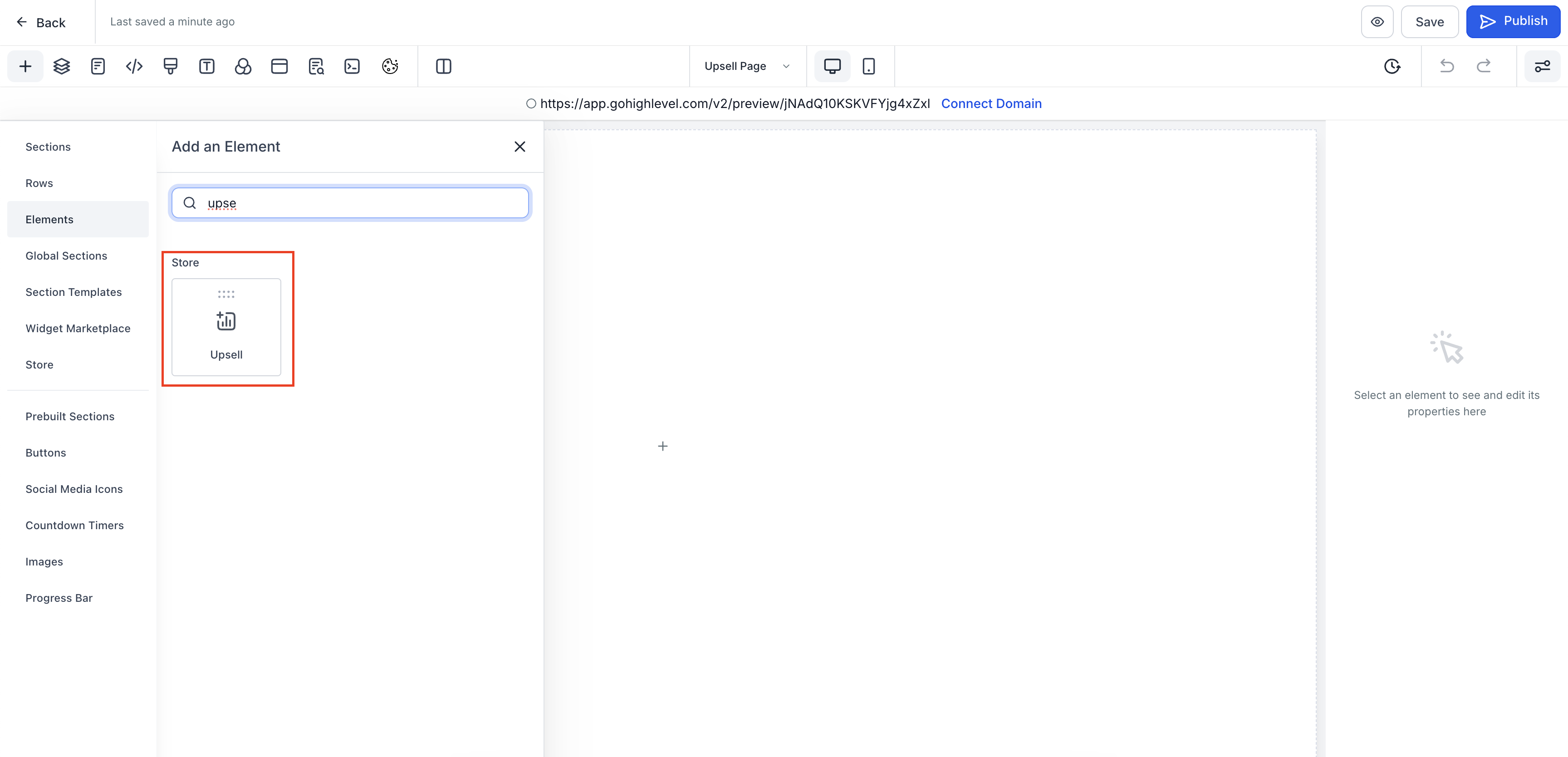
- Adding Upsell element: Click on Add Element button then drag and drop the Upsell element in the row. Store owners can add multiple upsell components in different columns in a row.
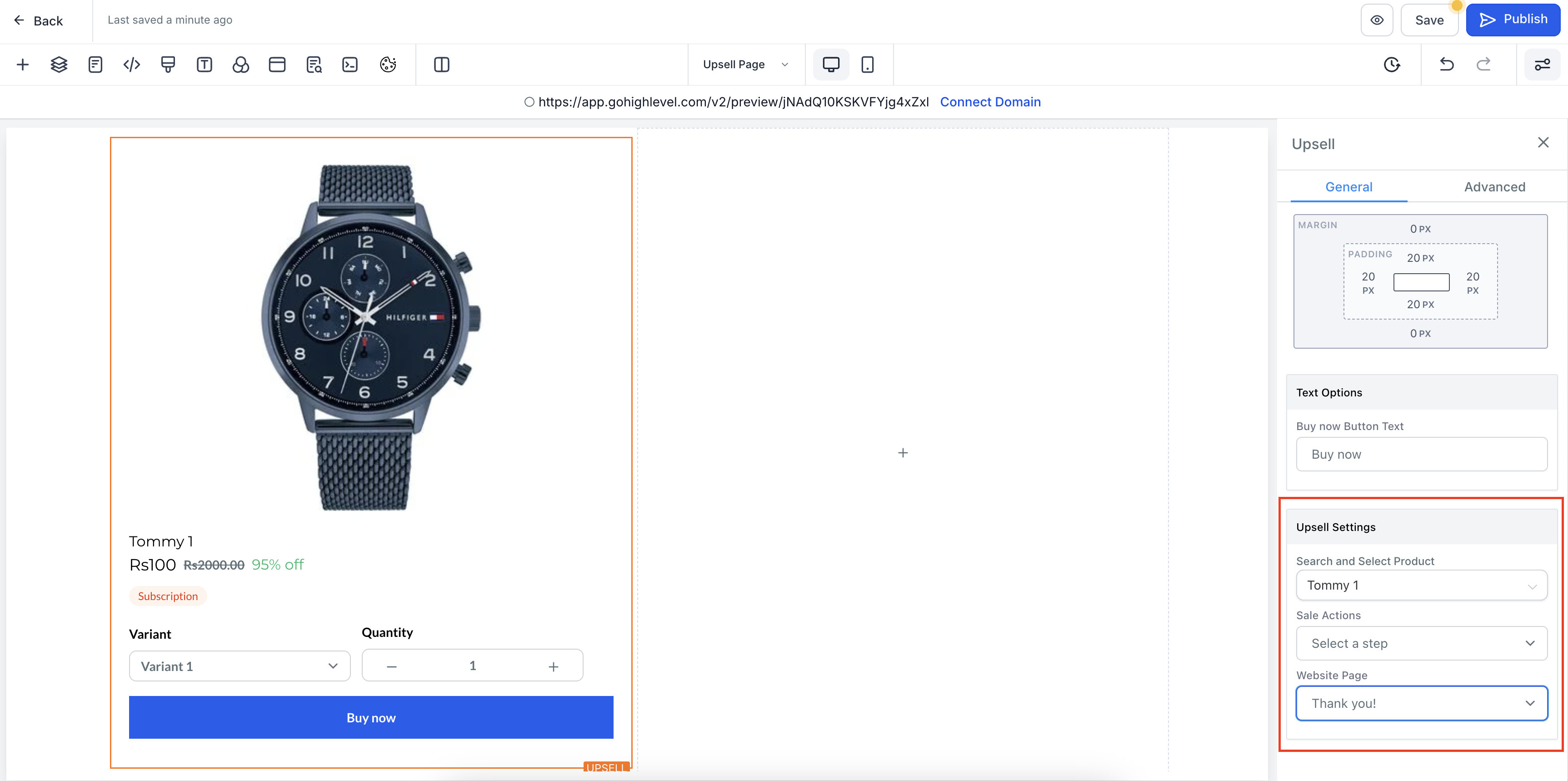
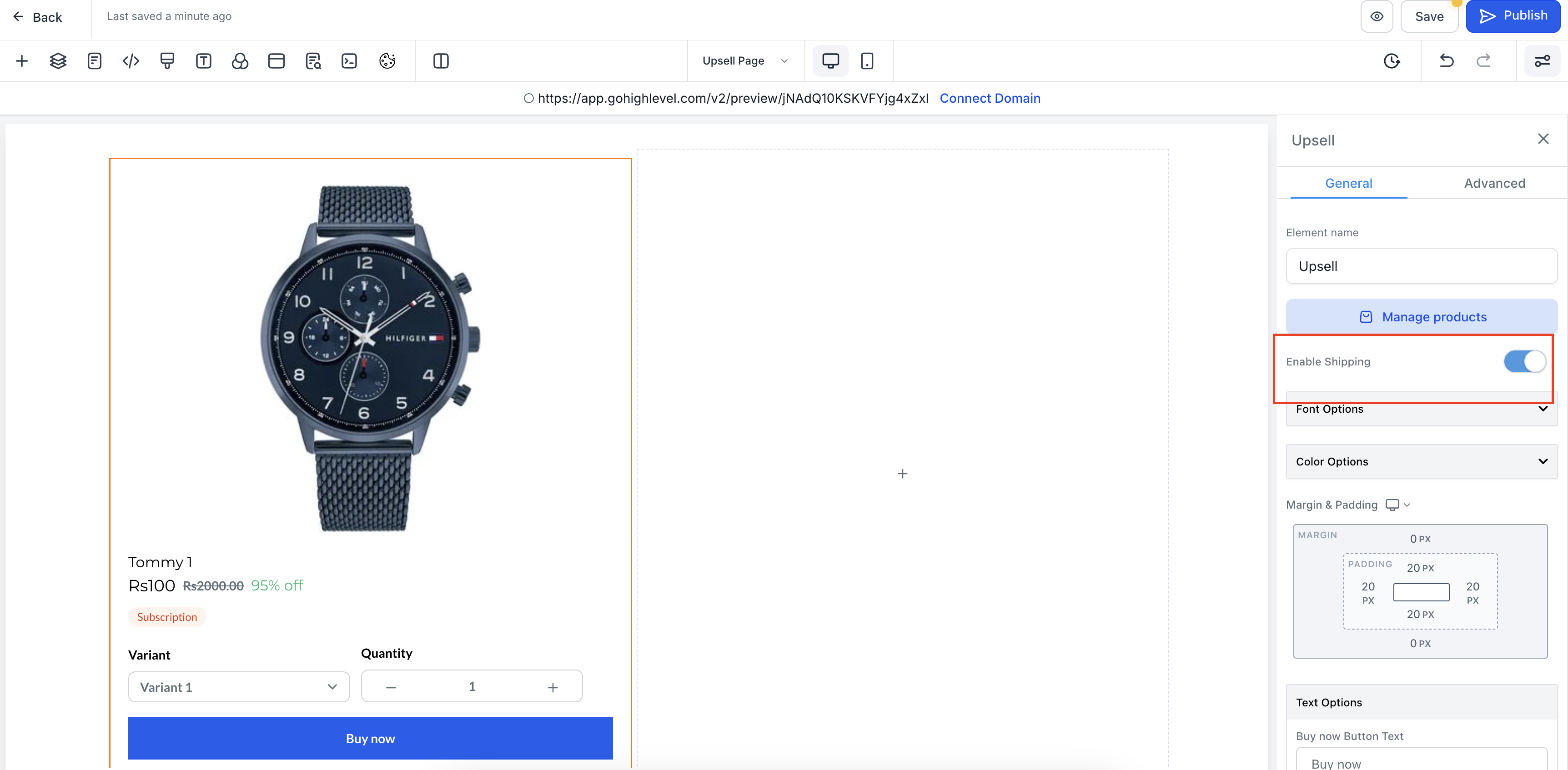
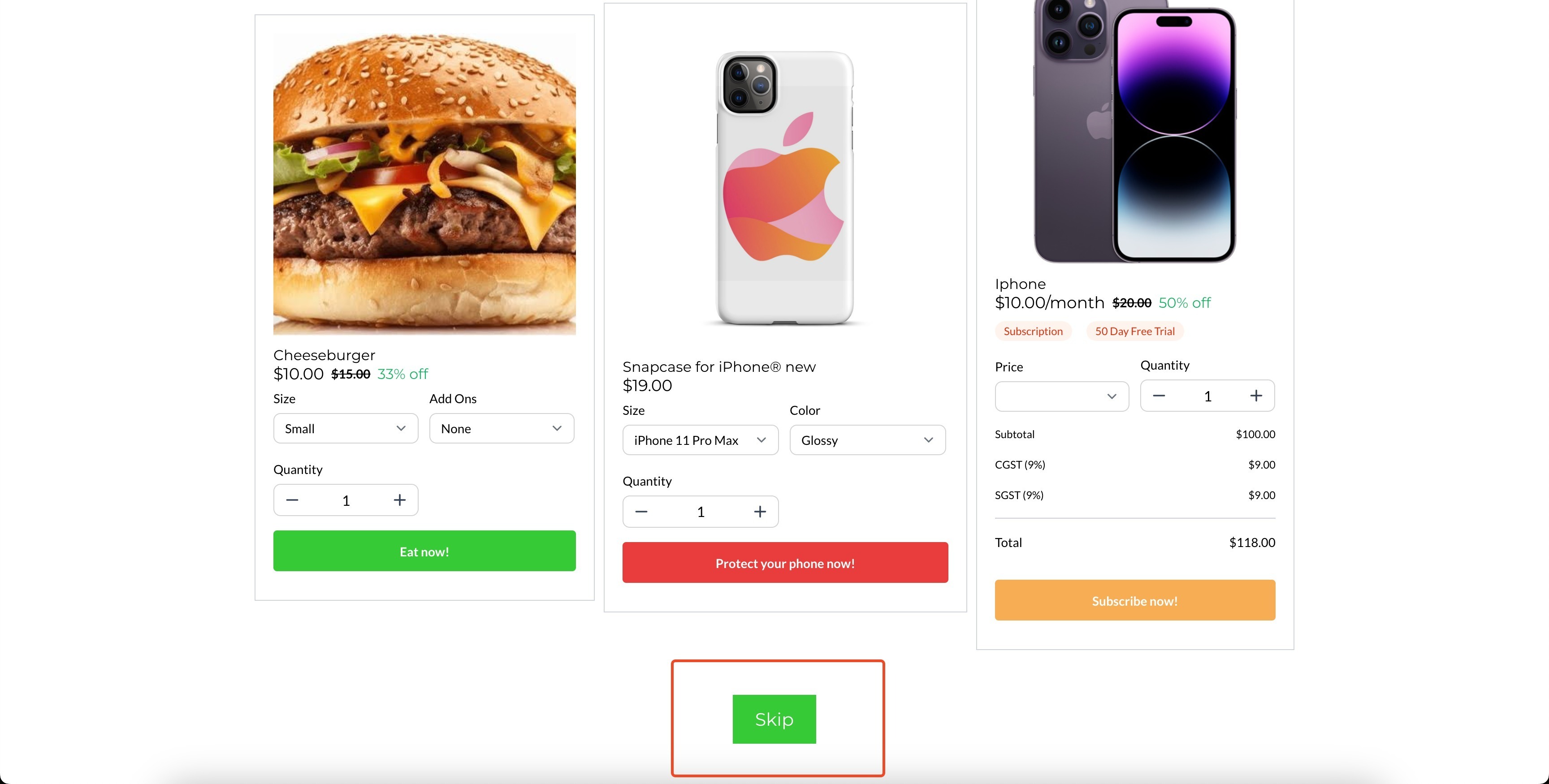
- Configuring the Upsell element: Select the upsell element to configure its settings. 1. Store owners can enable or disable the shipping charges for each Upsell element by enabling/ disabling the toggle in the builder preview. 2. In Upsell settings, user can Search & select the product. Then, Sale Action needs to be configured which decides the redirection after clicking on Buy now button. The redirection can be done to another upsell page or the Thank you page. 4. Skip action for Upsell page: Upsell can be skipped by adding a Button whose Button action can be linked to Thank you page.
- Configuring checkout page: Sale Action has to be chosen as Go to page and Website page has to be selected as the newly created Upsell page.
- Upsell element needs to be added after checkout on a new page, if it is added before checkout it will lead to error. For smooth experience it is recommended to create a new page for Upsell of any product.
- If the Upsell product is purchased, it will create a separate order.
- Shipping options can be enabled or disabled for upsell products. If enabled, users can choose shipping rates from a dropdown in the Upsell component.
- To skip the upsell page, a button must be added to redirect users to the Thank You page without requiring a purchase. Otherwise, users must complete a purchase to access the Thank You page.
- For the best upselling experience, it’s recommended to create a dedicated page featuring the Upsell element. Follow these Steps: 1. Add a New page to add Upsell element:
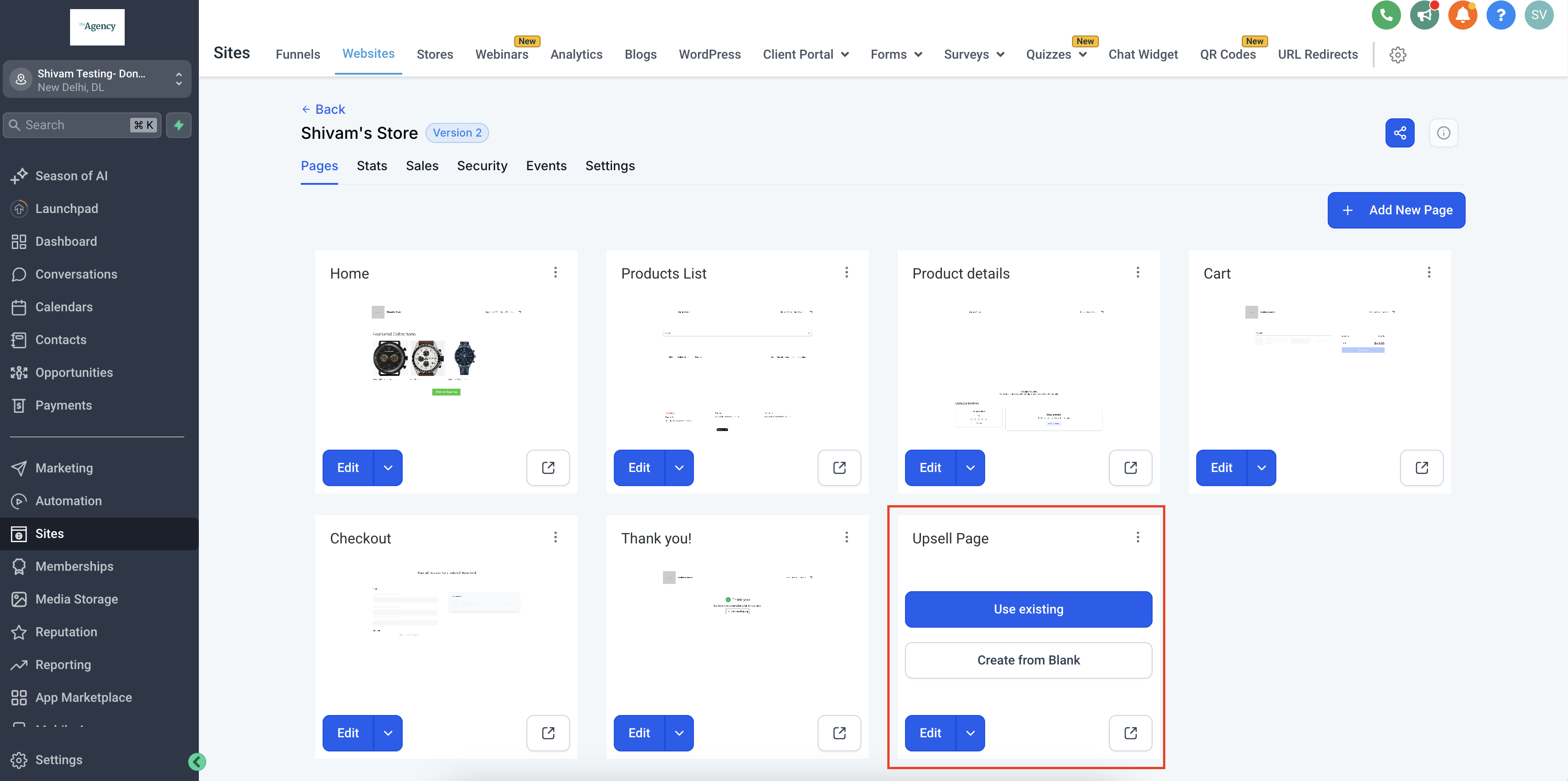
Click on Edit Page:
2. Add Upsell Element:
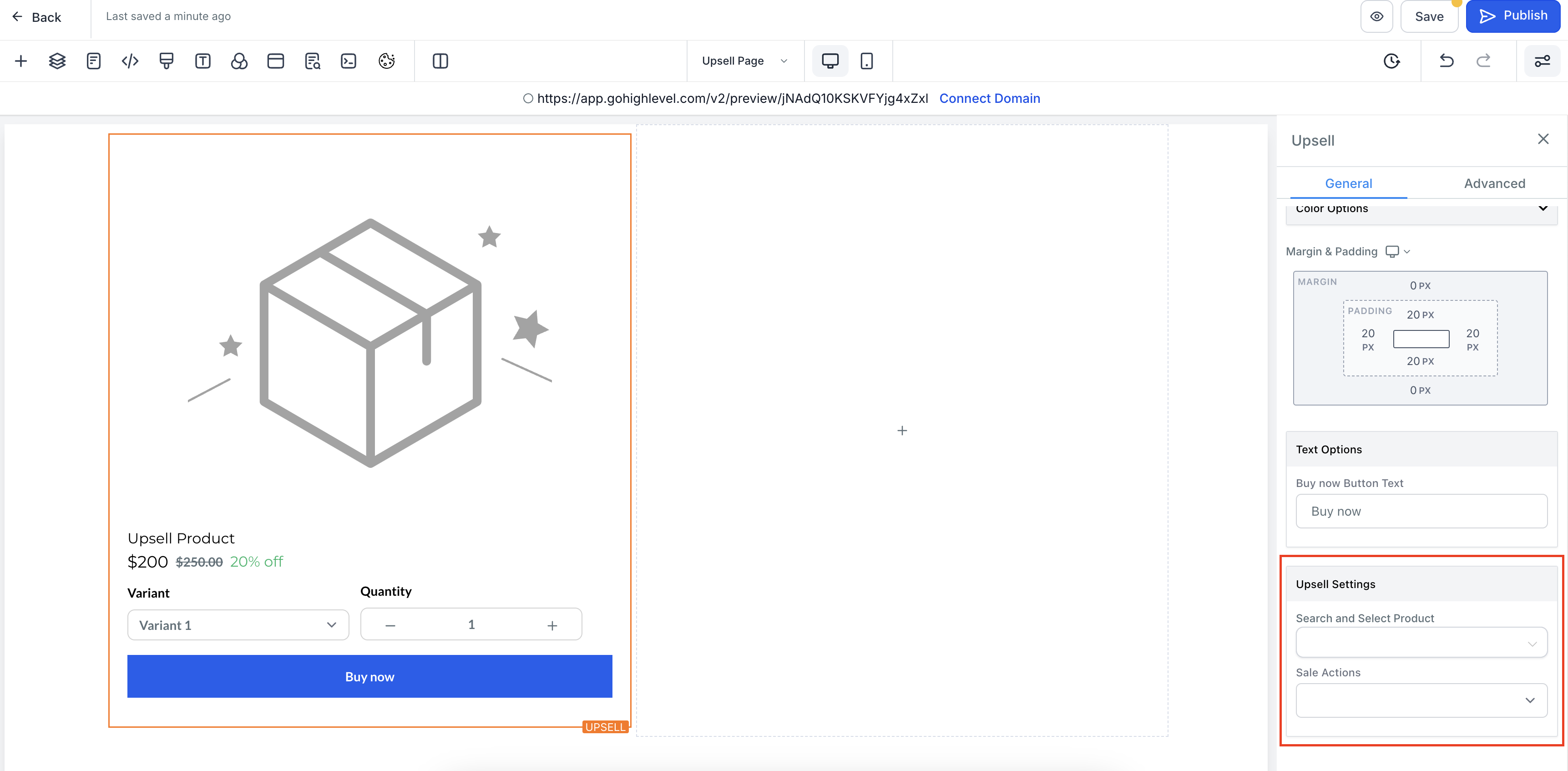
3. Make the following configuration in Sale Actions and Website Page for Upsell element. You can add a Button to skip Upsell action incase user doesn’t want to buy anything:
Enable disable shipping for Upsell elements in the builder:
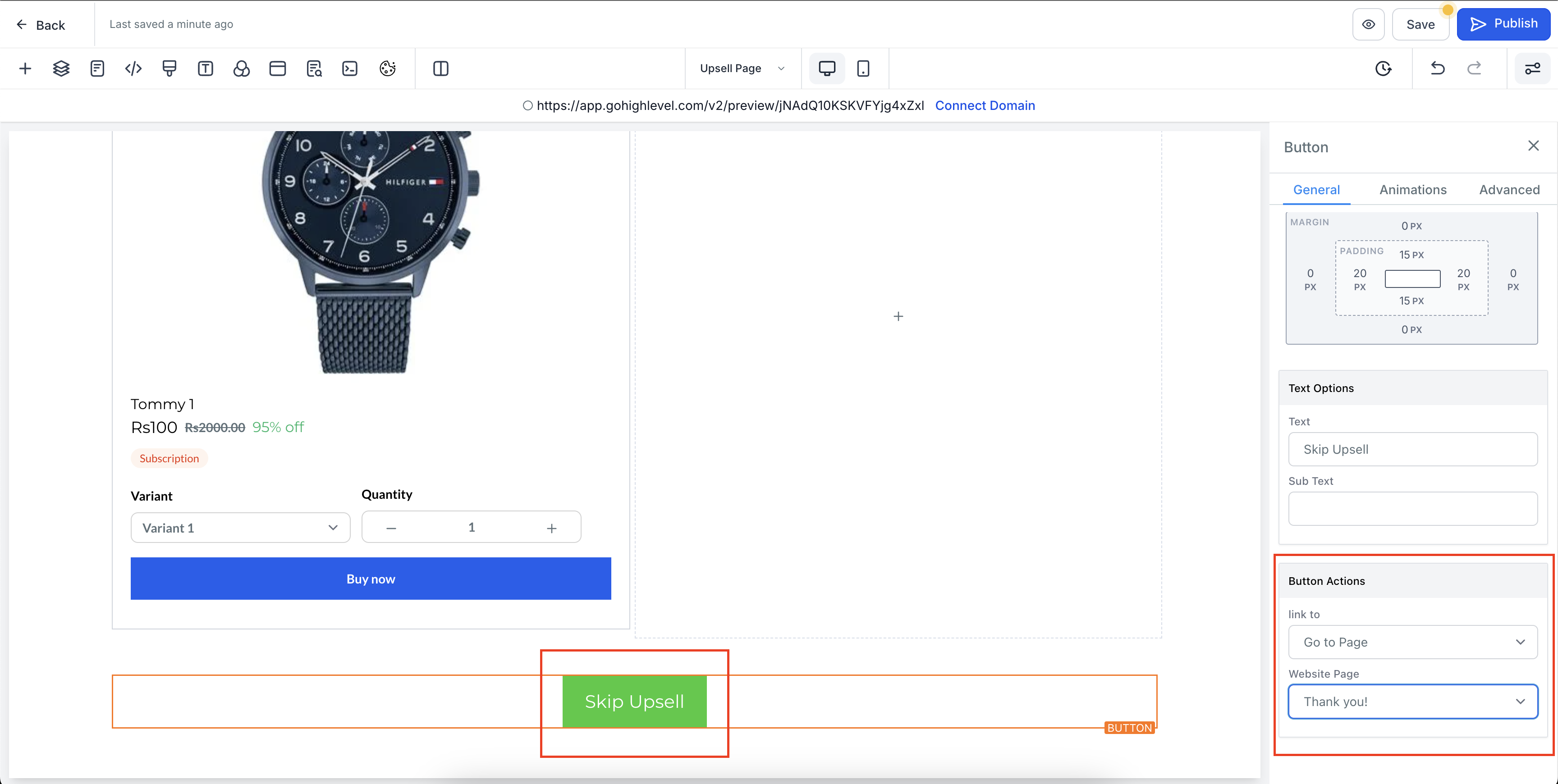
Note: Please add this step, else user will be stuck on Upsell page and needs to purchase an Upsell item to move to next step. 4. Change redirection of Checkout page to Upsell page to take user after checkout to Upsell page that you created earlier: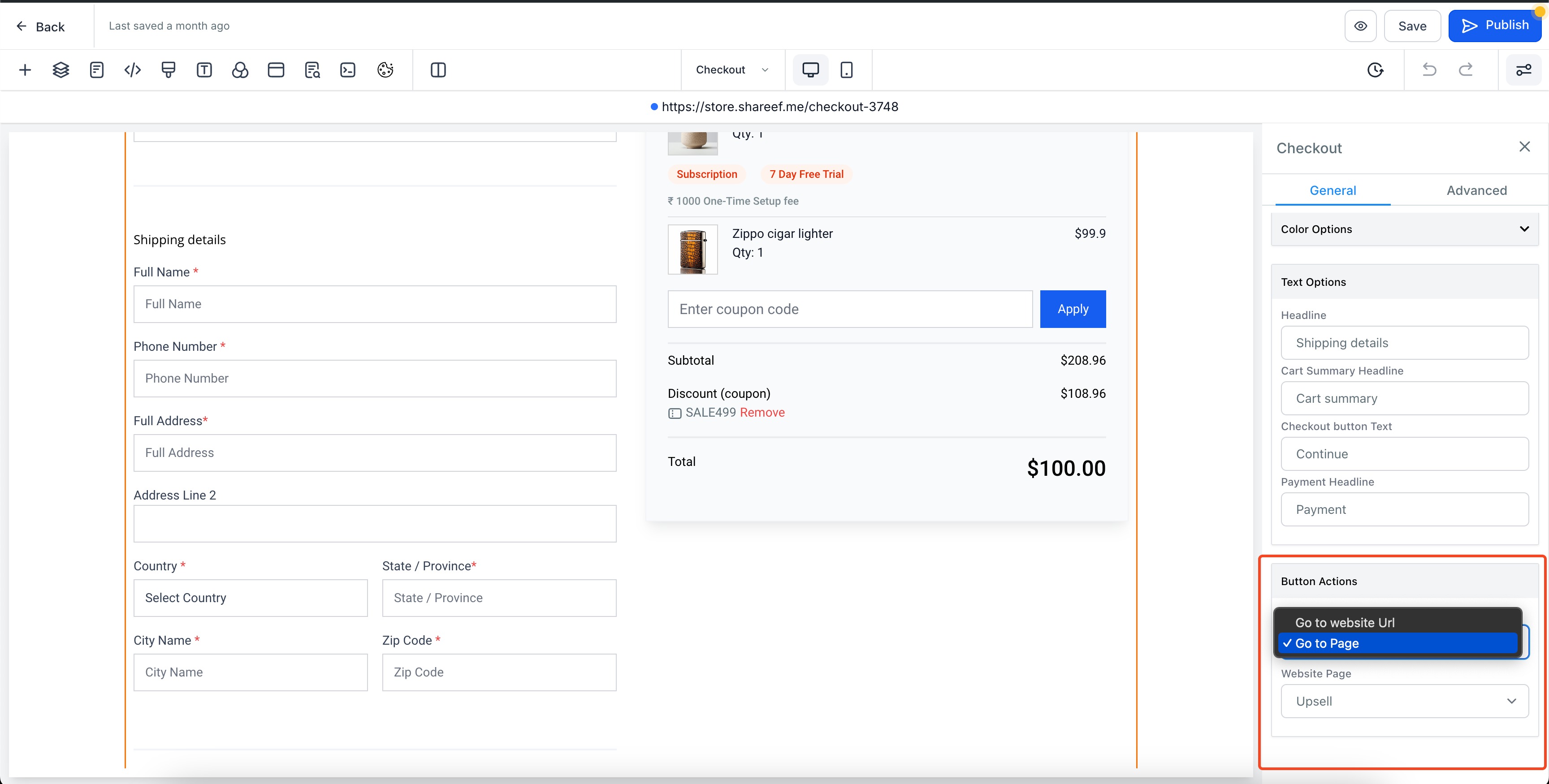 Final Preview:
 Was this article helpful? That’s Great! Thank you for your feedback Sorry! We couldn’t be helpful Thank you for your feedback Feedback sent We appreciate your effort and will try to fix the article