
Bulk Import Custom Object Records (CSV) with Bulk Actions
Bulk importing Custom Object records lets you quickly onboard large datasets while maintaining clean, conflict-free records. With create/update options, unique-field dedupe controls, and detailed import reporting, teams can scale Custom Object setup without losing accuracy. A dedicated Bulk Actions page adds operational control like pause, resume, and cancel so you can manage imports confidently.
**Key Benefits of Custom Object Bulk Import **
Reliable bulk imports reduce manual work and help keep Custom Object data consistent as it grows.
- Faster Onboarding: Import large sets of Custom Object records from a CSV instead of creating records one-by-one.
- Flexible Import Modes: Create, Update, or Create + Update records depending on your use case.
- Cleaner Data with Dedupe: Use unique fields to prevent duplicates and reduce record conflicts.
- Operational Control: Pause, resume, or cancel imports from the Bulk Actions page.
- Better Visibility: View import stats, row-level errors, warnings, and resolution guidance.
**How To Setup Custom Object Bulk Import **
A clean CSV and correct mappings are the difference between a smooth import and a long troubleshooting cycle. Following a consistent setup process helps you avoid duplicates, reduce row-level errors, and ensure records are created or updated accurately. 1. Open Custom Objects in your sub-account and select the Custom Object you want to import records into. **
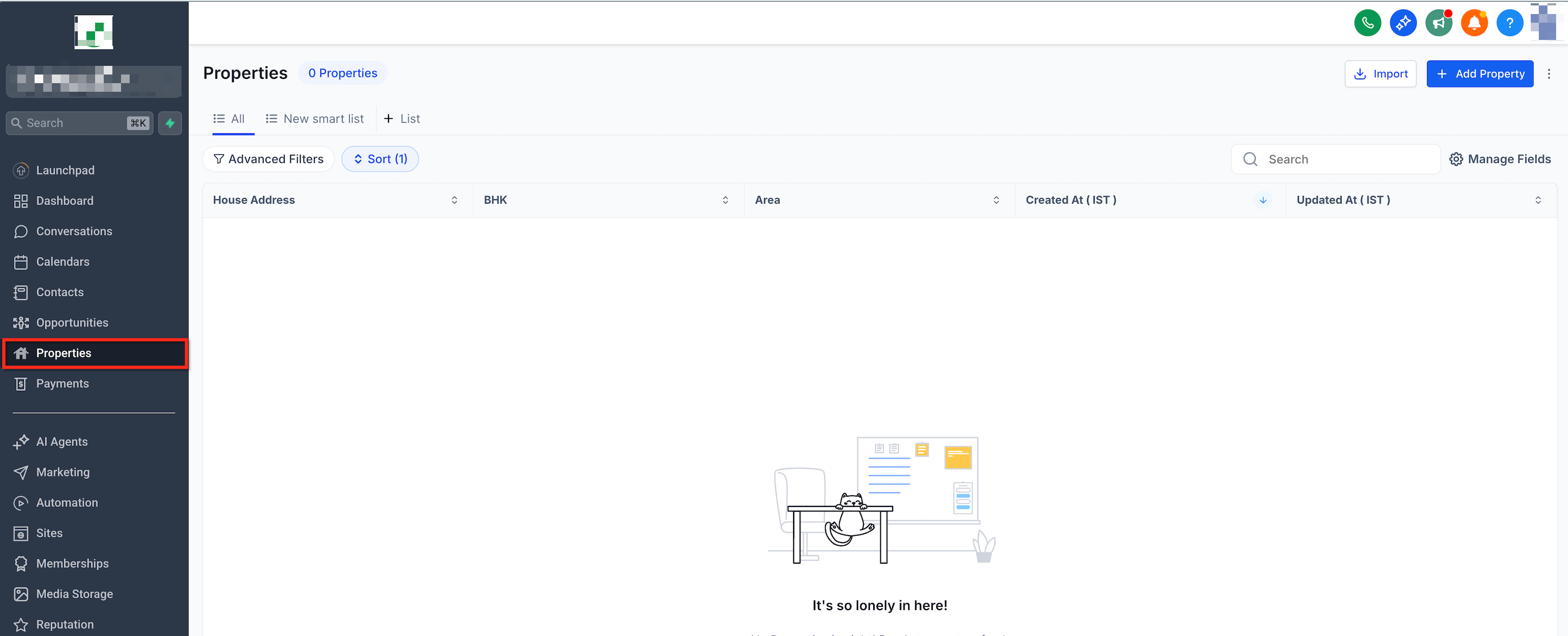
** 2. Click Import (top right). **
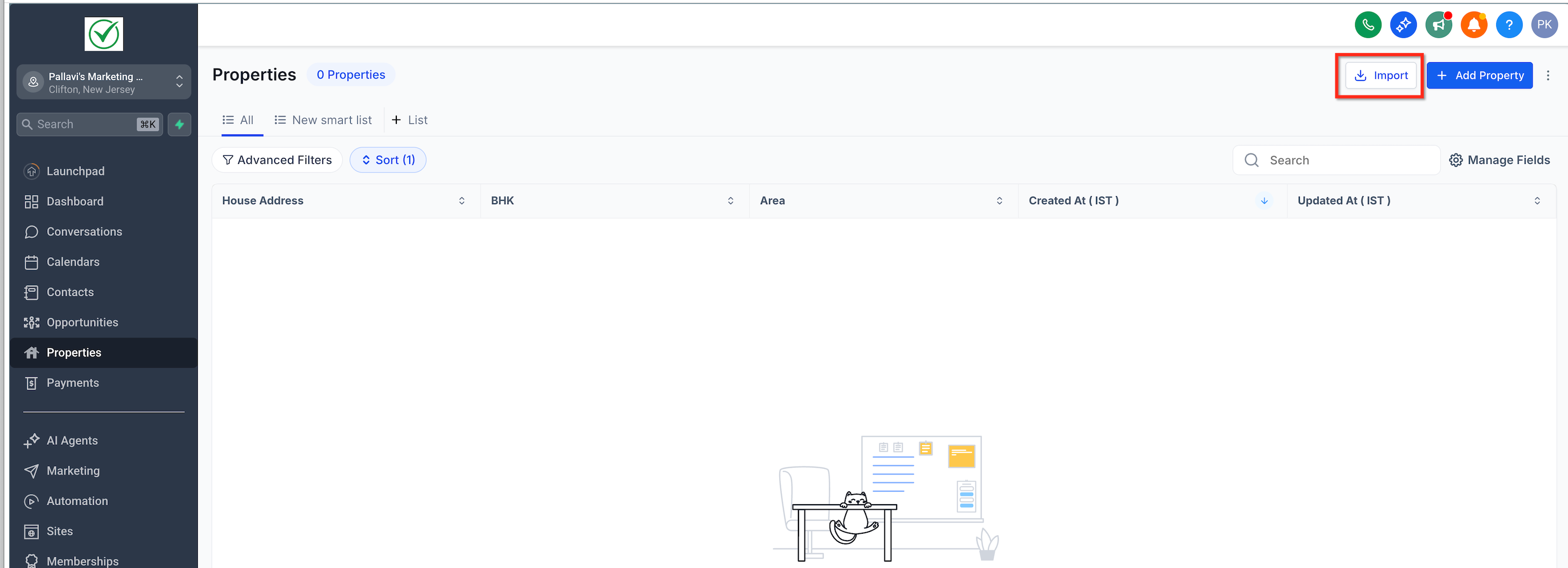
** 3. Select objects to start importing. **
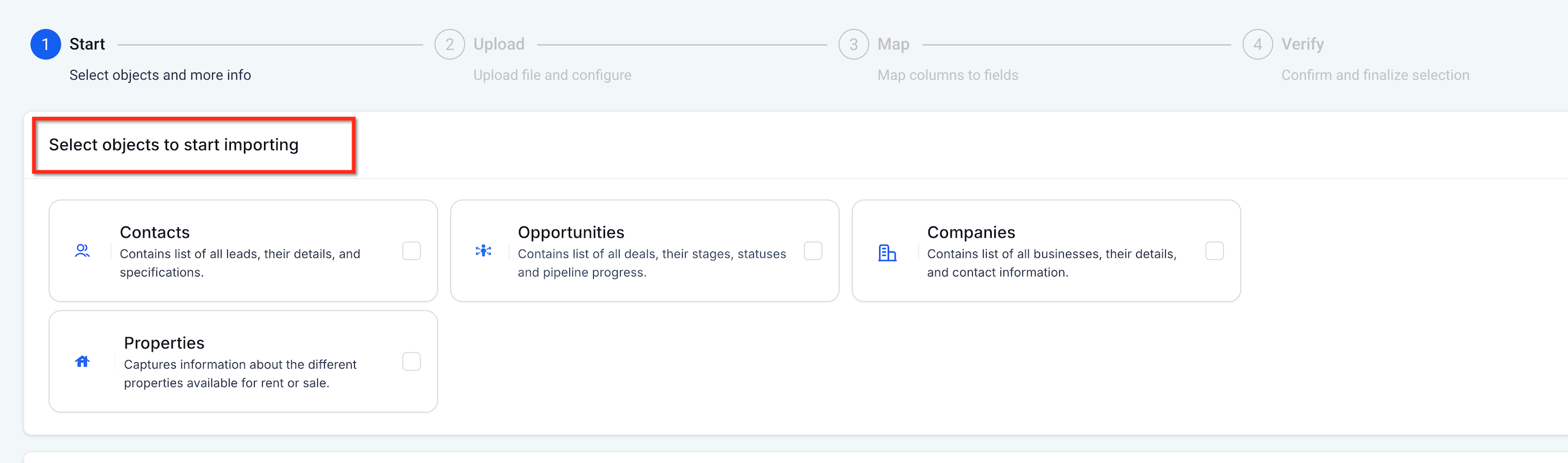
** 4. Choose an import mode: Create & Update.
- If prompted, select the dedupe unique field (only appears when multiple unique fields are mapped). **
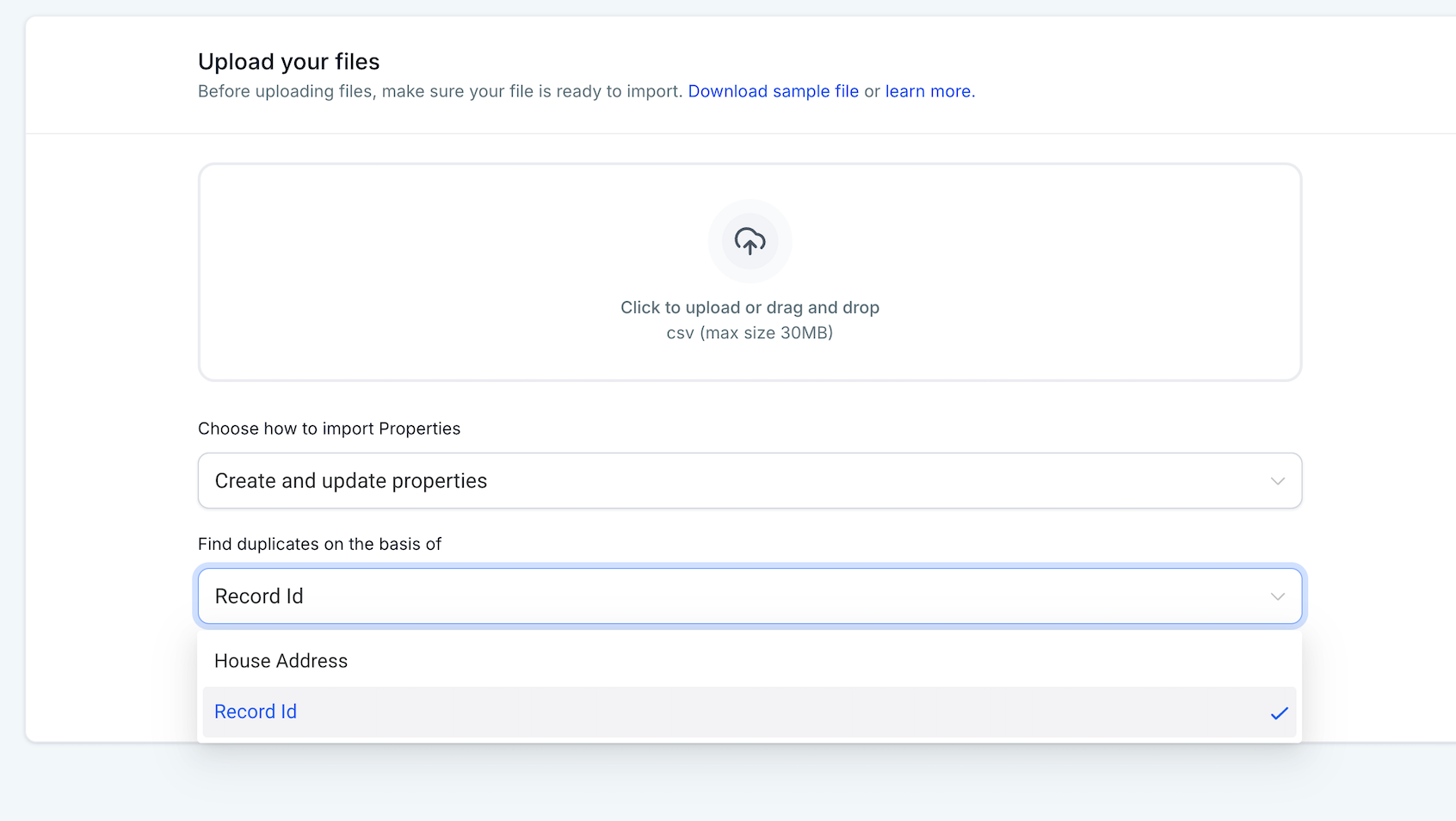
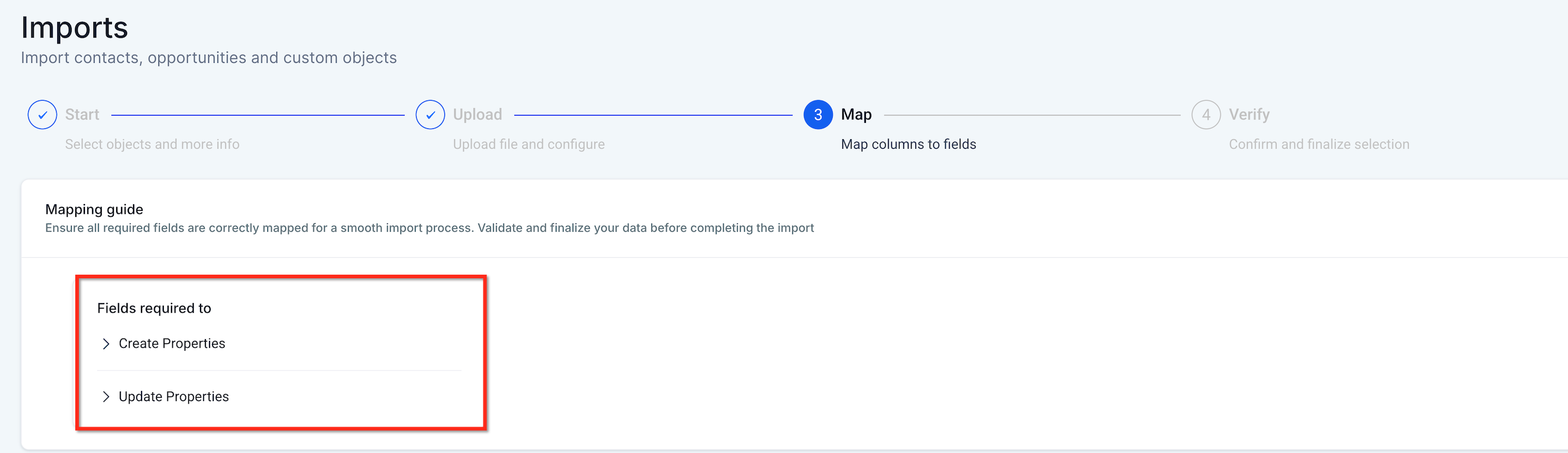
** 6. Map your fields:
- Map Primary/Required fields first - Then map additional fields (including Owner and Followers, if needed)
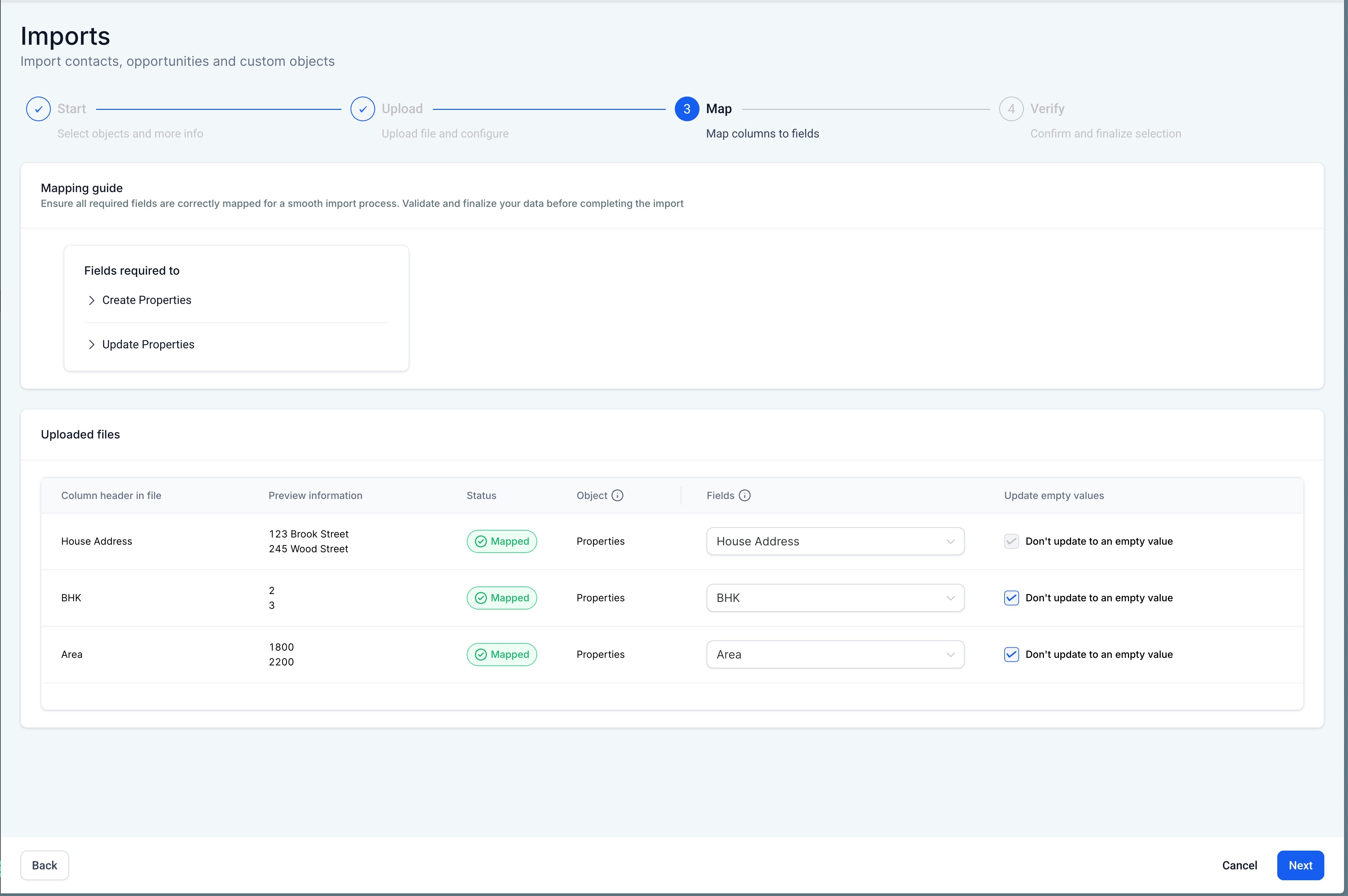
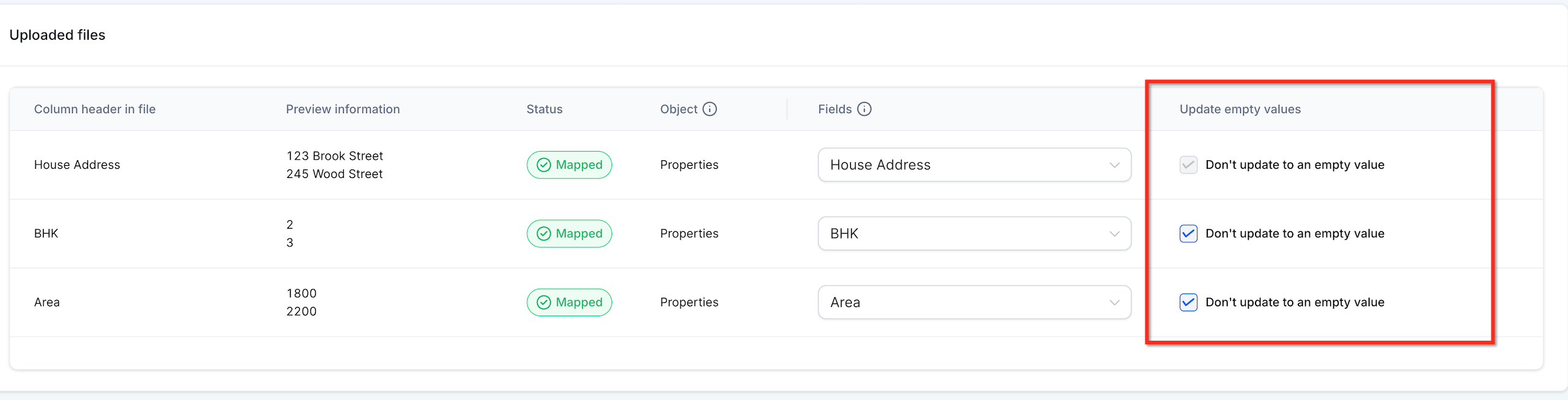
- Enable Update empty values if your use case requires applying blank values during update imports (primary/required exclusions still apply). **
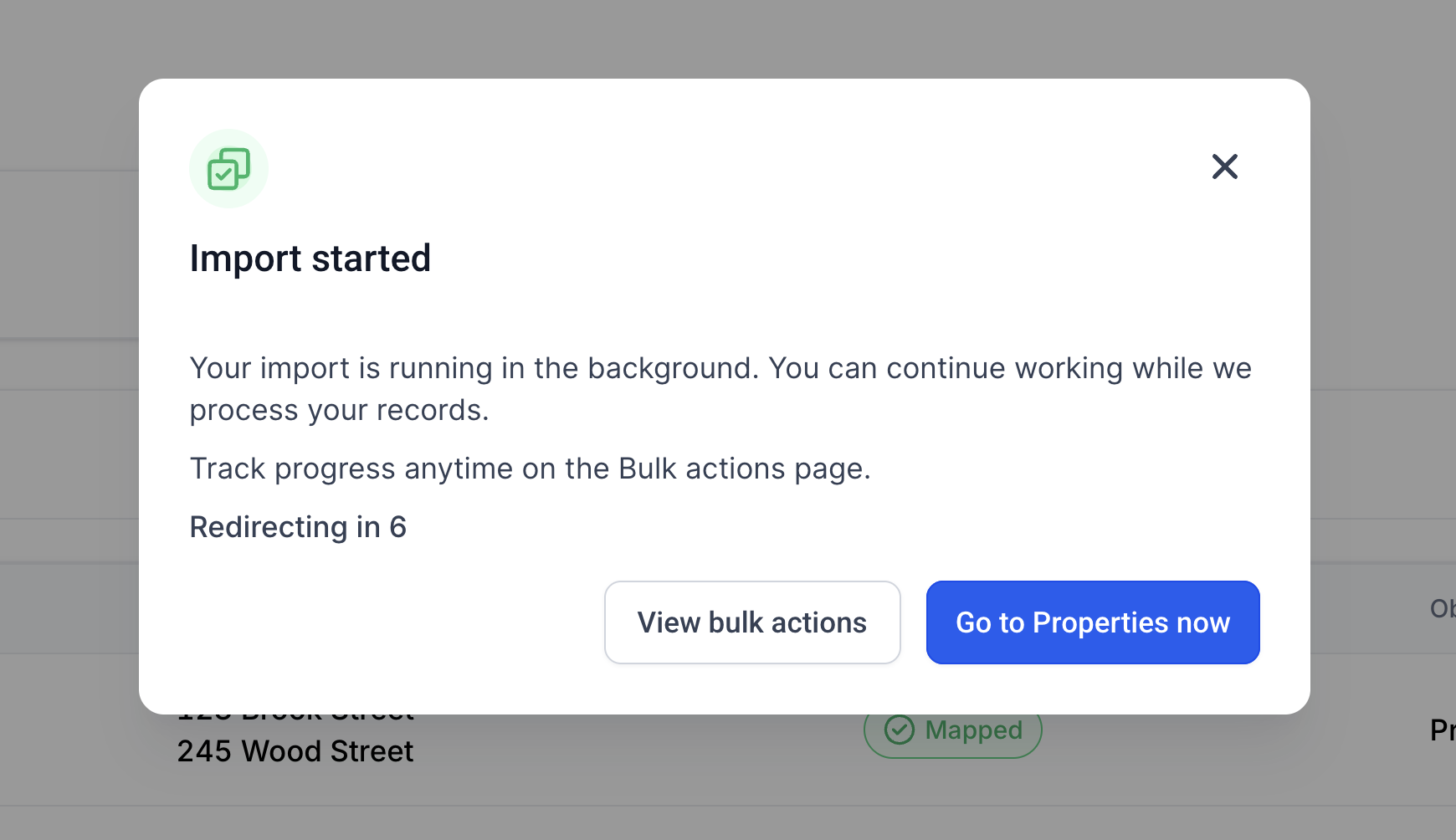
** 8. Click Start Import. 9. Track and control your import from Bulk Actions → Custom Objects:
- Pause, Resume, or Cancel as needed - Open the import to view stats and row-level results
Frequently Asked Questions
Q: When should I use Create vs Update vs Create + Update?
A: Use Create for brand-new datasets, Update to modify existing records only, and Create + Update when your CSV contains a mix of new and existing records. Q: Why am I asked to select a dedupe field? A: If multiple Unique Fields are mapped, Patient Copilot prompts you to choose which unique field should be used for dedupe matching during the import. Q: What does “strict conflict handling across unique fields” mean? A: If a row would violate unique field rules (such as attempting to assign a unique value that already exists on another record), the import flags that row with errors or warnings so you can correct it. Q: What does “Update empty values” do? A: It allows empty CSV values to be applied during updates, but Primary/Required fields are excluded from empty-value updates. Q: Can I pause an import and resume it later? A: Yes. Imports can be Paused and Resumed from Bulk Actions → Custom Objects. Q: What happens if I cancel an import? A: Canceling stops the import from continuing. Already-processed rows may remain applied, depending on what was completed before canceling. Q: Where do I see which rows failed and how to fix them? A: Open the import details and use the Stats modal tabs to view Errors and Warnings. Row-level messages include How to Resolve guidance. Q: Can I import multiple Custom Objects in one CSV? A: Not yet. Multi-object import is currently disabled and shows “Coming soon.”