
How to Add Sub-Affiliates in the Affiliate Manager
Sub-affiliates are affiliates who work under a parent affiliate. They promote products or services through their own networks, and the parent affiliate earns a commission from the sales made by their sub-affiliates. This model helps affiliates expand their networks and increase their earnings. Our platform supports up to 7-tier affiliate campaigns, allowing affiliates to have multiple sub-affiliates under them. Please Note: The campaign you want to add sub-affiliates to must be multi-tier (tier 2 or above).
Benefits of Sub-Affiliates
Sub-affiliates allow for a layered commission structure. For example, if Affiliate A refers Affiliate B, and B makes a sale, both A and B earn commissions. This encourages affiliates to grow their teams and generate more leads.
3 Ways to Add Sub-Affiliates
1. Add Sub-Affiliates Manually
Manually adding sub-affiliates allows for greater control over who joins a campaign.
Steps: 1. Navigate to the Affiliate Page: Go to the Affiliate Manager under the Marketing section.
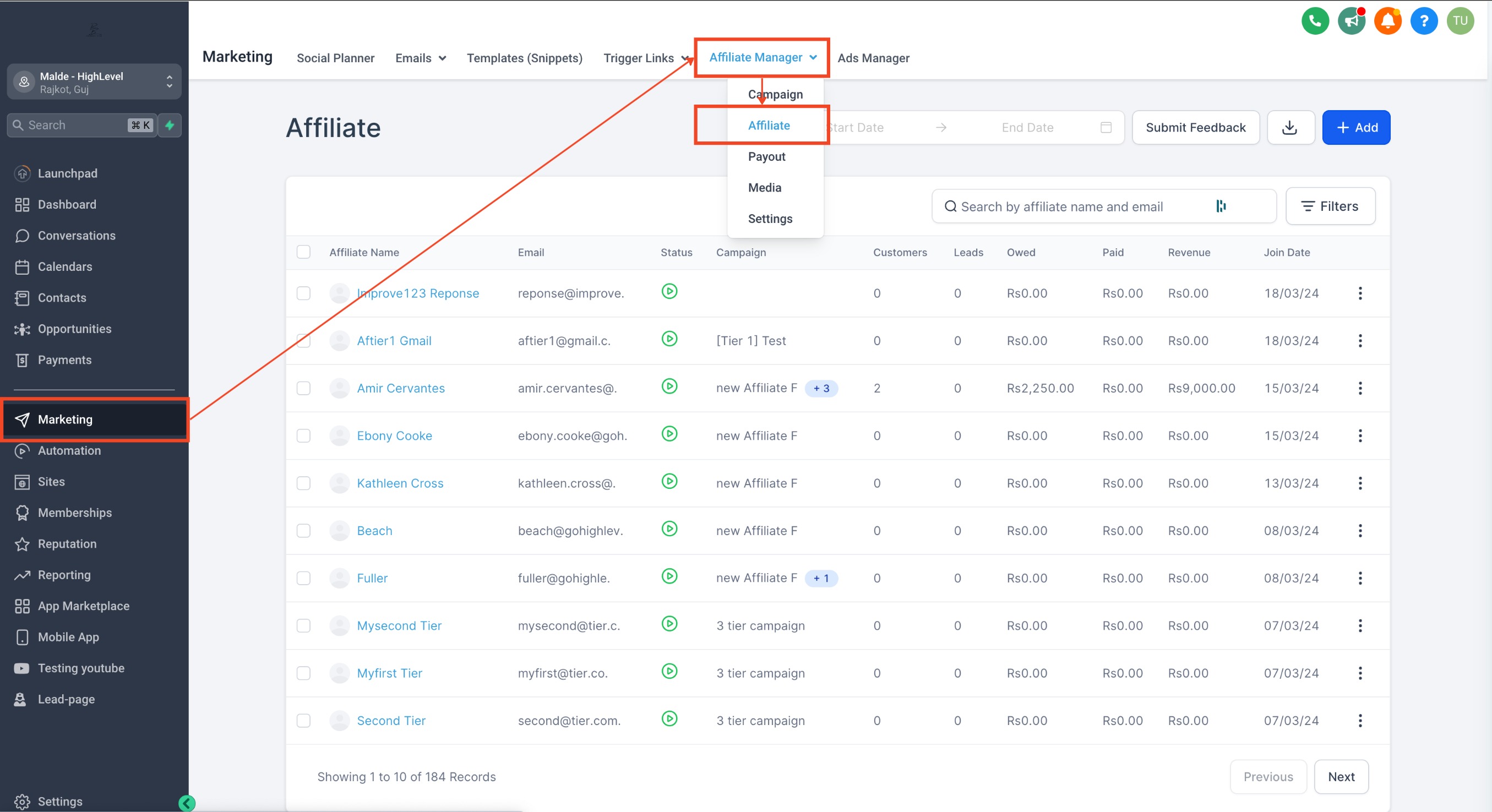
- Select an Affiliate: Click on the affiliate you want to add sub-affiliates under.
- Switch to Sub-Affiliate Tab: Scroll down to the “Sub-Affiliate” tab.
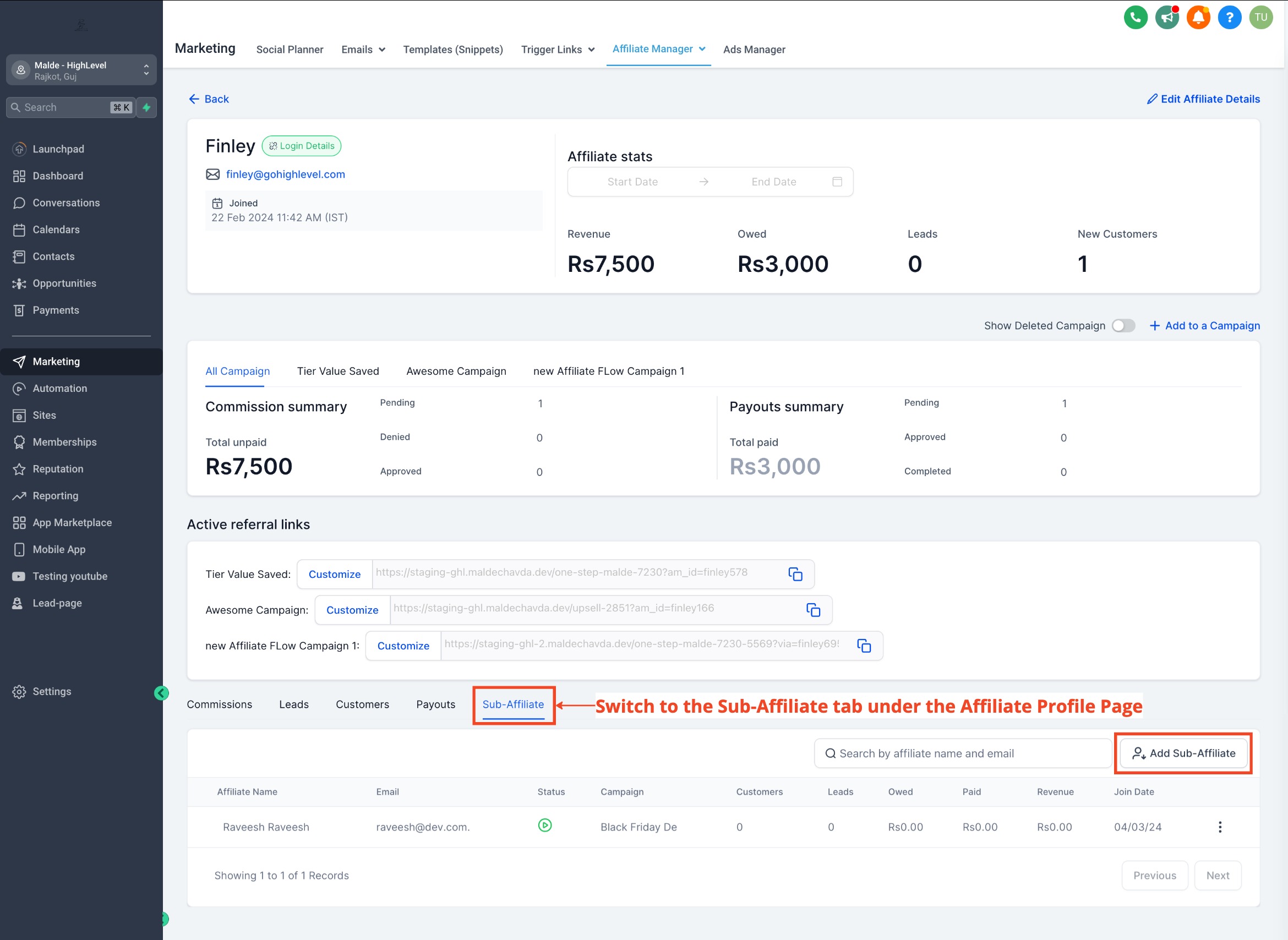
- Add Sub-Affiliate: Click the “Add Sub-Affiliate” button.
- Choose Campaign: Select the desired campaign from the dropdown.
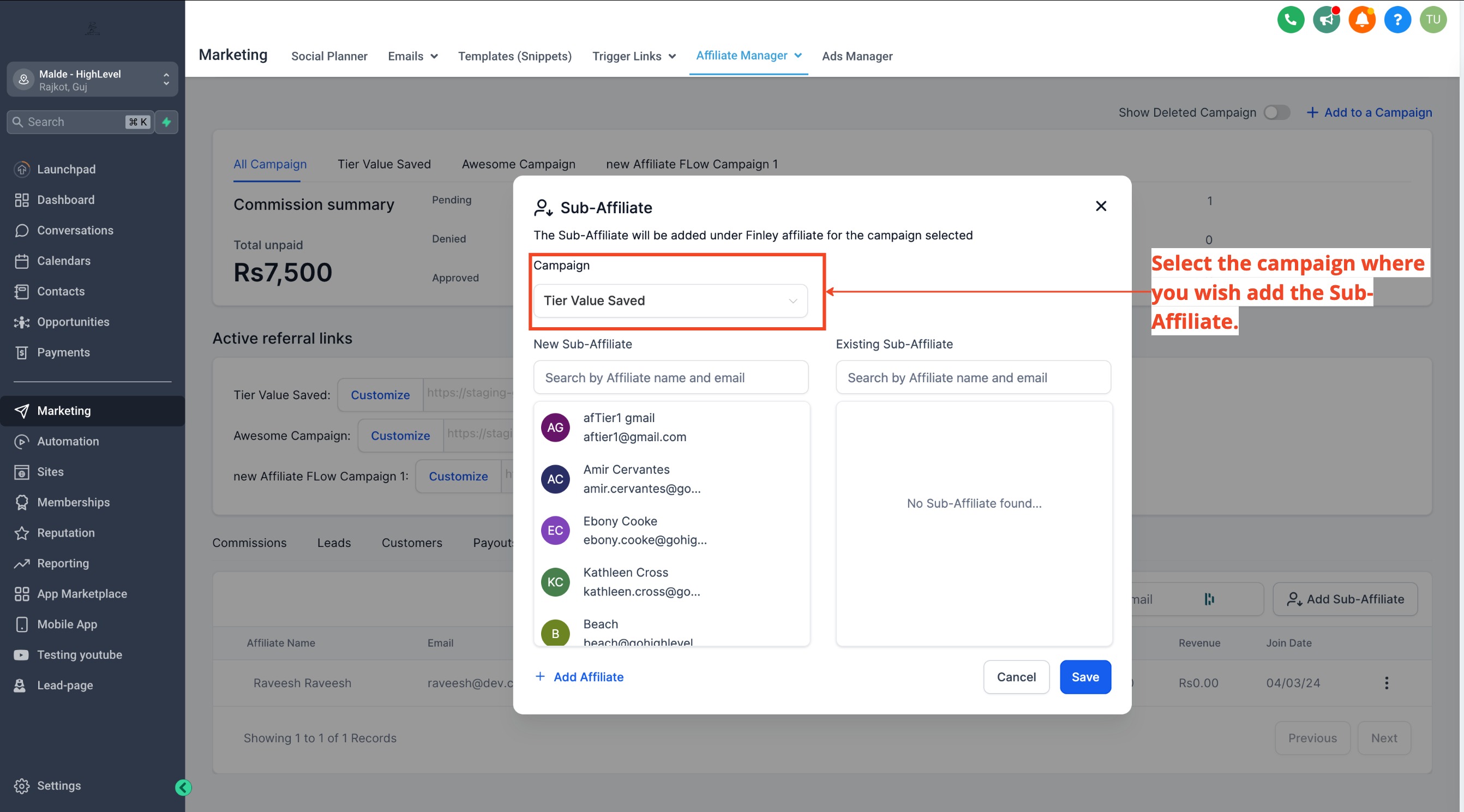
- Select Sub-Affiliates to Add: Choose the affiliates you want to add.
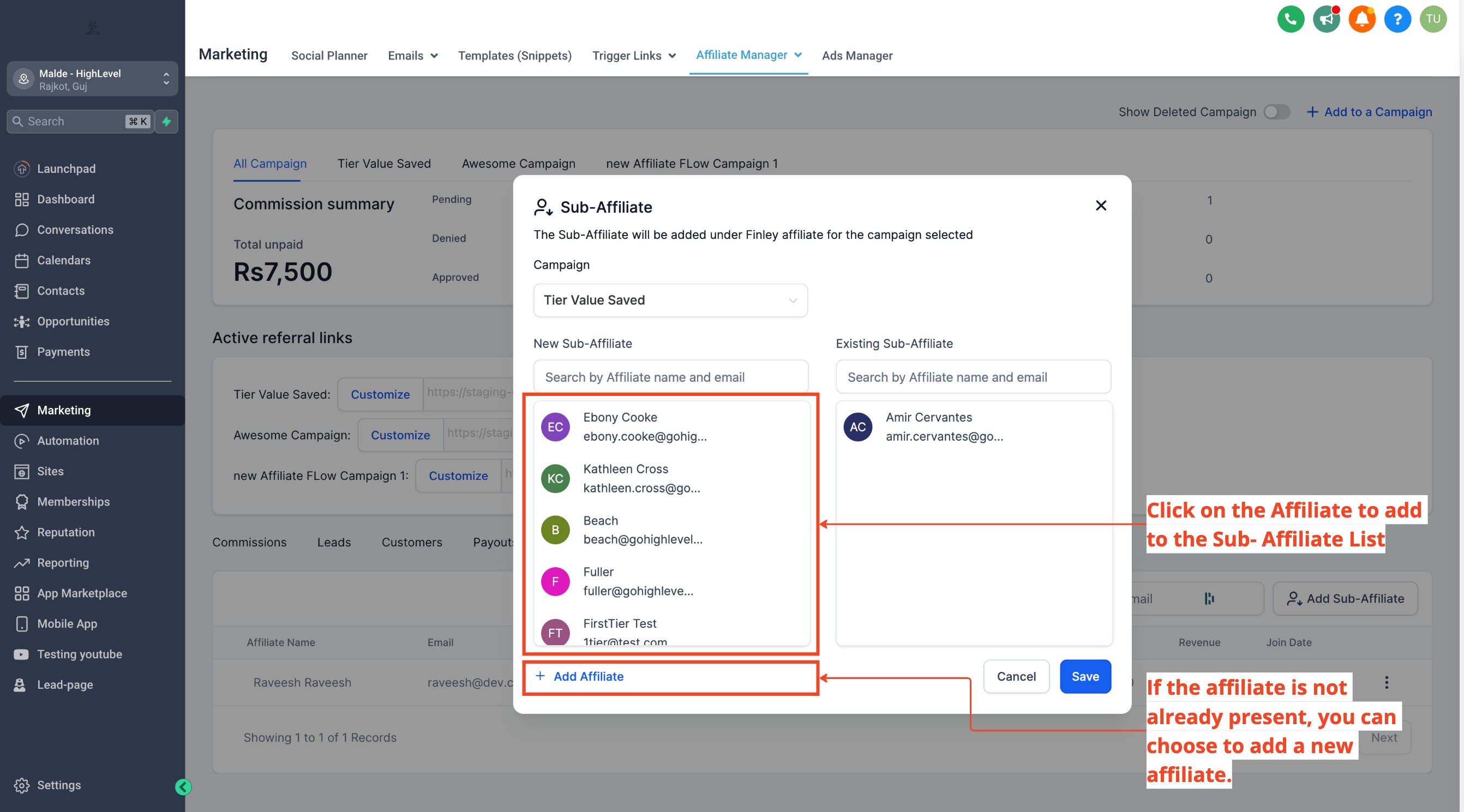
- Remove Existing Sub-Affiliates: Remove any unwanted sub-affiliates, if needed.
- Add New Affiliate Profile (Optional): Create and add a new sub-affiliate if the desired one doesn’t exist.
- Save: Save the changes.
2.
Auto-Enroll New Customers as Sub-Affiliates
This option allows you to automatically enroll new customers as sub-affiliates under the affiliate who referred them after a successful sale.
Steps: 1. Go to the Sub Account Affiliate Manager.
- Open an existing campaign or create a new one.
- In the last step, expand Additional Settings.
- Toggle on Auto Enroll New Customers as Sub-Affiliates.
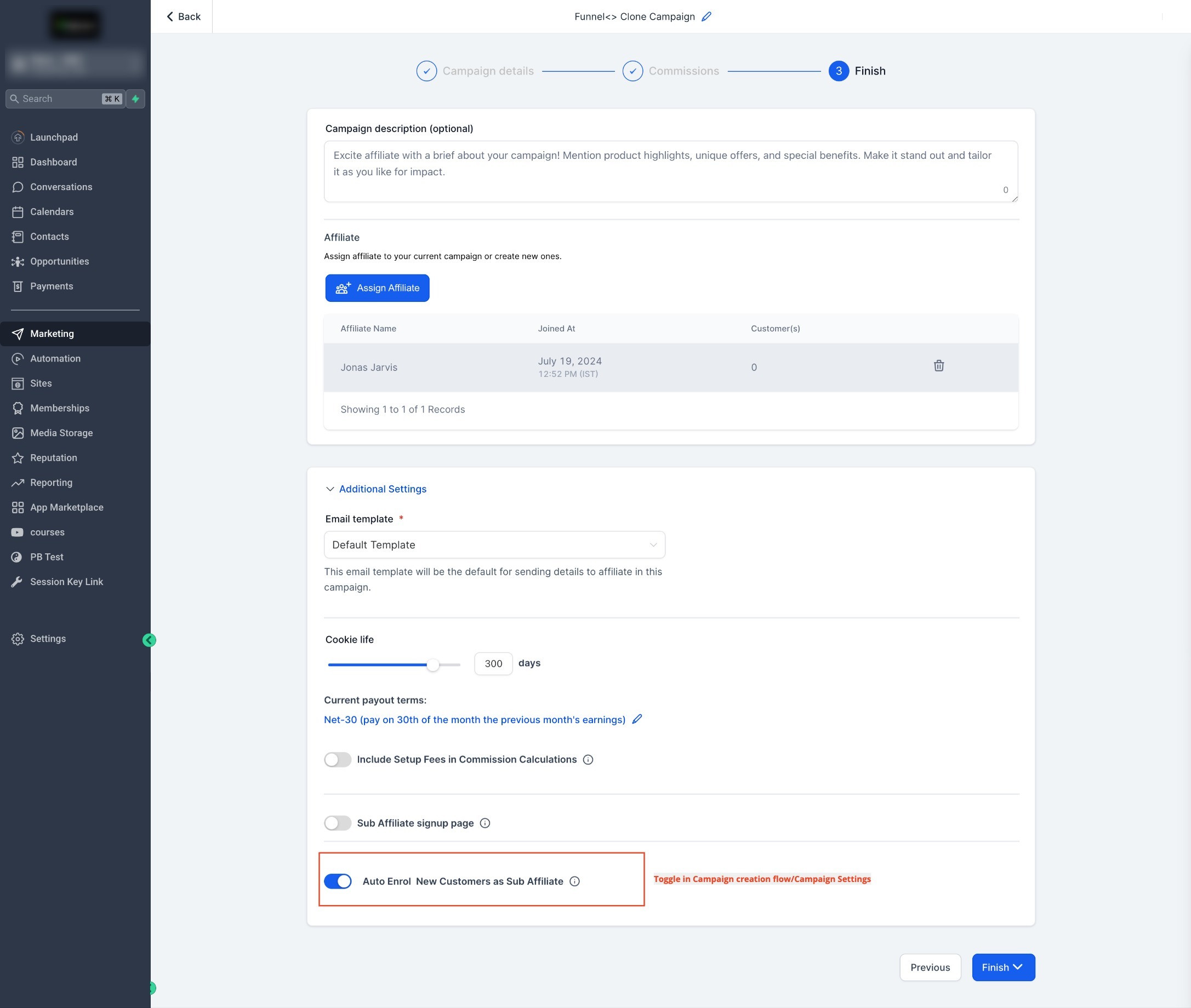
- Save and publish the changes. You can also enable or disable this setting globally in the Global Settings section. This will apply to all future campaigns.
3.
Allow Affiliates to Recruit Their Own Sub-Affiliates
Affiliates can recruit sub-affiliates themselves by sharing a sign-up link. This process makes onboarding easy and gives affiliates more autonomy.
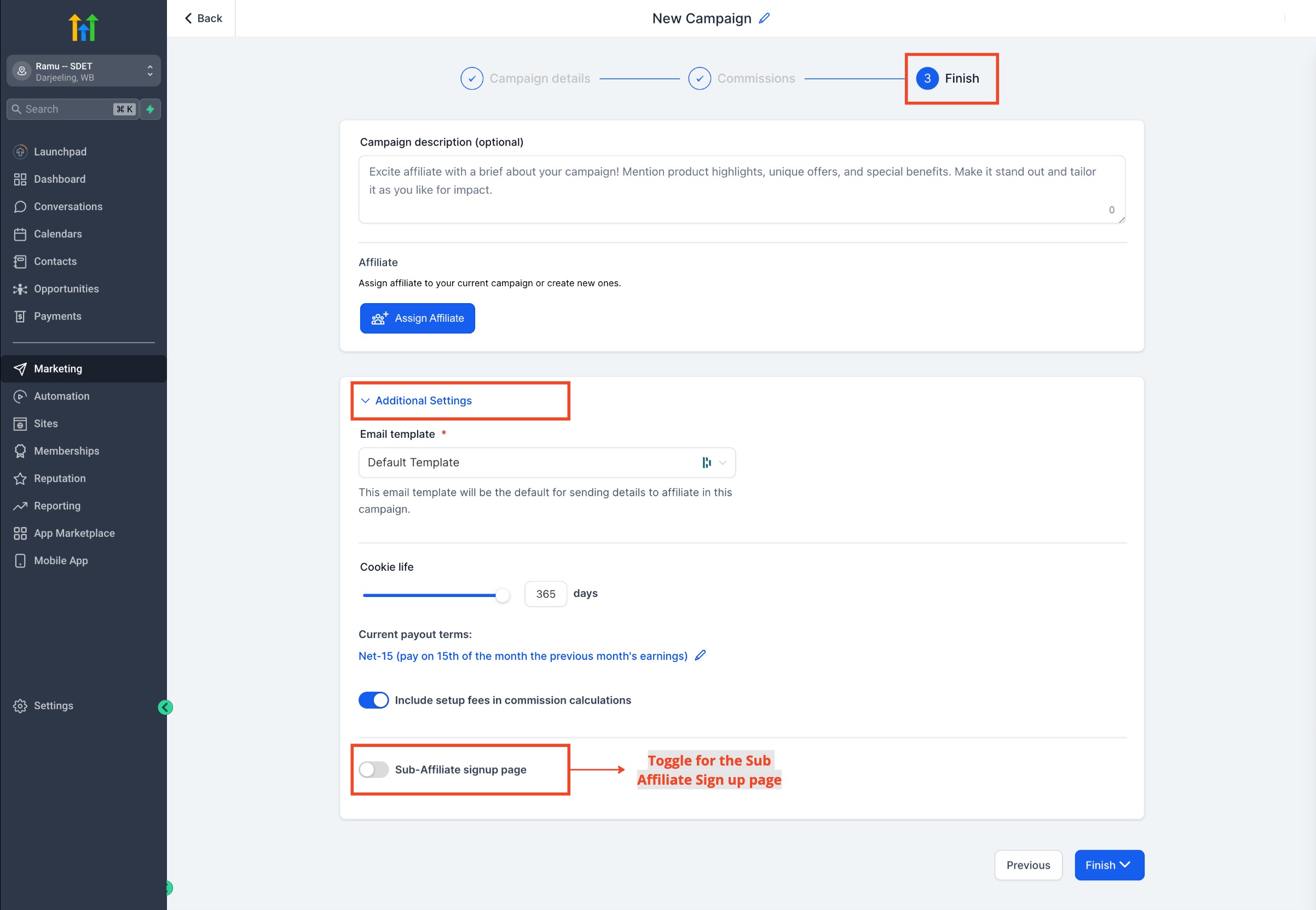
Steps: 1. When creating or editing a campaign, go to the last step and click on Additional Settings.
- Toggle on Sub-Affiliate Sign-Up Page.
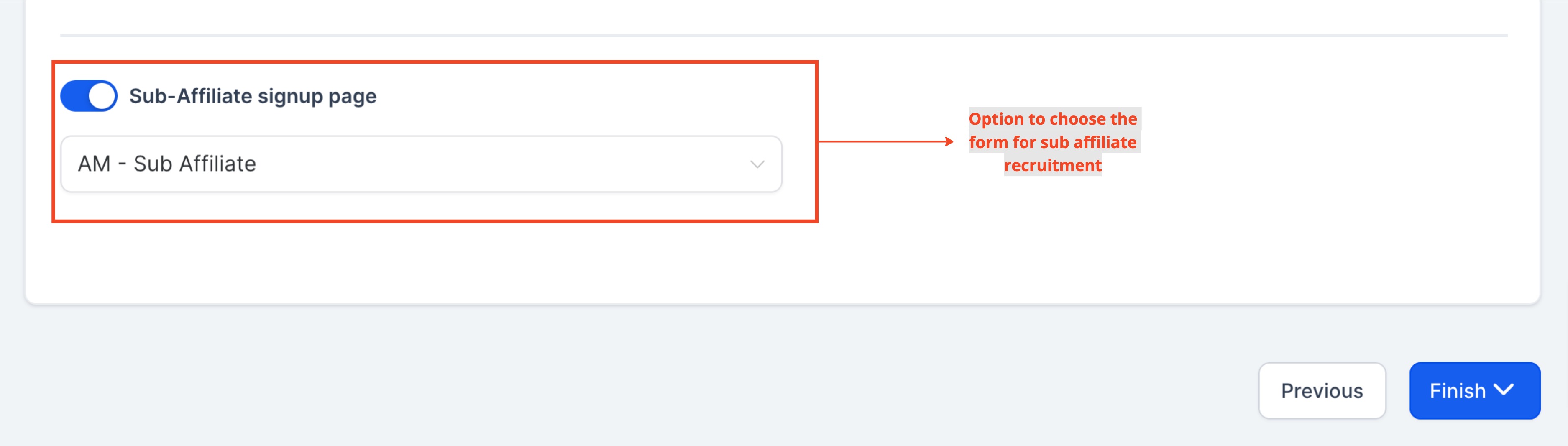
- Select the form you want to use for sub-affiliate sign-ups.
- Save the changes by clicking Finish. You can also configure this option globally in the Global Settings. Affiliates will see a sign-up link in their affiliate portal, which they can share to recruit sub-affiliates.
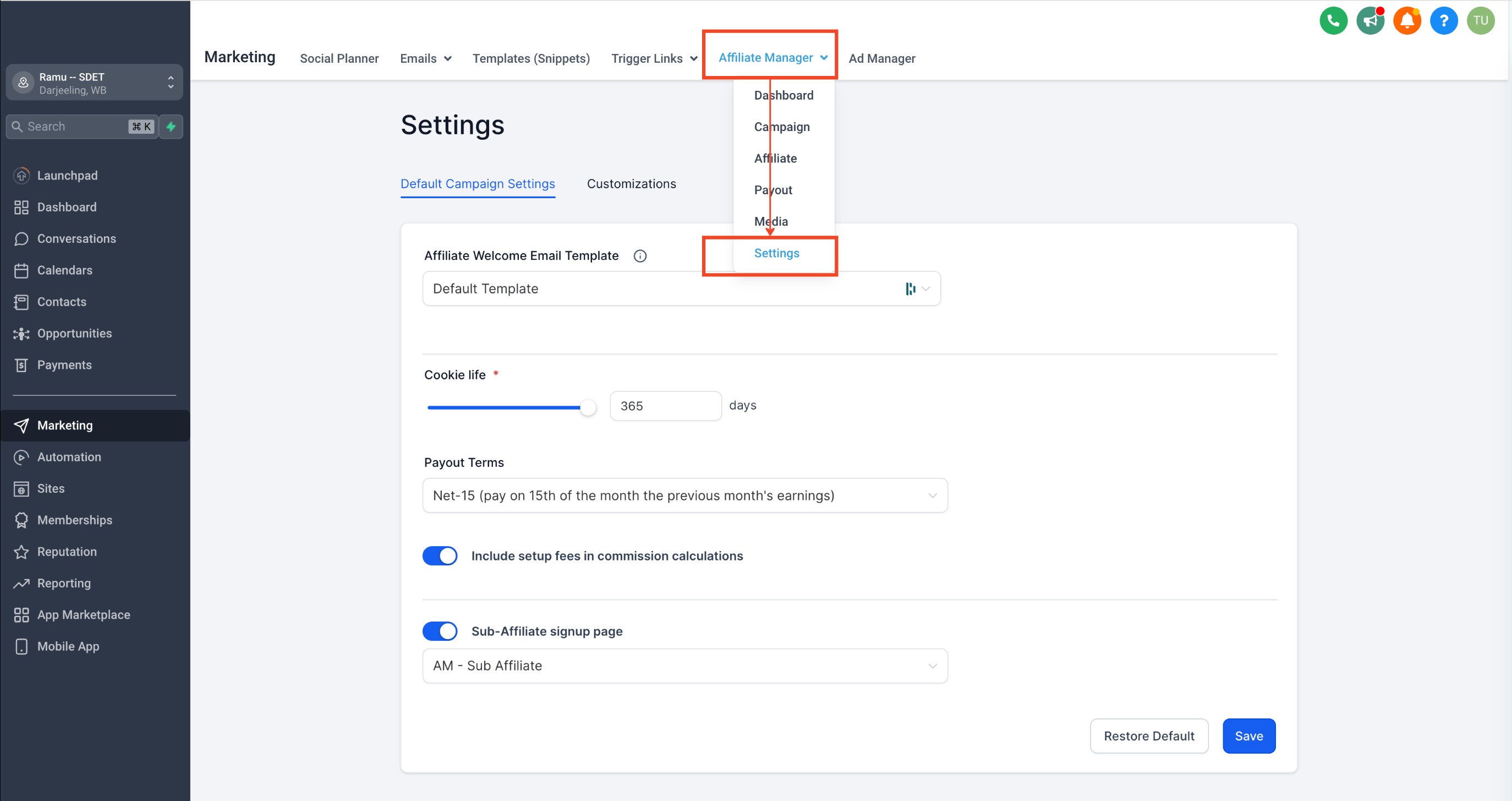
The Affiliate portal will also show a list of all sub-affiliates under each affiliate.
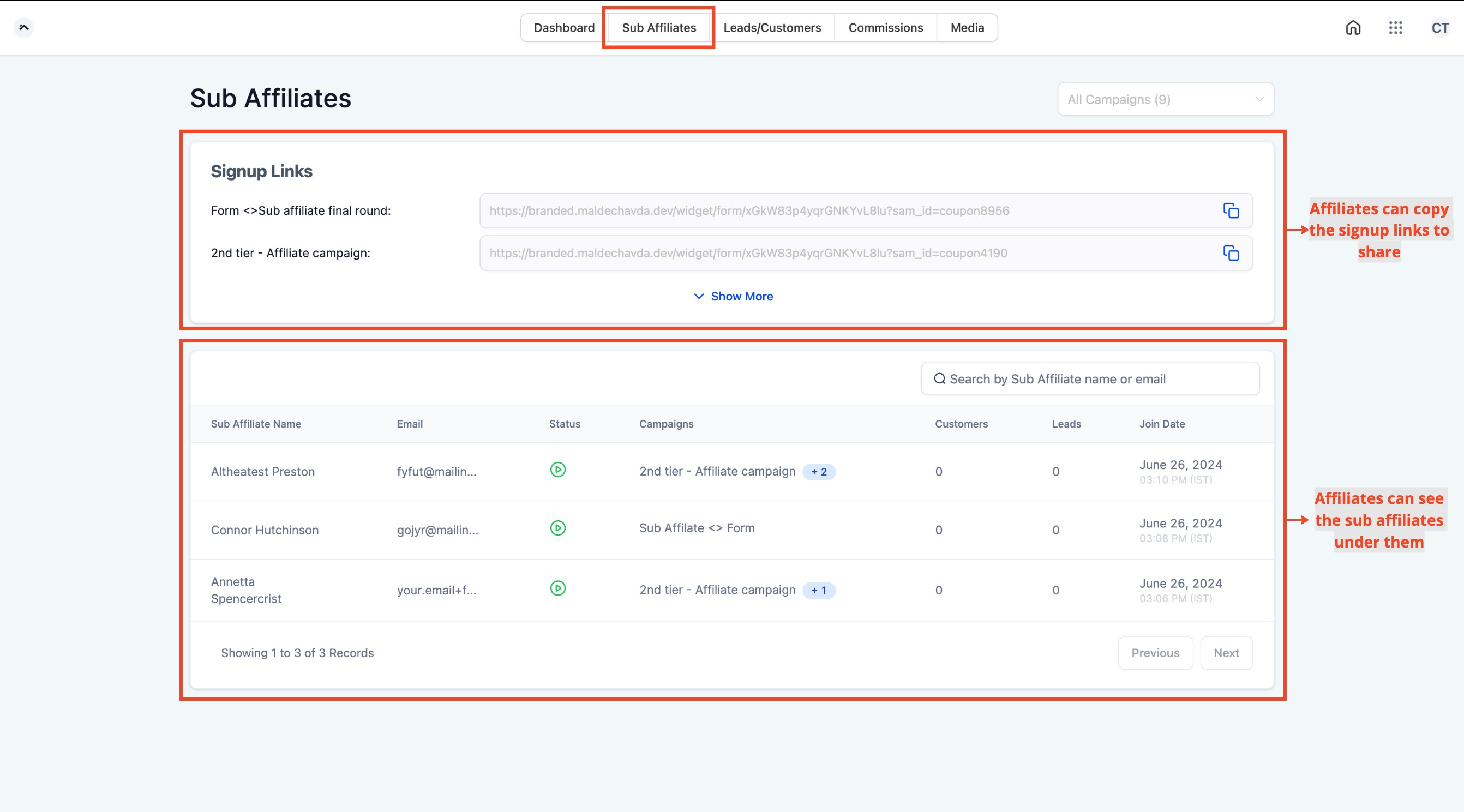
Please note: Forms used for sub-affiliate sign-ups must include First Name, Last Name, and Email. Missing fields will result in errors. The Sub-Affiliate Sign-Up feature only works for multi-tier campaigns (tier 2 or higher). Changes in global settings will only apply to future campaigns. By leveraging these methods, you can grow your affiliate network and manage your sub-affiliates effectively, boosting overall sales and commissions.
What’s Next:
- How to Add Affiliates in the Affiliate Manager
- How to Navigate the Affiliate Profile Page for Efficient Management
- How to Use the Affiliate Portal: A Comprehensive Guide for Affiliates