
WhatsApp Media Templates
WhatsApp’s latest update introduces support for Media templates, enabling users to send various types of media content, including Images, Videos, Documents, and Location. This support article provides a comprehensive guide on how to leverage this feature to enhance communication with customers and improve marketing efforts.
How to create Sub-Account WhatsApp Template
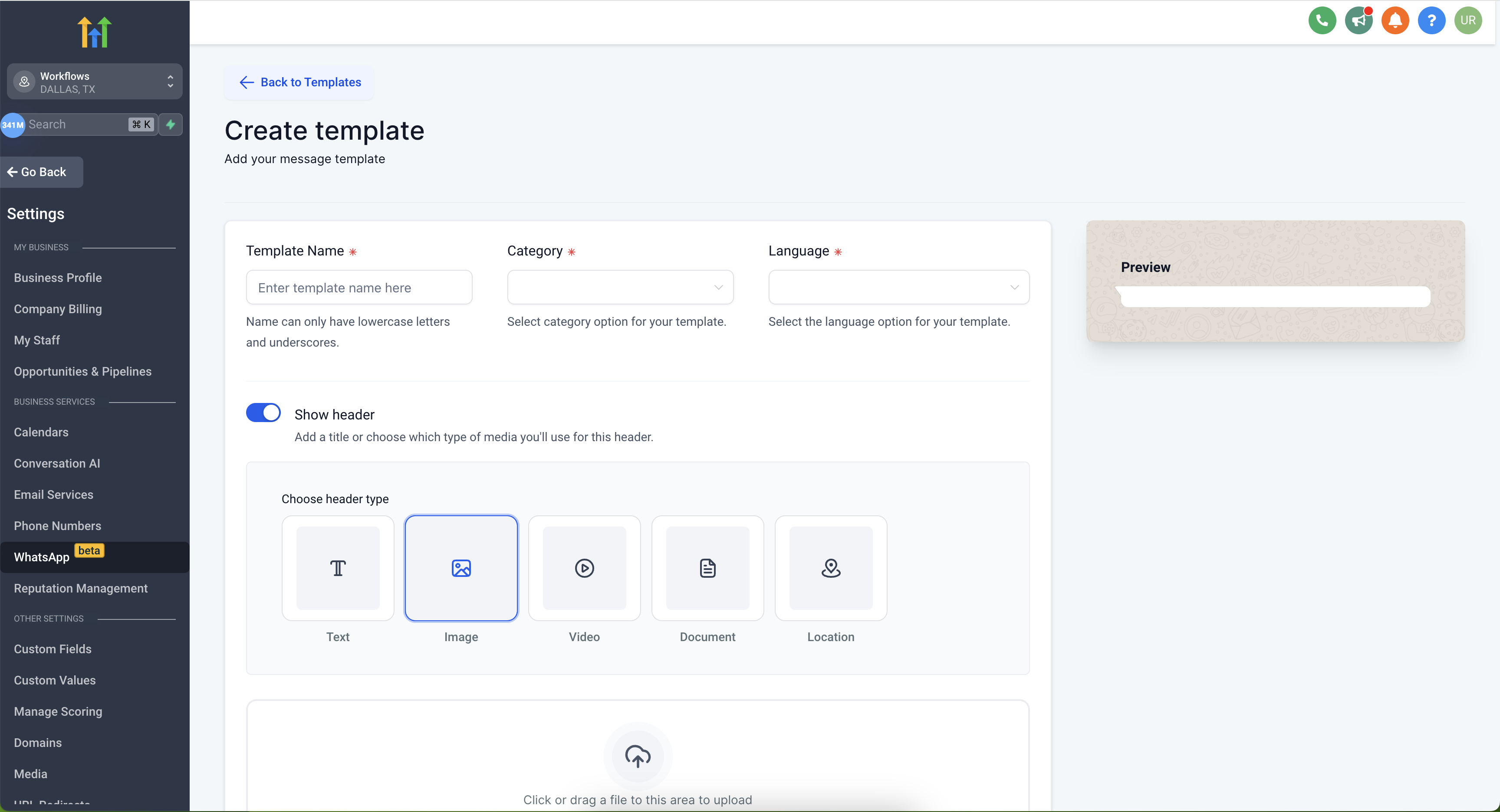
Step 1: Go Settings > WhatsApp > Templates > Create Template
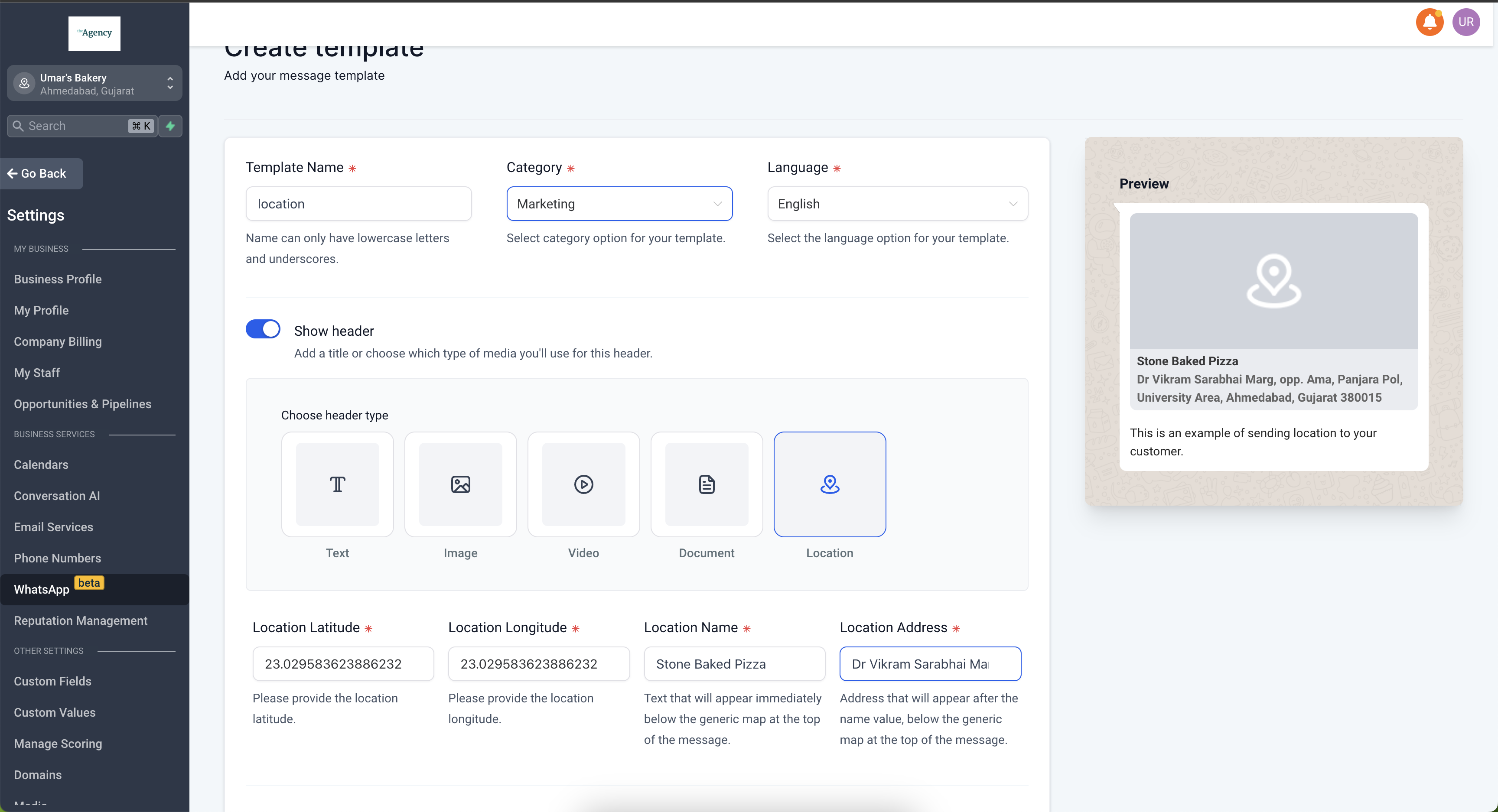
Step 2: Select Location > Add the Location Latitude and Longitude > Add Location Name and Address
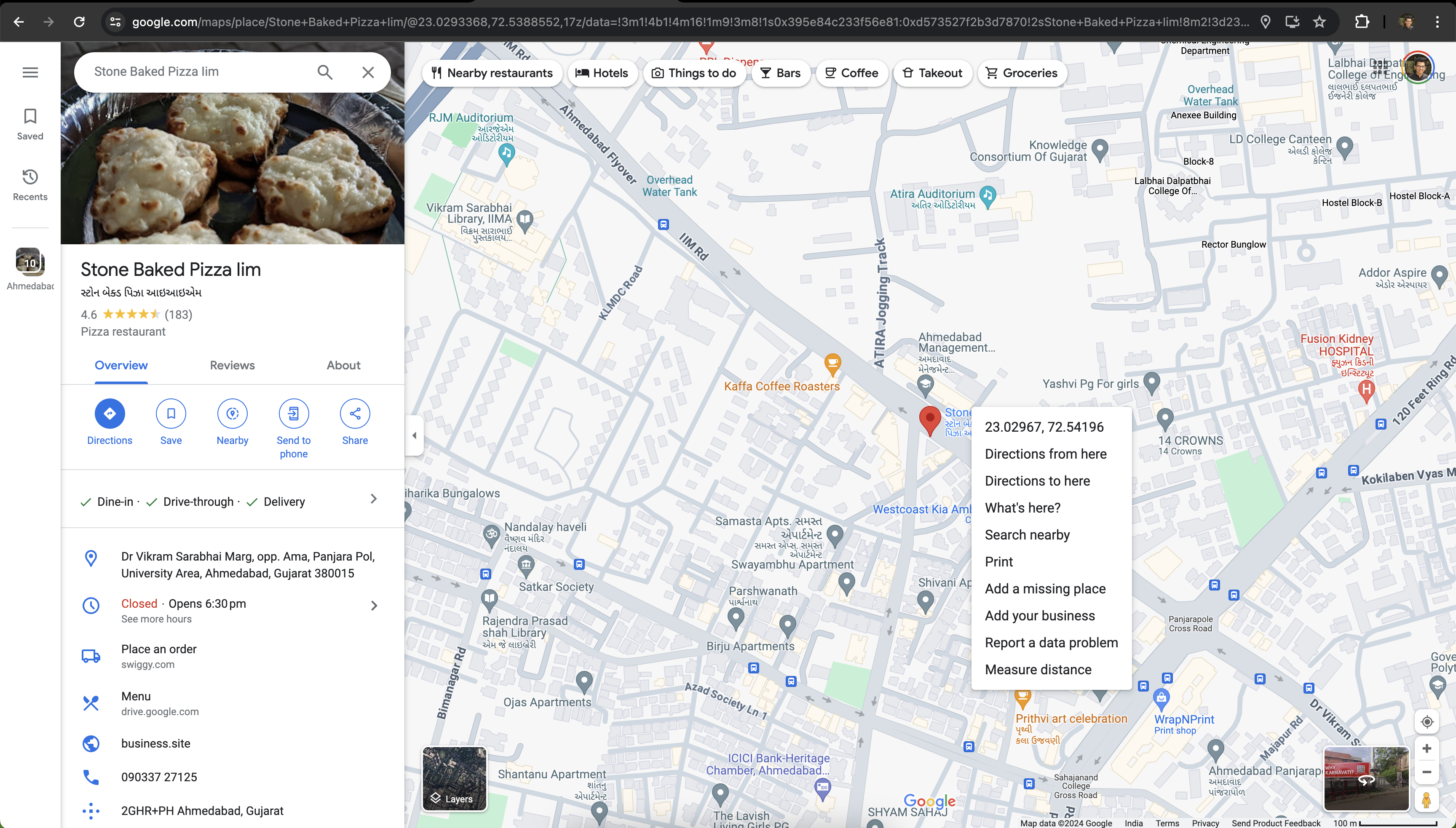
Get the latitude and longitude from Google Maps by right- clicking on the place or area on the map. Refer to the detailed article here
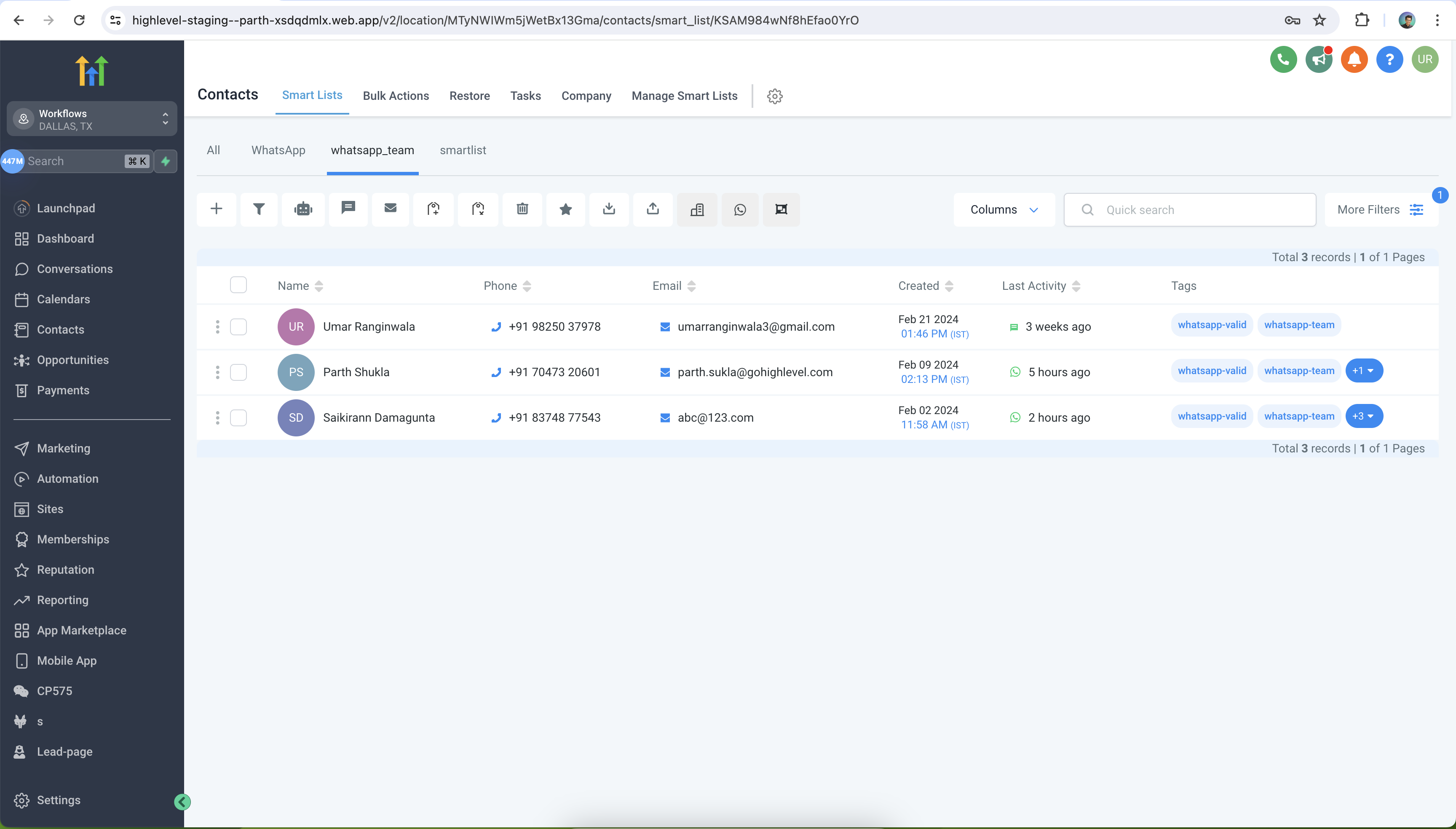
Step 1: Go to Contacts > Select the smart list for which you want to send bulk Whatsapp message
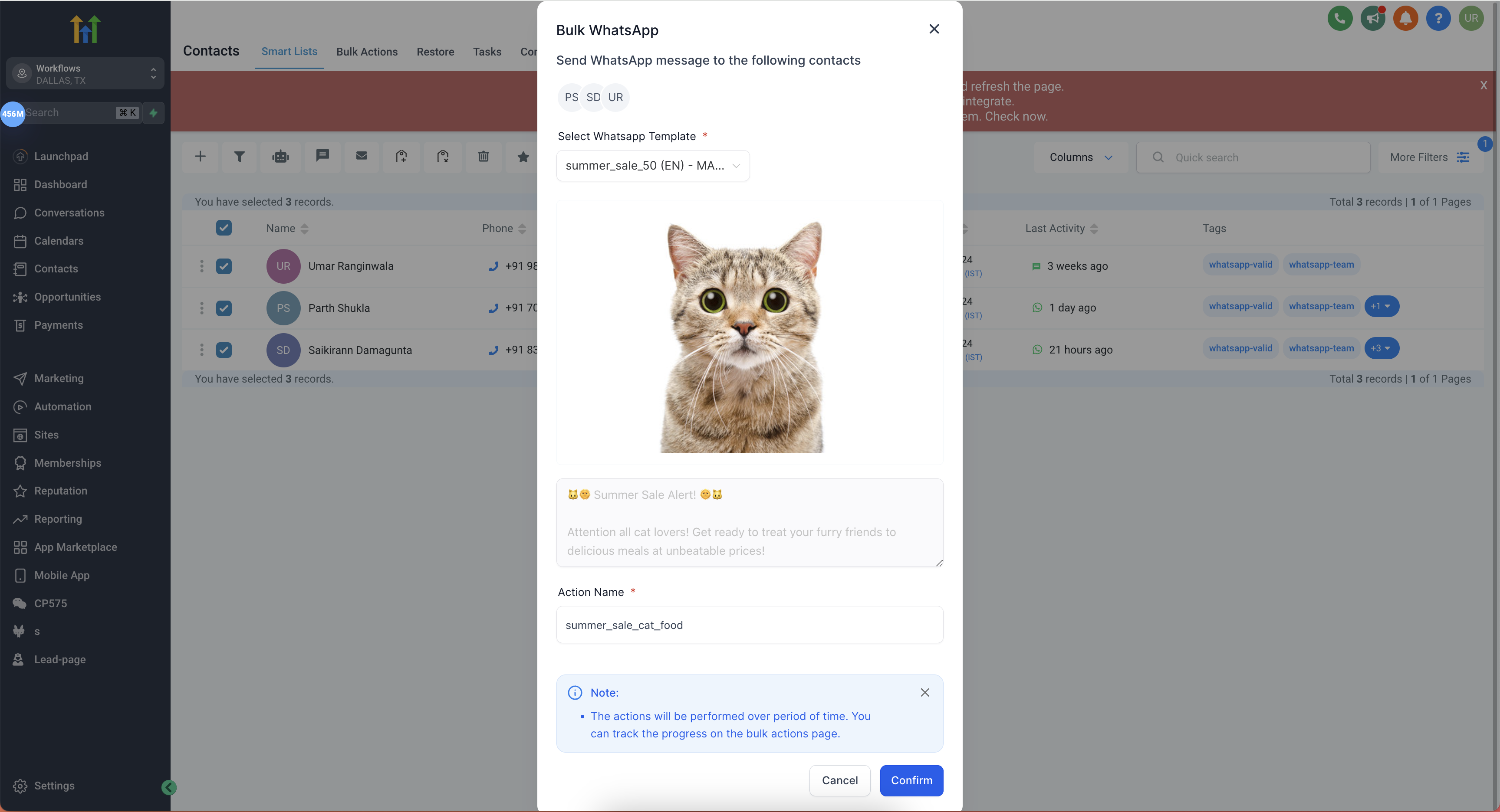
Step 2: Select all Contacts > Click on WhatsApp icon > Select template > Add action name **
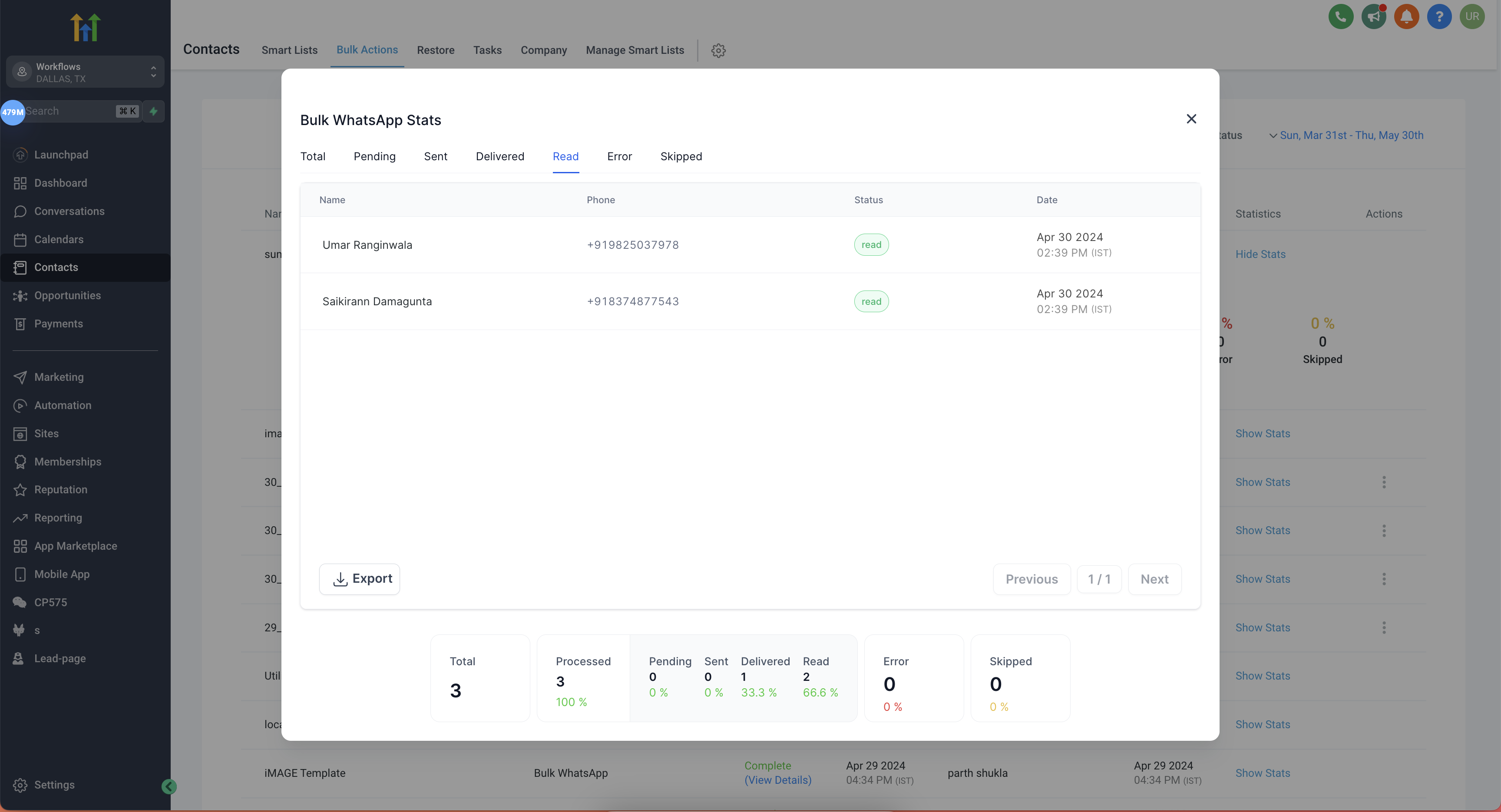
** Step 3: Select Show Stats > Click on Processed > View Bulk Action Statistics **
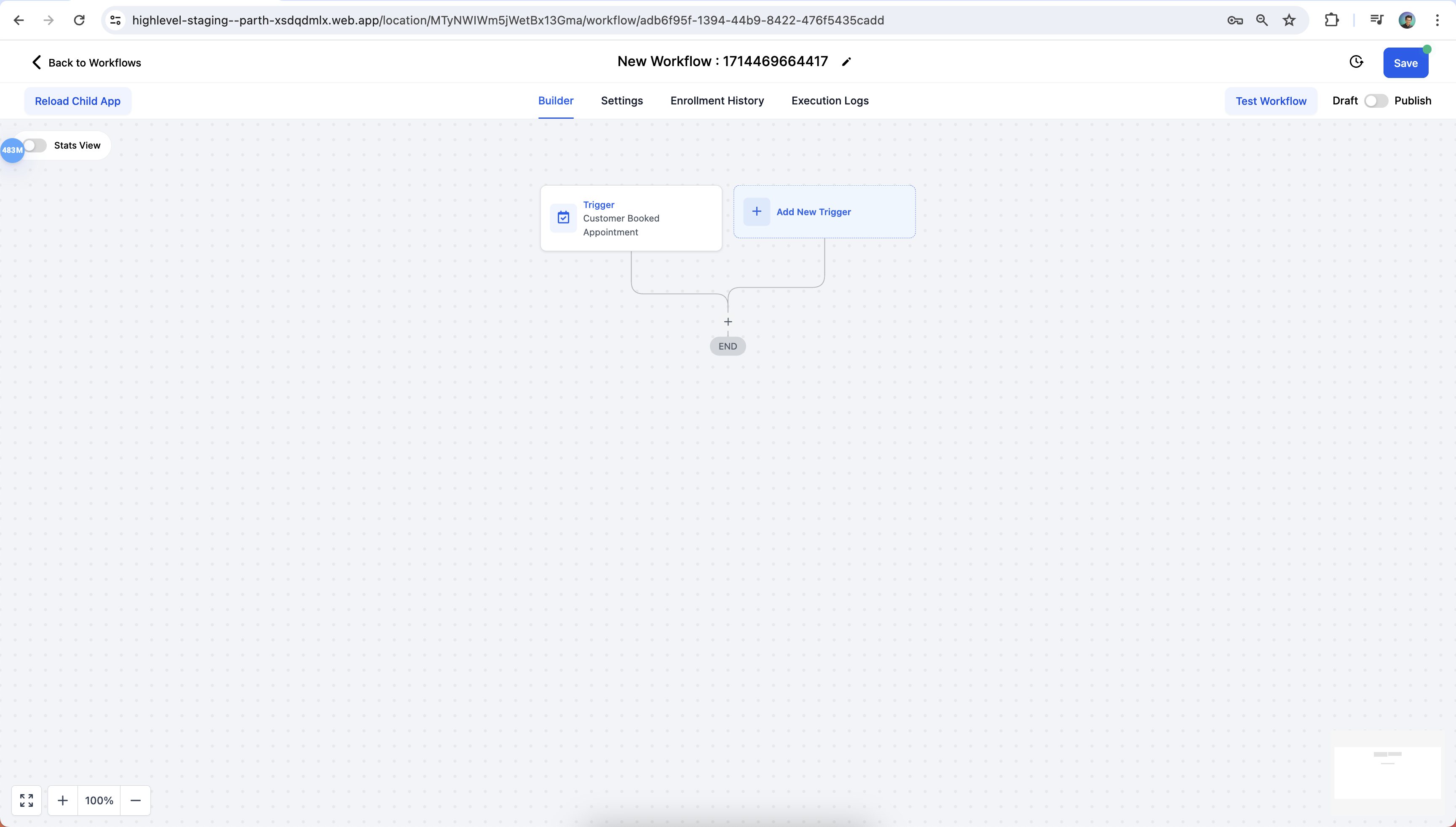
** Step 1: Go to Automations > Create Workflow > Start from Scratch > Select Trigger **
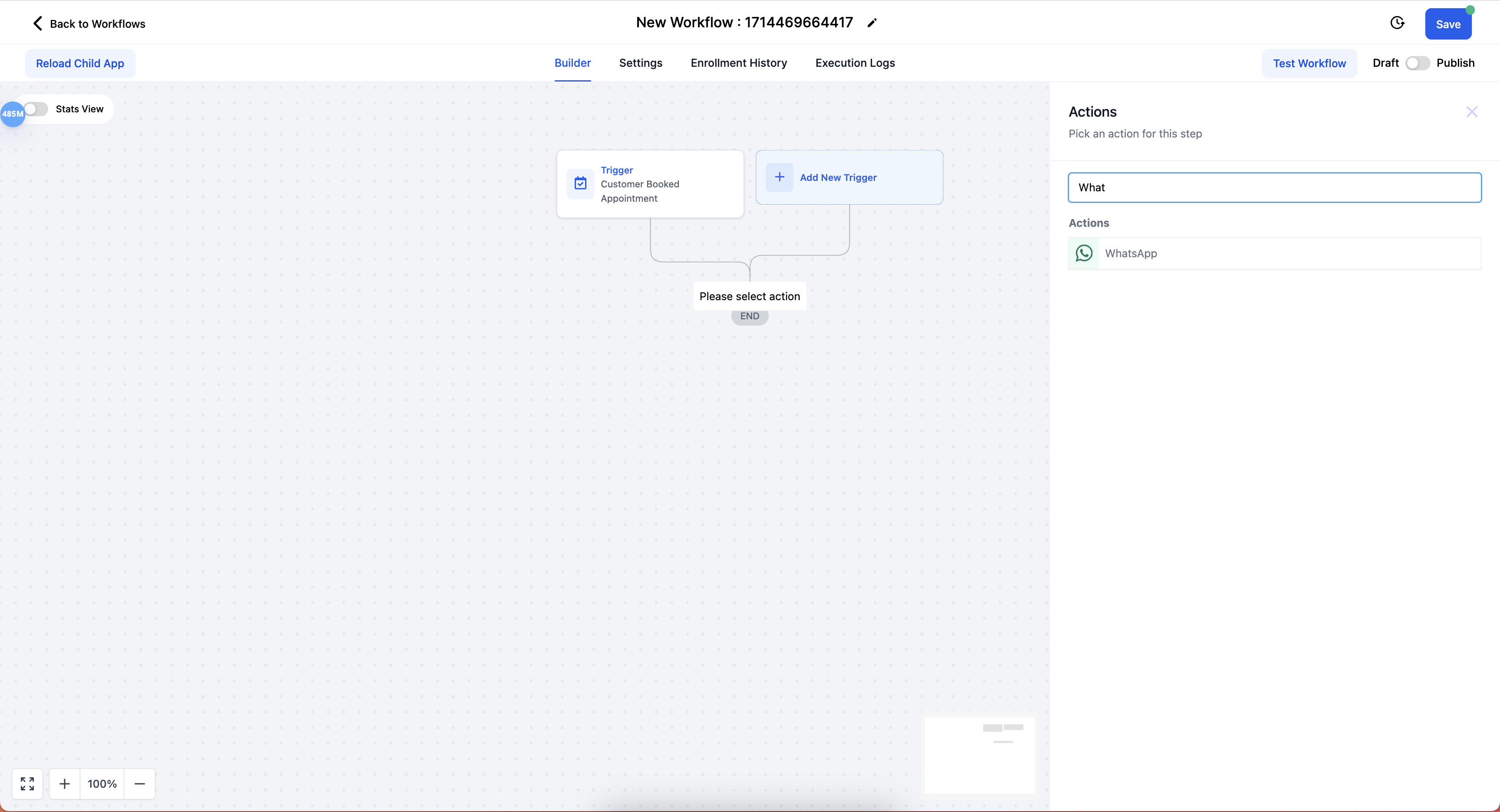
** Step 2: Select WhatsApp action
Step 3: Select WhatsApp Template > Save Action > Save workflow **
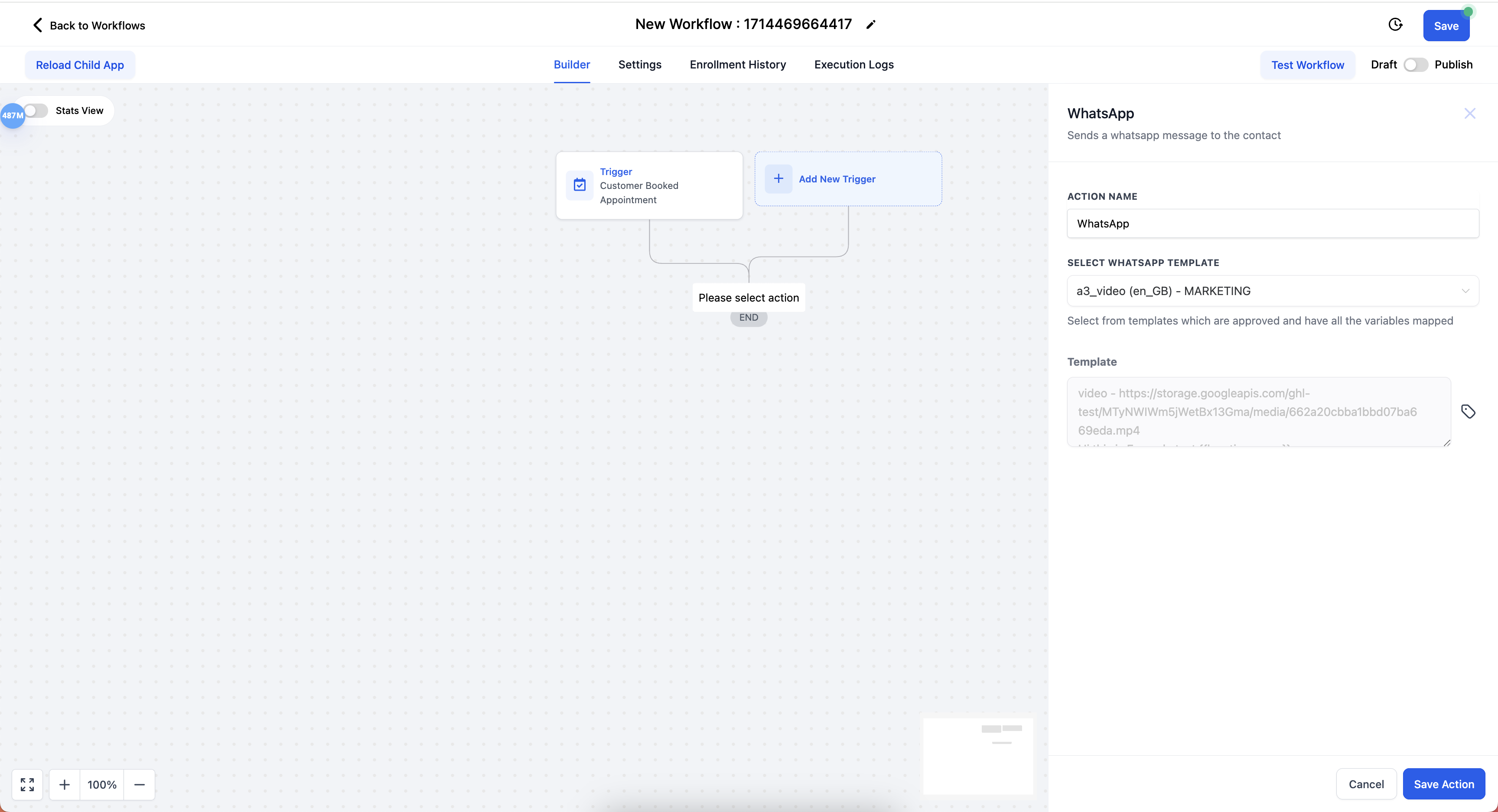
** The media url will be shown in the preview under workflow, when the WhatsApp message is sent the actual media will be rendered
Send WhatsApp media templates from the conversation page
Step 1: Go to Conversations > Select the contact you wish to send WhatsApp media template
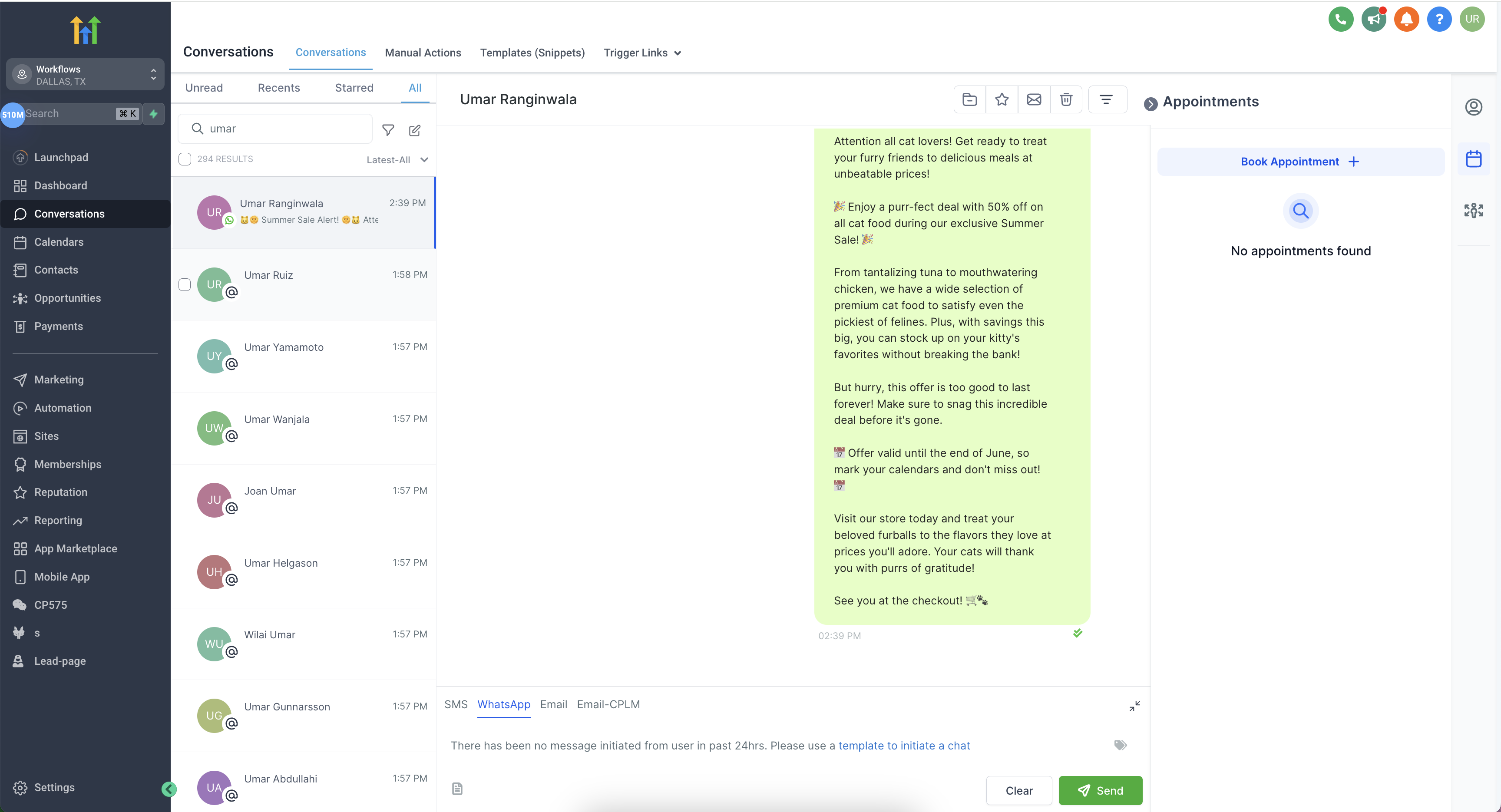
Step 2: Click on Please use a template to initiate a chat > Select Media template you wish to send > Click Send
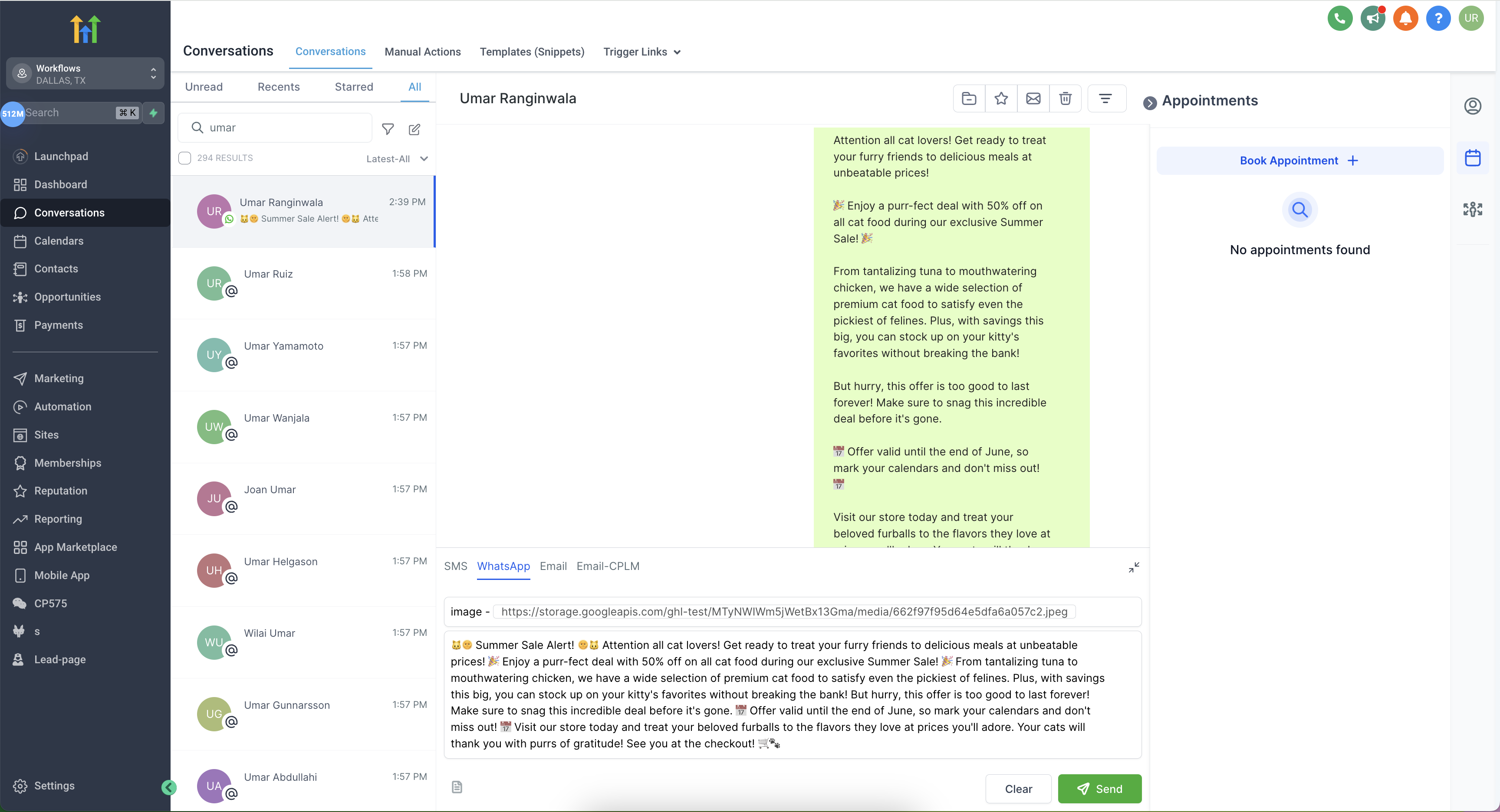
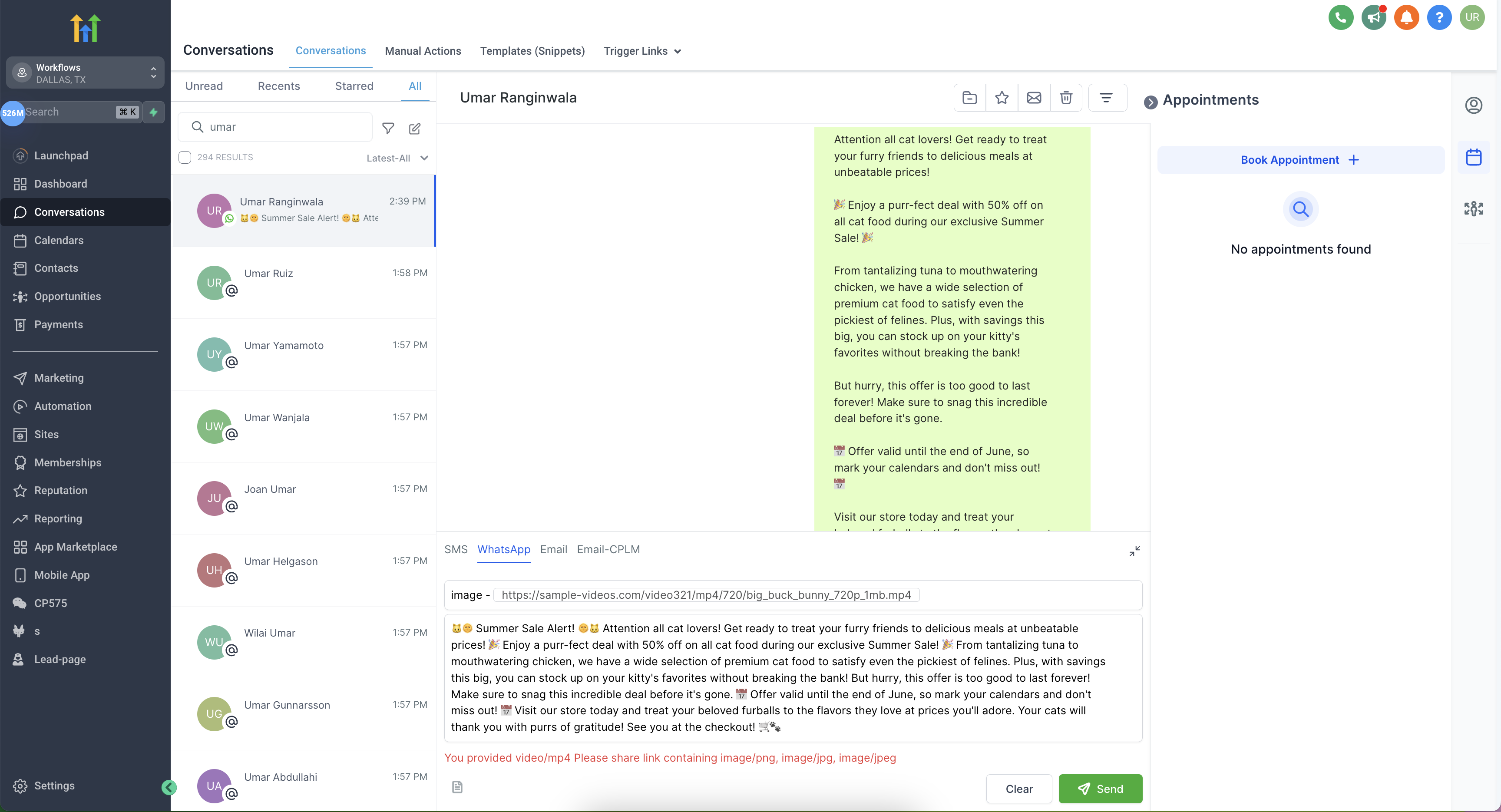
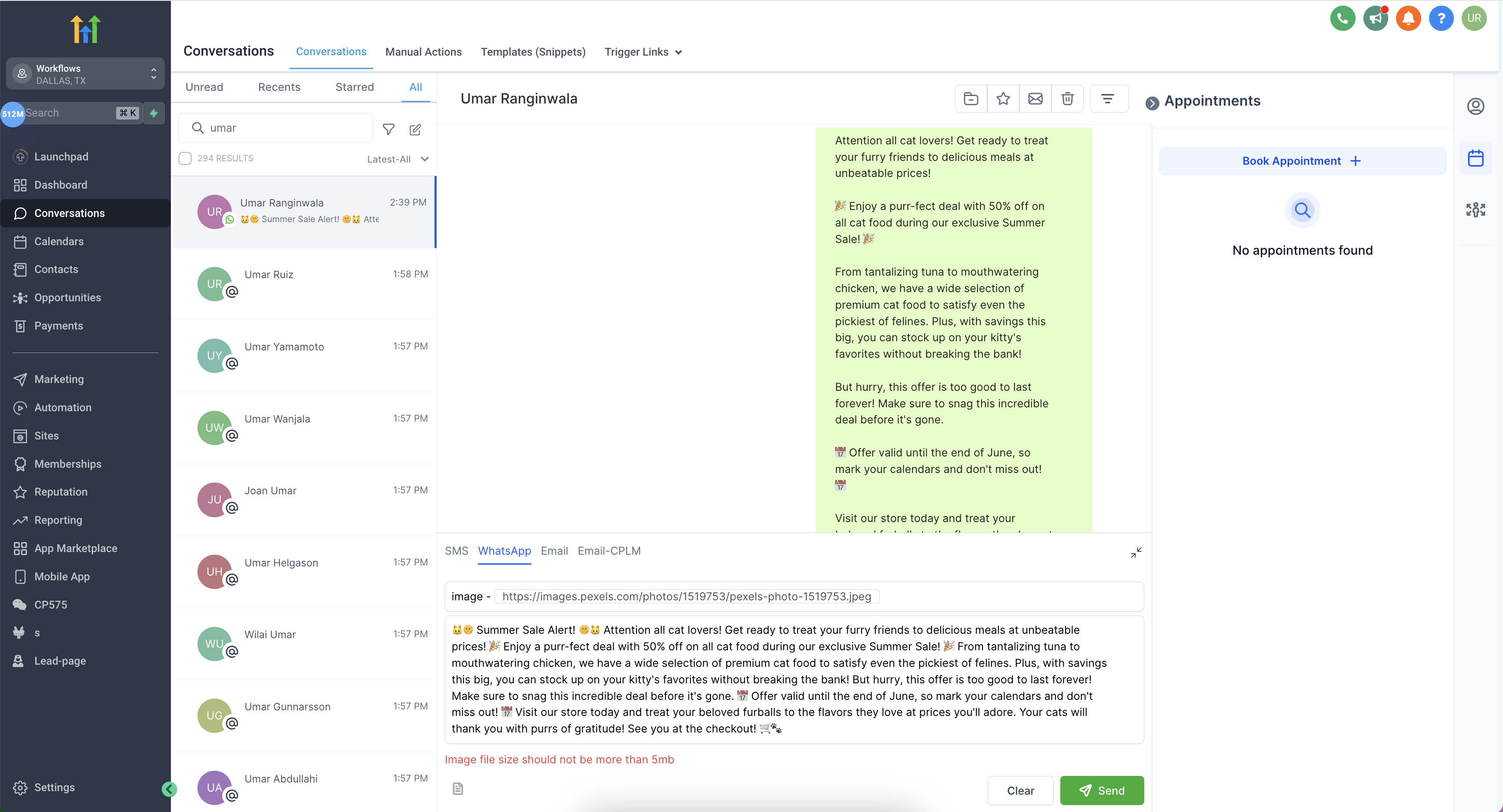
You can change the media by changing the media URL. The url should be a public link and should contain the same type of media, for example if it is an Image template, then it will only accept PNG and JPEG files
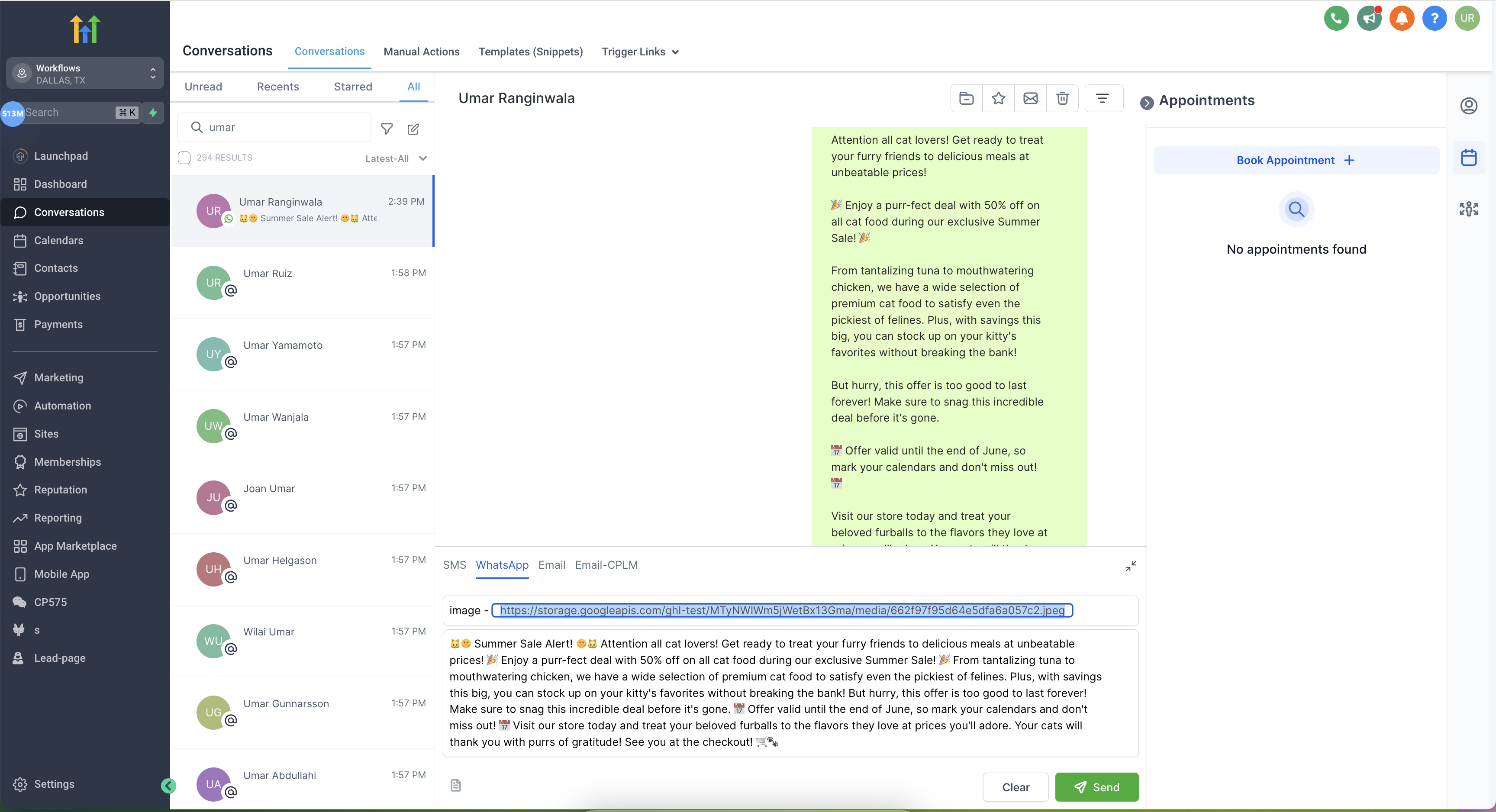
Users will get the below error when using a media which is not approved, for example if a user tries to add a video file in an Image template, the below error will be shown
| Media | Supported Types | Size Limit |
|---|---|---|
| document | application/pdf | 100MB |
| image | image/jpeg, image/png Images must be 8-bit, RGB or RGBA | 5MB |
| video | video/mp4 | 16MB |
FAQs Supported Types and Size Limits:
- Document: application/pdf, 100MB
- Image: image/jpeg, image/png (Images must be 8-bit, RGB, or RGBA), 5MB
- Video: video/mp4, 16MB Users will receive an error if they try to upload a media file exceeding the size limit. For example, if a user attempts to add a video file in an Image template, they will receive an error message. They are pre-approved message formats that allow you to include images, videos, documents, or location information within WhatsApp messages. They help streamline communication with customers, especially for marketing, support, or authentication purposes. You’ll likely encounter an error message, and your template may not be sent. Ensure your media adheres to WhatsApps Template Guidelines
Q: Do I need approval before using WhatsApp message templates?
Yes, all templates must go through an approval process with WhatsApp (Meta) to ensure they meet specific guidelines.
Q: What factors can lead to a template being rejected?
Common reasons for rejection include:
- Missing or incorrect variable formatting
- Content violating WhatsApp’s Business or Commerce policies
- Sensitive information requests (e.g., full payment card numbers)
- Abusive or threatening language
- Duplicating an existing template
Q: What does it mean if my template is ‘Paused’?
A paused template means it received negative customer feedback or low engagement. You cannot send a paused template until its status changes back to ‘Active’.