
Workflow Action - Add Task
Overview
The Add Task action allows you to create a new task with a defined due date that will be assigned to a specific user. This is particularly useful for ensuring team members are aware of tasks that need their attention.
Action Name Add Task
Action Description
This action creates a task within the system, assigns it to a user, and defines a due date by which the task must be completed. You can specify task titles, assign users, set descriptions, and establish deadlines, ensuring task management is easy to organize.
Action Details
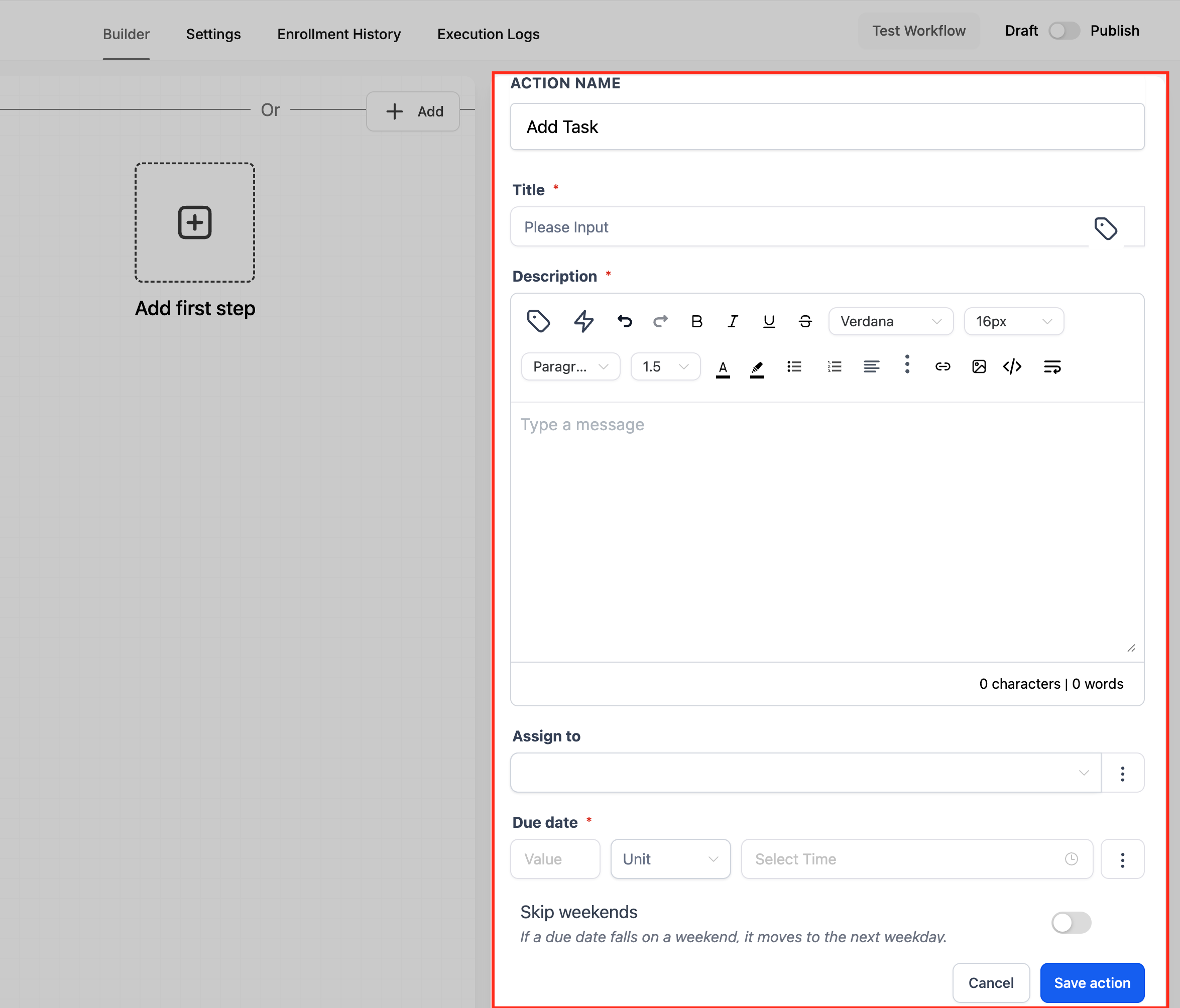
How to configure: 1. Action Name: Give the action a clear name (for example, “Add Task
- Follow Up”). 2. Title: Enter the task title. 3. Description: Add task details using rich text (formatting is preserved when the task is saved and displayed). 4. Assign To: Select the user who should receive the task. 5. Due In: Enter a number and select a time unit (days, weeks, months, or years). 6. Due Time (optional): Select a specific time of day. 7. Skip Weekends (optional): Enable to skip weekends when calculating the due date. 8. Due Date Preview: Review the live preview to confirm the evaluated due date/time.
Field Name Description Mandatory Title Title of the task to help users identify it. Yes Description Detailed description of the task, providing context and guidance to the assigned user. No Assign To Select the user to whom the task will be assigned from the available list of users. Yes Due In Set the deadline for the task (e.g., in 1 day, 2 days, 5 days, or “Now” for immediate tasks). Yes Due Time Optional time of day for the due date. No Exclude Weekends Skips weekends when calculating the due date. No
Example Let’s say you want to assign a task to a team member, John, to follow up with a lead. You can configure the action as follows:
- Action Name: Add Task
- Title: Follow-up with Lead XYZ
- Description: Call Lead XYZ and check on the progress of their onboarding process.
- Assign To: John Doe
- Due In: 2 Weeks
- Due Time (optional): 10:30 AM
- Exclude Weekends (optional): Enabled