
Getting Started - Setup Payment Links
Ready to simplify payments and boost your sales? Let’s dive into setting up easy and secure payment links that your customers will love. With just a few clicks, you’ll have a streamlined way for customers to complete their purchases effortlessly.
Make a Payment Link
Here’s the straightforward way to create your payment link: 1. Navigate to Payments > Payment Links. 2. Click Create New Payment Link. **
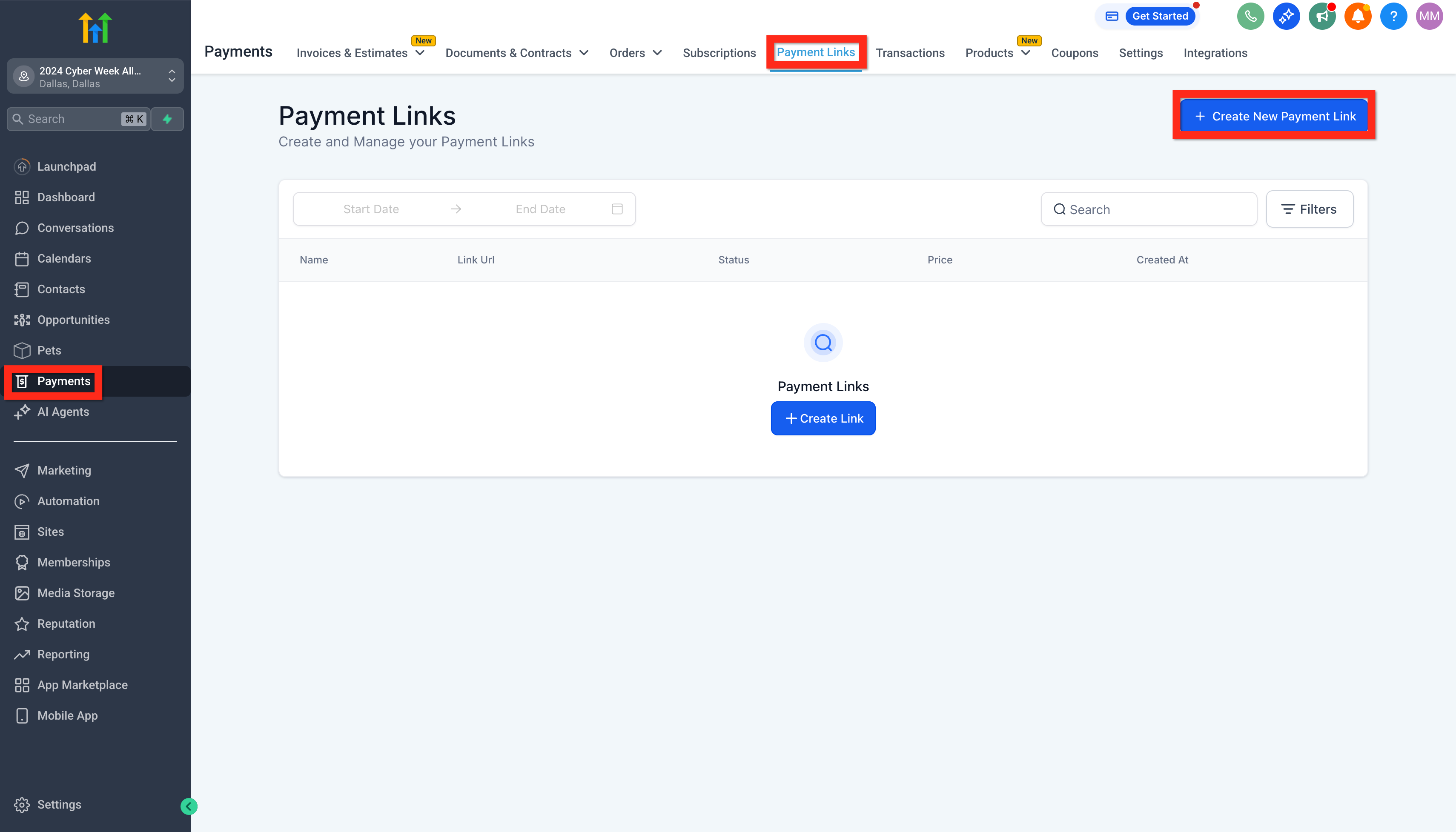
** 3. Select your product.
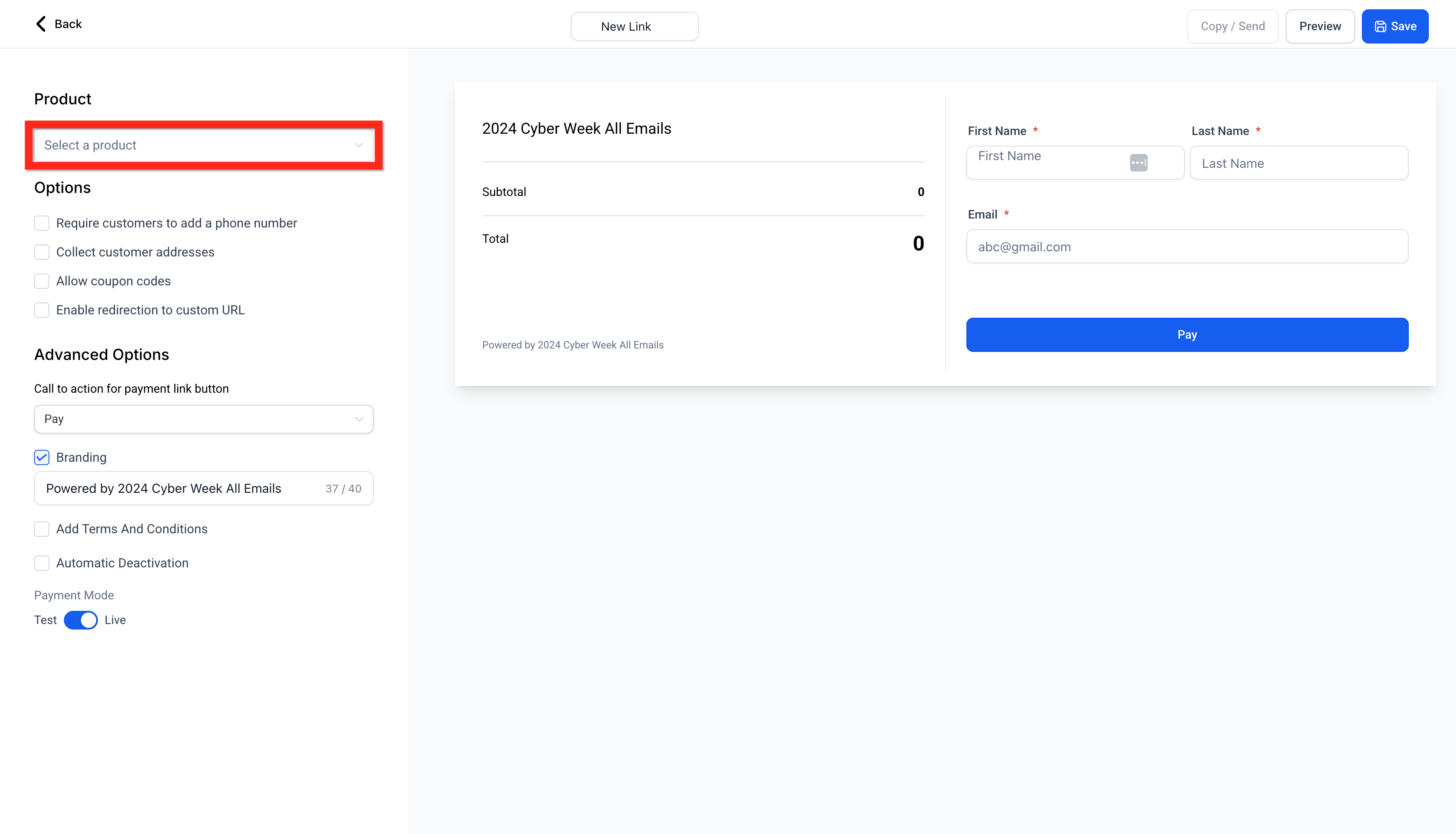
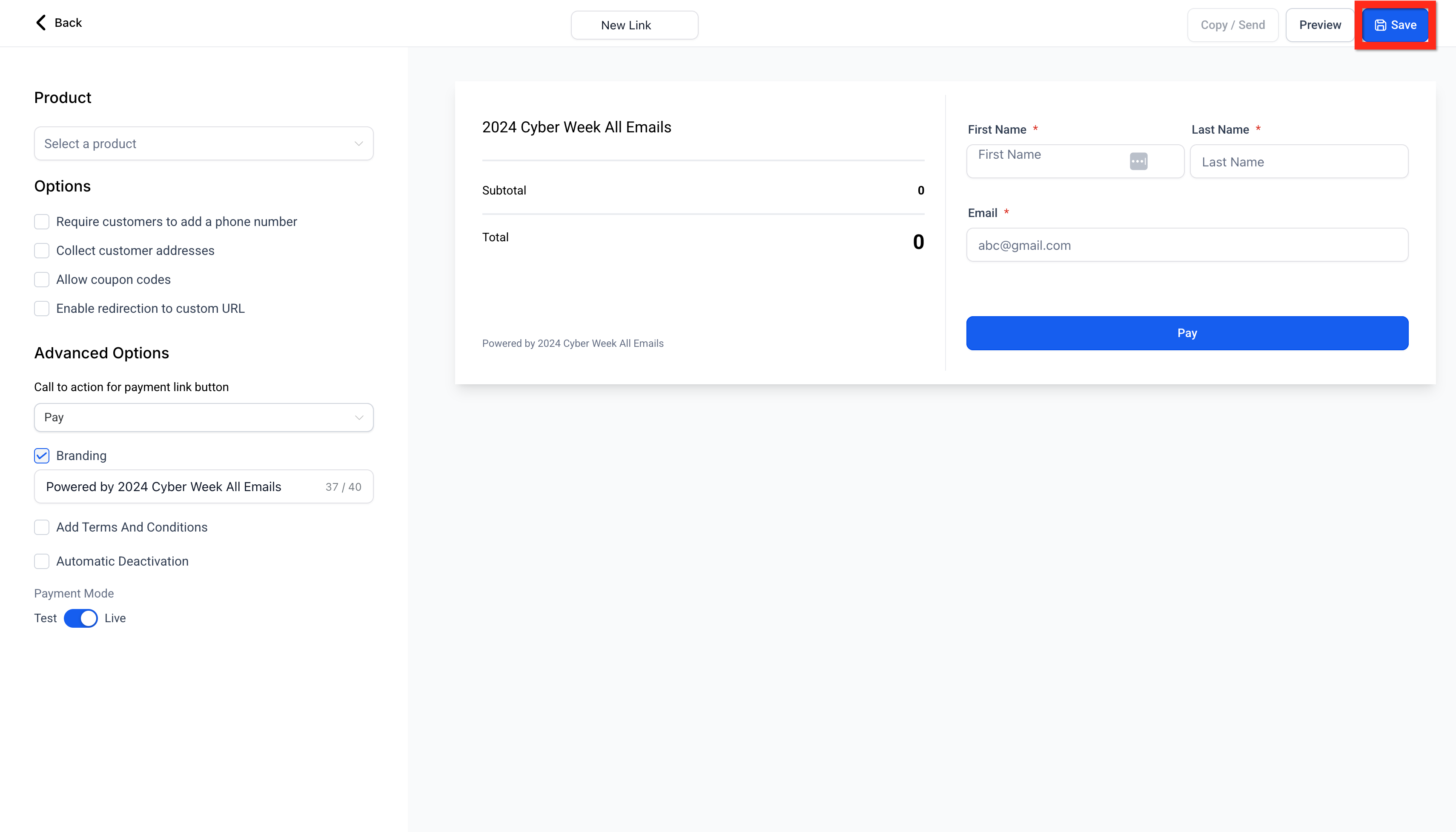
- Configure your product by setting quantities, options, and other preferences.
- Click Save. **Tip: The hosted checkout adapts to the Platform Language configured in Business Profile. Supported languages include English, Danish, German, Spanish, Finnish, French (regional variants), Italian, Dutch, Norwegian, Portuguese (regional variants), and Swedish. ** **
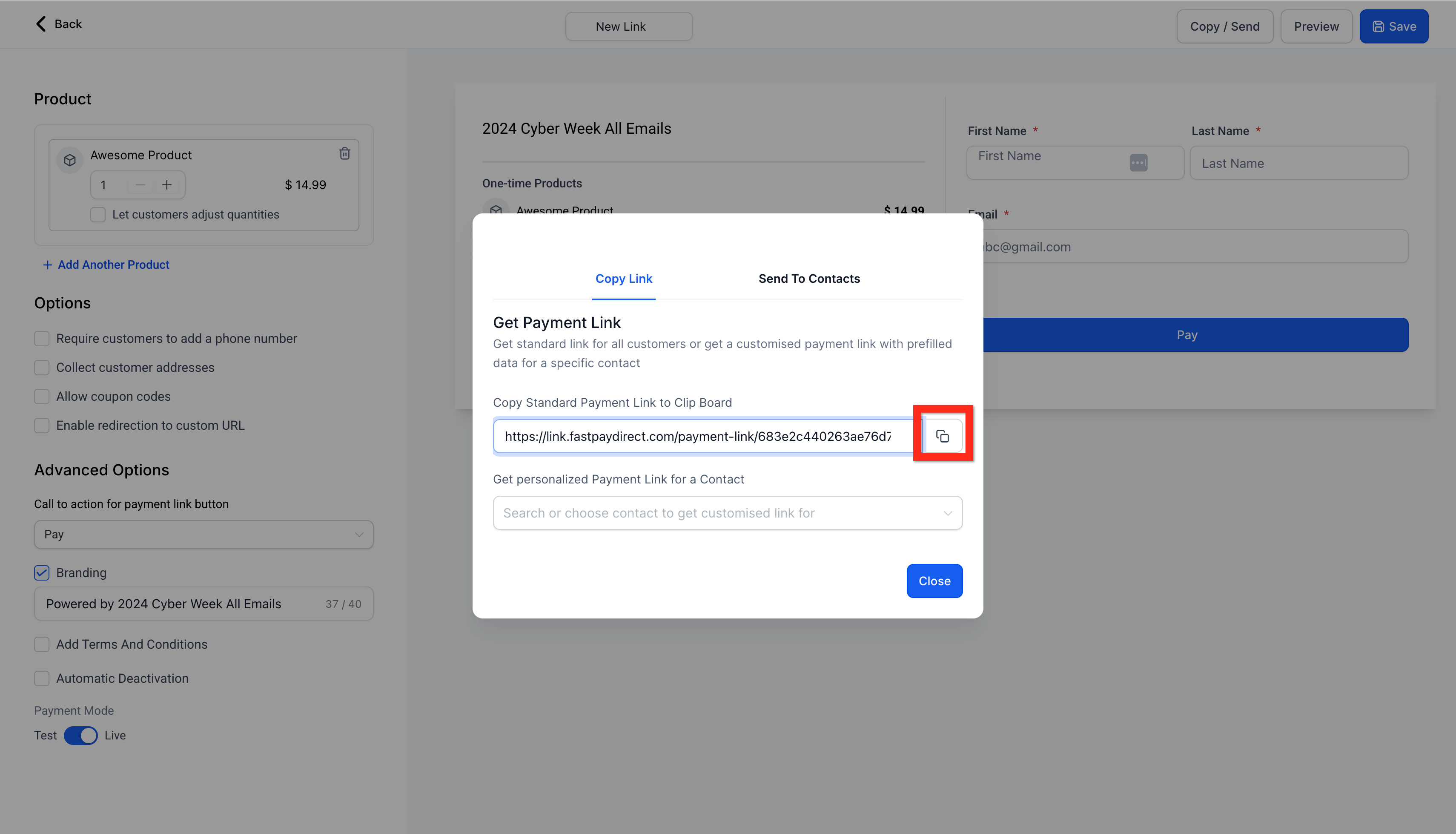
** 6. Click Send to share your payment link:
- Generic link: Anyone with the link can access it.
- Personalized link: Only the specified recipient can access it.
- Send to contacts: Share directly with your saved contacts for added convenience.
Now that your payment link is ready, why not customize your customer experience further? Click here to learn more on customizing Payment Links with your brand colors
Related Articles
- How to Customize Payment Links with Your Brand Colors
- How to Create Product Payment Links
- How to send personalized payment links to multiple contacts?
- How to Enable Editable Quantities in Payment Links
- How to Set Up Automatic Taxes for Fast Payment Links Was this article helpful? That’s Great! Thank you for your feedback Sorry! We couldn’t be helpful Thank you for your feedback Feedback sent We appreciate your effort and will try to fix the article