
Voice AI Outbound Calling Dashboard
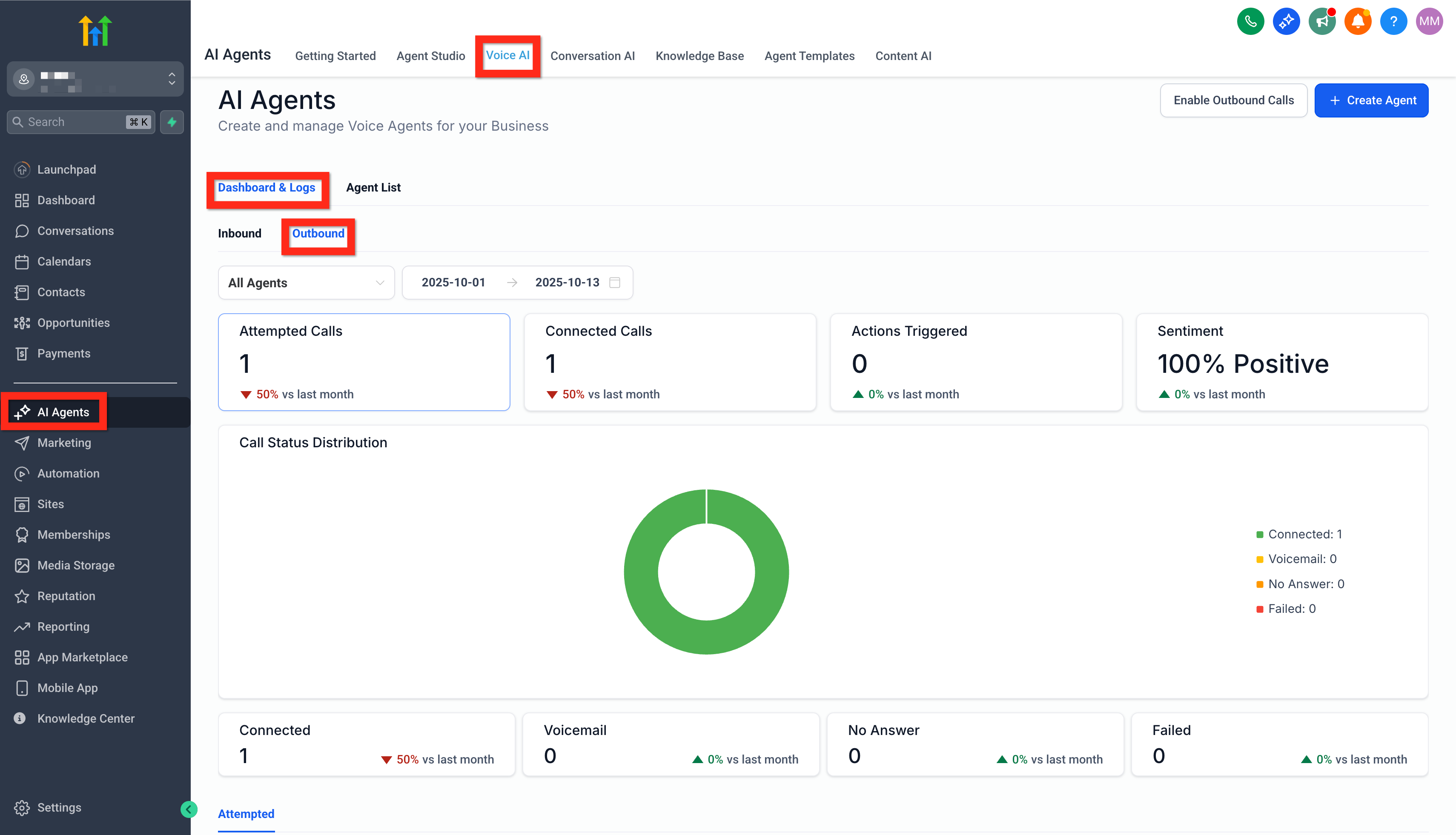
Gain real-time insight into every outbound AI call your business makes. The Voice AI Outbound Calling Dashboard in Patient Copilot surfaces attempt-to-connection rates, call durations, triggered actions, and sentiment trends—so you can coach agents, fine-tune workflows, and close more deals faster.
What is the Voice AI Outbound Calling Dashboard?
The Outbound Calling Dashboard is a new analytics view inside Patient Copilot’s Voice AI suite. It aggregates data for every call your AI agents place—connected, voicemail, no-answer, or failed—and presents easy-to-read tiles, charts, and logs. Modeled after the inbound dashboard, it delivers a holistic picture of outbound engagement and automation performance, all in one place.
Key Benefits of the Outbound Calling Dashboard
- Instant performance snapshot—see attempts, connections, and actions at a glance.
- Identify drop-off points—spot high no-answer or voicemail rates and adjust local-presence dialing or timing.
- Measure call quality—track total and average talk time to ensure conversations hit your benchmarks.
- Coach with context—use sentiment charts to uncover friction points in real conversations.
- Workflow accountability—new “Workflow Name” column ties every call back to its originating automation.
- Unified reporting—aligns outbound and inbound metrics for apples-to-apples comparisons.
Attempted Calls
Captures every outbound dial—including connected, voicemail, no-answer, and failed attempts—so you always know how many prospects your AI tried to reach. Use this tile to:
- Monitor overall dialing volume day-to-day.
- Gauge list coverage and pacing for time-boxed campaigns.
- Spot sudden spikes in failed calls that may indicate number blocking or carrier issues.
Connected Calls
This section focuses on successful connections:
- Total Connected Calls—how many outbound interactions reached a live person or voicemail box.
- Total & Average Duration—understand talk-time efficiency and adherence to compliance limits.
- Trend Charts—toggle between daily, weekly, and monthly views to uncover seasonality or campaign impacts.
Actions and Sentiment
Beyond raw call counts, Patient Copilot records every automation trigger (e.g., task creation, tag applied) and detects customer sentiment in real time:
- Actions Triggered—validate that your workflows fire correctly when specific phrases are spoken.
- Sentiment Analysis—visualize positive, neutral, and negative call outcomes to refine scripts and objection handling.
Detailed Call Logs
The log view lists every outbound attempt with sortable columns such as:
- Call Status—Connected, Voicemail, No Answer, or Failed.
- Workflow Name—pinpoints the exact Workflow or Campaign that initiated the call.
- Date/Time, Duration, Recording, Transcript—click to review conversations in context.
- A new Call Type filter—borrowed from the inbound logs—lets you isolate Test vs. Live calls for cleaner analytics.
**How to Set Up and Use the Outbound Calling Dashboard **
Use these steps to access and configure the dashboard for the first time:
- Log in to the desired sub-account, then navigate to AI Agents > Voice AI > Dashboards & Logs > Outbound.
- Adjust your Time Range filter (Today, 7 Days, 30 Days, Custom) to scope the data set.
- Hover over any chart for exact counts, or click a tile to jump directly to the filtered Call Logs.
- Export data via the ⋮ kebab-menu for CSV reporting or share a read-only link with stakeholders.
- Repeat regularly.
Frequently Asked Questions
Q: Where can I find the Outbound dashboard if I only see Inbound?
A: Ensure your sub-account has Voice AI enabled and at least one AI agent set to “Outbound.” The Outbound tab appears once the first outbound call is logged. Q: Do Test Calls affect my outbound metrics? A: No. Test calls are excluded from analytics just like on the inbound dashboard, though they still appear in Call Logs when “Test Calls” is selected. Q: Why are some calls marked “Failed”? A: Failed indicates the carrier rejected the call or the number was unreachable. High failure rates often trace back to caller-ID spam flags or invalid numbers. Q: Can I listen to recordings from voicemail calls? A: Yes. Every Connected or Voicemail status includes a playable recording and full transcript in the Call Logs drawer. Q: How is sentiment scored on voicemail? A: Sentiment is only calculated when the AI connects to a live caller; voicemail recordings are excluded from sentiment charts. Q: Is Local Presence Dialing reflected in these metrics? A: Absolutely—each attempt shows the specific caller ID used, so you can compare answer rates across local numbers. Q: Can I export only Connected calls? A: Yes. Apply the Call Status filter = Connected, then choose Export → CSV. Q: How often does the dashboard refresh? A: Data updates in near real time—typically within 60 seconds of the call ending.