
Text-To-Pay Links
Text-To-Pay Links let you request and collect payments instantly via SMS directly from a conversation. No website required!
What are Text-To-Pay Links?
Text-To-Pay Links are secure payment requests you send by SMS from within a conversation. They generate a checkout link so customers can pay in a few taps. This reduces friction, speeds up collection, and keeps payment activity tied to the contact thread for easy follow-up and tracking.
Key Benefits of Text-To-Pay Links
- Fast Collection: Send a pay-ready link from any SMS thread for fewer steps and quicker conversion.
- On-Brand: Customize the invoices to match your brand style.
- Flexible Pricing: Apply discounts and tax at send time to reflect the exact deal.
- Due Dates: Set a link due date to encourage timely payment and manage expectations.
Prerequisites
Verifying prerequisites prevents common setup issues and ensures links send and process correctly.
- An active Patient Copilot Payments (Stripe) connection in the sub-account.
- An active phone number in the sub-account.
- At least one active product.
Sending a Text-To-Pay Link from Conversations
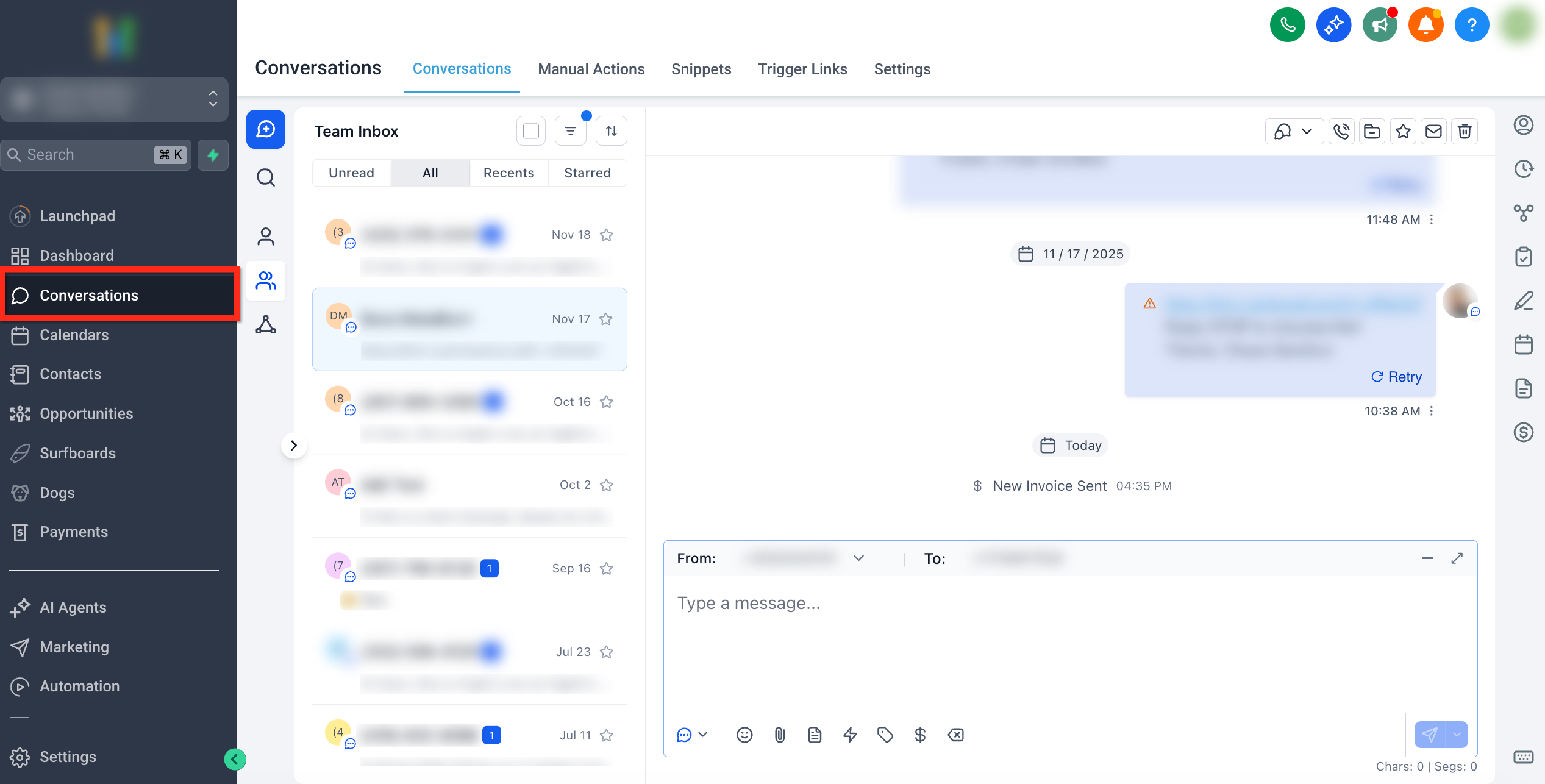
- Go to Conversations and open the conversation with the contact you would like to send the text-to-pay link to.
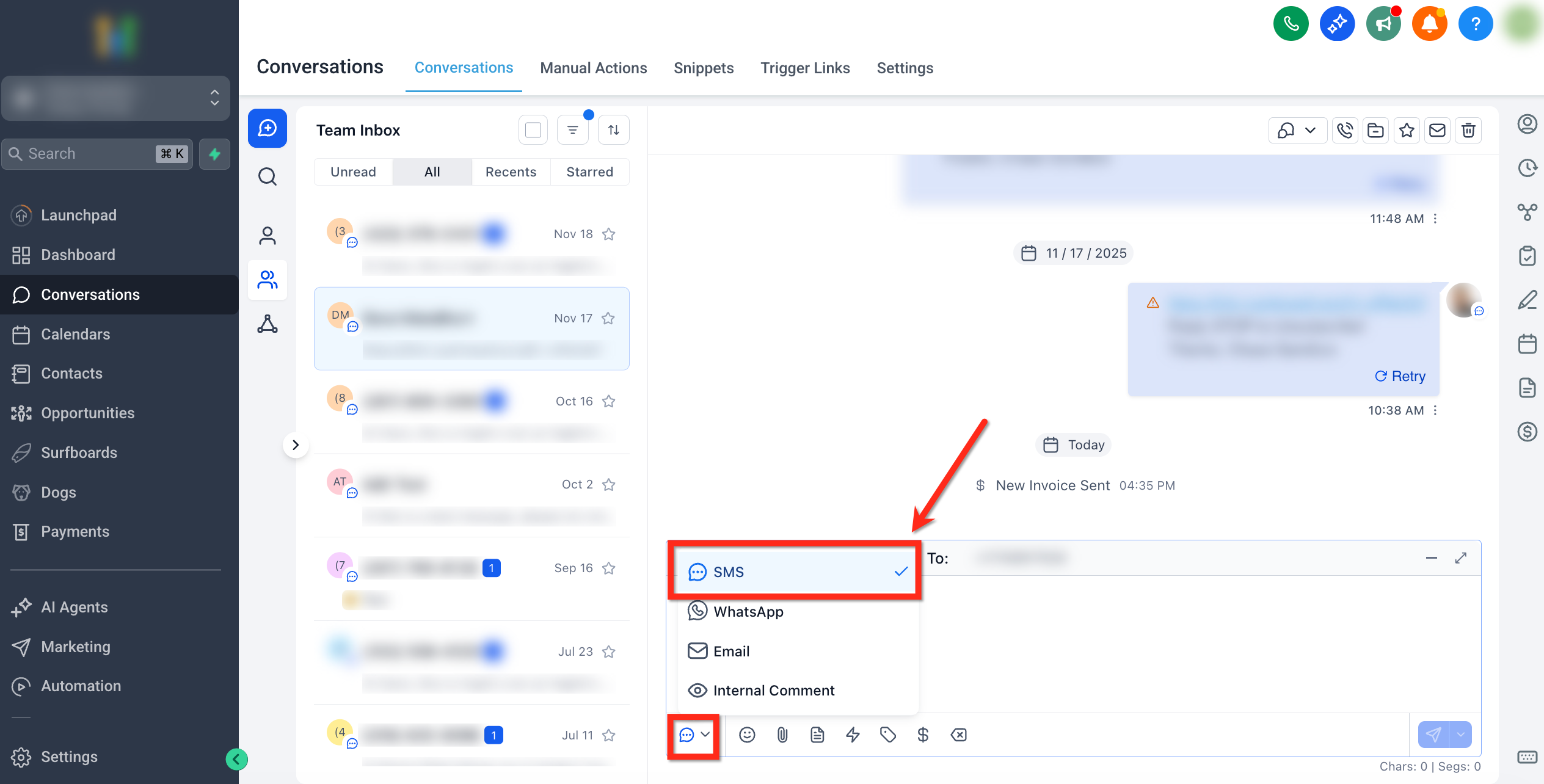
- In the channel picker at the message box, choose SMS.
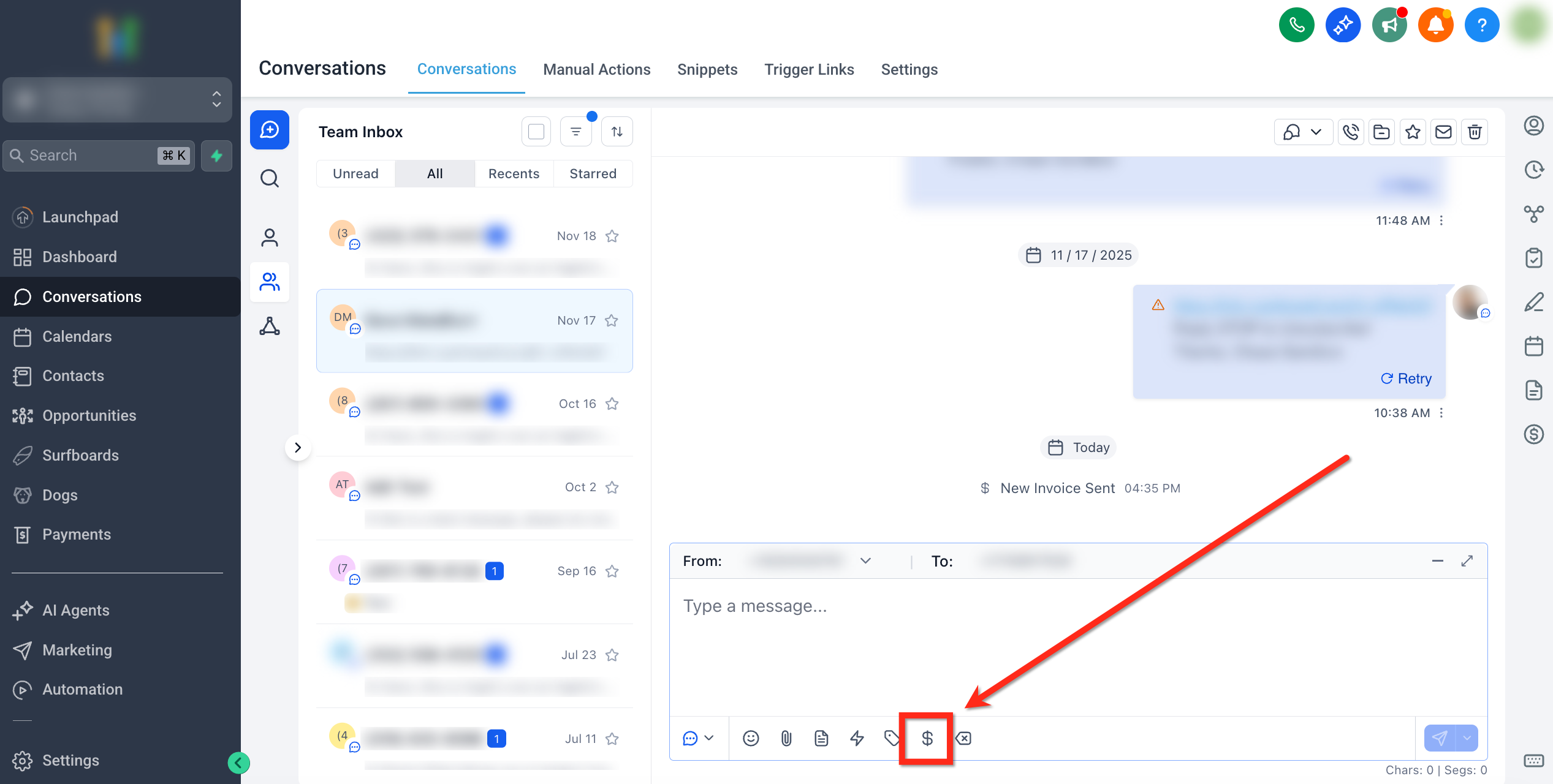
- Click Request Payment ($ icon) below the text editor.
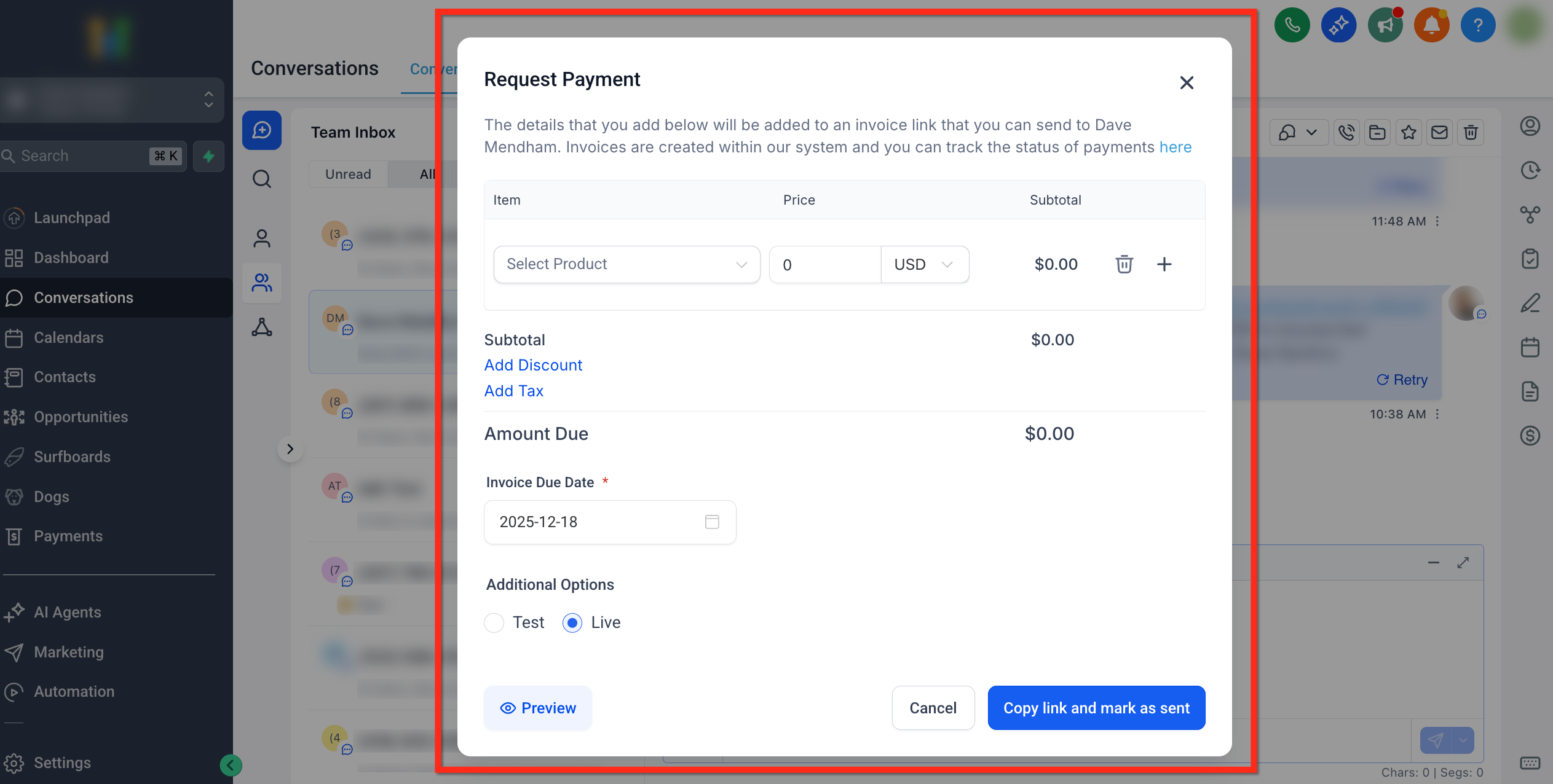
- In the Request payment modal; Select the product (or item) and confirm the price, add a discount and/or tax, set a Due date and choose between Test and Live mode (use Test for non-production checks). Click Preview to review the checkout experience, or click Copy link & Mark as sent.
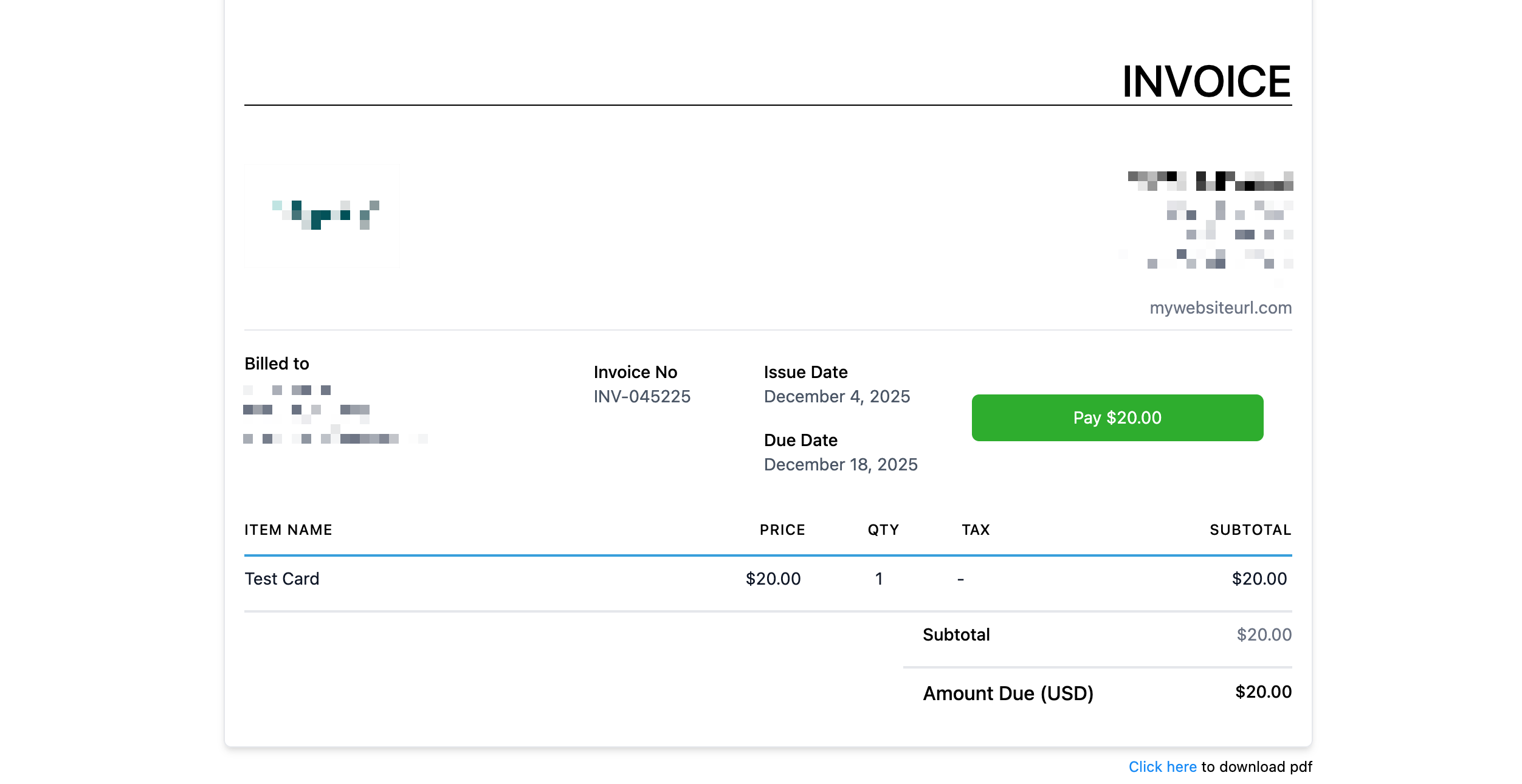
- Click Send to send the text-to-pay link. The customer will see the following screen when opening the link! Tip: You can customize this page! Click here to learn how.
Related Articles
- Payment Links
- How to Customize Payment Links with Your Brand Colors
- How to Set Up a Payment Link for Multiple Products (One-Time & Recurring)
- How to send personalized payment links to multiple contacts? Was this article helpful? That’s Great! Thank you for your feedback Sorry! We couldn’t be helpful Thank you for your feedback Feedback sent We appreciate your effort and will try to fix the article