
Workflow Action - DND Contact
This article shows how to setup DND Contact Action in Patient Copilot workflows.
Action Name
DND Contact
Action Description
| Field Name | Description | Mandatory |
| Mark as Read or Unread | Choose to mark the conversation as either read or unread. Options include: None. Mark as Read. Mark as Unread | No |
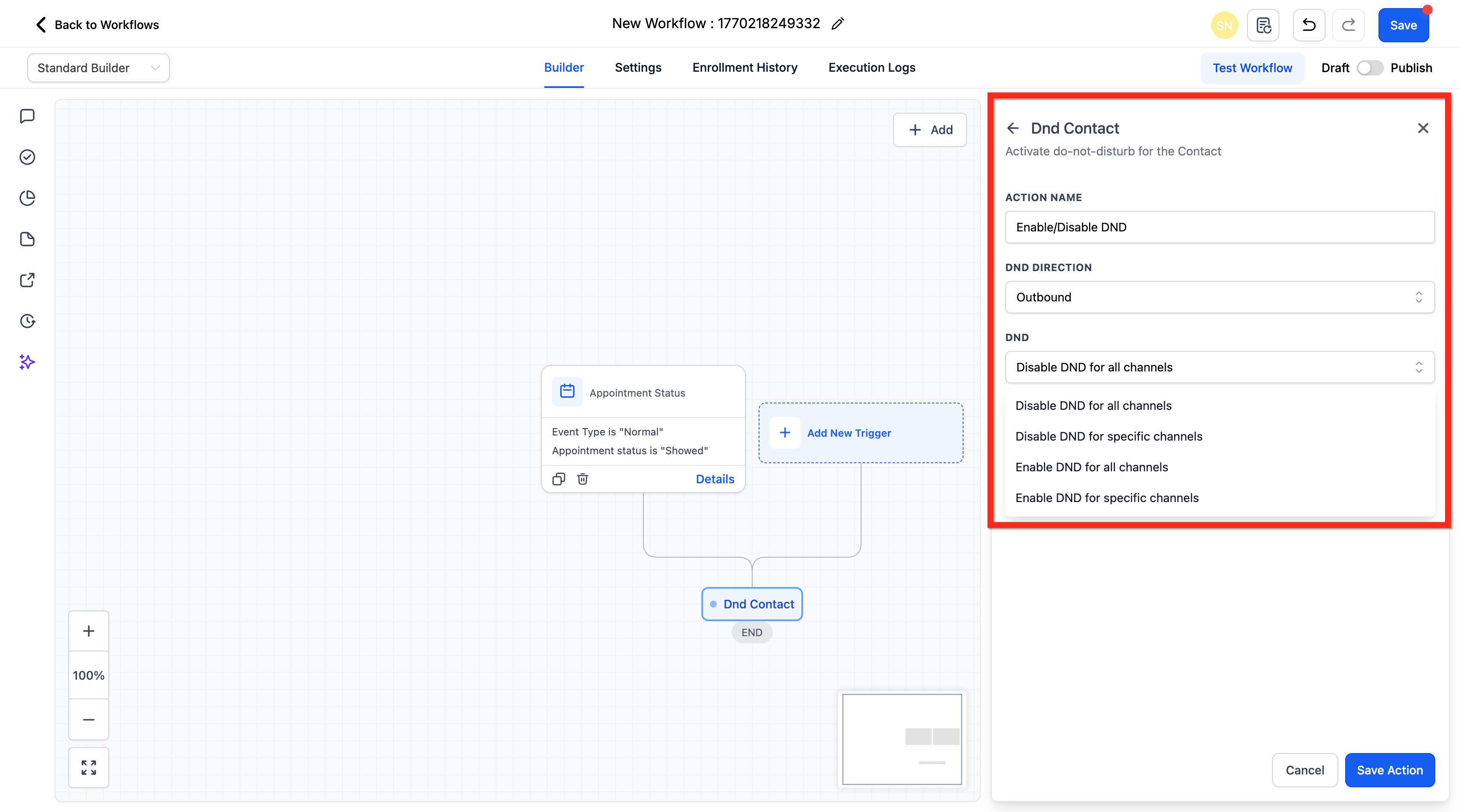
- Enable DND for all channels.
- Enable DND for specific channels.
- Disable DND for all channels.
- Disable DND for specific channels. By using this action, you can control the flow of communication based on the preferences or requirements of your contacts.
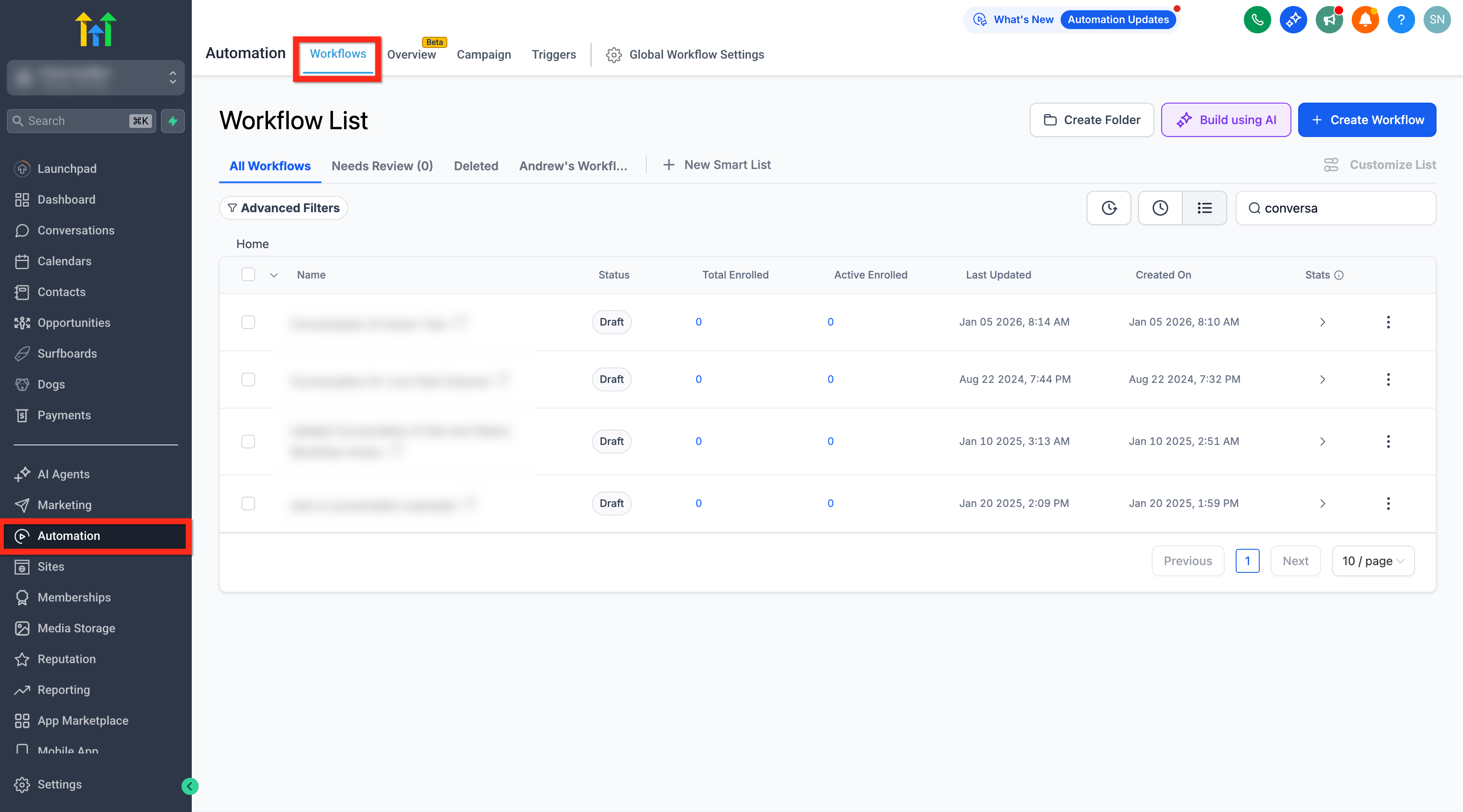
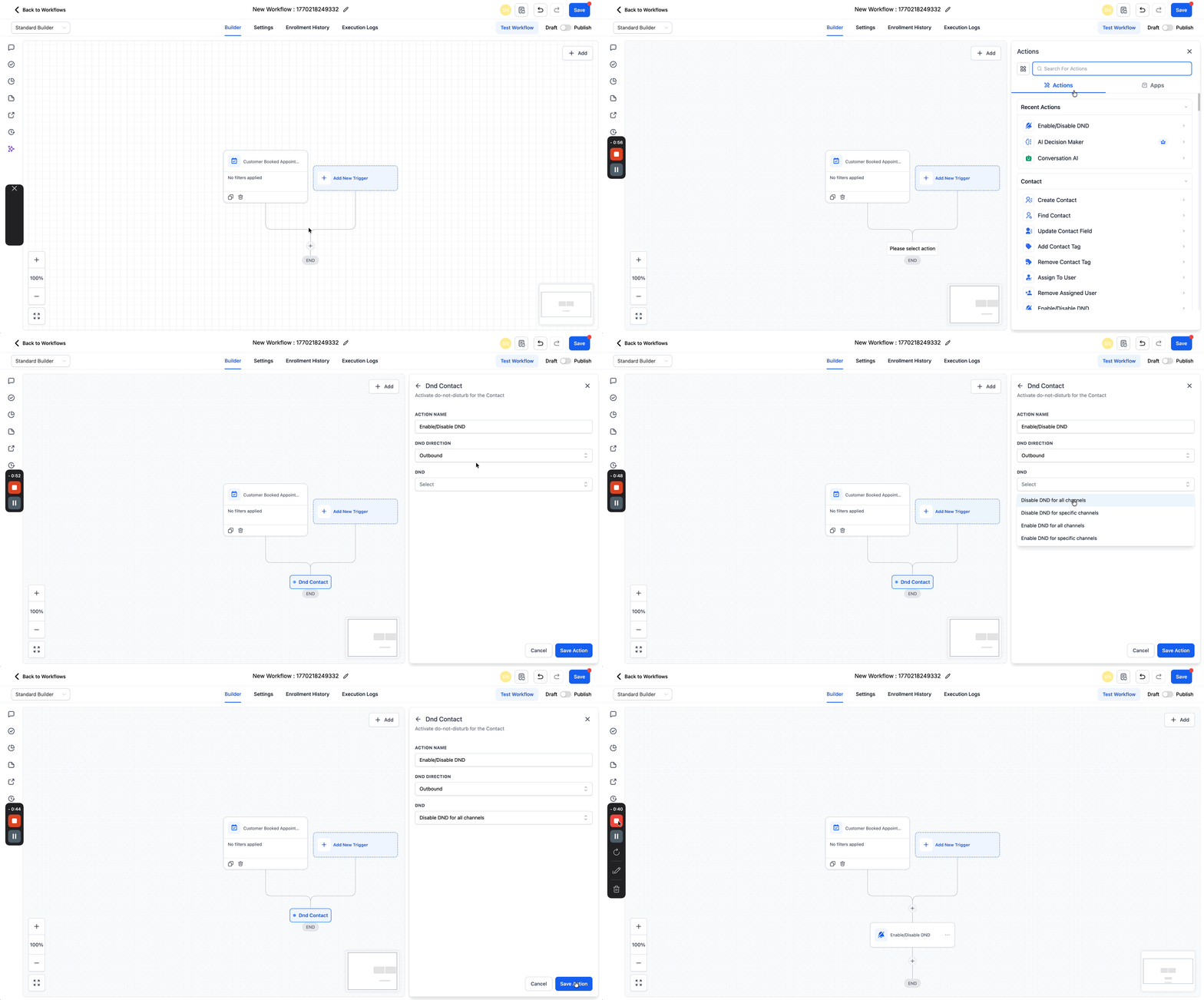
Follow these steps to add the action to a workflow and configure it for consistent, predictable outcomes. 1. Log in to your sub-account. 2. Go to Automations > Workflows.
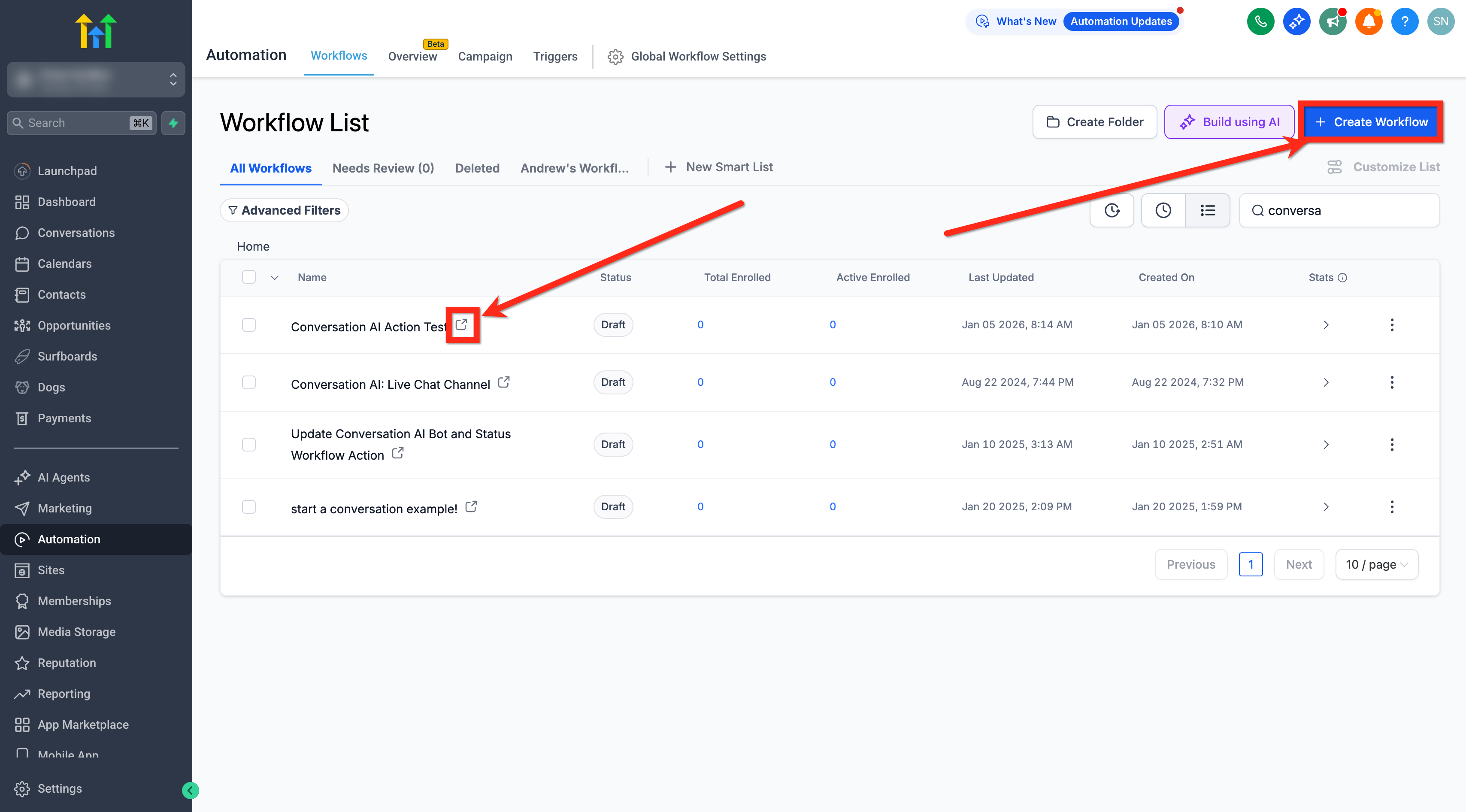
- Create a new workflow or open an existing one.
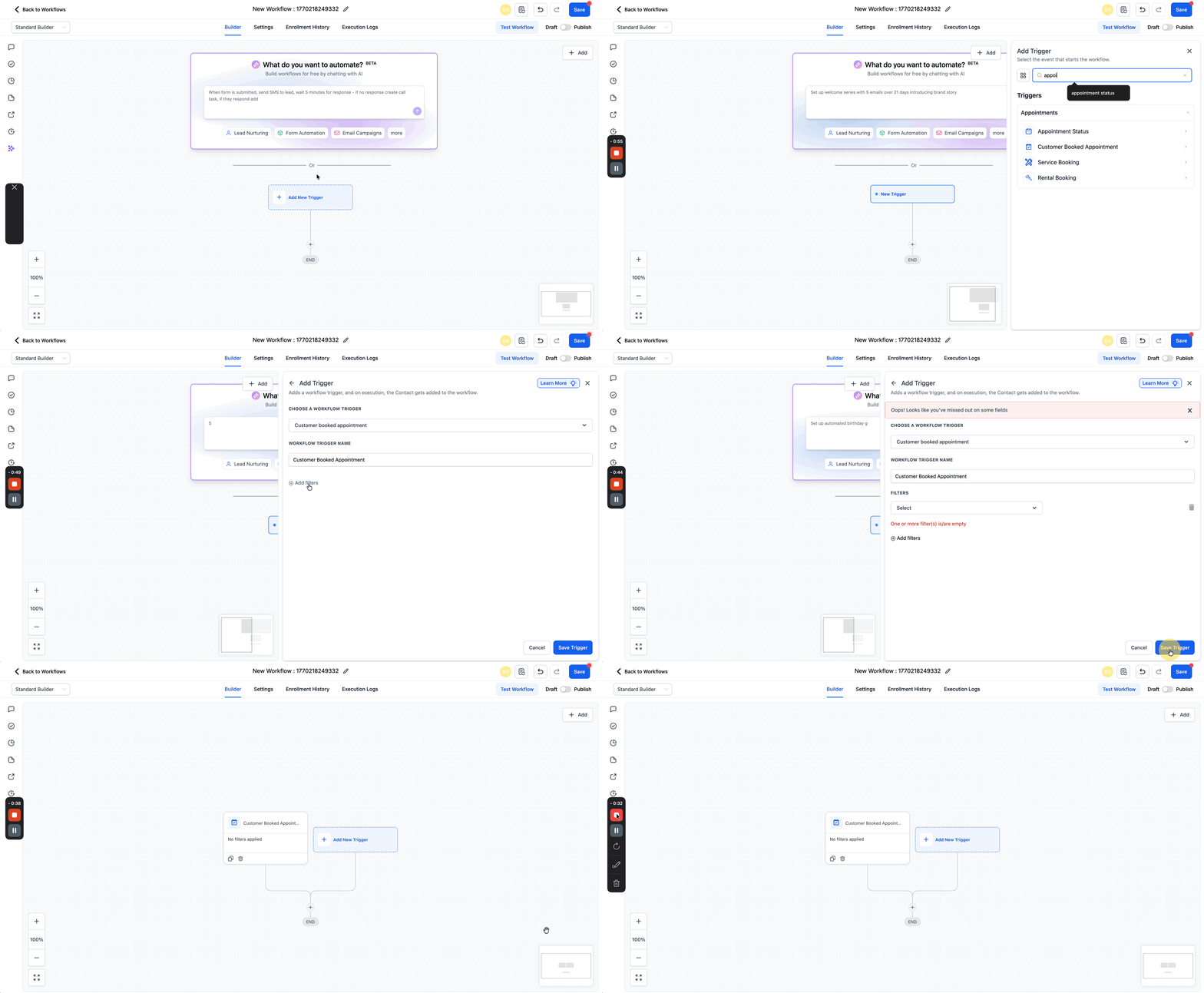
- Click on the + Add New Trigger button to add a trigger (e.g., Customer Booked Appointment).
- Click + to add an Action and search for Enable/Disable DND. 6. Name the Action. 7. Select DND Direction - Inbound or Outbound. 8. Select Enable or Disable for Selected or All Channels.
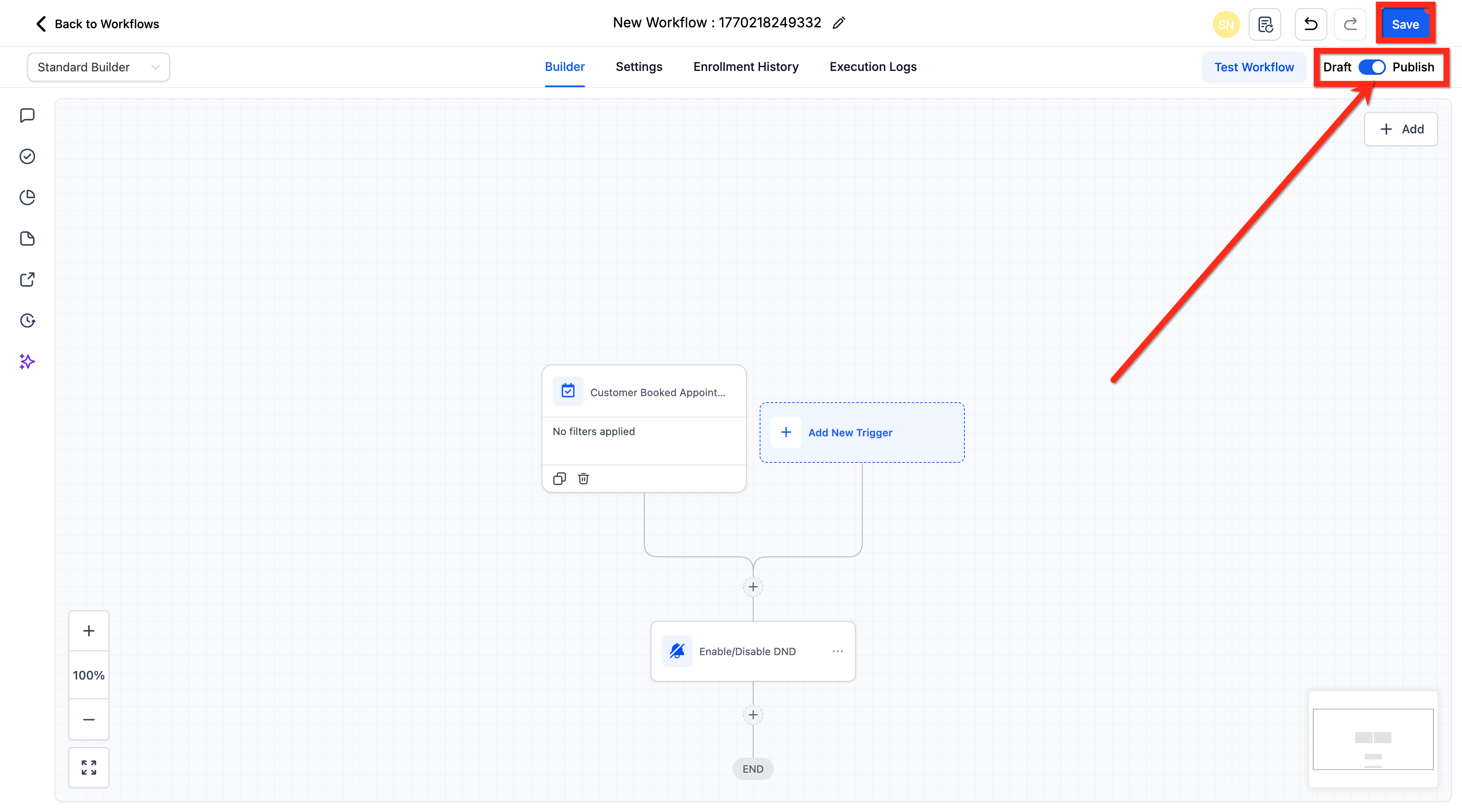
- Publish and Save the Workflow.
Some Triggers which can be used with the action (But not limited to)
- Appointment Status Changed:
- Trigger: Use the “Appointment Status Changed” trigger.
- Configuration: Set a filter for the appointment status to be “Completed” or “Showed” (depending on the terminology used in your system).
- Action: Add the “DND Contact” action to disable DND, indicating that the contact can now receive communications.
- Appointment Scheduled:
- Trigger: Use the “Appointment Scheduled” trigger.
- Configuration: Add a condition to wait for a specific period after the appointment time (e.g., 1 hour after the scheduled end time).
- Action: After the waiting period, add the “DND Contact” action to disable DND, assuming the appointment has been completed.
- Task Completed:
- Trigger: Use the “Task Completed” trigger associated with appointment follow-up tasks.
- Configuration: Link the task to follow-up actions post-appointment, such as sending a thank you email or a survey.
- Action: Once the task is marked as completed, add the “DND Contact” action to disable DND, allowing communication to resume.
- Custom Field Update:
- Trigger: Use a “Custom Field Update” trigger where a field is updated to indicate the appointment’s completion.
- Configuration: Create a custom field that is marked when the appointment is considered completed (manually or via another process).
- Action: When this field is updated, use the “DND Contact” action to disable DND.
- Manual Trigger via Internal Notification:
- Trigger: Set up a process where team members manually update a contact’s record or status after verifying appointment completion.
- Configuration: Use an internal notification or task completion as a trigger.
- Action: Use the “DND Contact” action to disable DND for the contact.
- Contact Created (Inbound Spam Blocking):
- Trigger: Use the “Contact Created” trigger when a contact is created via inbound call or SMS.
- Configuration: Add conditions to identify spam patterns (e.g., phone number format, lack of engagement, or known spam indicators).
- Action: Use the “DND Contact” action with DND Direction set to Inbound to block future incoming calls and SMS from the contact.
Logging and attribution
When this workflow action enables or disables DND, Patient Copilot records it in Conversations and activity logs as:
- DND Enabled by Workflows
- DND Disabled by Workflows If DND is changed manually by a team member, logs show DND Enabled/Disabled by User. If the contact changes DND, logs show DND Enabled/Disabled by Contact. This applies across all channels.
Example
Scenario: A customer has opted out of receiving promotional SMS but wants to stay updated via email. 1. Set up a workflow trigger when a contact opts out of SMS communication. 2. Add the “DND Contact” action. 3. Configure it to enable DND for SMS only while keeping other channels active. 4. This setup ensures the contact will not receive SMS notifications but can still receive updates via email or other preferred channels. This approach respects customer preferences and helps maintain a positive relationship by avoiding unwanted communications. Scenario: A marketing agency wants to block incoming spam calls from cluttering their pipeline with junk contacts. 1. Set up a workflow trigger when a contact is identified as spam (via custom field, tag, or manual process). 2. Add the “DND Contact” action. 3. Configure it to enable DND for all channels with Direction set to Inbound. 4. This setup blocks incoming calls and SMS from the contact, preventing them from creating noise in your system. This approach helps agencies maintain clean pipelines by filtering out unwanted inbound traffic.
Related Articles
- How to Use Do Not Disturb (DND)
- Workflow Trigger - Contact DND
- How to Use Mobile App DND in Contacts Was this article helpful? That’s Great! Thank you for your feedback Sorry! We couldn’t be helpful Thank you for your feedback Feedback sent We appreciate your effort and will try to fix the article