
Troubleshooting Tool for Calendar
Troubleshooting Tool for Calendar lets users quickly identify and resolve calendar-related issues in Patient Copilot, such as booking conflicts or missing availability. It provides visibility into common setup problems, helping users take immediate action to restore proper calendar functionality.
Troubleshooting User Availability Settings
Even if the calendar is integrated, missing or incorrect availability blocks bookings. The Troubleshooting Tool will flag users without defined working hours. To review and adjust availability: 1. Go to Calendars > Calendar Settings. 2. Find the calendar assigned to the user and click Edit. 3. Click the Availability tab inside that calendar. 4. Add or edit the available time blocks for relevant days.
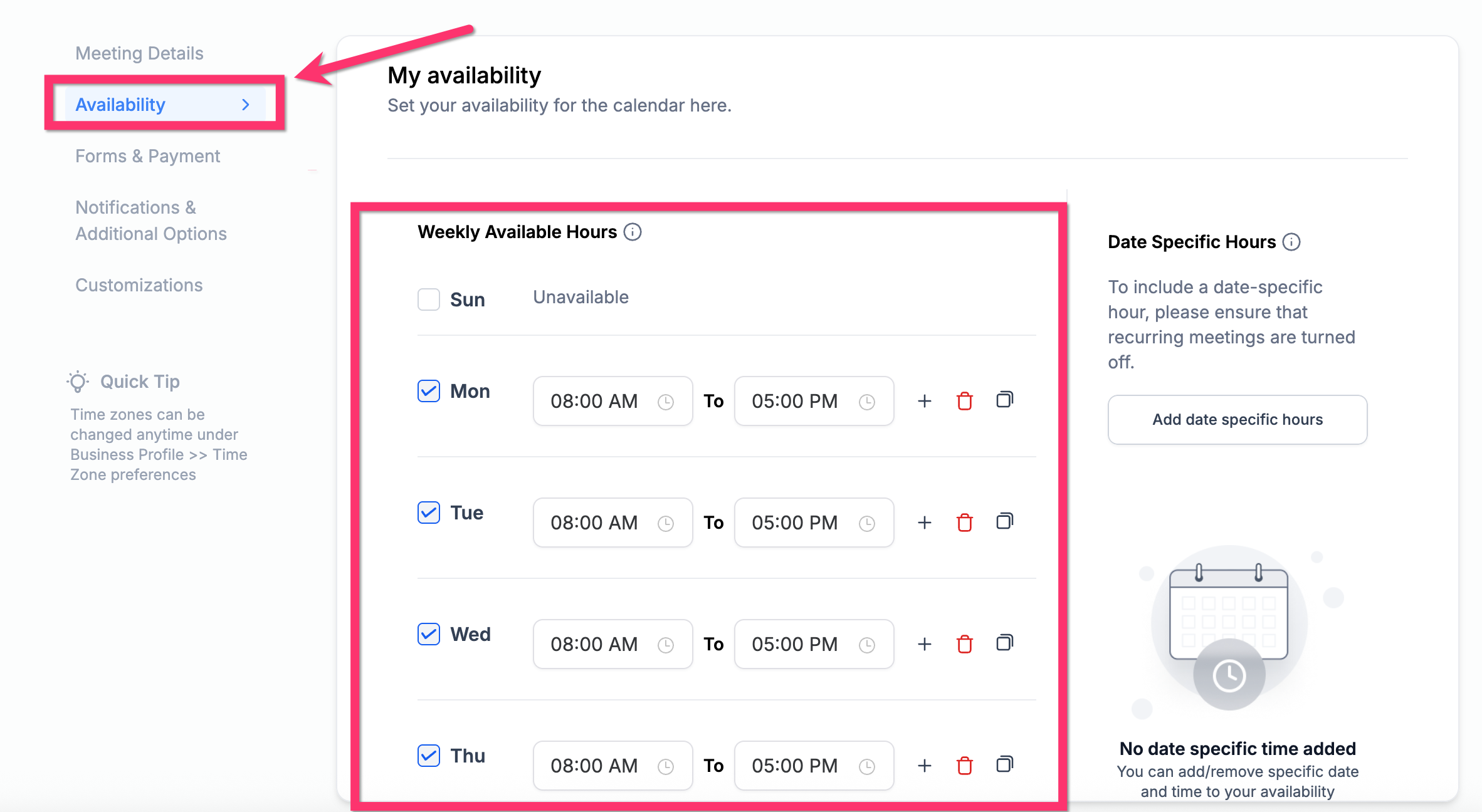
Learn More: How to Set Up Availability for Calendar Users
Common Booking Issues and What They Mean
Each status code shown in the Troubleshooting Tool tooltip reveals the reason a time slot is not bookable.
- USER: No available users at this time
- COLLECTIVE: One or more users are unavailable
- CONFLICT: Third-party calendar conflict
- BOOKED: Already booked via the system
- BLOCKED: Manually blocked time
- NOTICE: Violates minimum scheduling notice
- TOOFAR: Beyond allowed date range
- DAYLIMIT: Day’s appointment limit reached
- SLOTMAX: Max bookings for the slot reached
- BUFFER: Buffer time blocks this slot
- DURATION: Appointment too long for gap
- PAST: Time is in the past
- LOOKBUSY: Hidden via Look Busy setting
- NO SEATS: Max seats reached
- RESOURCE: Required resource is unavailable
Diagnosing Double Booking Issues
Double bookings can happen when multiple users are synced to the same calendar or if availability overlaps.
- Use the Troubleshooting Tool to identify which users are in conflict.
- Adjust user calendars or isolate calendars per user to avoid overlaps. Learn More: Troubleshoot Double Bookings
Sometimes booking issues occur due to revoked permissions or missing access scopes in Google/Outlook.
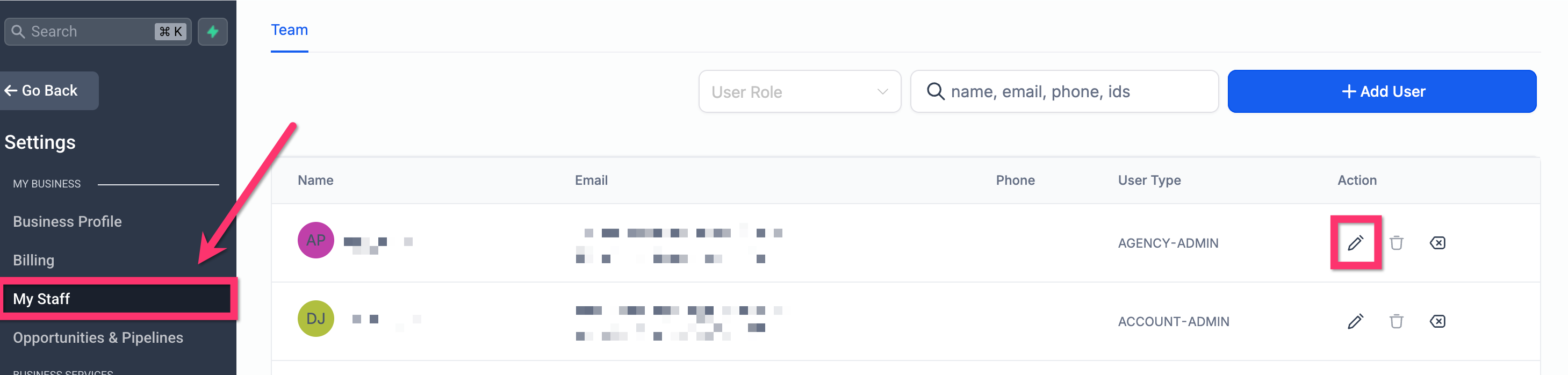
- Go to Settings > My Staff - Find Staff Member then select Edit > Calendar Configuration.
- Click Calendar on left ribbon then confirm all required permission scopes are granted.
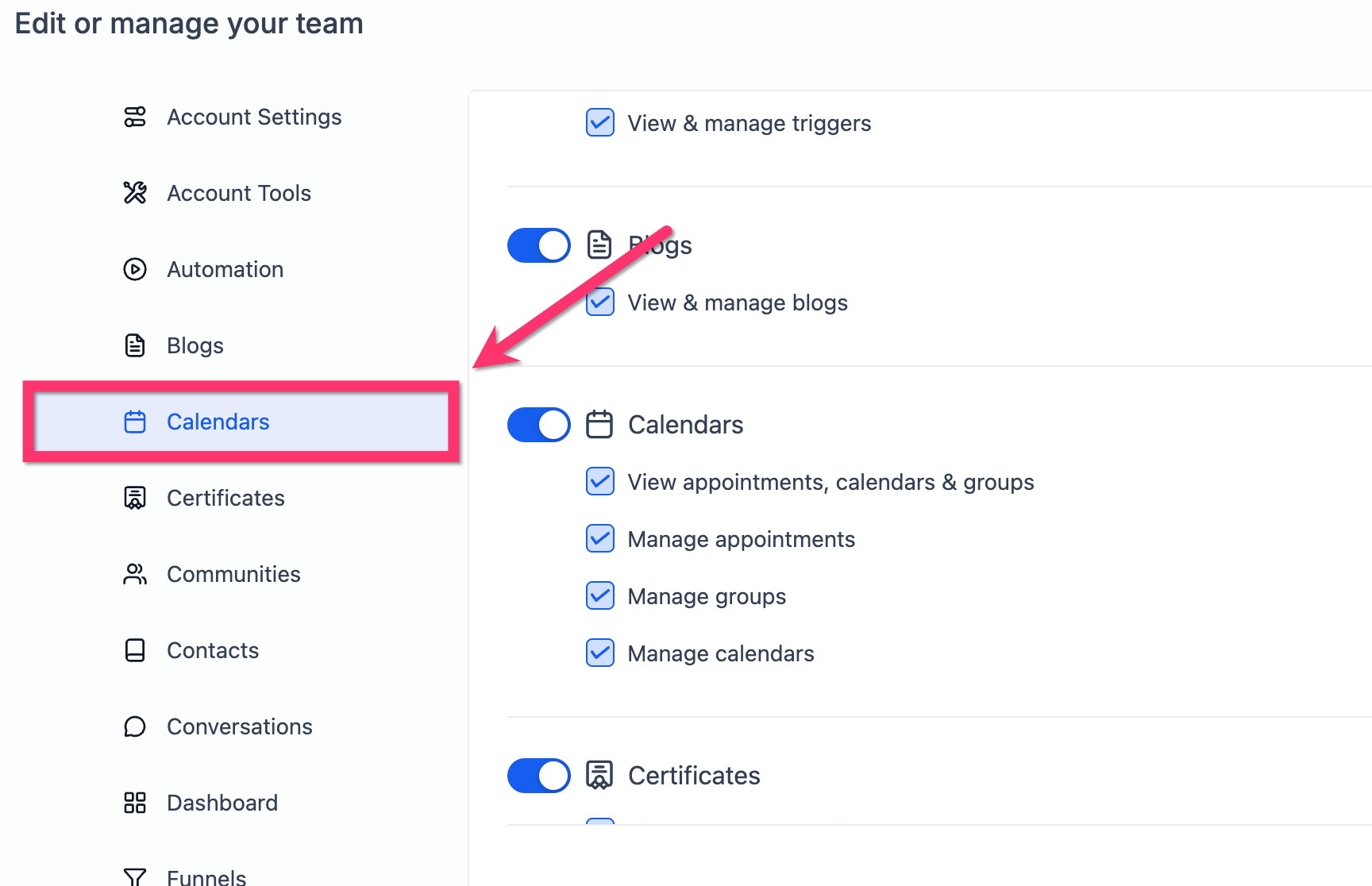
Learn More: User Permissions in Calendars
Frequently Asked Questions
Q: Do I need to enable the Troubleshooting Tool separately?
No. The Troubleshooting Tool is built into the platform and automatically available under Calendar Settings. **Q: Why is a time slot showing as “UNAVAILABLE”? **This means the user is outside their availability or the time is blocked by a conflict such as another event, sync issue, or booking restriction. **Q: Why does my calendar show no available times at all? **This usually occurs when no user is assigned, no availability is set, or calendar sync is disconnected, Q: Can I use this tool to debug group or round-robin calendars? Yes. It supports group calendars and shows which users are causing booking failures. **Q: Does the Troubleshooting Tool show automation or workflow errors? **No. It only surfaces calendar-specific setup issues—not automation logic. **Q: Can I view availability from the contact’s timezone in this tool? **No. The view is based on the logged-in user’s timezone.
Related Articles
- Adjusting Availability Settings for Individual Calendars
- Double Bookings Issue Troubleshoot
- User Permissions in Calendars
- Round Robin Calendars: The Setup Guide
- Setting Up Linked Calendars & Conflict Calendars
Important Notes
- **The tool first checks your calendar’s availability and meeting intervals to generate all potential slots. It then shows which of these slots are available and which are not. **
- For example, if your calendar availability is set from 10 AM to 12 PM and 6 PM to 8 PM with 60-minute meeting intervals, only the 10 AM, 11 AM, 6 PM, and 7 PM slots will be displayed, and their availability or unavailability will be shown accordingly for these four slots. If the calendar is unavailable on Saturdays, no slots will appear for that day.