
Contacts – All-New Contact Detail Page
The all-new Patient Copilot Contact Detail Page delivers a faster, cleaner, and smarter way to view every customer interaction in one place. This article explains what changed, why it matters, and how to start using productivity-boosting upgrades like Auto-Save, collapsible panels, and instant keyboard navigation.
What is the All-New Contact Detail Page?
Re-engineered from the ground up, the Contact Detail Page is the central workspace where you can review contact information, track conversations, log activities, and launch actions—now optimized for speed and usability. The redesign replaces endless scrolling with a three-panel layout, surfaces critical data at a glance, and remembers your personal view preferences for a truly streamlined CRM experience.
Key Improvements at a Glance
- Modern design: Faster, consistent, and visually streamlined layout.
- Auto-Save: Changes save automatically when you leave a field — no clicks needed.
- Smart Navigation: Move between contacts using keyboard shortcuts.
- Collapsible panels: Focus on what matters most, and the system remembers your layout.
- Inline associations: View and edit Companies, Opportunities, and Custom Objects right from the contact page.
- Cleaner right panel: Unified experience for Tasks, Notes, Documents, Payments, and Appointments.
- Hide empty fields: Reduce clutter and view only what’s filled.
- Search inside fields: Quickly locate data or folders.
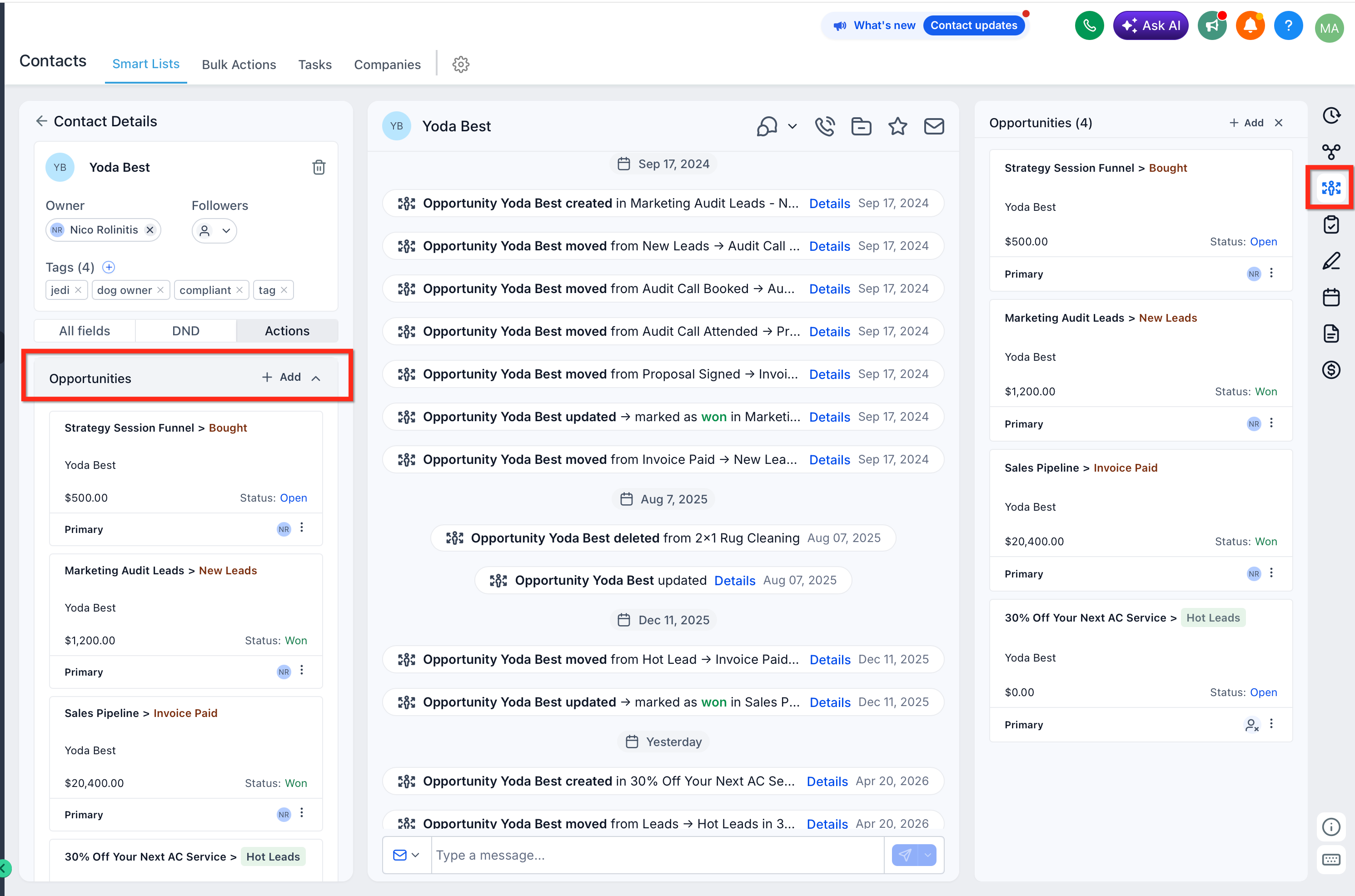
- Streamlined linked records: Access Opportunities from a dedicated tab in the right panel, with Companies and Custom Objects available under Associations.
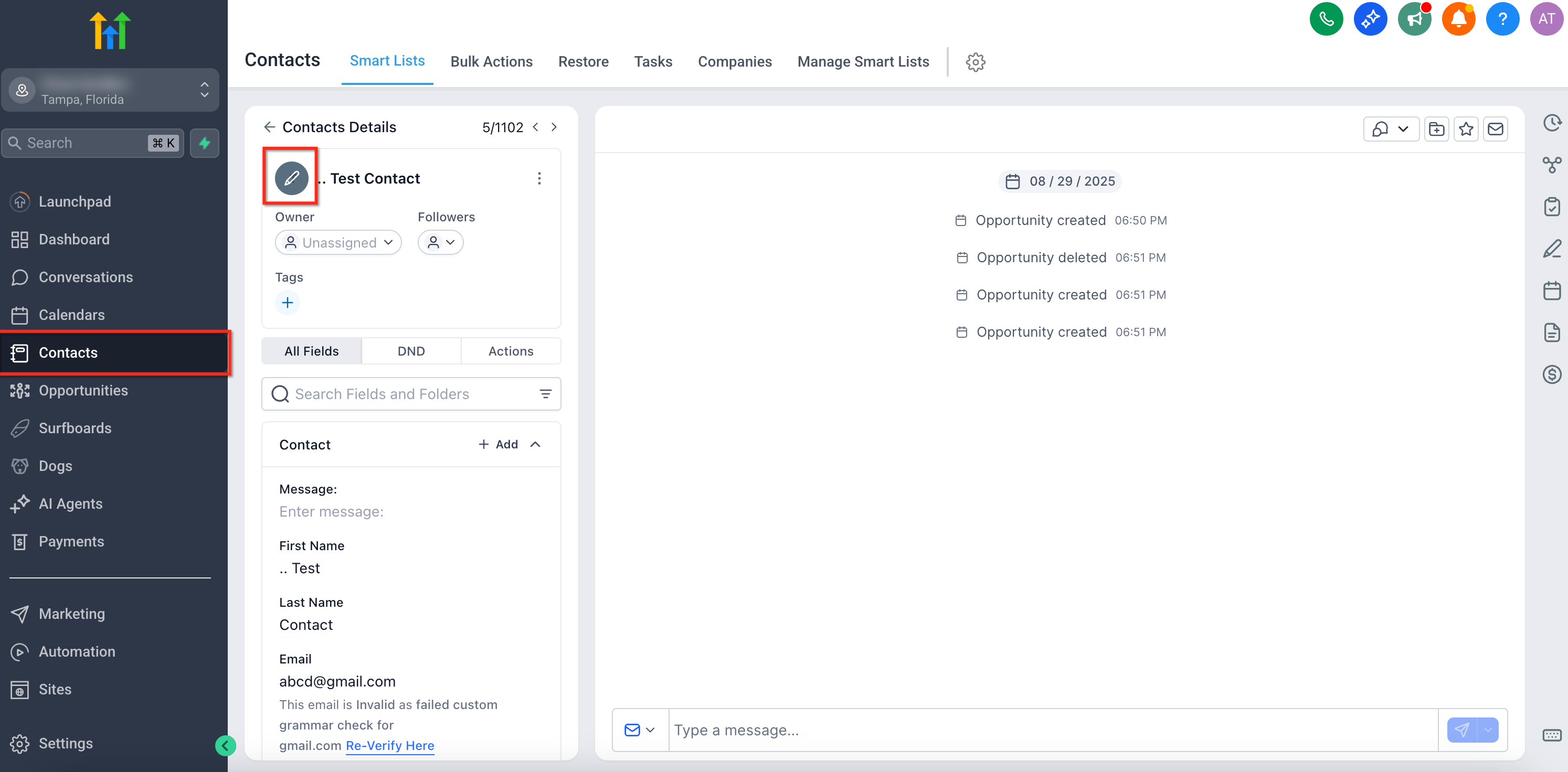
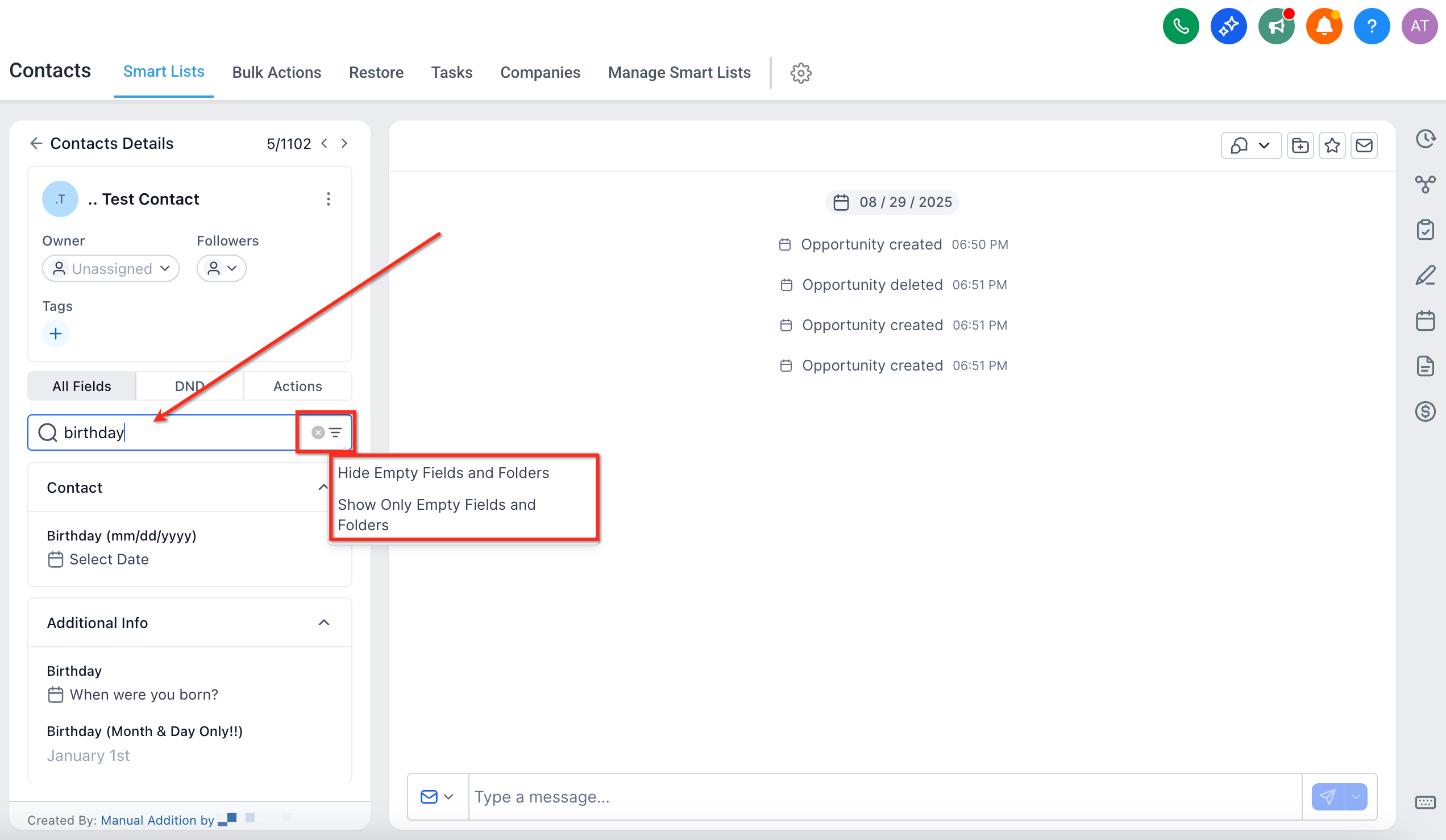
This is where you’ll find and manage all the key details about your contact. Key Actions: Edit the profile picture directly.
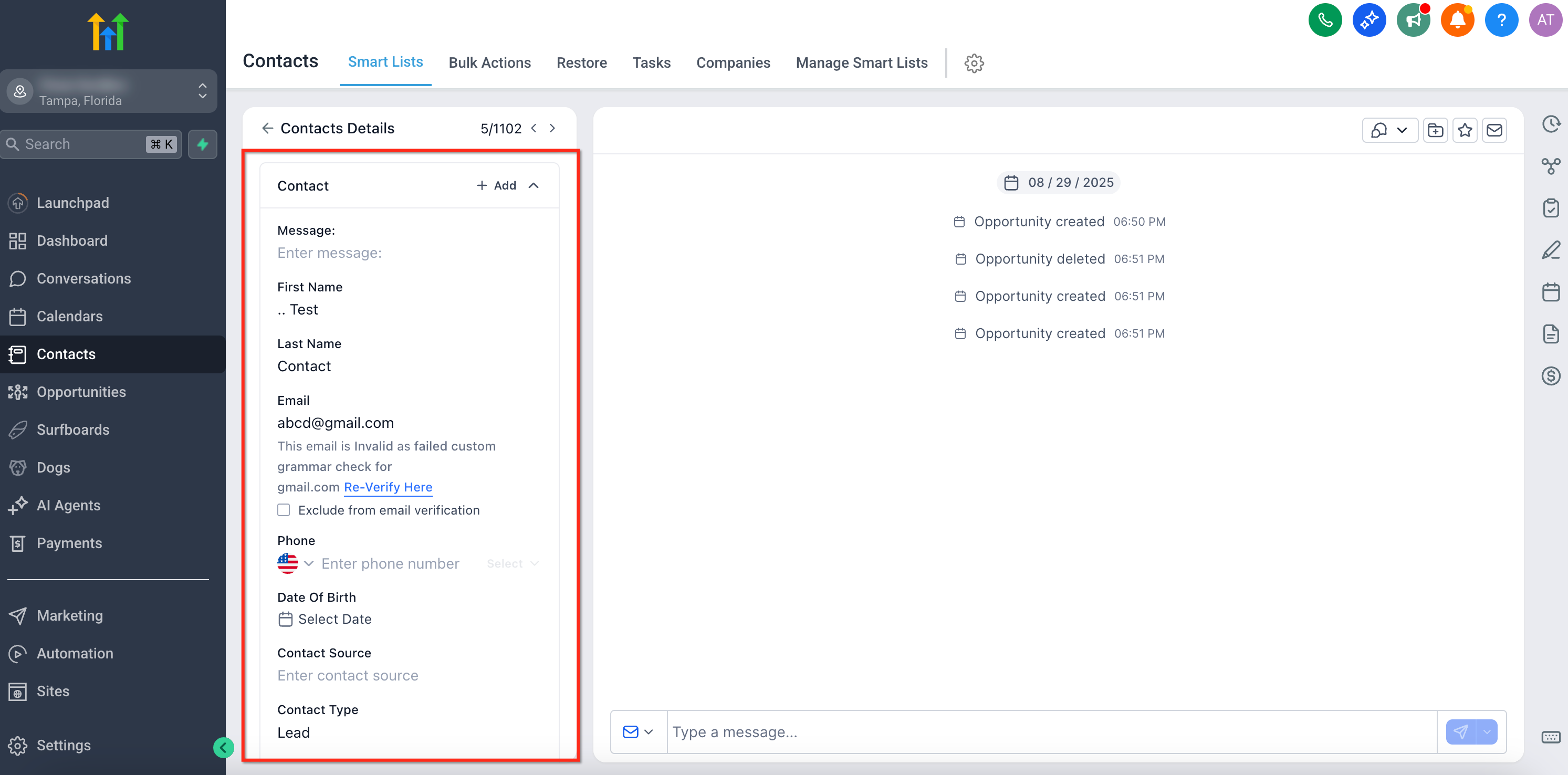
Update contact details such as name, email, phone, and tags.
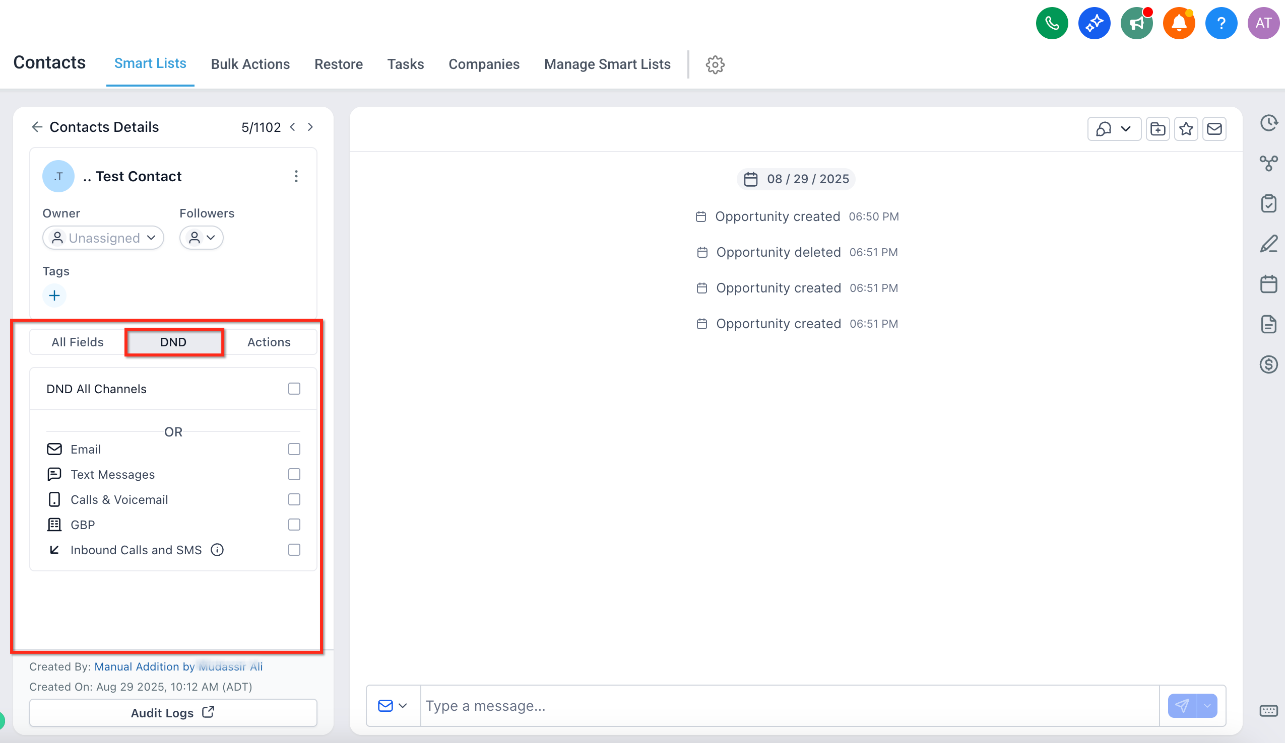
Use the DND tab to configure communication preferences.
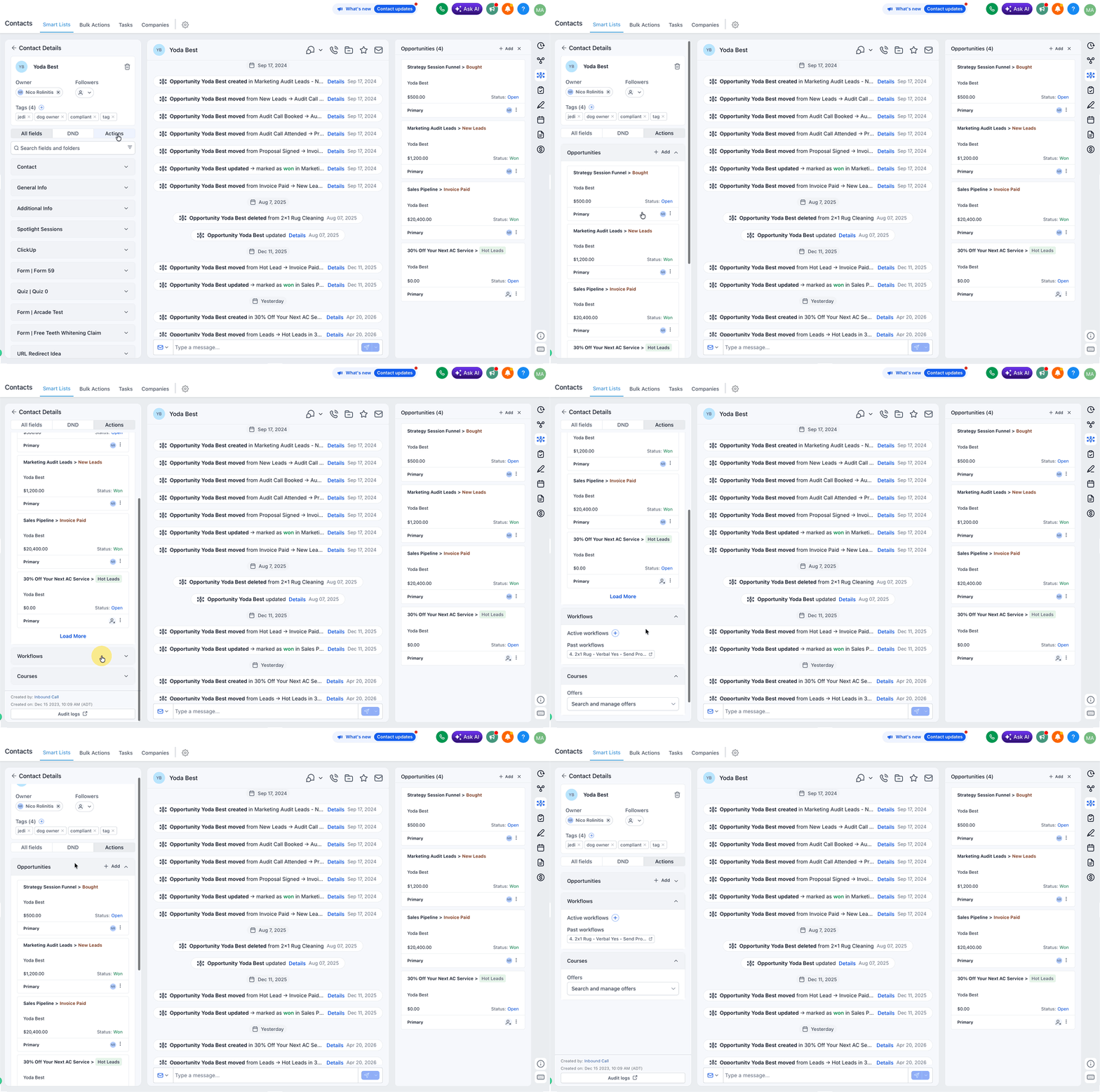
Use the Actions tab for quick utilities (like managing Opportunities, workflows and client portal).
Tips: Toggle “Hide Empty Fields” to focus only on filled data. Use Search Fields & Folders to jump straight to the information you need.
Center Panel: Conversations & Activities
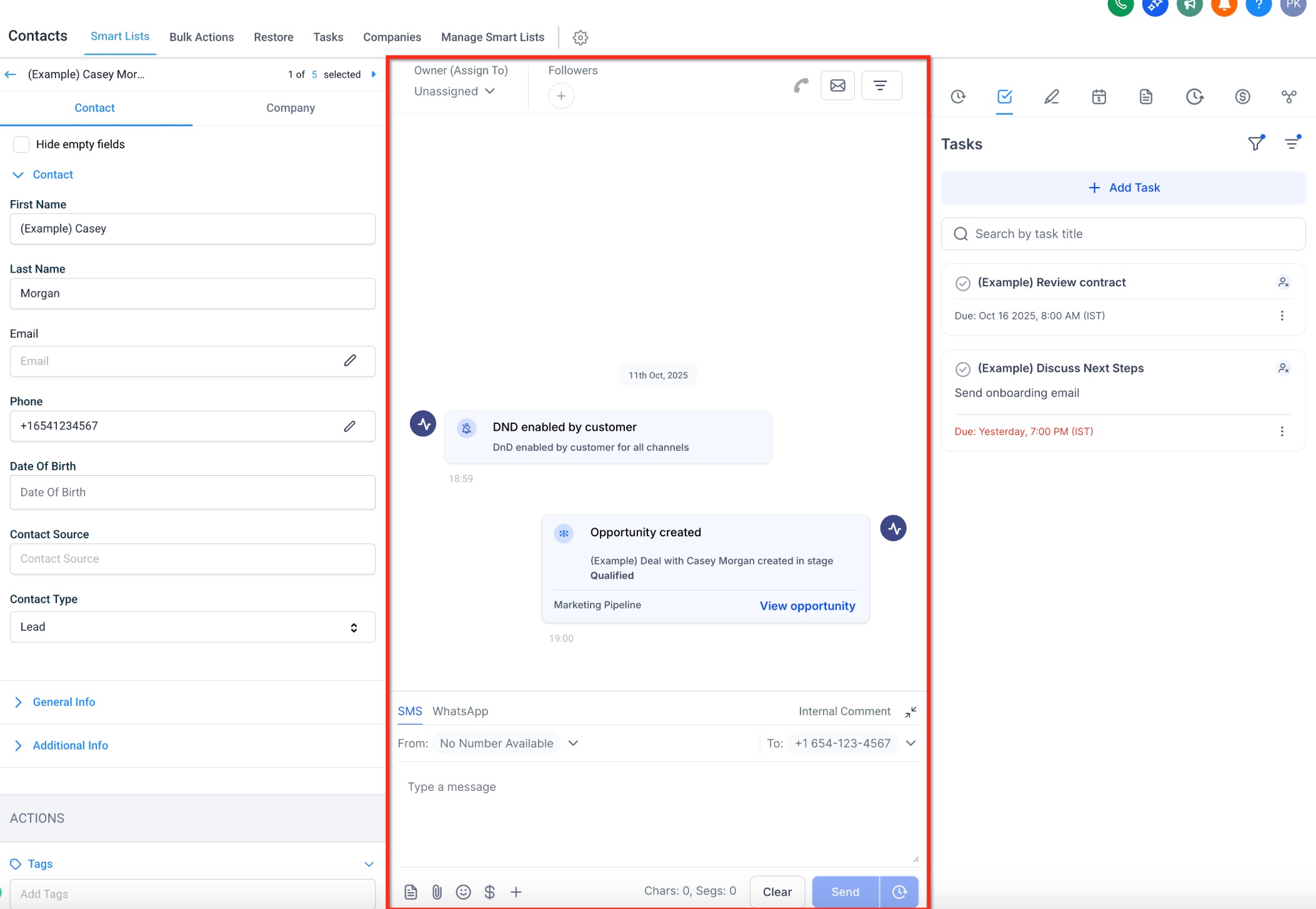
This section shows the complete history of your interactions with the contact. You can:
- View messages, calls, and notes in one place.
- Track appointments, opportunities, and activity logs.
- Quickly create new notes, send messages, or log calls. **
**
Right Panel: Action Modules
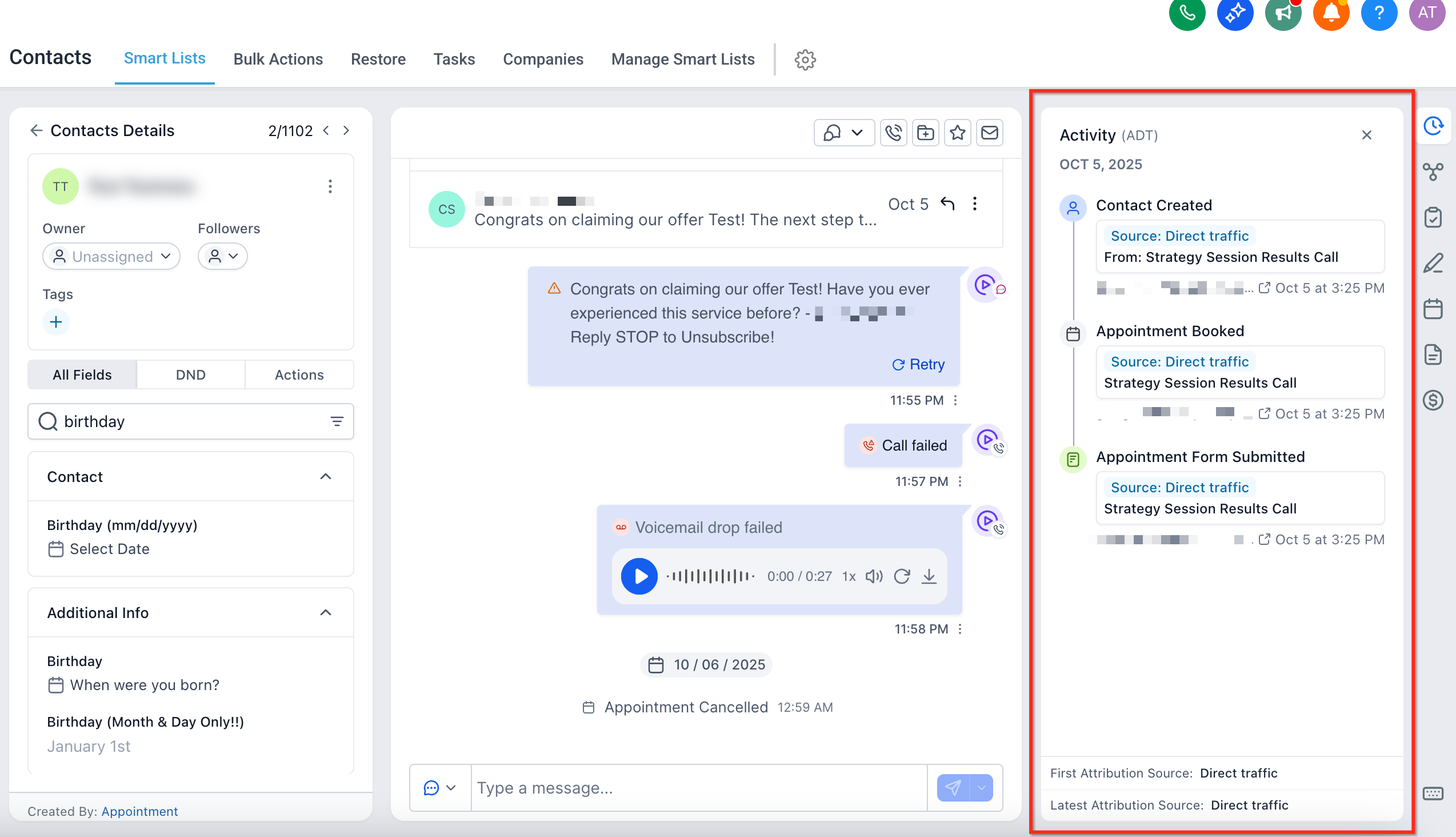
The right panel is now fully collapsible and remembers your last active tab. You can access: 1. Activities - Track appointments**, form submissions,** and activity logs. **
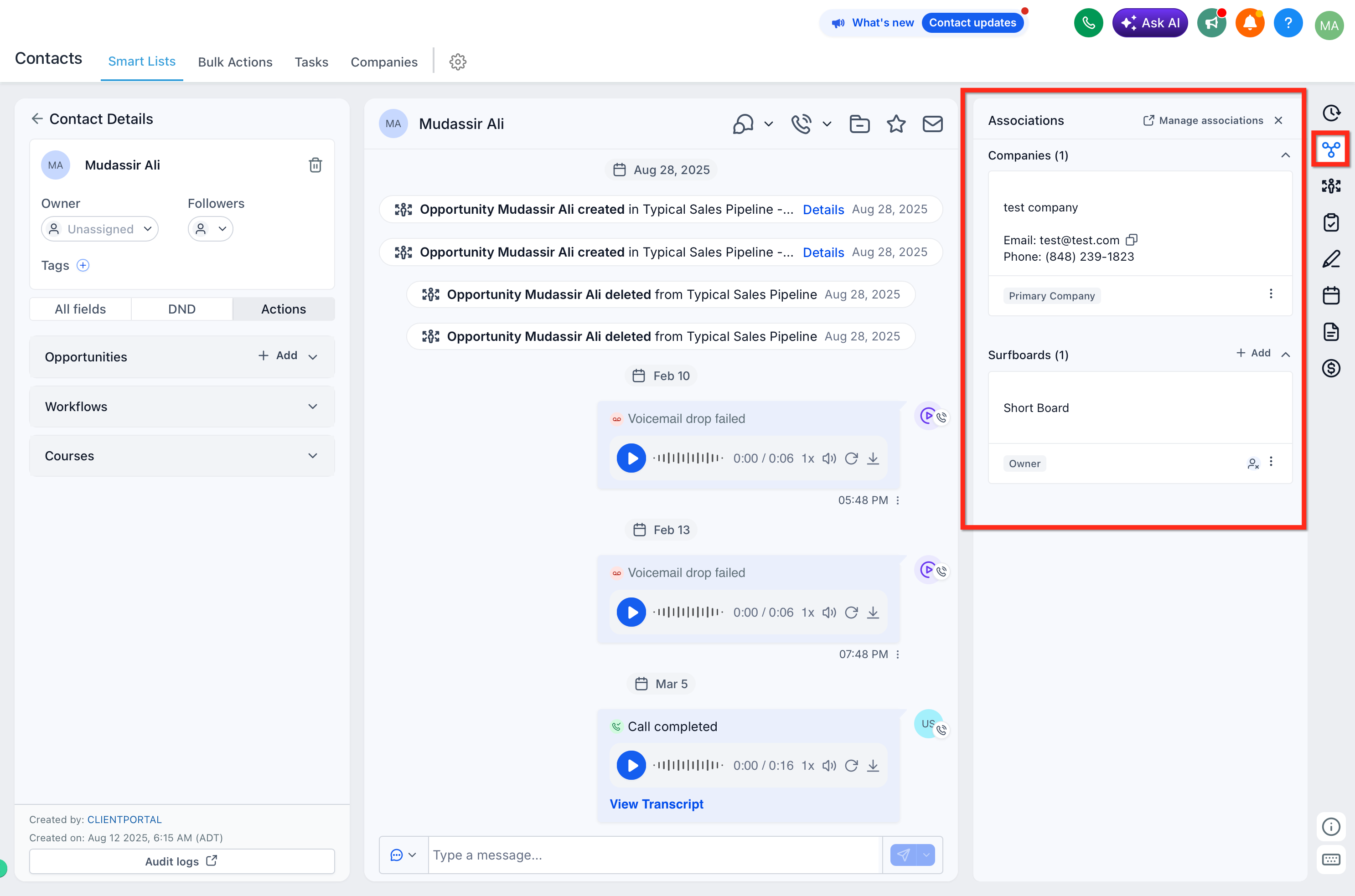
** 2. Associations — Add, remove, or view Companies and Custom Objects.
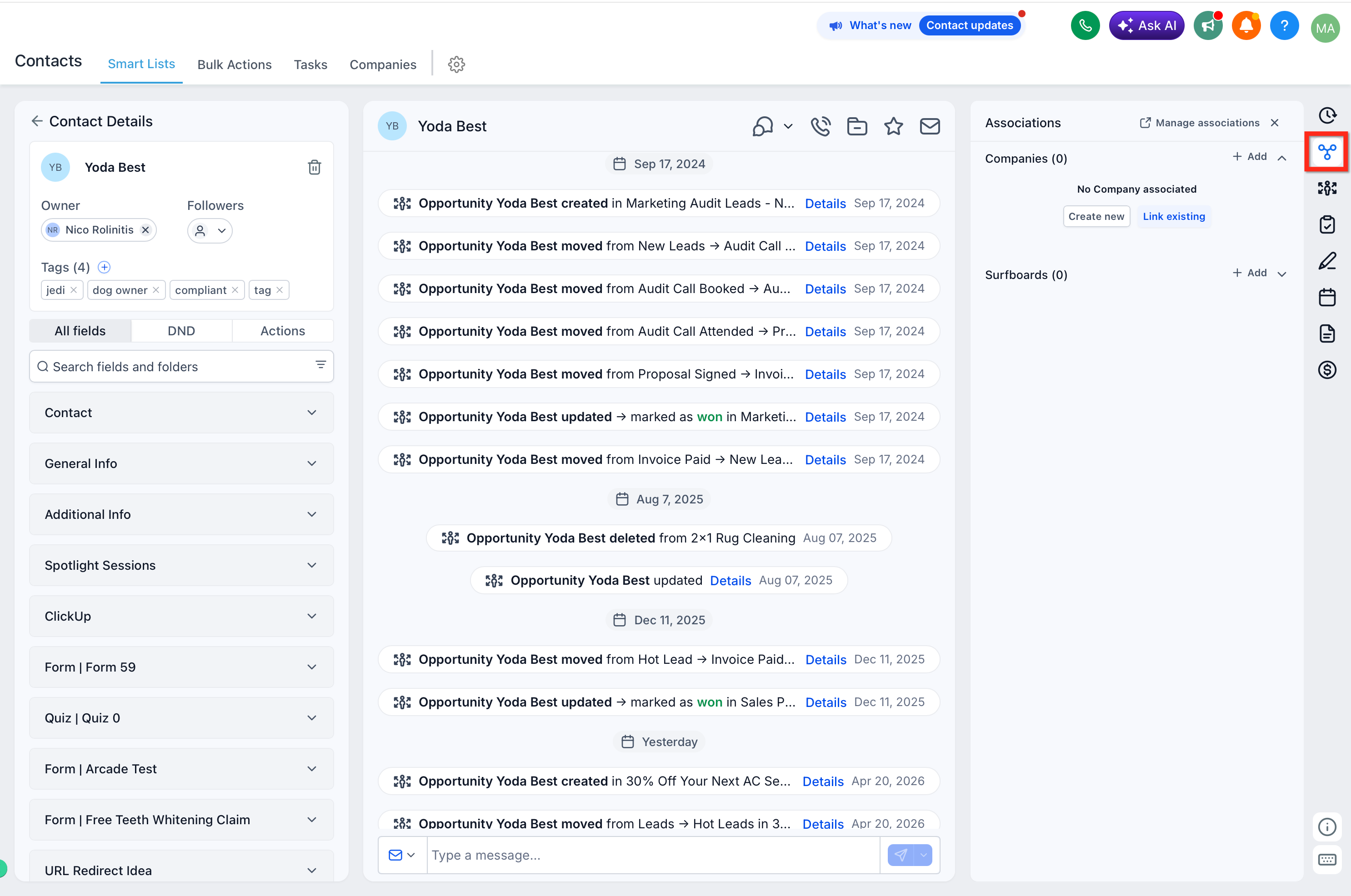
3. Opportunities — View all opportunities linked to the contact in a dedicated tab below Associations. **
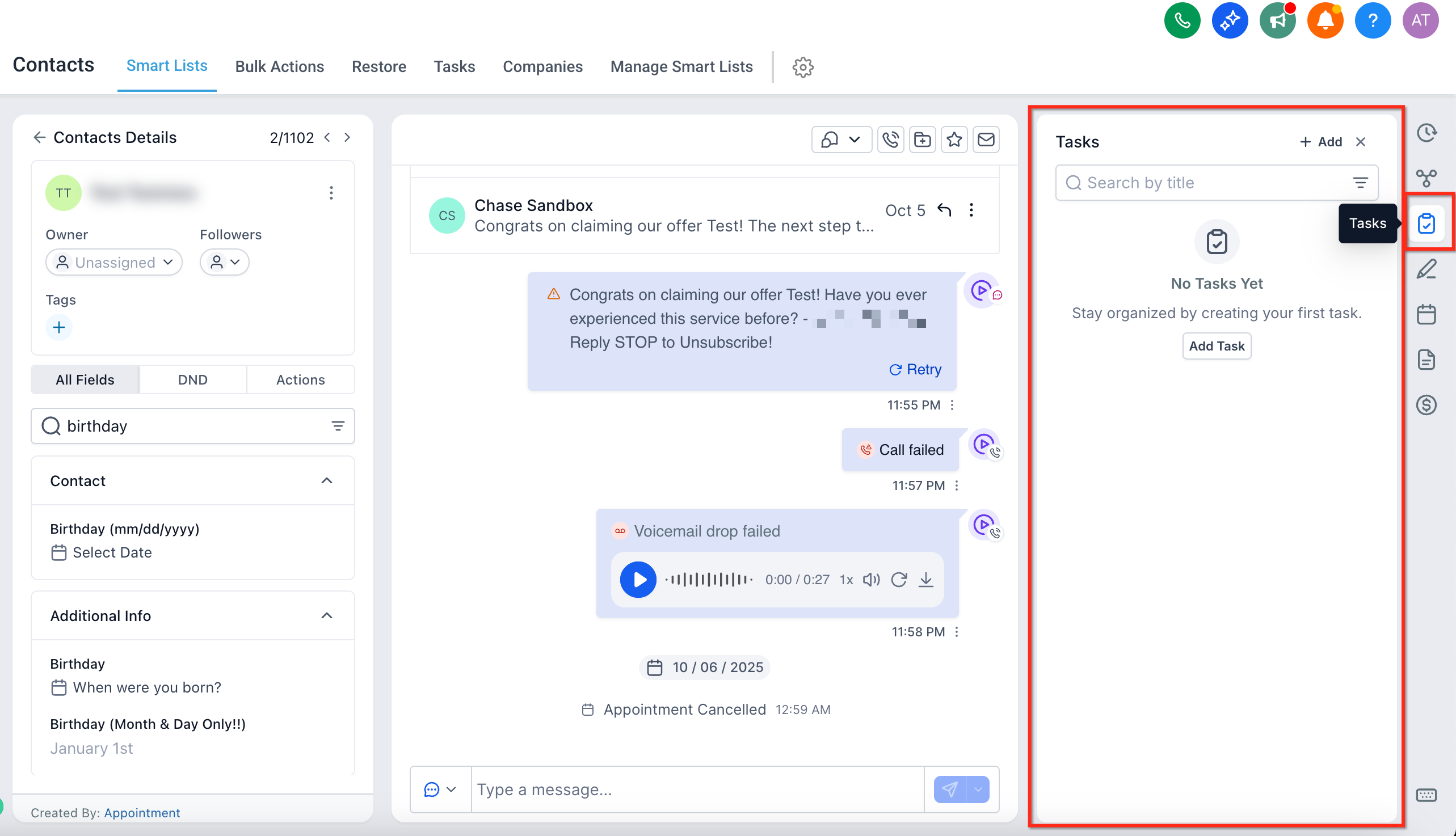
** 4. Tasks — Create, edit, or check off contact-specific tasks.
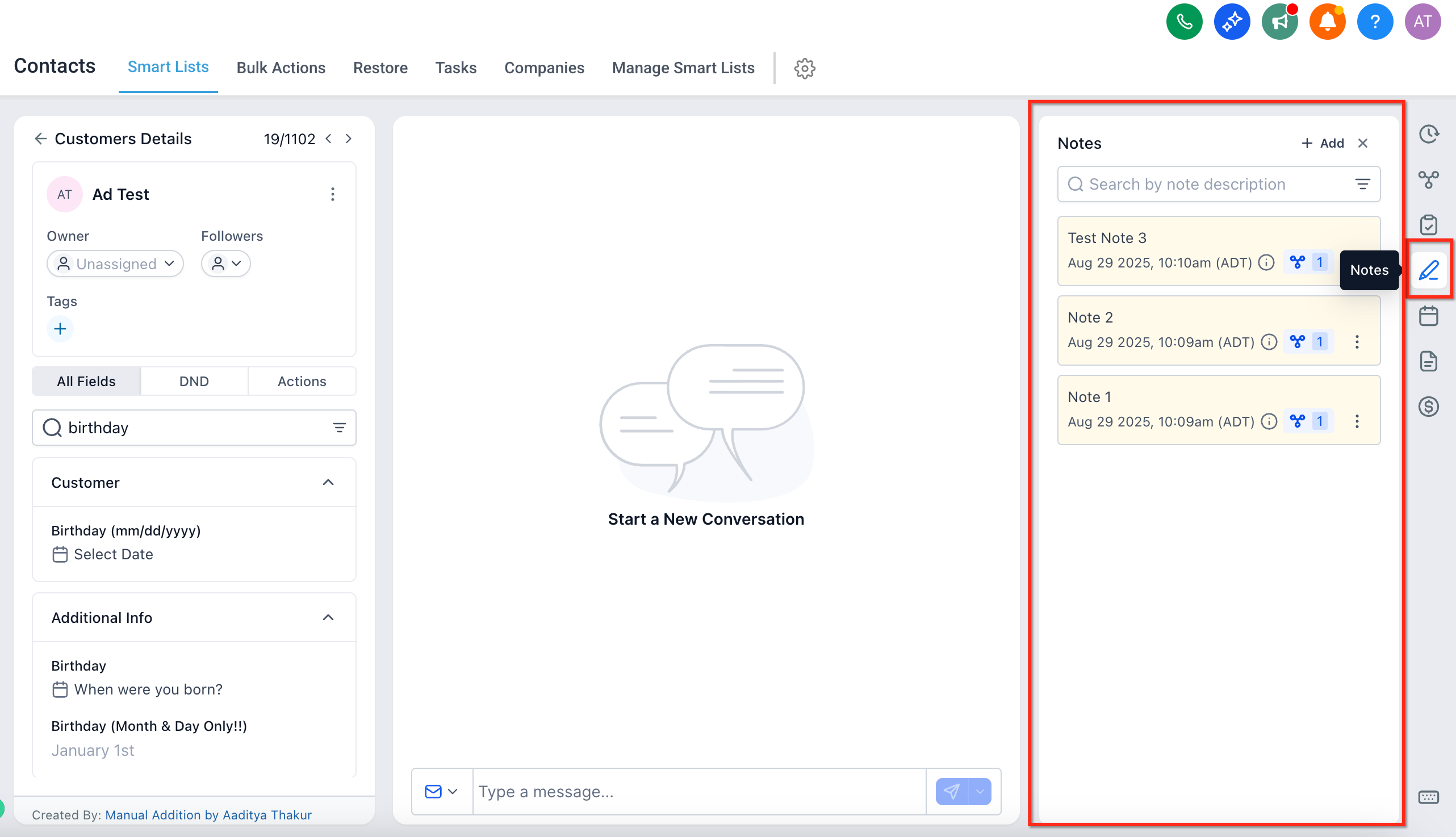
5. Notes — Log key updates or client discussions.
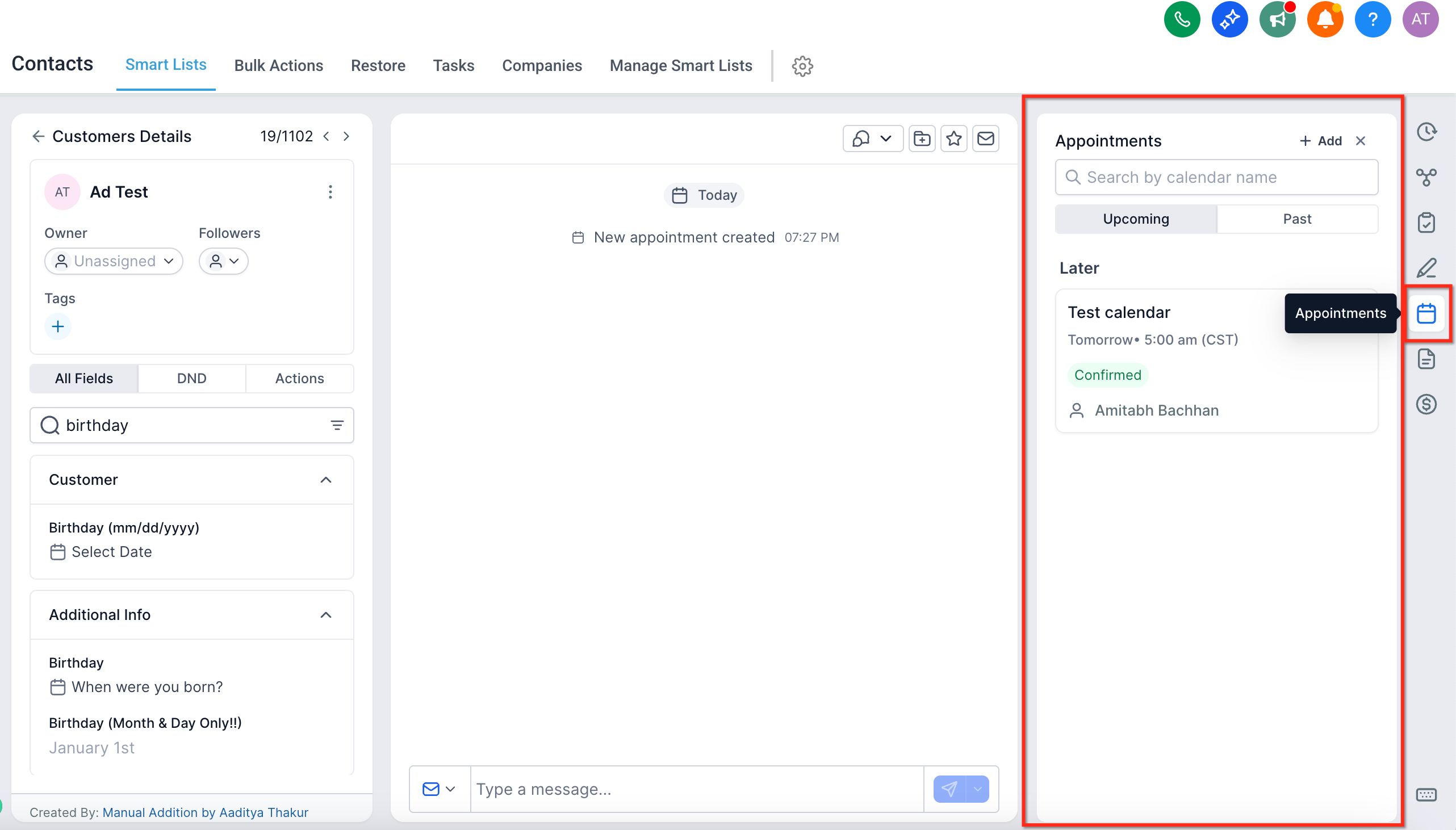
6. Appointments — View upcoming or past meetings.
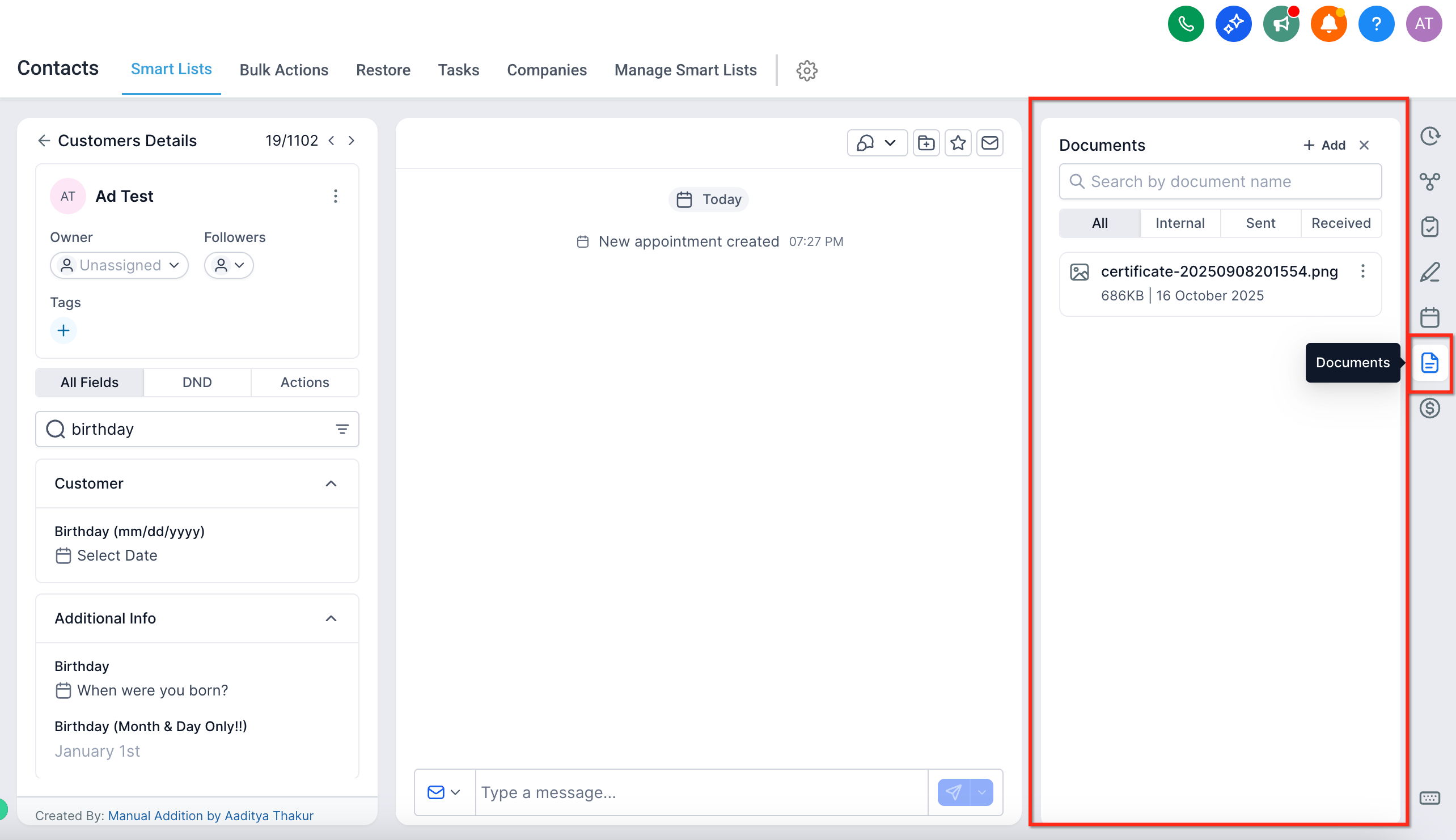
7. Documents — View sent or received files.
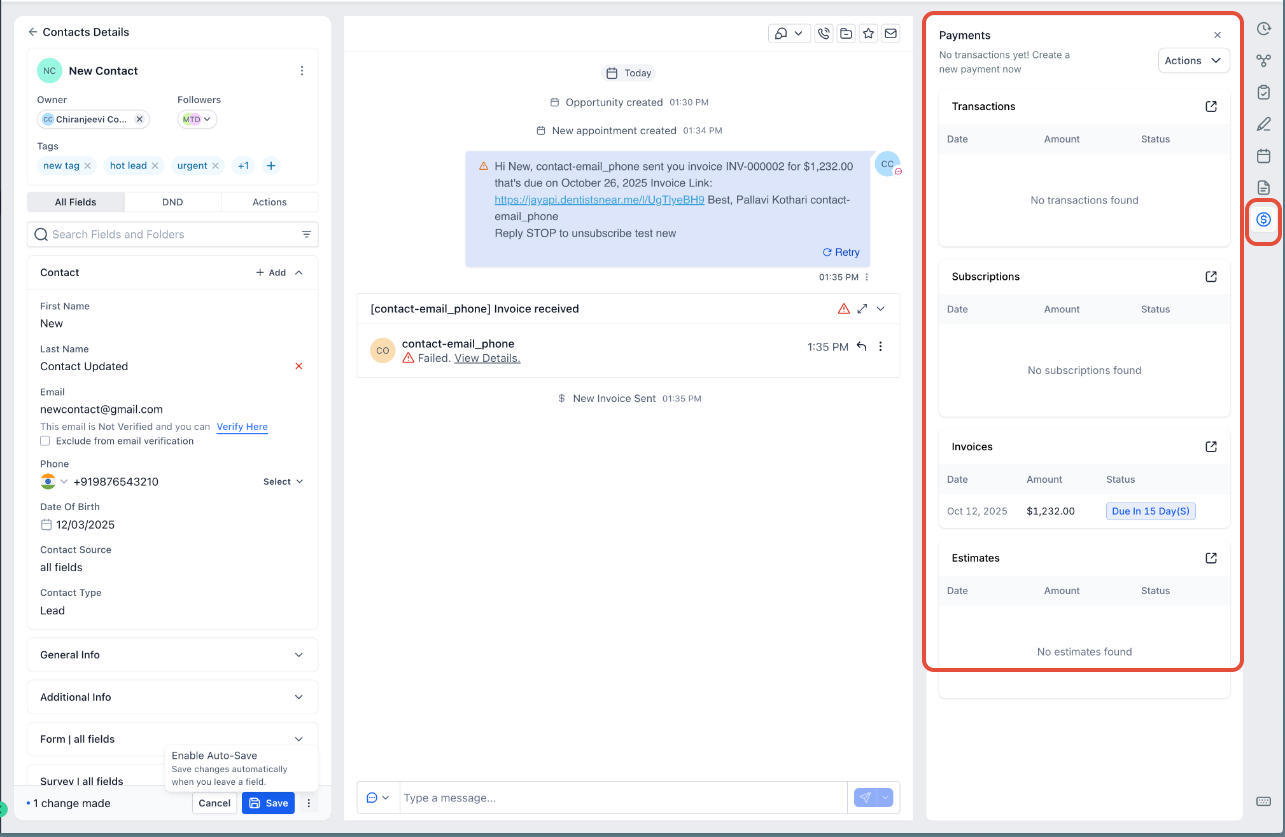
8. Payments — Track invoices, subscriptions, and transactions.
Auto-Save: How It Works
Auto-Save is one of the most powerful new additions. When enabled, your edits are saved automatically the moment you leave a field — no manual “Save” click required. Steps: Open any contact record. Make an edit — you’ll see a Save bar appear at the bottom. Click on “Enable Auto-Save” from the kebab (3 dots) menu.
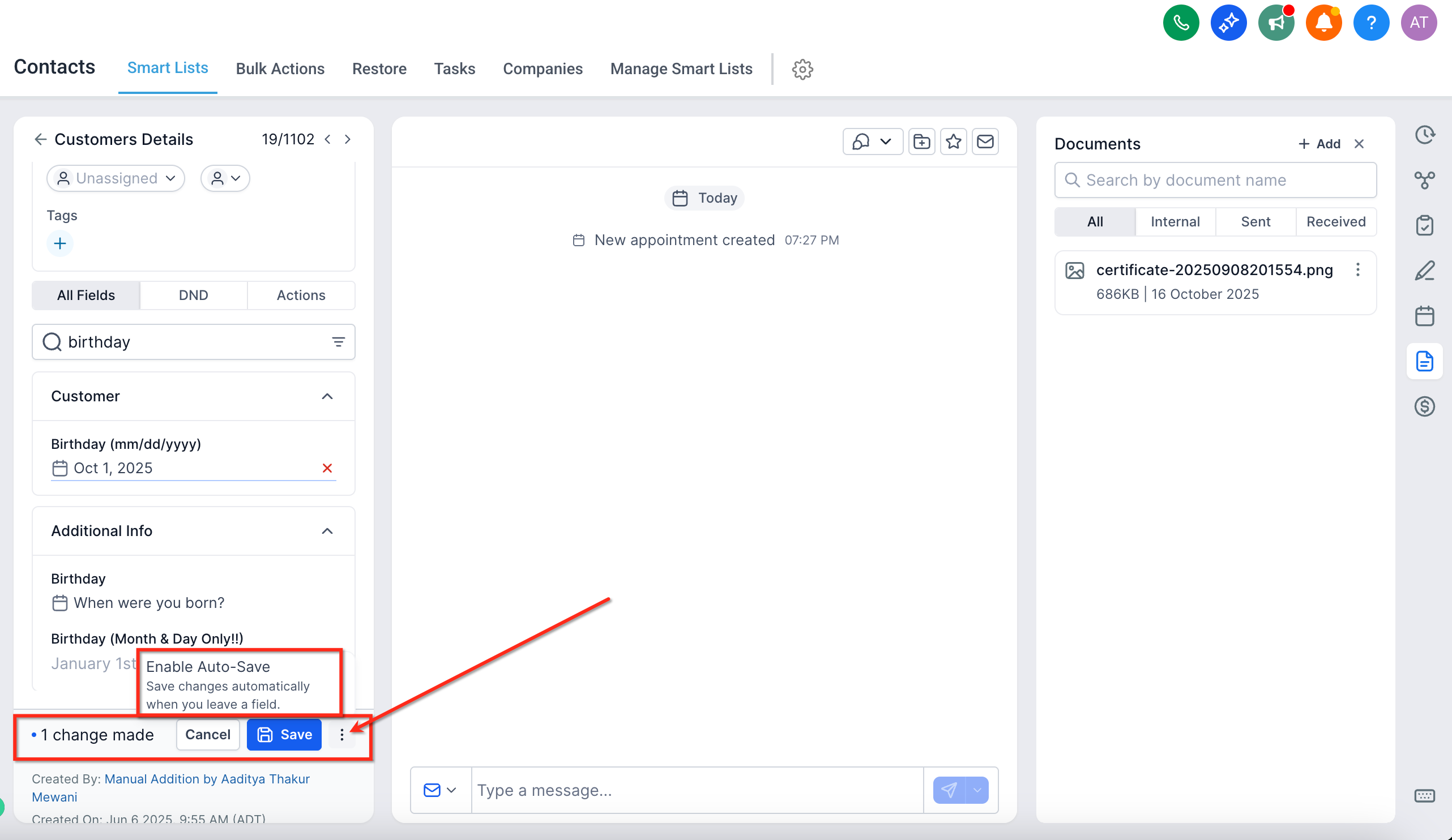
Click “Enable Auto-Save” when prompted.
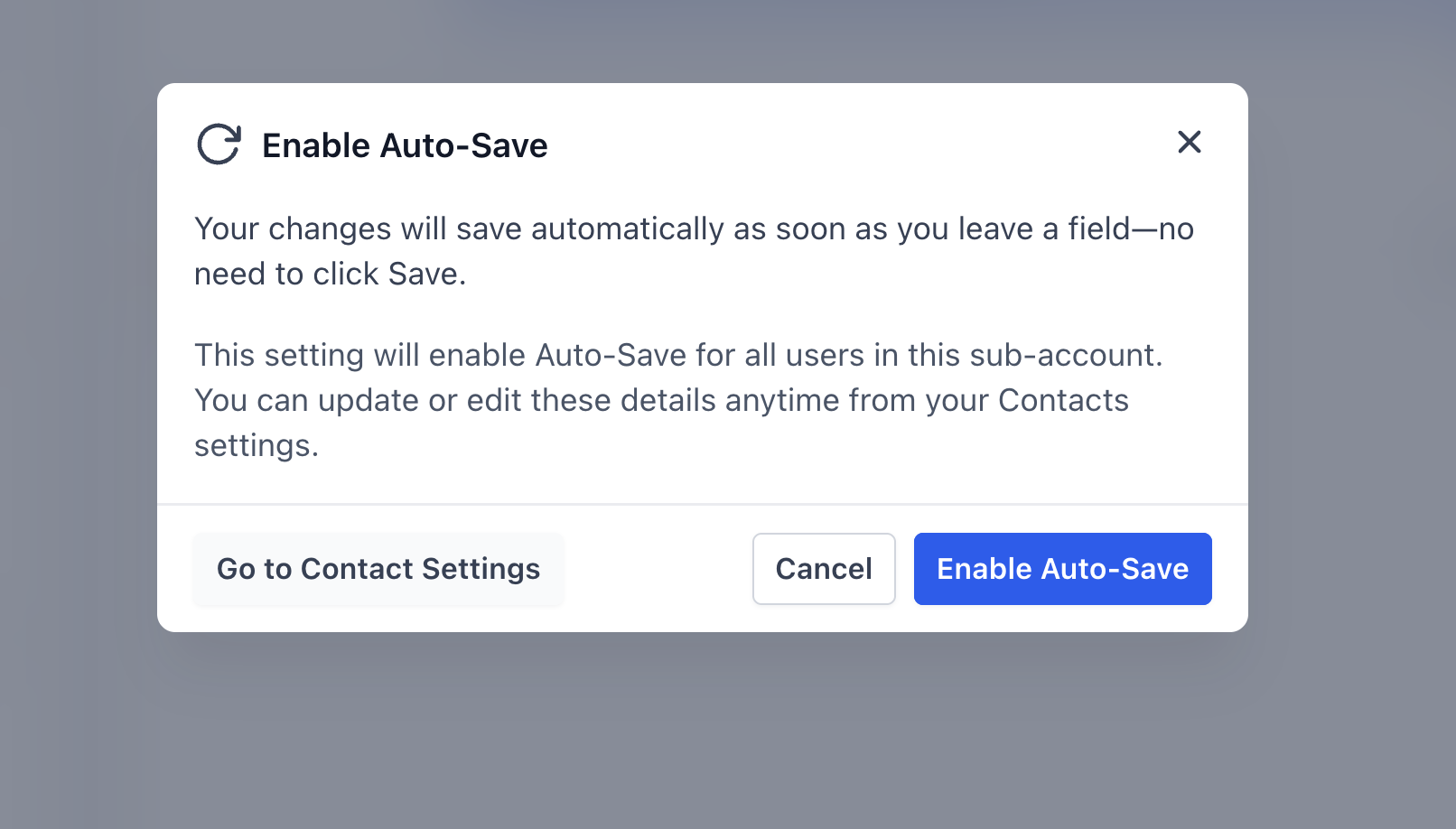
Confirm from the modal — this will apply the setting to your sub-account. Admins can also enable or disable Auto-Save from: Settings → Contacts → Details Tab → Auto-Save toggle **
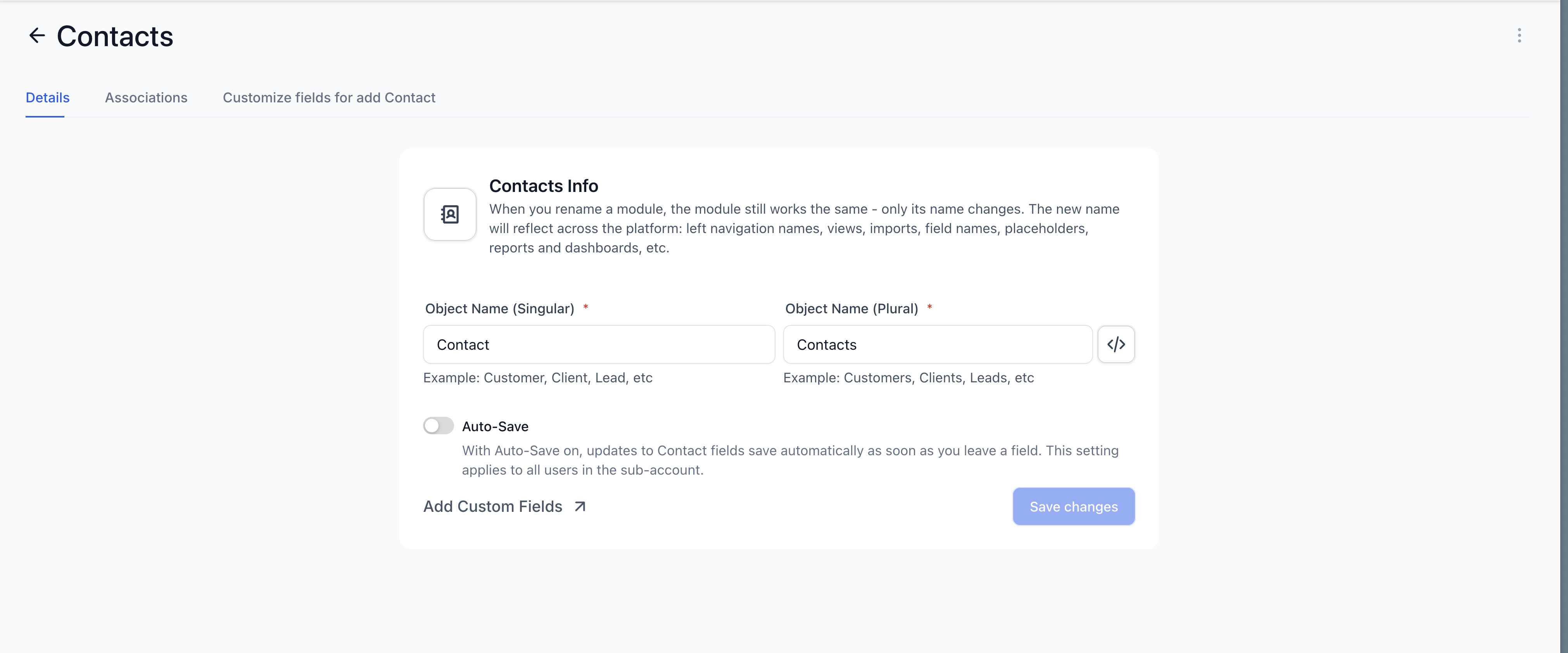
** > Once enabled, all users in the sub-account will automatically save edits as they work.
Keyboard Shortcuts
Save time with these new shortcuts:
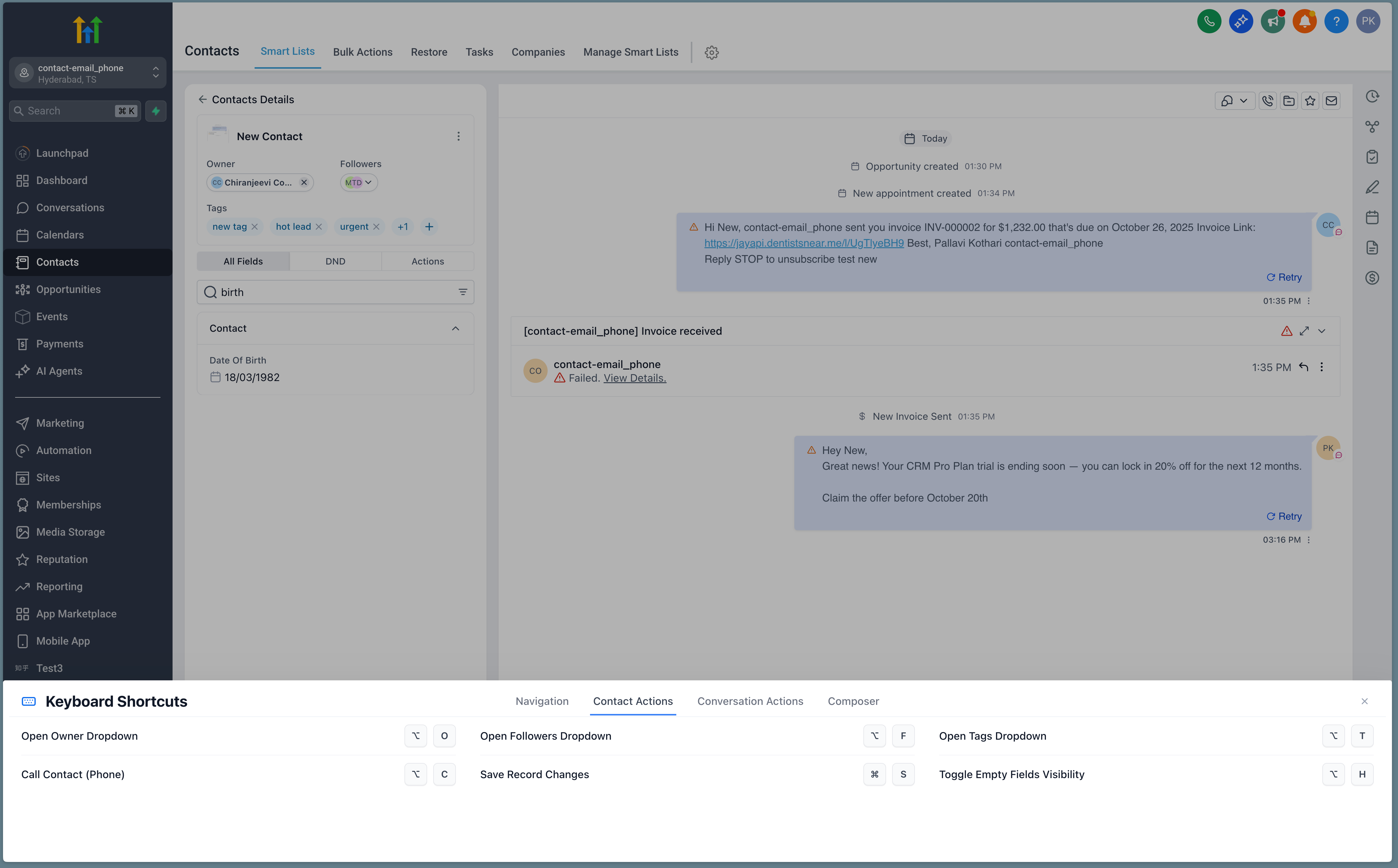
- → / ← — Move between contacts in the list.
- ESC — Collapse right panel.
- CTRL + S (or CMD + S) — Manual save (if Auto-Save is off).
Associations: Companies & Custom Objects
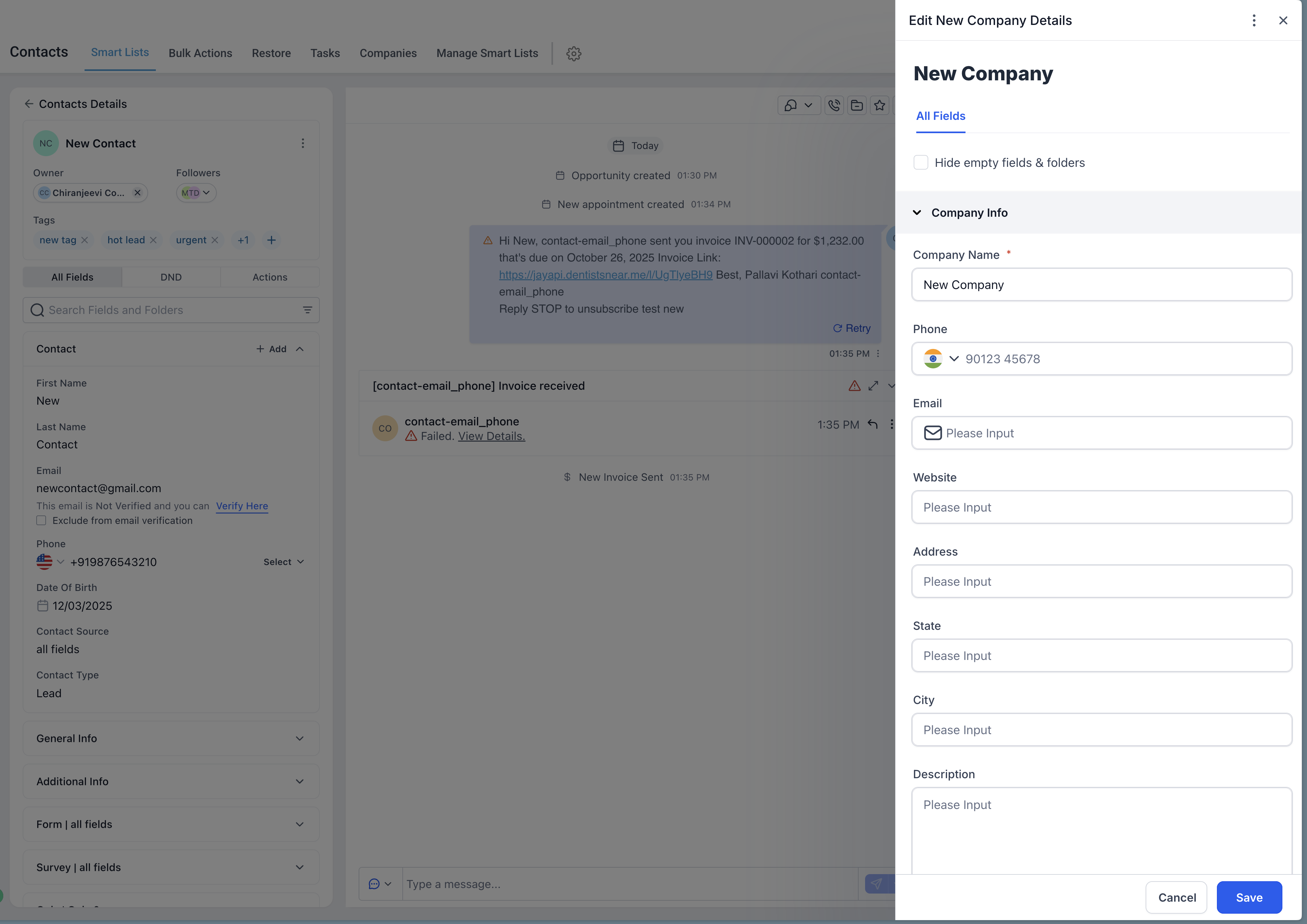
View and edit company details on the same page.
Access all custom object relationships at a glance.
Quality of Life Enhancements
- Panels and tabs now remember your last state — no need to re-expand or collapse each time.
- Consistent spacing, typography, and component behavior for a professional, clutter-free look.
- Unified design language and empty states across all modules (Tasks, Documents, Notes, Payments).
Frequently Asked Questions
Q: Will Auto-Save apply to everyone in my account?
Yes. Once enabled by an admin, Auto-Save is active for all users in that sub-account. Q: Can I revert changes saved by Auto-Save? You can always edit a field again — Auto-Save updates the record immediately, maintaining a complete activity log. Q: Why can’t I see the “Enable Auto-Save” button? You may already have it enabled. Check under Settings → Contacts → Details Tab.