
Communities - Tagging Channels and Events in Posts/Comments
Tag channels and scheduled events directly inside posts and comments to guide members to the right place, fast. This article explains what channel/event tagging is, who can use it, and how to add tags with the # shortcut so discussions stay organized and actionable.
What is Tagging Channels and Events?
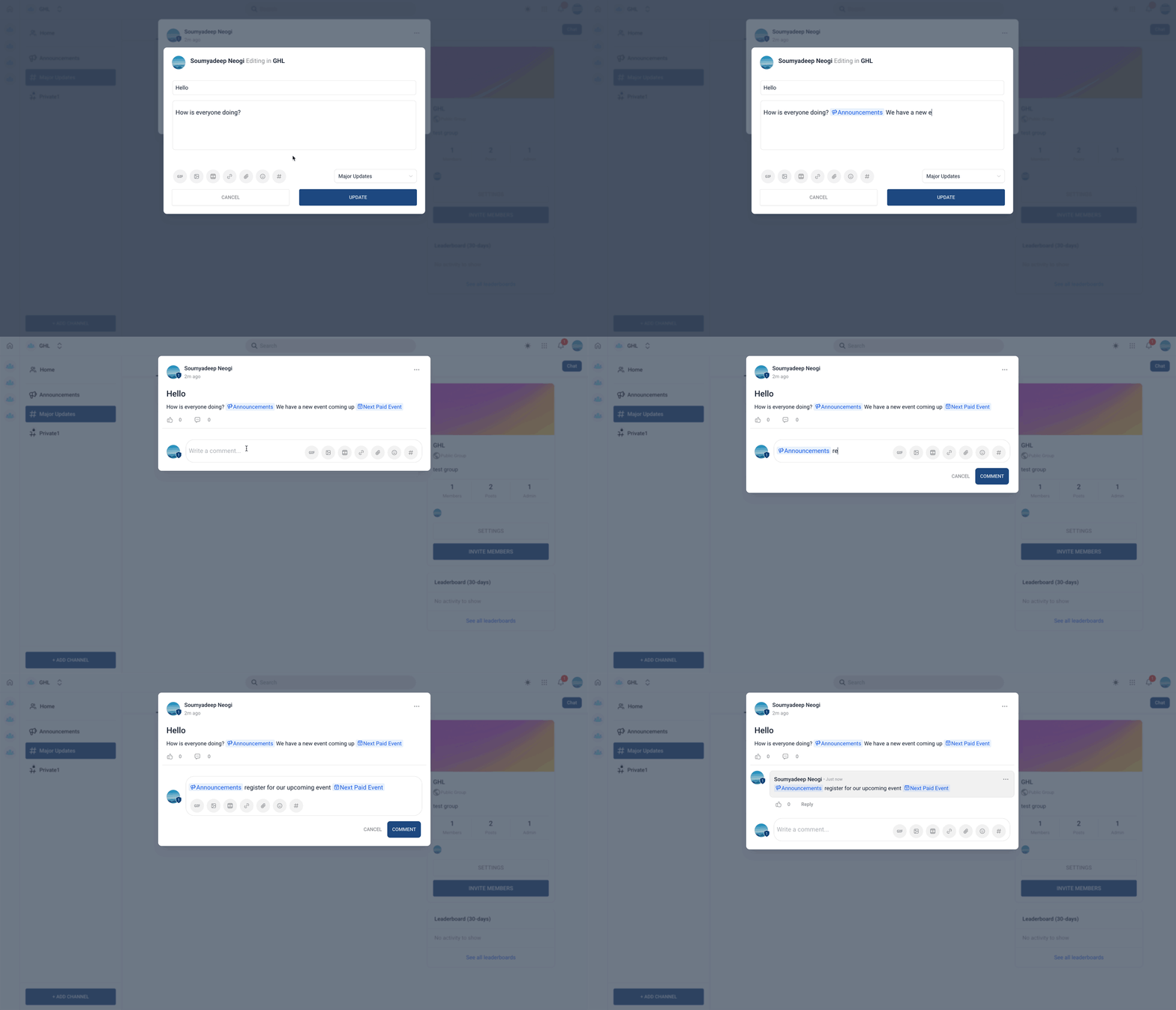
Channel/event tagging turns references in your post or comment into permission-aware, clickable links. Type # to open a picker of channels and events you can access; select one to insert a tag with a distinctive icon. Readers can click the tag to navigate directly to that channel or event (access required).
Key Benefits of Tagging Channels and Events
Use these benefits to decide when to tag and how to structure posts that drive readers to the right destination.
- Faster navigation: Readers jump straight to the referenced channel or event.
- Clear context: Icons and links make intent obvious inside long threads.
- Targeted engagement: Tags turn posts into actionable prompts for members.
- Permission-aware visibility: Only channels/events you can access appear in the picker.
Permissions & Prerequisites
Confirm access first so tags appear in the picker and work when clicked.
- Who can tag: Any user who can create a post or comment in the community.
- What you’ll see: The # picker shows only channels/events you have permission to access.
- Where to tag: Communities → open a post or comment editor.
**How To Tag Channels and Events in Posts/Comments **
Follow these steps to add a tag, publish, and verify the link works for your audience.
Step 1: Navigate to Groups 1. Click on Memberships from your sub-account.
- Click on the Communities tab.
- Select Groups from the drop-down.
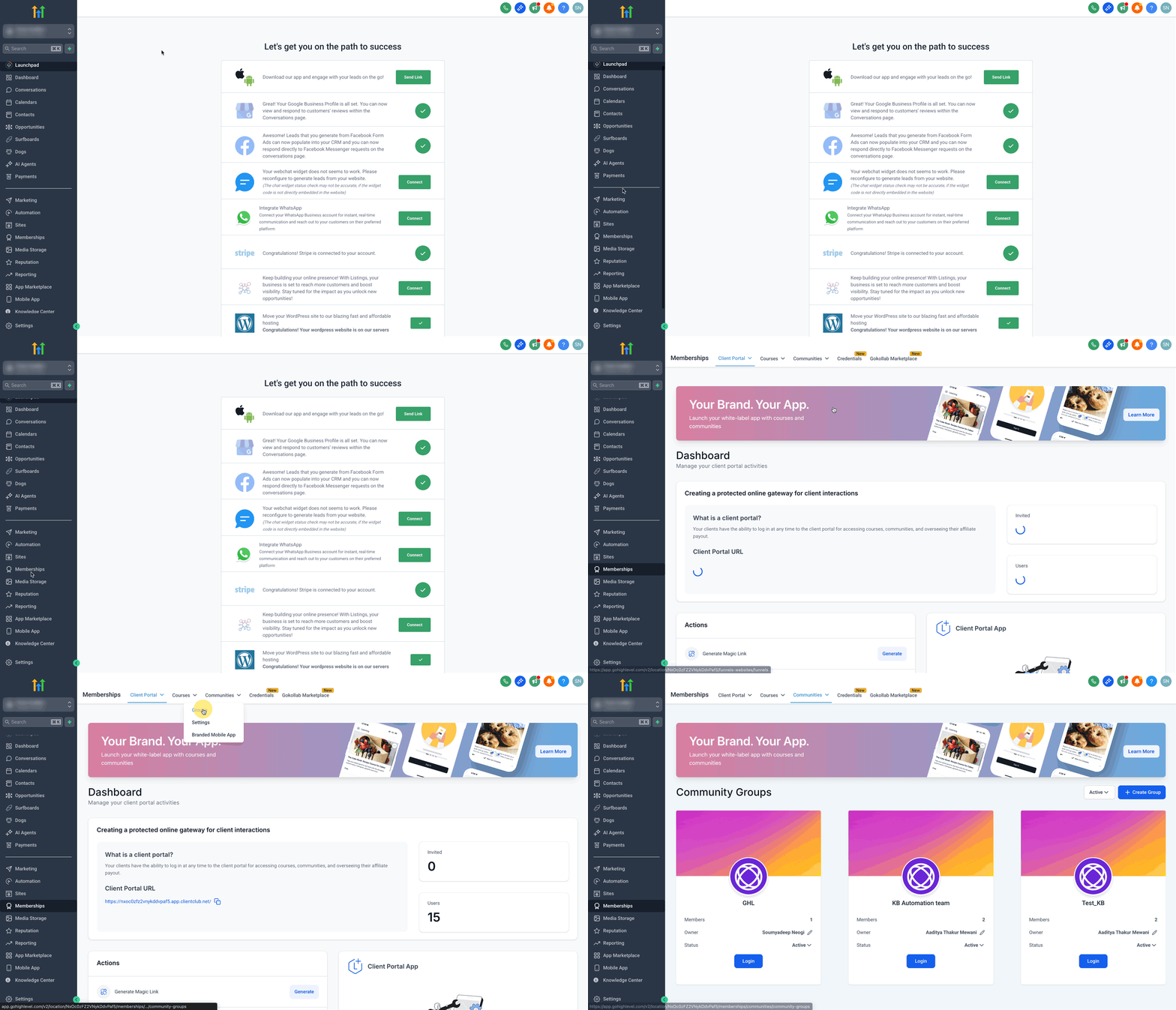
- Login to your Group. 2. Open the post or comment editor.
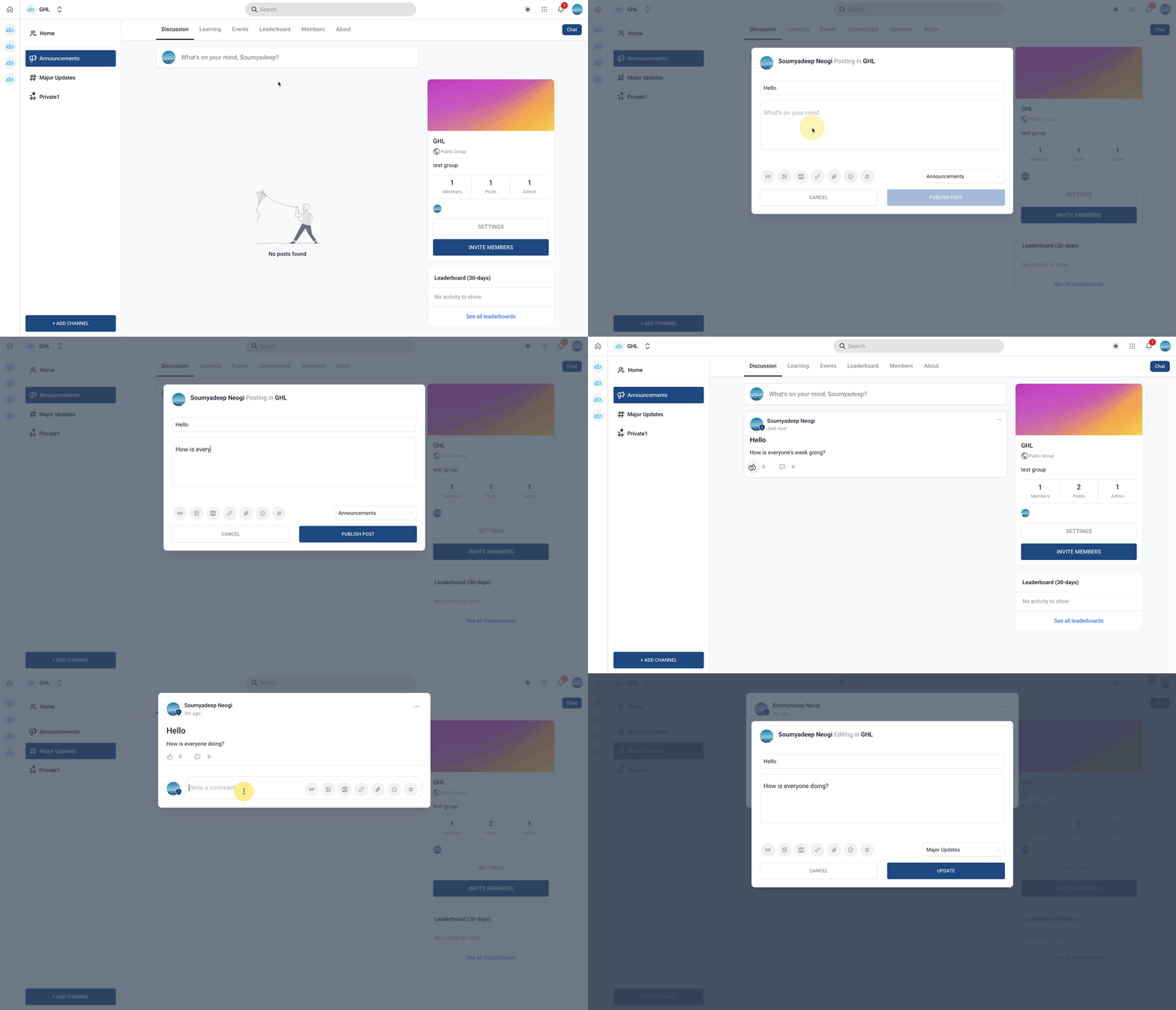
Step 3: Insert a tag with # 1. Type # to open the picker; search or scroll to find the channel or event.
- Press Enter (or click) to insert the tag. 3. Finish your message and click Publish Post/Comment. 4. Check your newly inserted tag to confirm it opens the intended destination.
Frequently Asked Questions
Q: Can I tag multiple channels or events in one post?
Yes—add as many as are relevant, but keep posts readable and focused. Q: Why don’t I see a channel/event in the list? Only items you have access to appear in the picker. Confirm your permissions or membership. Q: What do the icons mean? Icons visually distinguish channels from events so readers know what they’re opening. Q: What happens if an event has already ended? The tag may open a read-only or ended view, depending on event settings.