
How to send a test email in the Conversation
Sending the test email
It should automatically redirect you to the conversation page, click Send Email below
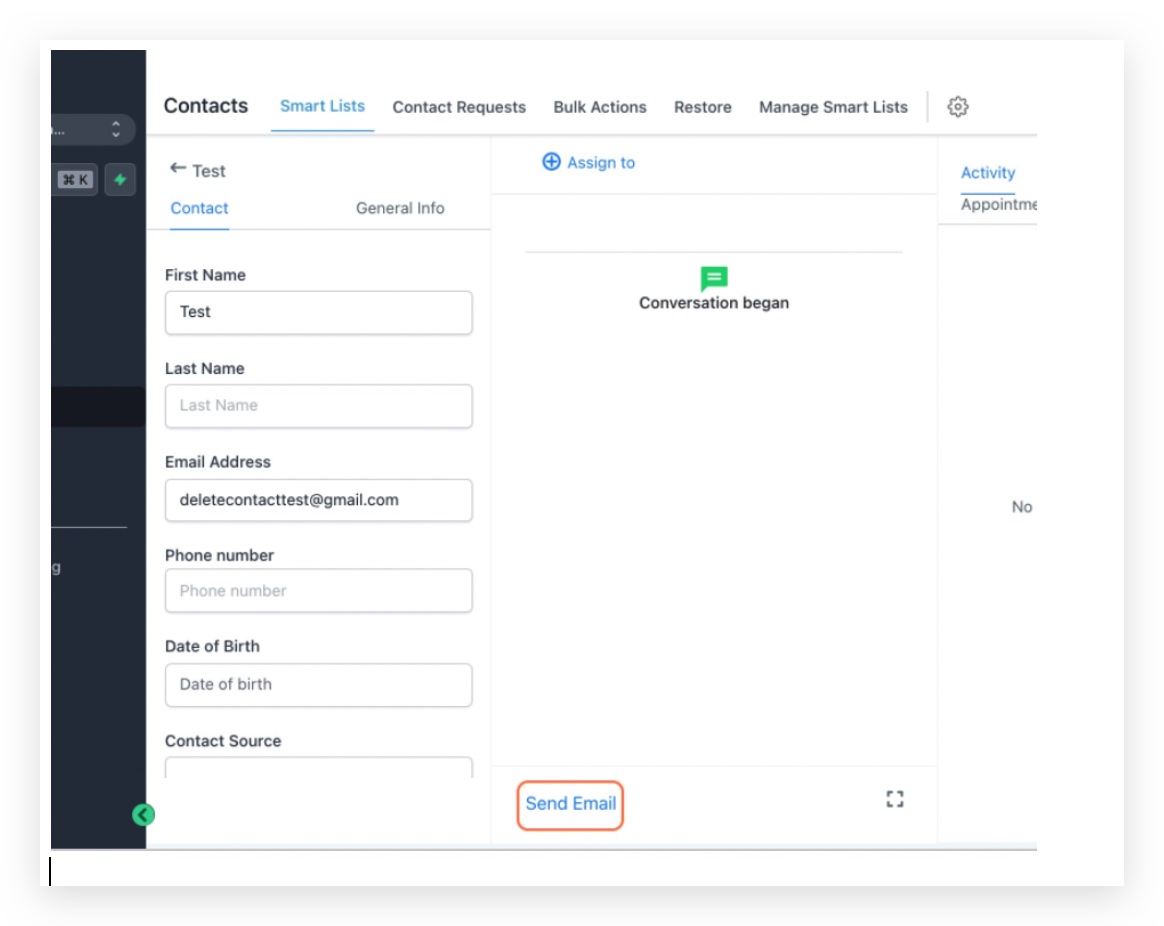
Configuring the sender’s email
The highlighted part is where we can configure the sender’s email address. Check here to see how to configure the sender email address when sending bulk emails. By default, it will show the user logged in as the sender’s email address.
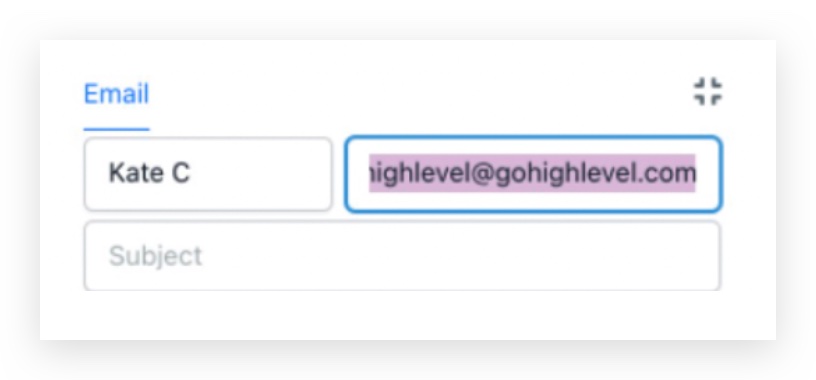
If you are using Mailgun
If I mask the sender email like [email protected], the reply-to address will show as [email protected], which is the Mailgun subdomain we set up for the sub-account in agency Settings-> Email Services > Location Settings. Replies will still appear correctly in the Patient Copilot sub-account’s Conversation tab. e.g. my Mailgun subdomain is subdomain.patientcopilot.ai so the reply-to email address will show [email protected]
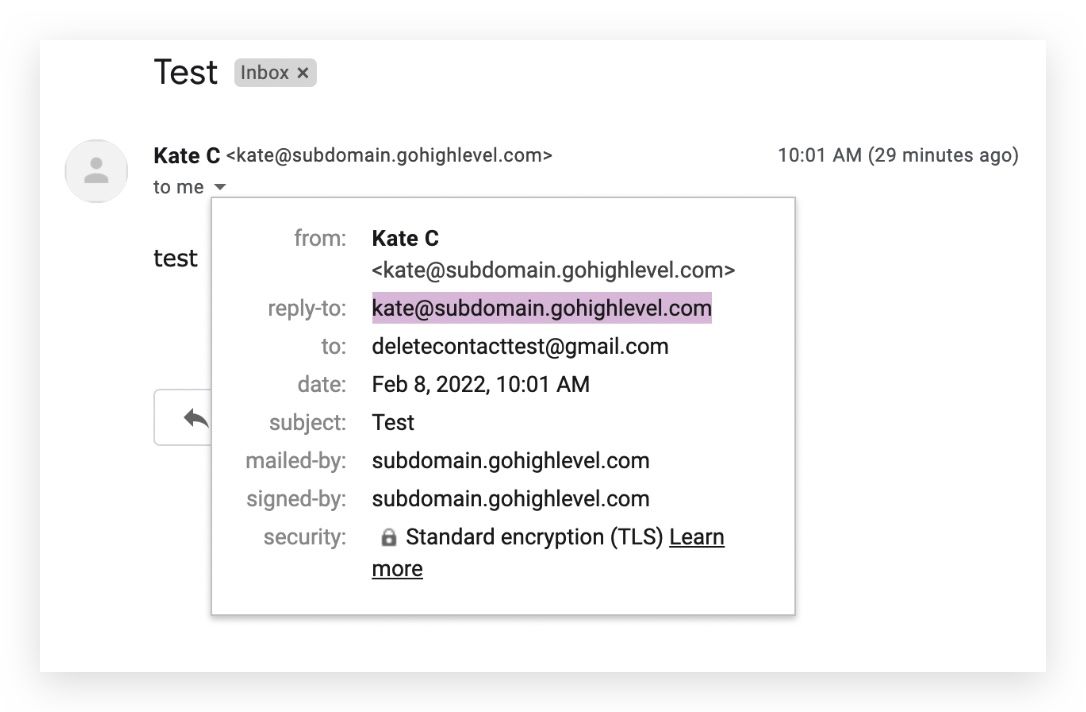
We can set [email protected] as the sender’s email address to enhance email deliverability as the reply-to address domain will match the sender’s email address. You can also set up cold inbound email to capture any emails going to emails ending with @replies.subdomain.com
(https://app.patientcopilot.ai/v2/location/RNTEDRA9ap9xSh2MyTYS/settings/smtp_service)**If you are using SMTP integration:** Go to Sub-account Settings -> Email Services Copy the highlighted email that’s integrated as the SMTP and use that as the sender email in the conversation tab
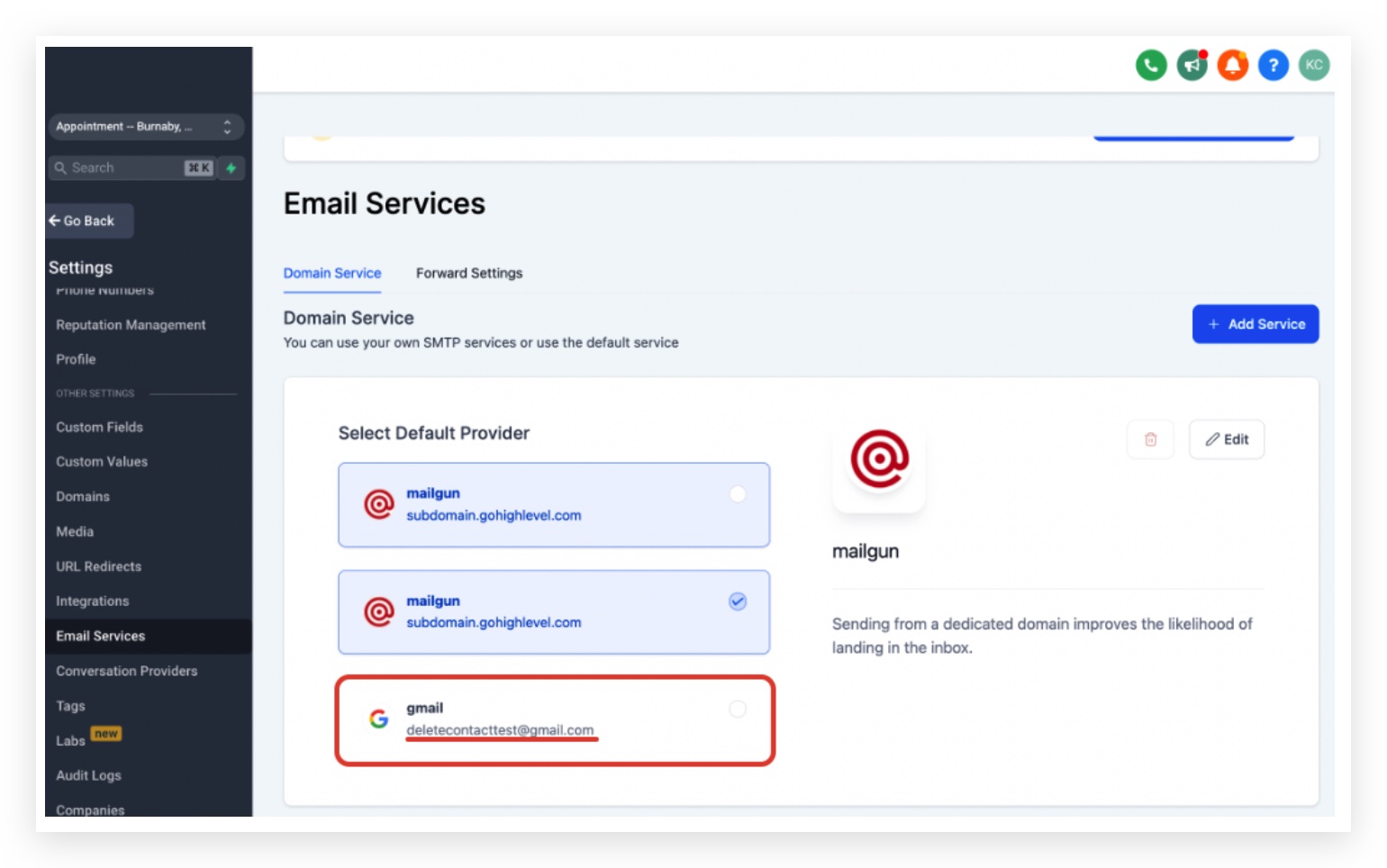
Depending on what is the SMTP integration you are using, you could set up an alias/verify sender to send from other emails - Setting up an alias for Google SMTP - Setting up an alias for Zoho SMTP - Verifying sender email with Sendgrid
Troubleshooting email delivery:
Once you send the email and if you are not able to receive it, be sure to check the spam folder. For the error that we display in the Conversation view, we will fetch the error we got from the Mailgun API/ SMTP server and display it. If you click on the error icon to view the full error message, it should provide detail on why the email is not able to send. If the error is not helpful, please open a support ticket with the SMTP provider so they can provide the delivery status on that email. If you are using Mailgun, you can check the Mailgun logs and check out our email not sending help doc. Once you receive the email, you can reply to the email and see if the reply will show up in the Conversation tab. If not, please check what you could do When email replies are not coming back to the Conversation.