SaaS Configurator - Modify Plan Category and Plan Level
Quickly reorganize your Patient Copilot SaaS offers (without deleting live plans). This guide shows you how to move a plan to a new category and reposition its upgrade-path. * * * ## What is Modify Plan Category and Plan Level in SaaS Configurator? Agencies can edit an existing SaaS plan’s category (pricing group) and its level (order in the upgrade/downgrade path). Instead of recreating plans from scratch, you can shift a plan to a different category that uses the same currency, or drag it higher or lower inside a category, to redefine how customers upgrade or downgrade. * * * ## Key Benefits of Modifying SaaS Plan Category and Plan Level - Protect live subscriptions – reorganize plans without forcing customers onto new products.
- Faster pricing experiments – reorder plans to test new “good / better / best” structures in minutes.
- Seamless upgrade paths – new hierarchy automatically appears when clients choose to upgrade or downgrade.
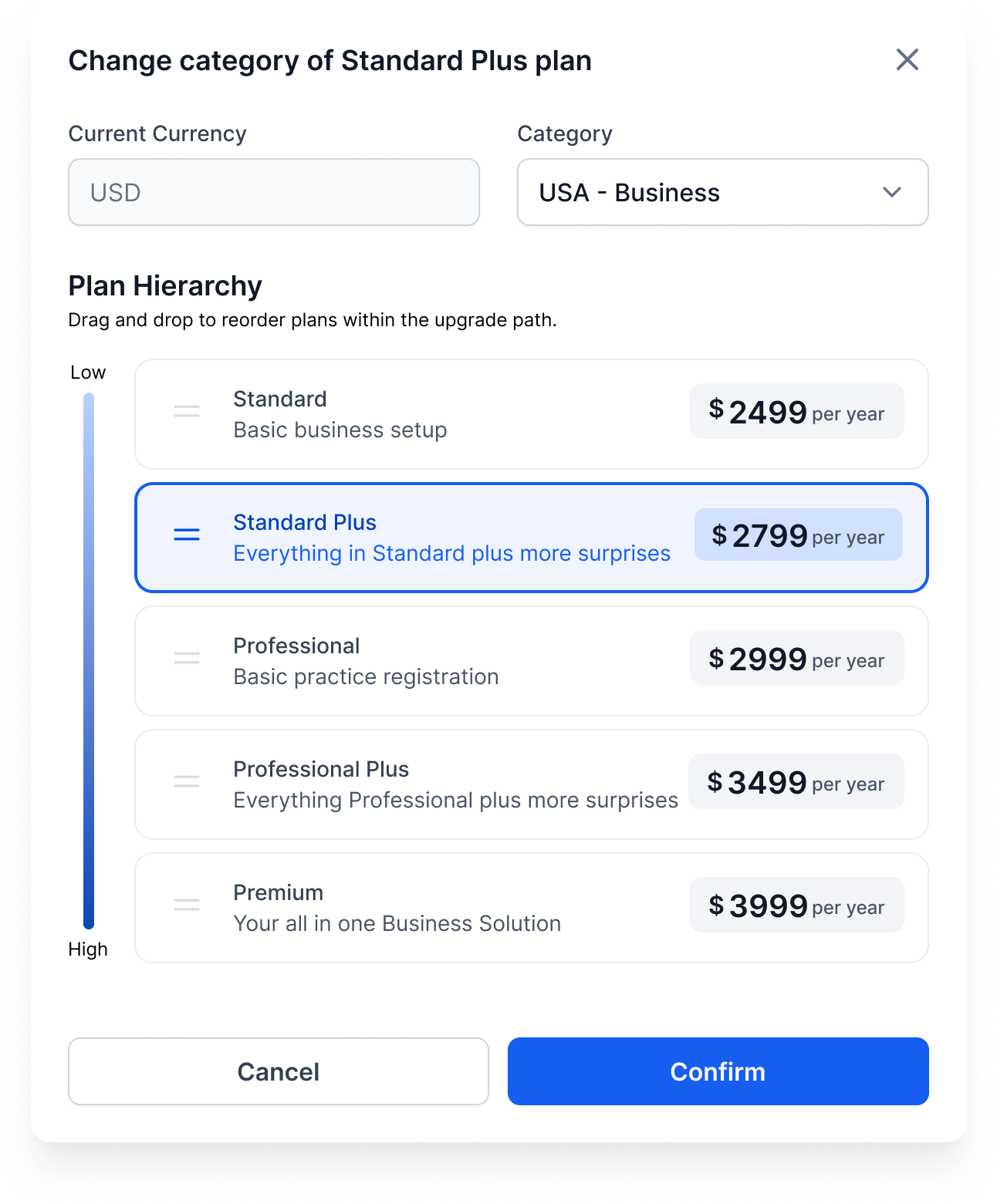
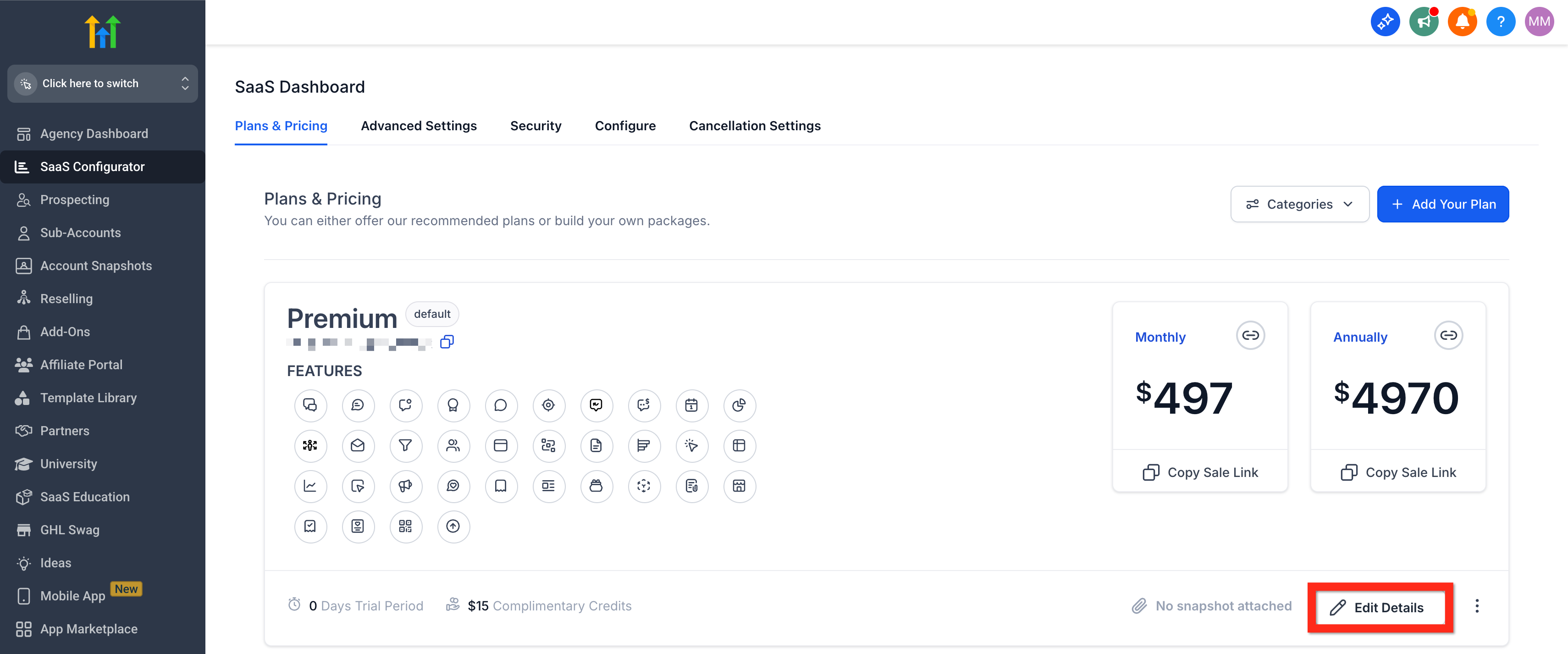
- Future-proof for multi-brand – plan mobility lays the groundwork for moving clients across brands in upcoming releases. * * * ## Move Plans Across Categories Reassign a plan to any other category that uses the same currency so you can group offers more logically or launch seasonal bundles. The plan keeps all of its current subscribers; only future upgrade/downgrade options change. * * * ## Change Plan Level within Category Drag-and-drop (or use the level selector) to reposition the plan’s order in its category. Higher-level plans inherit features from every level beneath them, so shifting a plan upward or downward changes what’s included at each tier going forward. Existing subscribers keep their current entitlements. * * * ## How To Modify Plan Category or Level Navigate to Agency View ▶ SaaS Configurator. Locate the plan you want to edit and click Edit.!(https://assets.patientcopilot.ai/cb09f9ff3583109a.png) ### Move categories: 1. Open the Category dropdown.
- Select a category with the same currency. (If no categories appear, create one in that currency first.)
- Click Save. ### Change level order: 1. In the Plan Level field, choose the new position number or drag the plan to the desired spot in the list.
- Confirm the on-screen summary of feature inheritance. Publish changes. New upgrade/downgrade paths are live immediately for all plans in the affected categories.!(https://assets.patientcopilot.ai/24a1612e0322dc6c.png) * * * ## Frequently Asked Questions Q: Will existing customers automatically gain or lose features after I move a plan? A: No. They keep their current subscription. Only future upgrades/downgrades use the new hierarchy. Q: Can I move a plan to a category with a different currency? A: Not at this time. The destination category must use the same currency as the plan. (ideas.patientcopilot.ai) Q: How many times can I reorder a plan? A: Unlimited—plan level can be adjusted whenever your pricing strategy changes. Q: Does moving a plan affect active Stripe subscriptions? A: Stripe product IDs stay the same, so billing continues uninterrupted. Only the plan’s position inside Patient Copilot changes. Q: What happens to inherited add-ons or rebilling products? A: Add-ons remain attached to the plan. Higher-level plans inherit them if they sit above the moved plan after reordering. * * * ## Related Articles - SaaS: Reselling Add-Ons with SaaS Plans