Action Description The “Copy Contact” action copies a selected contact to another specified account. It includes options to copy associated tags, custom fields, and to update the contact if it already exists in the target account. This action helps maintain consistent data across multiple accounts and ensures that contacts are accurately mirrored in selected sub-accounts.
Action Details
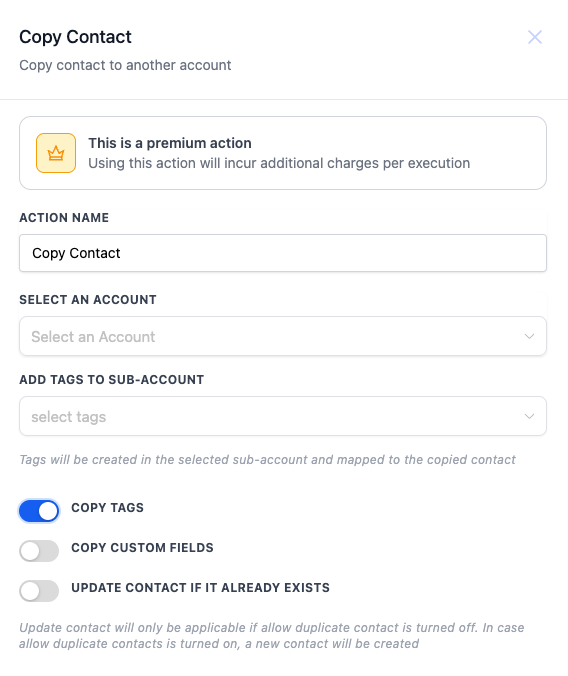
| Field | Description | Mandatory |
| Select an Account | Choose the target account where the contact should be copied. | Yes |
| Add Tags to Sub-Account | Optionally select tags that will be added to the copied contact in the sub-account. | No |
| Copy Tags | Toggle this option to copy all tags from the original contact to the copied contact. | No |
| Copy Custom Fields | Toggle this option to include custom fields from the original contact in the copy. | No |
| Update Contact if it Already Exists | If enabled, the action will update the contact in the target account if a duplicate exists. | No |
**How to Configure:** 1. **Select an Account:** Choose the target account where you want to copy the contact. This is a mandatory step.
2. **Add Tags to Sub-Account:** If necessary, select tags that should be added to the contact in the sub-account.
3. **Copy Tags:** Toggle this option if you wish to copy the existing tags from the original contact to the new one in the sub-account.
4. **Copy Custom Fields:** Toggle this if you want custom fields data to be copied over to the new contact.
5. **Update Contact if it Already Exists:** Use this option if you want to update existing contact information in the target account instead of creating a duplicate. **Some Triggers to Combine with This Action (But not limited to)**
- **Contact Added:** Automatically copy a contact to another account whenever a new contact is added to the main account.
- **Tag Applied:** When a specific tag is applied to a contact, trigger the copy action to duplicate the contact to a sub-account.
- **Contact Updated:** Use this trigger to copy updated contact information to another account, ensuring all accounts have the latest contact data. **File Transfer Limitations** The Copy Contact action does **not** support file or document transfer between sub-accounts. Files are **not migrated as standalone assets** to the destination sub-account when a contact is copied. In some cases, a copied contact may still show file references that depend on the original contact or source record. If the original contact is deleted from the source account, those associated files may become inaccessible. If those files contain important information, do **not** delete the original contact from the source account.
Example Use Case Suppose you run multiple regional offices, each with its own account. When a new lead is added to the main account and tagged as “VIP,” you want this contact to be automatically copied to the regional accounts. Workflow Configuration Example: 1. Trigger:Contact Added
- Action:
Copy Contact
- Select an Account:
Regional Office Account
- Add Tags to Sub-Account:
VIP
- Copy Tags: Enabled
- Copy Custom Fields: Enabled
- Update Contact if it Already Exists: Enabled Was this article helpful? That’s Great! Thank you for your feedback Sorry! We couldn’t be helpful Thank you for your feedback Feedback sent We appreciate your effort and will try to fix the article
