
How to Manage Stripe Payment Methods inside Patient Copilot
Now you can manage your Stripe payment methods entirely within Patient Copilot, no need to switch back and forth between dashboards! Simplify your payment setup across invoices, funnels, stores, and more while ensuring greater control and flexibility for your business.
What is Stripe Payment Method Management?
Stripe Payment Method Management allows you to configure which payment options (like credit cards, wallets, bank debits) are available across various Patient Copilot product areas, directly inside your Patient Copilot account. This eliminates the need to manage payment methods separately on Stripe’s dashboard, streamlining operations and improving payment setup control.
Key Benefits of Stripe Payment Method Management
Understanding how managing Stripe payment methods directly in Patient Copilot benefits your business helps you make the most out of this feature.
- Centralized Control: Manage all your Stripe payment options without leaving Patient Copilot.
- Separate Live and Test Modes: Customize payment methods individually for live and test environments.
- Checkout-Specific Visibility: Only available payment methods will show in each checkout’s options.
- Subscription-Specific Settings: Manage unique payment configurations specifically for subscriptions.
- Reduced Dependency on Stripe Dashboard: No longer necessary to edit payment methods in Stripe.
- Seamless User Experience: Streamlined configuration leads to faster setup across invoices, funnels, forms, and stores.
How To Manage Stripe Payment Methods
Effectively setting up your Stripe payment options ensures smooth transactions across all your product areas. Follow these easy steps to start managing them directly within Patient Copilot:
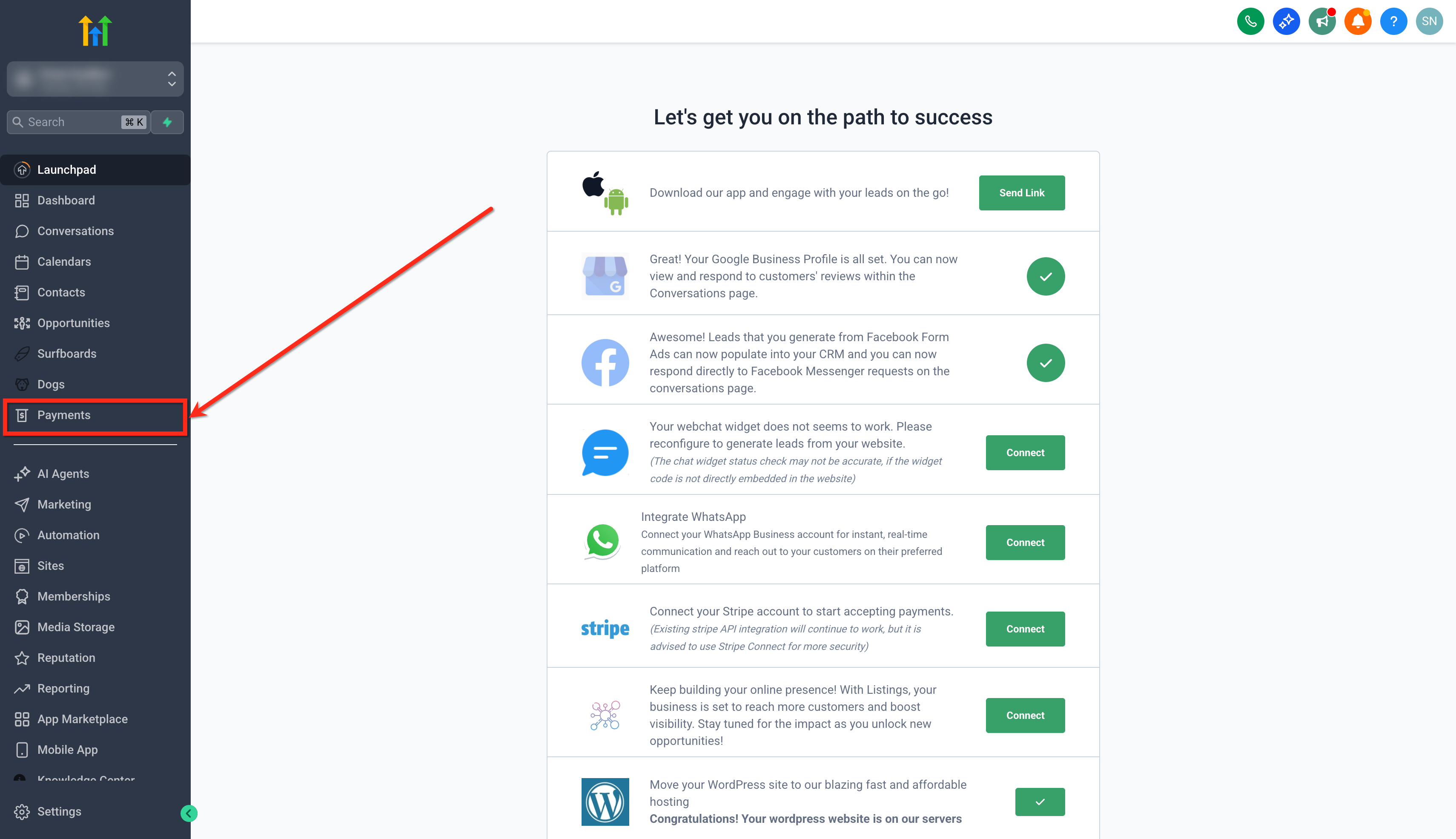
Step 1: Navigate to Payments Settings 1. Click on the Payments tab from your sub-account**.** **
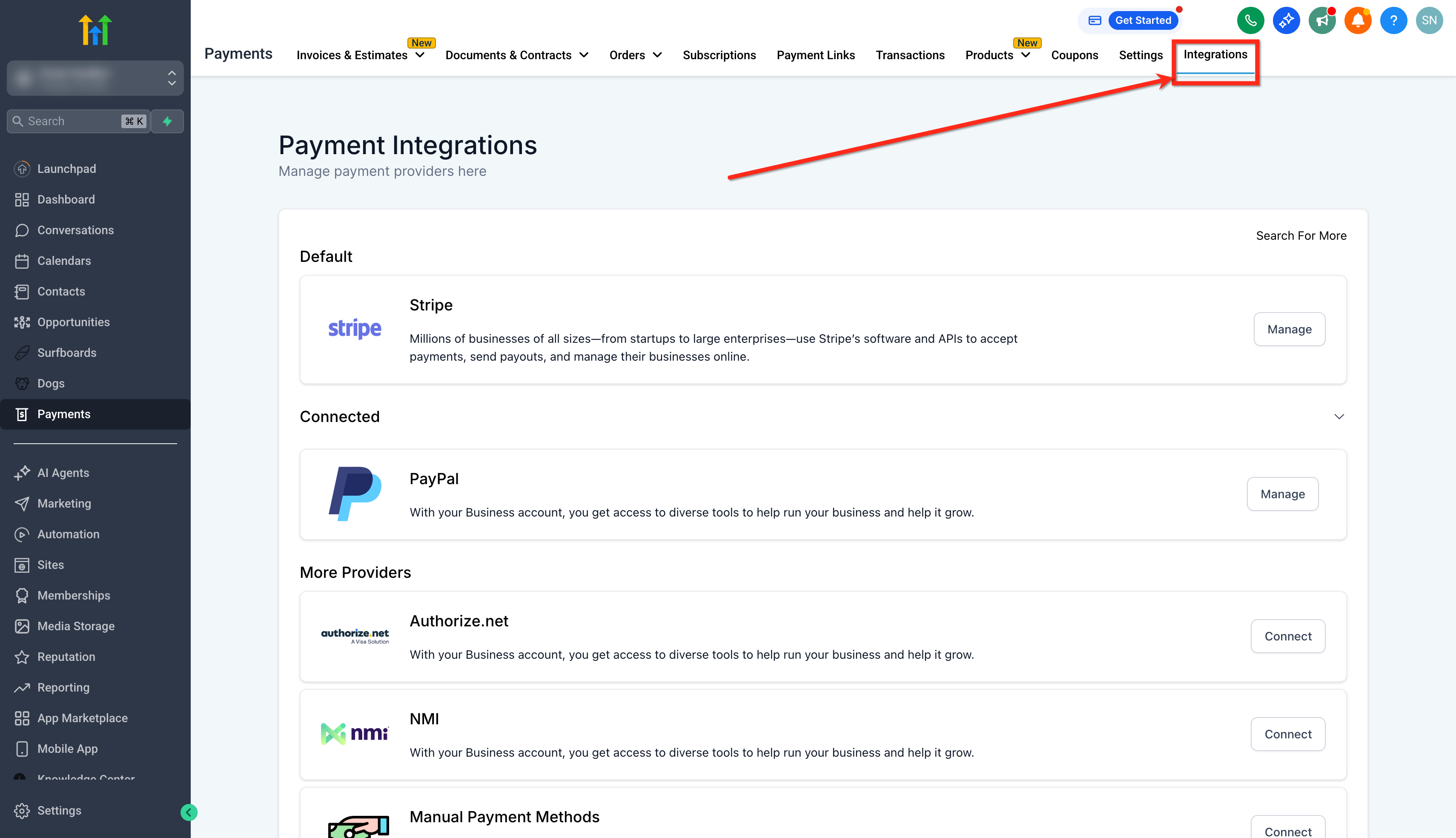
** 2. Click on Integrations. **
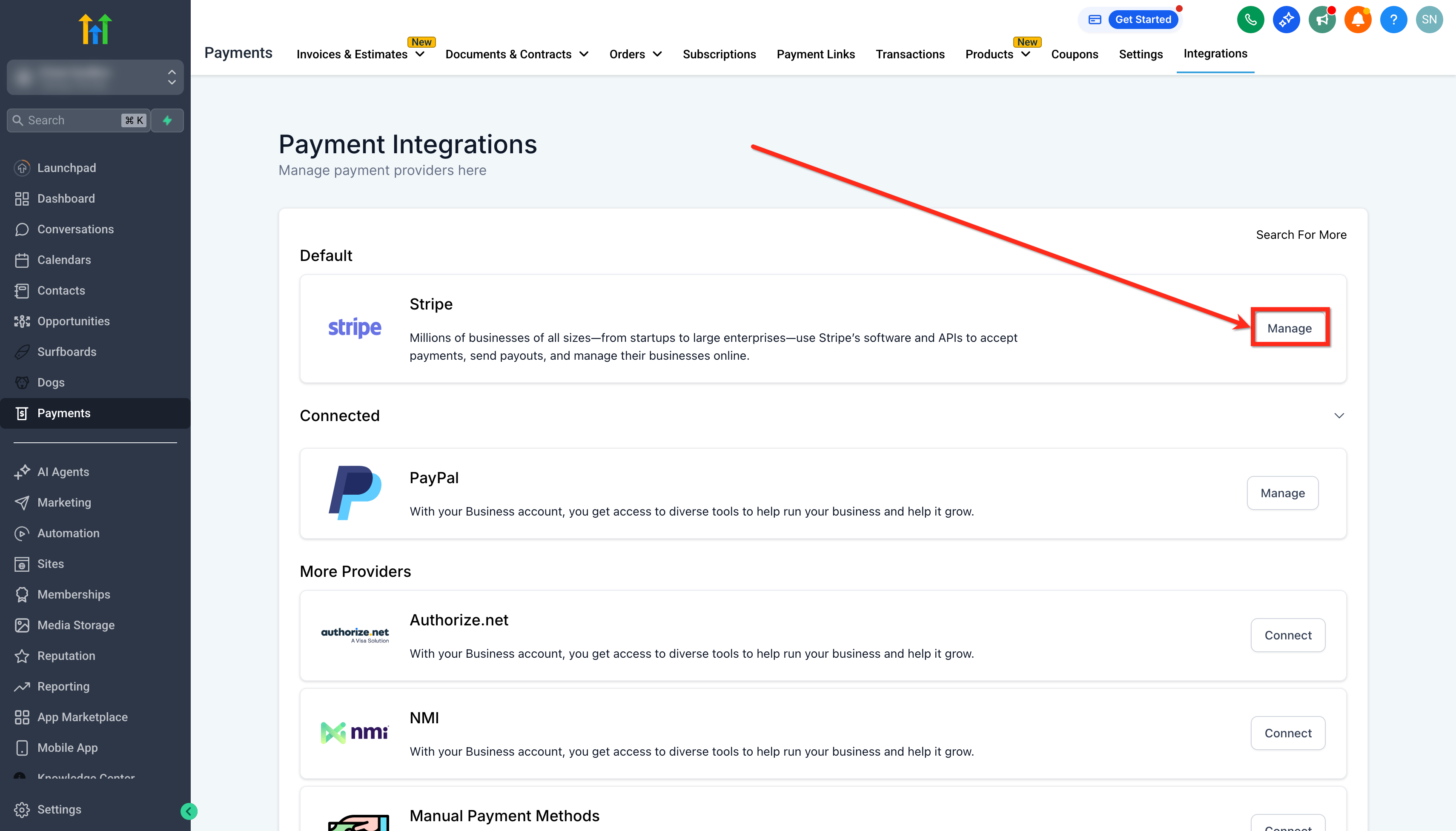
** 3. Click the Manage button next to your connected Stripe account.
Step 2: Enable/Disable Payment Methods 1. Click on the Manage Payment Methods option.
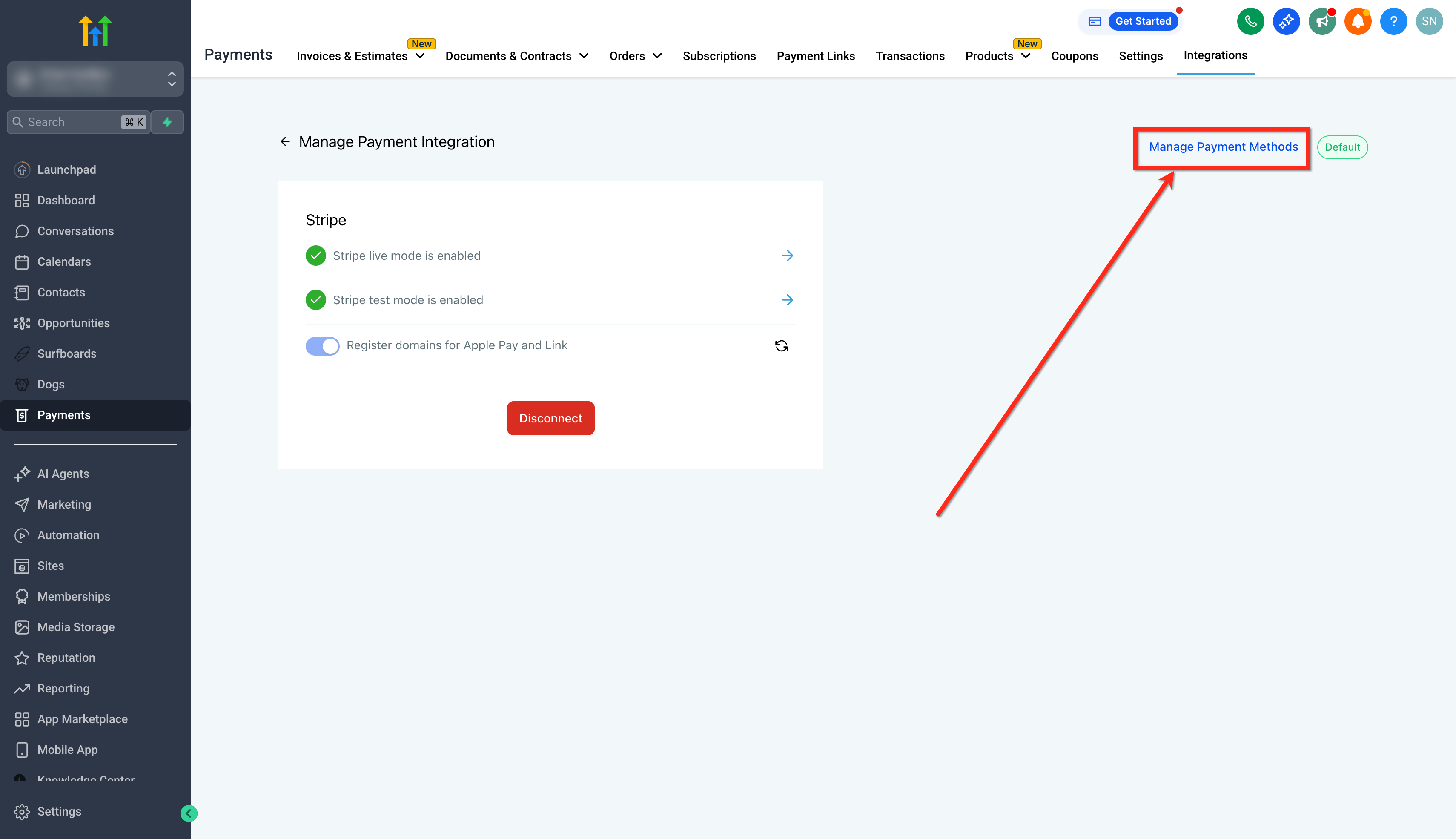
- You’ll see a list of payment methods available for different product areas.
- Toggle on or off based on which payment methods you want available for a particular product area.
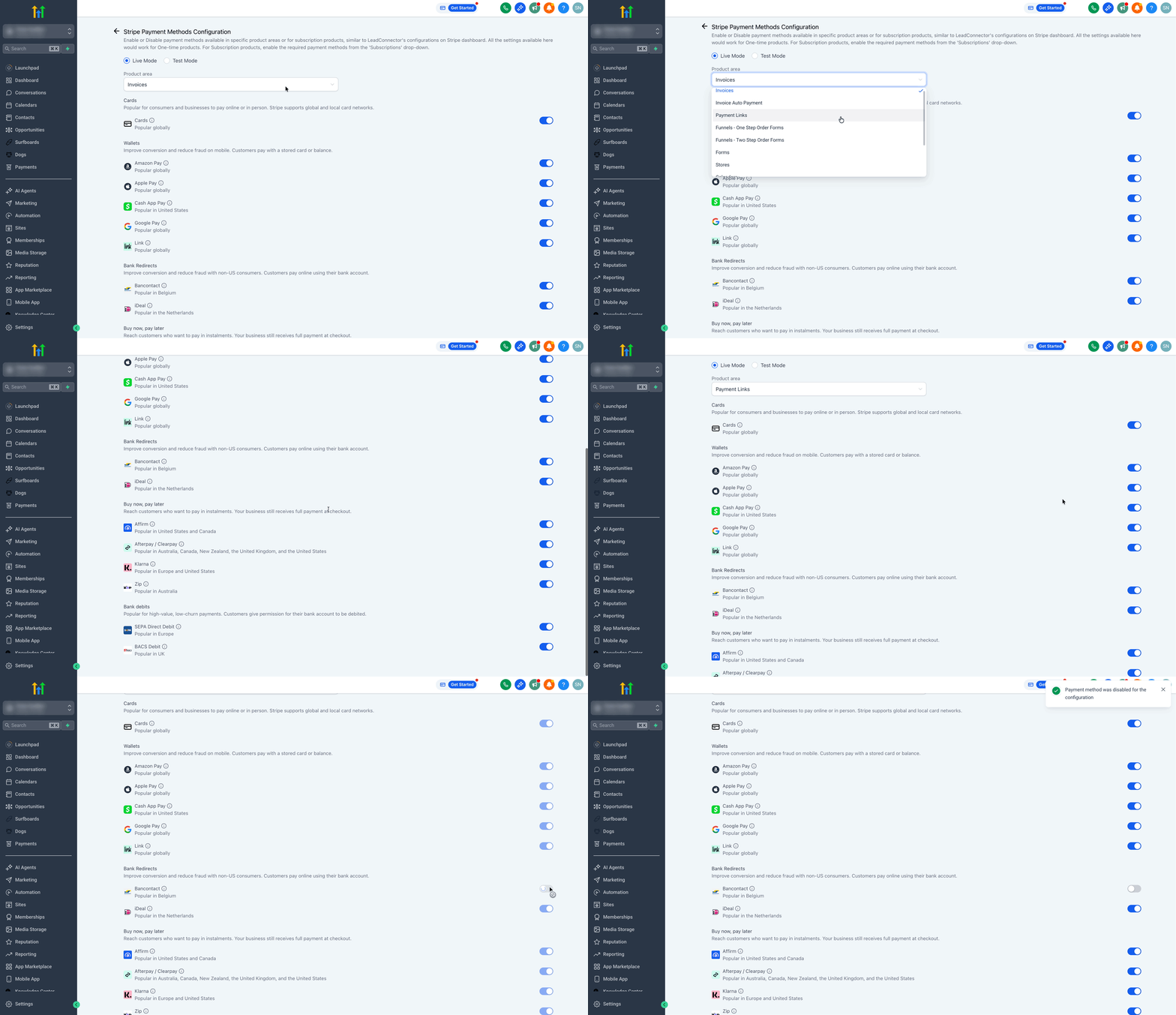
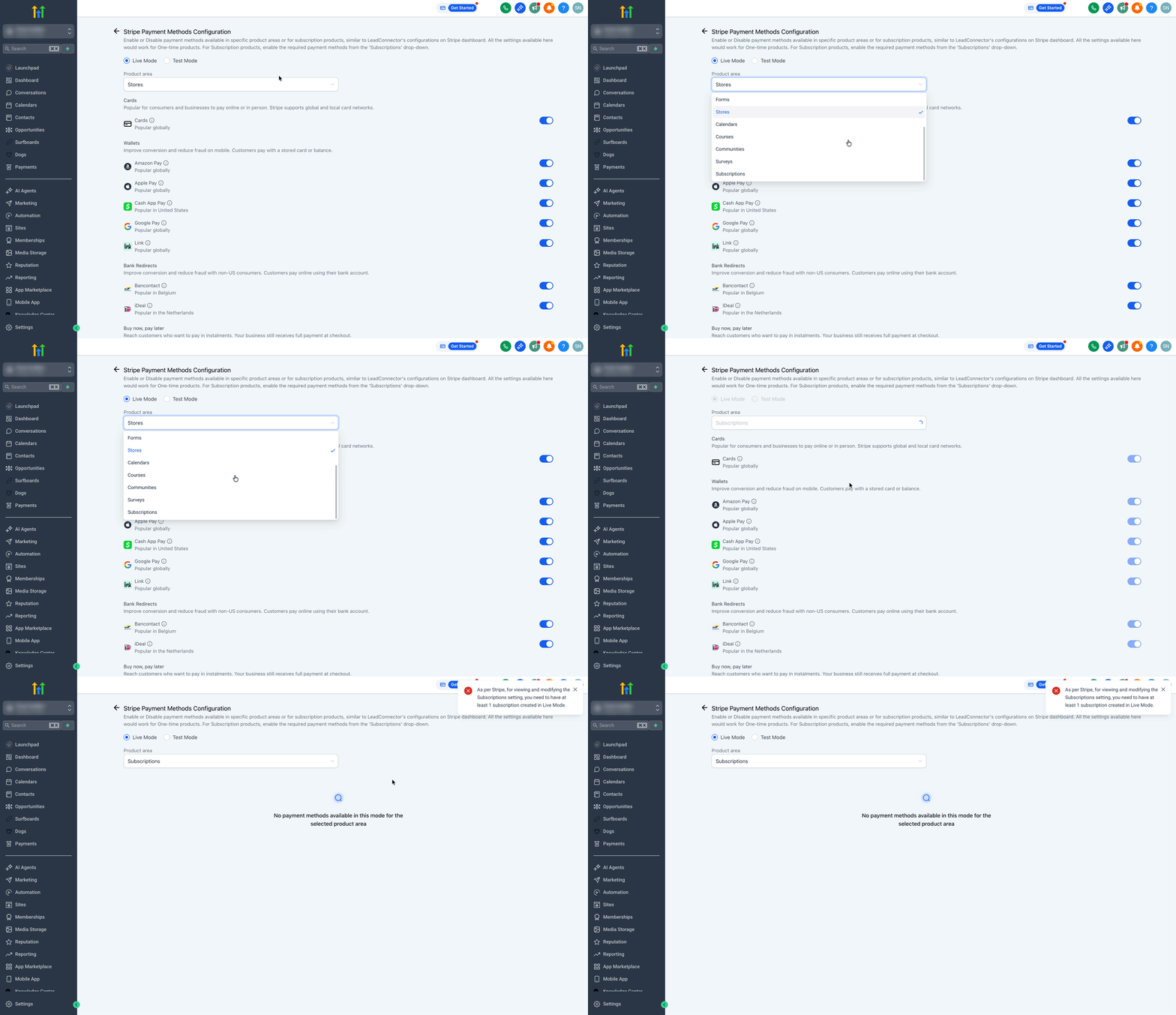
- If you’re offering subscription products, you’ll see a special drop-down called Subscriptions. Configure payment methods specifically for subscription checkouts here.
Stripe Payment Method Settings for Different Product Areas
Managing Stripe payment methods across product areas ensures that your customer-facing interfaces only show relevant payment options. Here’s where your configurations apply:
- Invoices
- Invoices with AutoPayments
- Payment Links
- Funnels - One-Step Order Form
- Funnels - Two-Step Order Form
- Forms
- E-commerce Stores
- Calendars
- Courses
- Communities
- Subscriptions SaaS Configurator-generated checkout links for SaaS subscriptions support card payments only. Other payment methods may be available in Stripe or other Patient Copilot product areas, but they are excluded for SaaS subscription onboarding. Each checkout will respect the settings you’ve configured — no more surprises for your customers at checkout!
Frequently Asked Questions
Q: What are the transaction fees for Stripe?
Stripe transaction fees vary depending on your country and the type of payment method used. Generally, Stripe charges a percentage of each transaction plus a fixed fee. Because pricing differs by region, you should always refer to Stripe’s official pricing page for the most accurate and up-to-date details. Q: Why don’t I see the Subscriptions list in Patient Copilot? The Subscriptions list only becomes available after you’ve added at least one subscription product in Live Mode within the respective sub-account. This requirement comes directly from Stripe. Q: What happens if I already have payment methods configured in Stripe? Your existing settings are preserved. Default payment methods for product areas or checkouts will match your original Stripe setup unless you update them inside Patient Copilot. Q: Will Live and Test modes have separate settings? Yes! You can configure payment methods independently for Live and Test environments, allowing full flexibility during development and production. Q: Why don’t I see the Subscriptions dropdown? The Subscriptions settings become available only after adding at least one subscription product in Live Mode in that sub-account, according to Stripe’s rules. Q: Are these changes applied to all sub-accounts? Each sub-account connected to Stripe needs to configure its payment methods individually under its Payments settings. BLIK will not appear in our current integration. Stripe determines which payment methods are shown at runtime based on the connected account’s Payment Method Configuration and the checkout context. BLIK is not supported in this flow because it requires immediate PaymentIntent confirmation at checkout, which is not compatible with our deferred payment flow. We do not have plans to change this setup right now, but we regularly review payment method coverage with Stripe to support current use cases.