
Automating customer replies from an All-in-One chat widget
This guide provides a comprehensive walkthrough for configuring workflows that execute when a customer replies through an All-in-One Chat widget using the customer replied trigger in workflows. It explains trigger configuration, filter logic, widget scoping, and advanced implementation strategies to ensure your automation runs precisely where intended.
Objective & Functional Overview This article explains how to:
- Configure a workflow that triggers when a customer replies via an All-in-One Chat channel - Narrow the trigger to a specific Chat Type (Chat Widget or Live Chat) - Further restrict execution to a particular widget configuration - Implement structured routing, tagging, assignment, notifications, escalation, and qualification logic - Maintain clean automation architecture when managing multiple chat entry points By the end of this article, you will be able to confidently build reply-based workflows with precise targeting controls.
Conceptual Model: How the Trigger logic works The configuration follows a layered filter structure:
Layer 1: Event Customer Replied The workflow activates when a customer sends a reply message.
Layer 2: Reply Channel All-in-One Chat Limits execution to replies originating from unified chat widgets.
Layer 3: Scoped Filters (Dynamic) Once All-in-One Chat is selected, additional filters appear:
- Chat Type
- Chat Widget - Live Chat 2. Specific Configuration - If Chat Type = Chat Widget > select the exact widget - If Chat Type = Live Chat > select the exact Live Chat configuration The workflow runs only when all selected conditions are met.
Prerequisites Before configuring automation:
- At least one All-in-One Chat widget must be configured.
- You must have access to Workflows/Automations.
- If using assignment logic, ensure users/teams are set up.
- If using tags or pipeline routing, confirm naming conventions are established.
Step-by-Step Configuration Guide
Step 1:
Create or Open a Workflow 1. Navigate to Automations > Workflows 2. Click Create Workflow (or open an existing one) 3. Select Add Trigger
Step 2: Select the trigger event 1. Choose Customer Replied 2. The trigger configuration panel will open
Step 3:
Configure Reply Channel 1. Locate the Reply Channel dropdown 2. Select All-in-One Chat Selecting this activates advanced filtering controls.
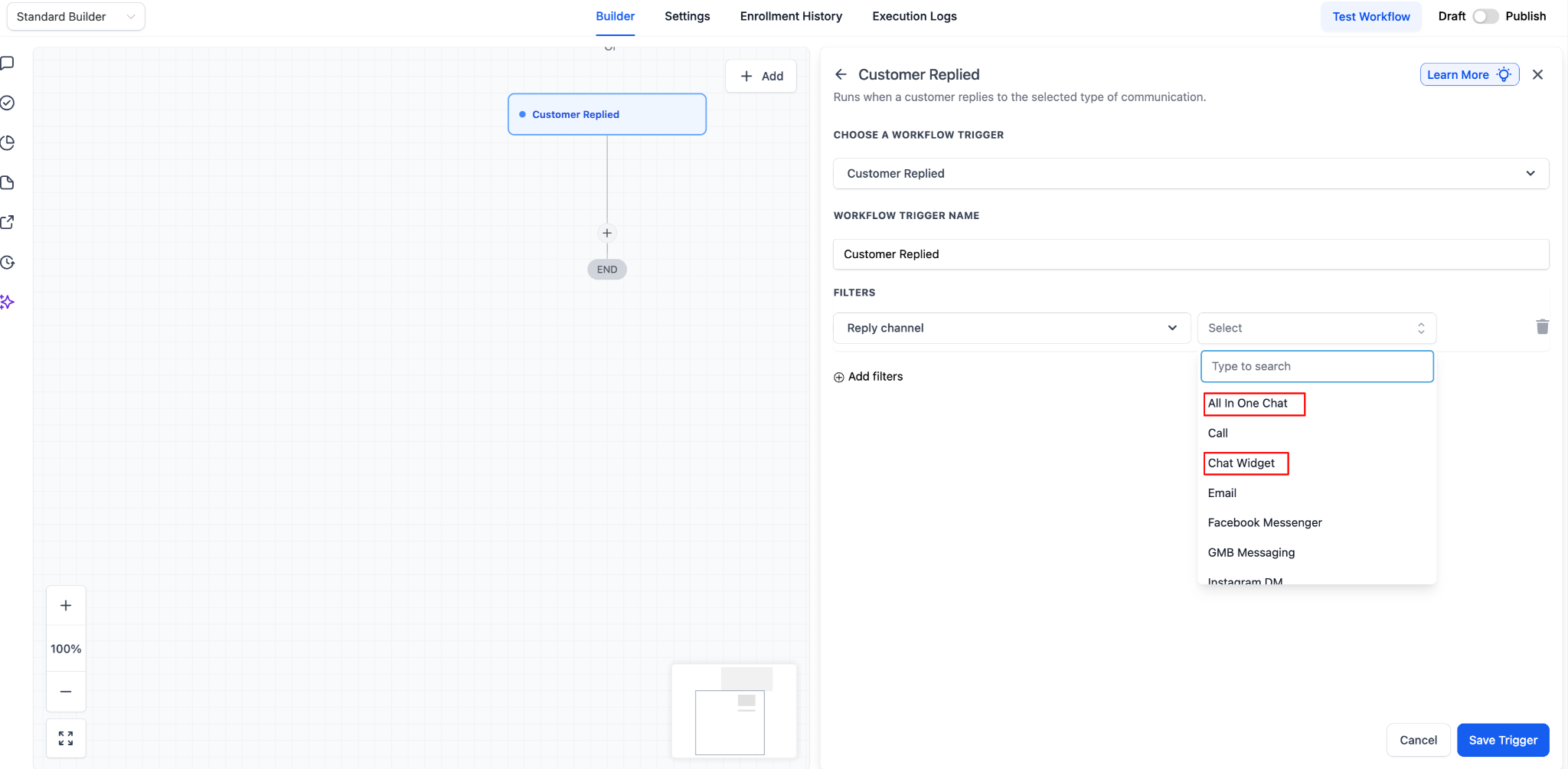
Step 4: Define chat type Under Chat Type, choose one:
Option A - Chat Widget Use this when you want to target replies that originate from the widget interface.
Option B
- Live Chat Use this when targeting replies specifically associated with live chat configurations within the unified chat system. Your choice determines which configurations appear next.
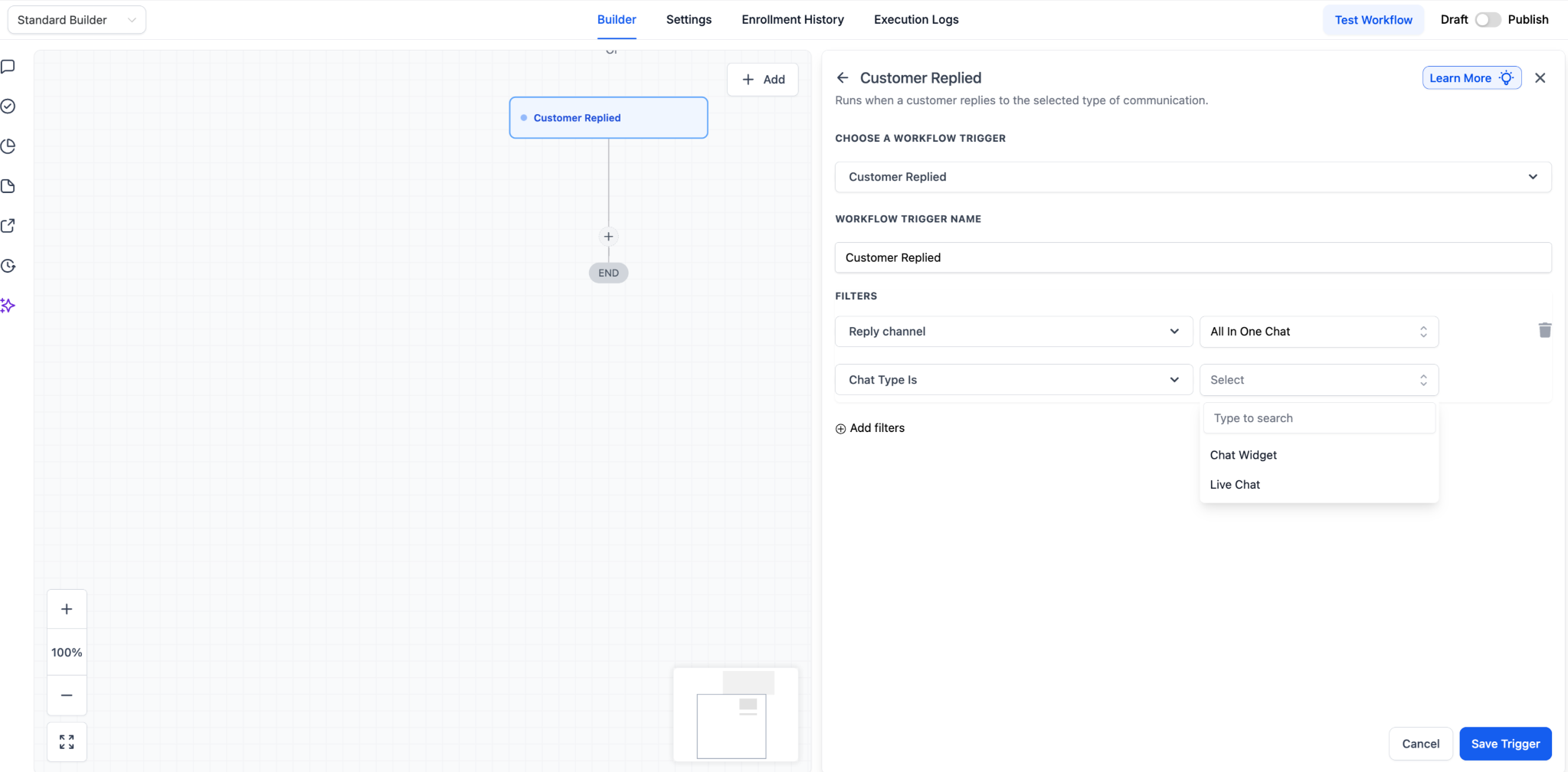
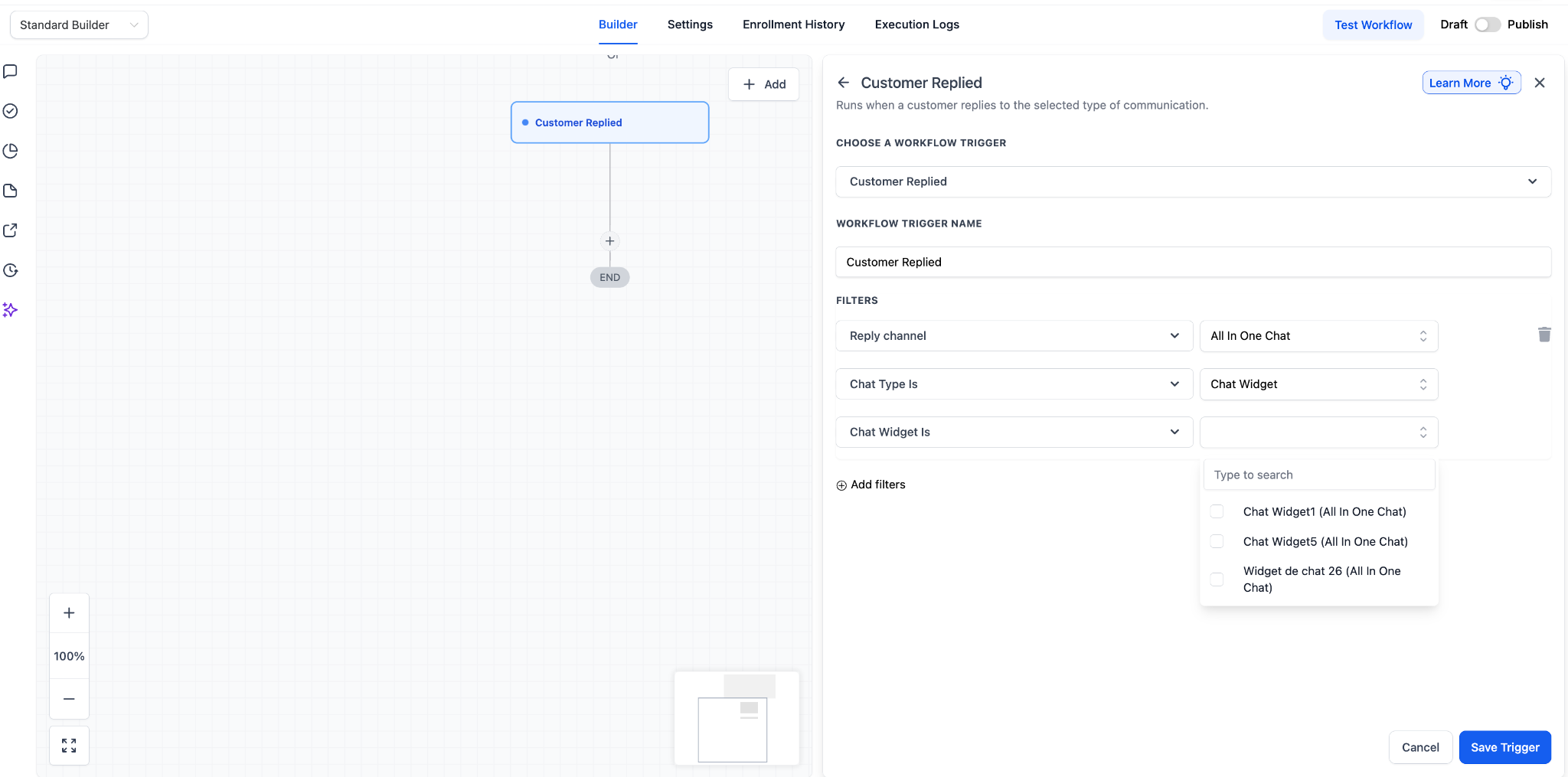
Step 5: Select the specific configuration The final dropdown dynamically adjusts based on Chat Type.
- If Chat Type = Chat Widget > Select from the list under Chat Widget is
- If Chat Type = Live Chat > Select from the list under Live Chat is **
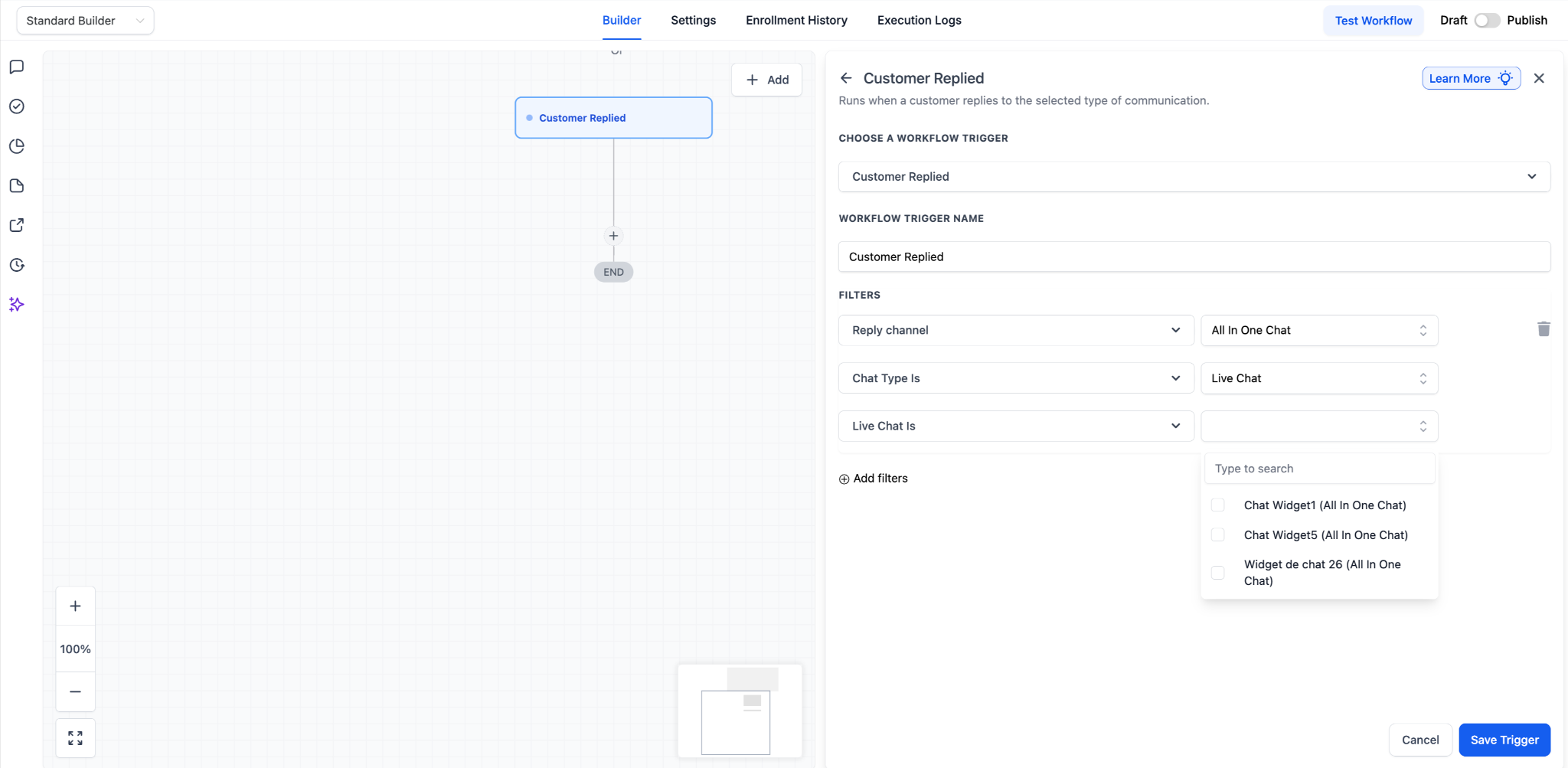
** Only relevant configurations are displayed. This step ensures the workflow runs exclusively for replies from the selected widget setup.
Step 6: Save the Trigger Click Save Trigger. The workflow is now scoped to customer replies from the selected All-in-One Chat configuration.
Implementation patterns & use cases Below are structured examples demonstrating how this trigger can be implemented in live setups.
1. Automated Acknowledgement System
Use Case Send an immediate confirmation message when a customer replies.
Trigger
- Customer Replied - Reply Channel = All-in-One Chat - Chat Type = Chat Widget - Chat Widget is = Support Widget
Actions
- Send message: “We’ve received your message and will respond shortly.” - Assign conversation/contact to a team member - Add tag:
Reply Received- Optional: Create internal task
Recommended Best Practice Keep the acknowledgement concise and non-automated in tone.
2. Department-Based Routing (Sales vs Support)
Objective Direct replies from different widgets to appropriate teams.
Workflow A: Sales Widget Trigger scoped to: Sales Widget Actions:
- Assign to sales representative (or round robin) - Add tag:
Sales Inquiry- Create opportunity - Send internal alert to sales channel
Workflow B: Support Widget Trigger scoped to: Support Widget Actions:
- Assign to support agent - Add tag:
Support- Create service task - Send acknowledgement message This ensures routing occurs immediately upon reply.
3. High-Priority Alert Workflow
Objective Notify leadership when key widget replies occur. Trigger scoped to: Executive or VIP Widget Actions:
- Send internal notification - Create high-priority task - Add tag:
VIP- Escalate assignment to senior team member
4. Reply-Based Qualification Logic
Objective Use replies to segment intent. Trigger scoped to: Main Chat Widget Actions:
- If message contains “price” or “cost” > add tag
Pricing Interest- If message contains “cancel” or “refund” → add tagRetention Risk- Route to appropriate team - Send contextual follow-up question
5. Escalation Workflow (No Response Handling)
Objective Escalate if a reply is not handled promptly. Trigger scoped to: Live Chat configuration Actions: 1. Wait 10 minutes 2. If no action taken (based on your chosen indicator):
- Notify backup user - Reassign conversation - Send message offering callback
6. Multi-Widget Enterprise Setup When managing multiple websites, funnels, or brands:
- Create one workflow per widget - Name workflows clearly (e.g.,
Reply - Support Widget - Routing) - Maintain consistent tagging conventions - Avoid combining unrelated widgets in a single workflow This structure improves long-term maintainability.
Operational Best Practices
- Always select the specific widget/configuration if multiple widgets exist.
- Keep routing logic modular.
- Avoid combining Live Chat and Chat Widget logic unless intentional.
- Audit workflows quarterly to ensure no overlap.
- Maintain naming standards for easy troubleshooting.
Troubleshooting
All-in-One Chat does not appear in Reply Channel Confirm:
- The trigger selected is Customer Replied - An All-in-One Chat widget exists in your system
Expected widget does not appear
- Switch Chat Type (Chat Widget vs Live Chat) - Confirm the widget configuration exists and is active
Workflow triggers unexpectedly
- Verify specific configuration selection - Check for duplicate workflows - Review overlapping trigger conditions
Summary Using the Customer Replied trigger with All-in-One Chat filtering allows you to:
- Precisely target replies from unified chat experiences - Scope automation by widget type and configuration - Route conversations intelligently - Trigger acknowledgement, escalation, qualification, and internal alerts - Maintain clean, scalable workflow architecture When properly configured, this trigger becomes the foundation for real-time, reply-driven automation across chat channels.