
Workflow Action - Text Formatter
The Text Formatter action allows you to manage and transform text.
What is Text Formatter?
The Text Formatter action in workflows allows users to manipulate and modify text data through a variety of action types. This includes changing text to uppercase, lowercase, replacing text, finding specific words, and more. It is crucial for ensuring text data is presented or manipulated correctly before further processing.
How To Use Text Formatter
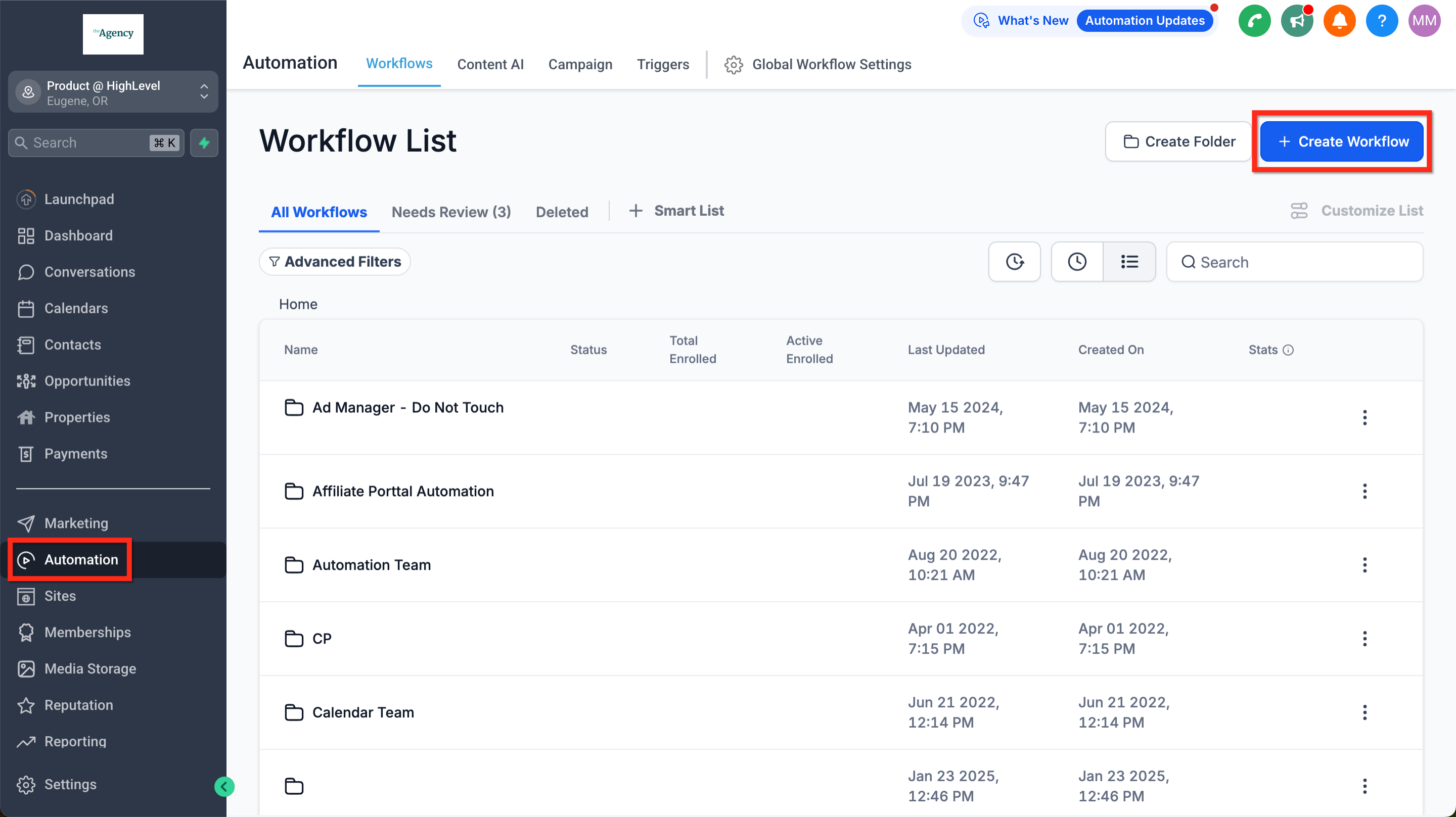
Step 1: Create/Edit Workflow Navigate to Automation > Workflows and click Create Workflow or edit an existing workflow.
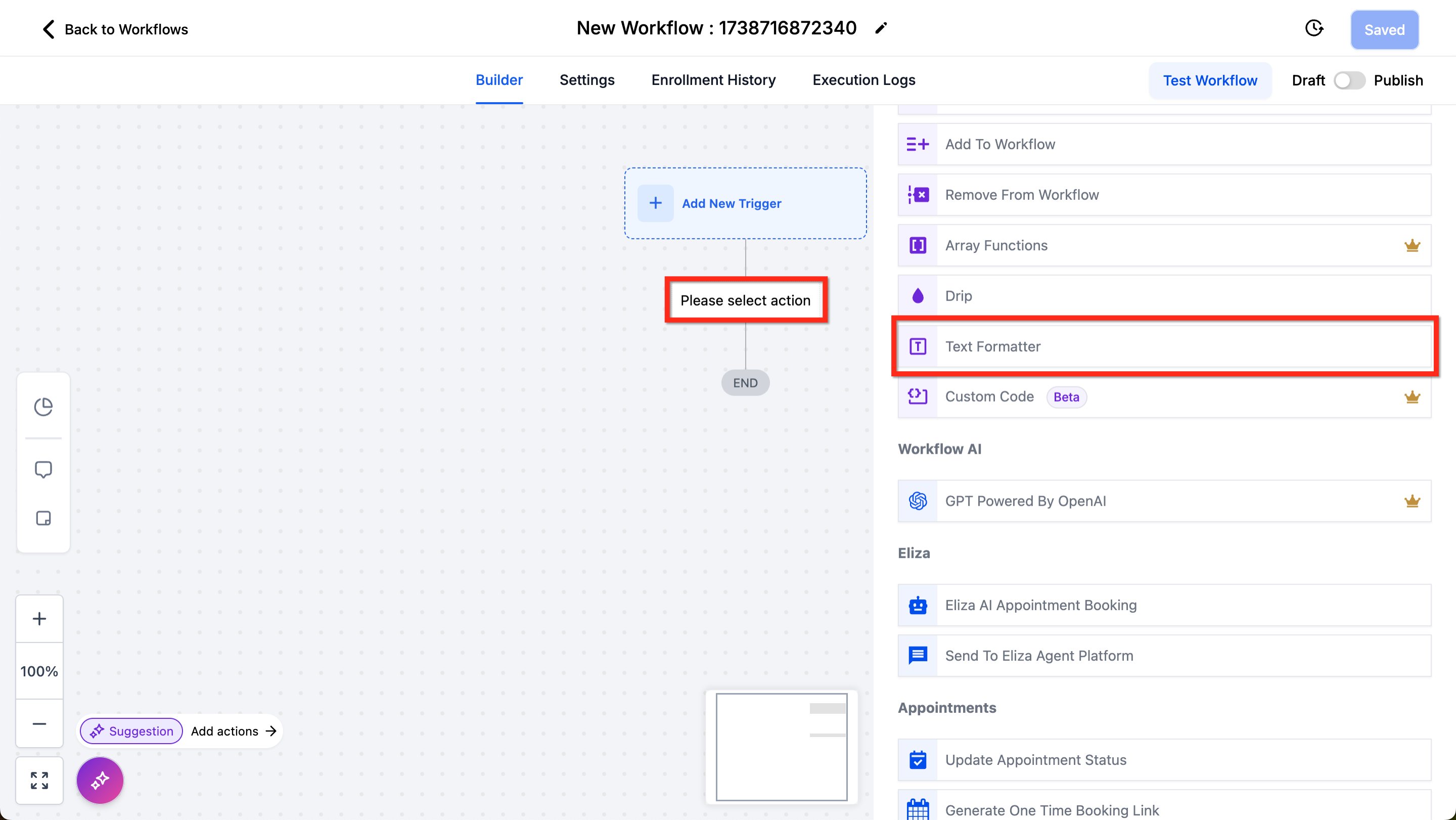
Step 2: Add Action Use the plus (+) button to add an action and scroll or search until you see Text Formatter.
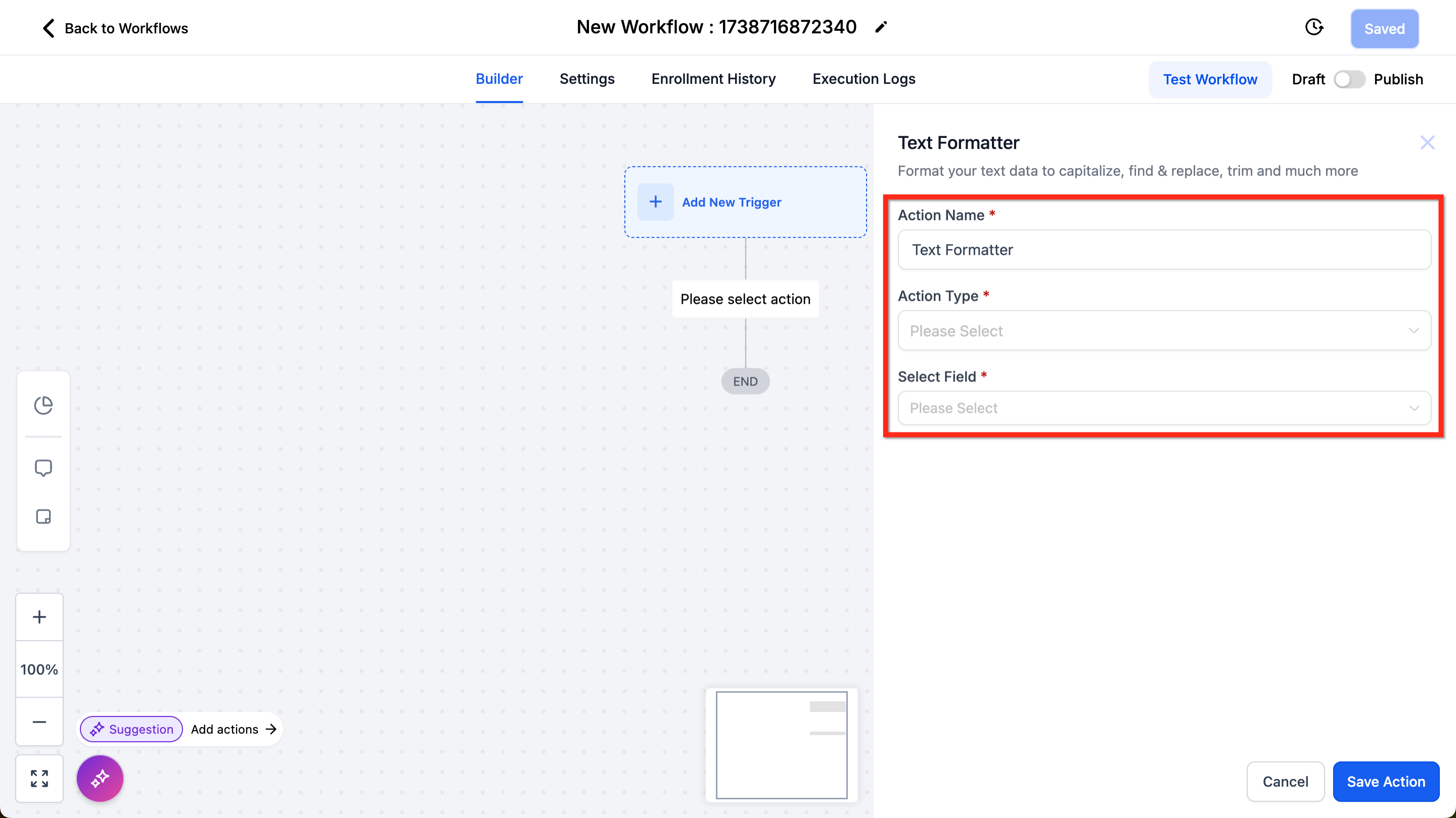
Step 3: Configure Text Formatter Settings Give the action a more specific name, select the action type you want to use (refer to the rest of this article), and the relevant field. Different action types have different configuration fields.
Text Formatter Details
**Table
- Action Type Details**
Action Type Description Example Fields Upper Case Converts all text to upper case ”text” -> “TEXT” Select Field Lower Case Converts all text to lower case ”TEXT” -> “text” Select Field Title Case Capitalize the first letter of each word ”text formatter” -> “Text Formatter” Select Field Capitalize Capitalizes the first letter of the first word ”text formatter” -> “Text formatter” Select Field Default Value If the input text is empty, this formatter will set the default value you specify "" -> “Default Value” Select Field Default Value Trim Shortens/truncates the text by a specified number of characters ”applesauce” -> “apple” Select Field Max Length Remove Characters From Beginning Ellipses (Shorten the text by three characters and insert ”…” to the end, if necessary) Trim Whitespace Removes leading (beginning) and trailing (ending) whitespace ” hello ” -> “hello” Select Field Replace Text Replace all instances of an exact character, word or phrase with another character, word or phrase ”this ain’t it” -> “this is not it” Select Field Find Replace Find Find the first position of a value in the text, -1 if the value is not found ”lorem ipsum dolor sit” -> “ipsum” = 7 OR “cat” = -1 Select Field Find Word Count Counts the number of words in a text string ”lorem ipsum” -> 2 words Select Field Length Counts the number of characters in a text string ”cat” -> 3 characters Select Field Split Text Splits a text string based on a delimiter you provide and returns one of the segments (first, second, second to last, or last) “lorem ipsum dolor sit” -> split on ” ” = second segment is “ipsum” Select Field Separator Segment Remove HTML Tags Removes HTML tags from text (converts HTML to plain text) “<p>Hello world!</p> -> “Hello world!” Select Field Extract Email Grabs the first email address found in the text ”my email is [email protected]” -> “[email protected]” Select Field Extract URL Grabs the first URL found in the text ” my homepage is lioncleaning.com” -> “lioncleaning.com” Select Field
**Table
- Select Field Details**
Field Level 1 Field Level 2 Field Level 3 Contact
(customers in the CRM)Full Name - First Name - Last Name - Email - Phone - Phone (raw format) - Company Name - Full Address - Address 1 - City - State - Country - Postal Code - Timezone - Source - Website - ID - User
(employees in the Subaccount)Full Name - First Name - Last Name - Email - Phone - Phone (raw format) - Signature - Calendar Link - Twilio Phone - ID - Message Message Body - Message Subject - Message Attachments - Account
(the Subaccount business)Name - Full Address - Address Line 1 - City - State - Country - Postal Code - Email - Phone - Phone (raw format) - Website - Logo URL - Owner First Name Last Name Email ID Facebook Lead ID Phone Call Phone Call Direction
- Phone Call Duration
- Phone Call From
- Phone Call To
- Phone Call From City
- Phone Call From State
- Phone Call From Country
- Phone Call From Zip
- Phone Call To City
- Phone Call To State
- Phone Call To Zip
- Phone Call To Country
- Phone Call Answered By Phone
- Phone Call Answered By User Name
- Phone Call Answered By User Id
- Phone Call Answered By Device
- Phone Call User Id
- Phone Call User Name
- Phone Call Start Time
- Phone Call End Time
- Phone Call Status
- Client Portal Contact Login URL (Magic Link) - Attribution First
Session Source
URL
Campaign
UTM Source
UTM Medium
UTM Content
Referrer
Campaign Id
FB Clickld
Google Clickld
Google Client Id
UTM Campaign
UTM Keyword
UTM Match Type
Ad Group ID
Ad ID
Latest Session Source
URL
Campaign
UTM Source
UTM Medium
UTM Content
Referrer
Campaign Id
FB Clickld
Google Clickld
Google Client Id
UTM Campaign
UTM Keyword
UTM Match Type
Ad Group ID
Ad ID
Custom Fields Unique to each Subaccount - Custom Values Unique to each Subaccount -
Suggested Triggers
- Form Submission: trigger the Text Formatter action after a form is submitted to ensure the data is properly formatted (ex: fill in a default value “no answer” if a field is blank).
- New Contact Created: Automatically format text fields when a new contact is added to your CRM (ex: names are capitalized correctly)
- Webhook Received: Automatically format the text received from an external system (talk to your developer about this one).
Frequently Asked Questions
Q: Can I use the Text Formatter to personalize messages?
A: Yes! You can combine the Text Formatter with custom values and merge fields to create personalized messages with properly formatted text. Q: Is it possible to chain multiple formatting actions together? A: Yes! You can add multiple Text Formatter actions within a workflow to perform complex text transformations step by step. Q: Does the Text Formatter work on numbers? A: Sort of. If the numbers are in text form, then they can be manipulated like text. If the numbers are in numeric form, then use the Number Formatter action. Q: I can’t find the field my text is in. A: Double check the table to make sure that field is included and drill down deep enough to select it.