
How to Create Invoices in Patient Copilot
Invoicing is a very important part of any business. It helps you keep track of your expenses, and it also allows you to get paid for the work that you do. You can easily create invoices from within the system. In this article we will cover how to create, edit, discount, add taxes and send your invoice(s)
Covered in this Article:
Overview
How to create a new invoice.
How to edit your invoice info
How to add taxes to your invoice
How to add a discount to your invoice
How to send an invoice
How to check the status of your invoices
Invoices can also be found in the Transaction tab.
Relevant Help Docs: How we can improve invoices: Feedback Form
Overview
You can now send invoices to your customers/clients using the products that you have created in your sub-account. Please Note: If you are using invoicing without Stripe Connect please see this guide
- Using invoices for recording manual payments without Stripe Connect Limitation to using invoicing without Stripe Connect is that the user will need to manually record the payments
How to create a new invoice.
- Go to the Payments tab and click on the invoice tab 2. Click on the button “New” and start creating a new invoice.**
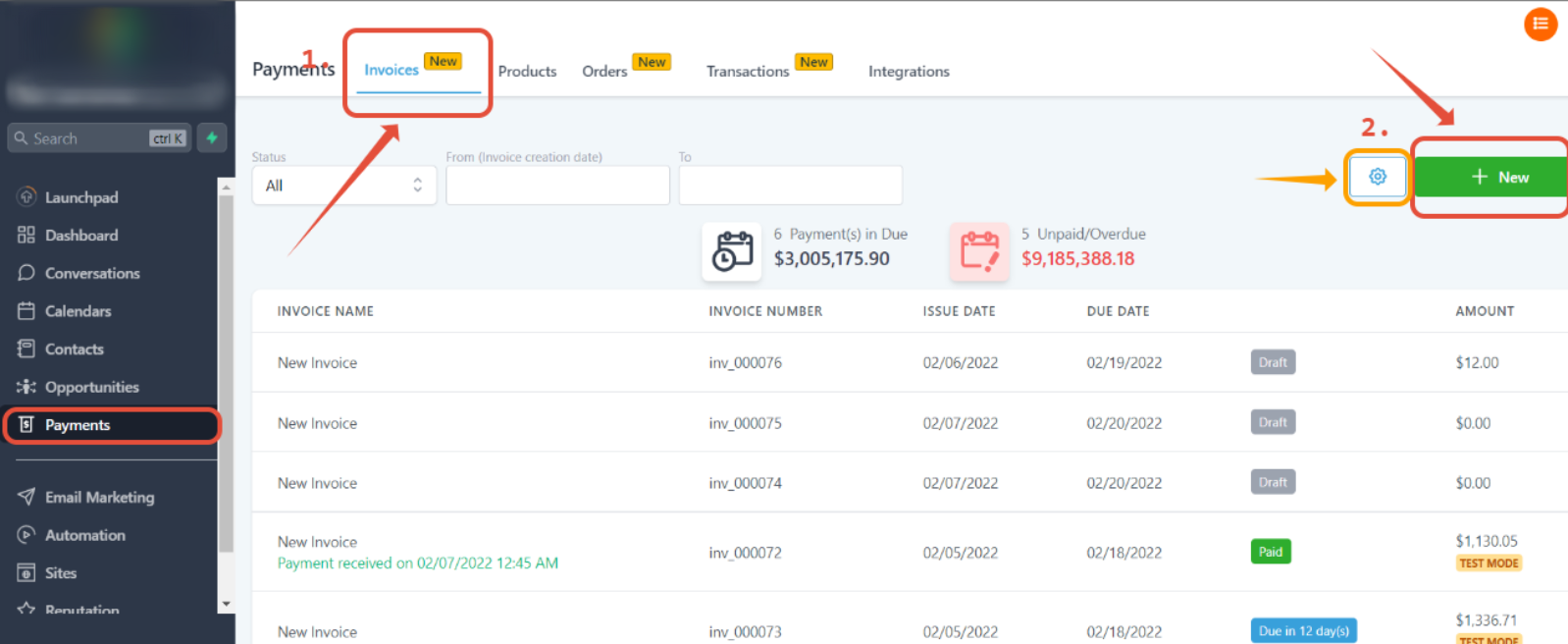
** Note: Add Global terms of services/ notes by clicking on the gear wheel icon (orange arrow) next to the ”+ New” button
How to edit your invoice info
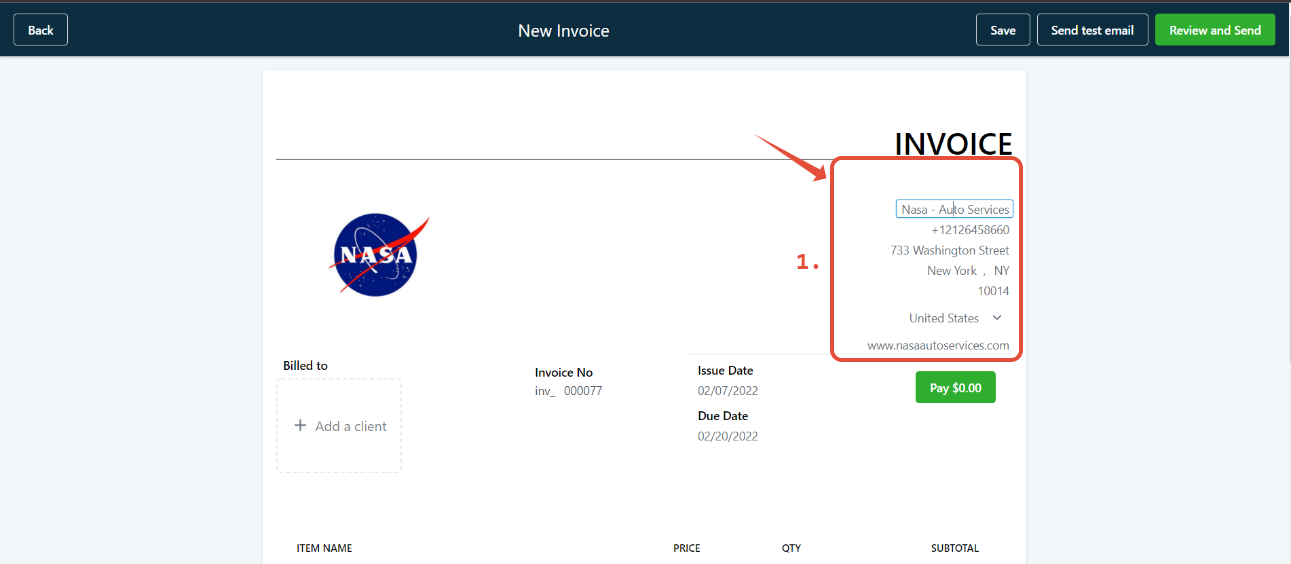
Step 1: Edit the “from info” by just clicking on the text and it will allow you to edit that information. **
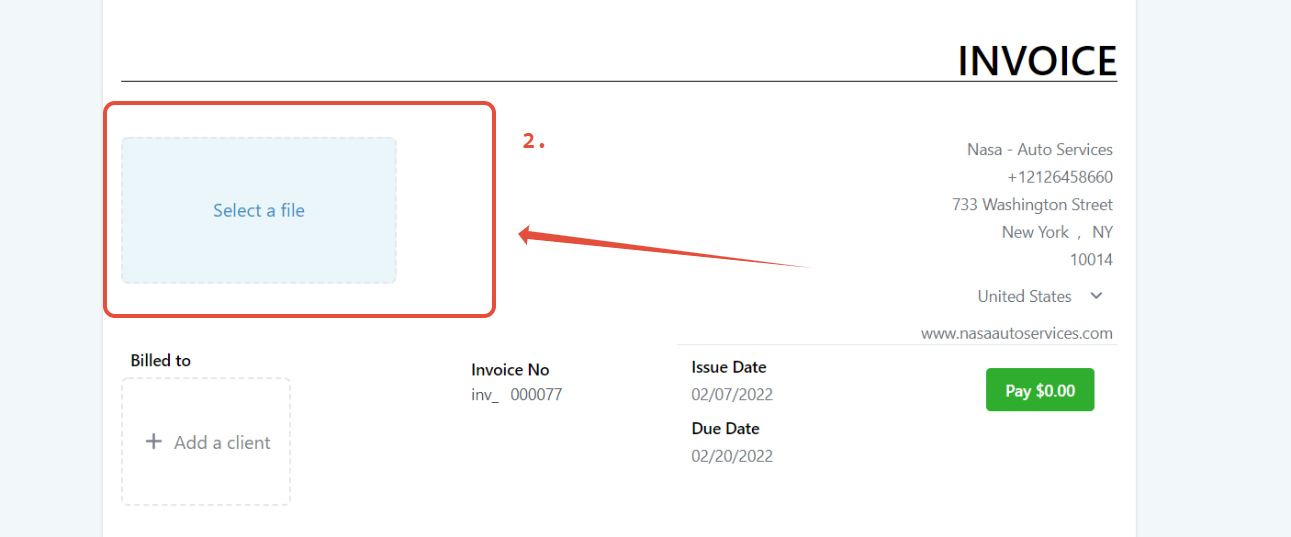
** Step 2: You can change the image by clicking on it, this will open up the media library where you may choose or upload a new image from there. **
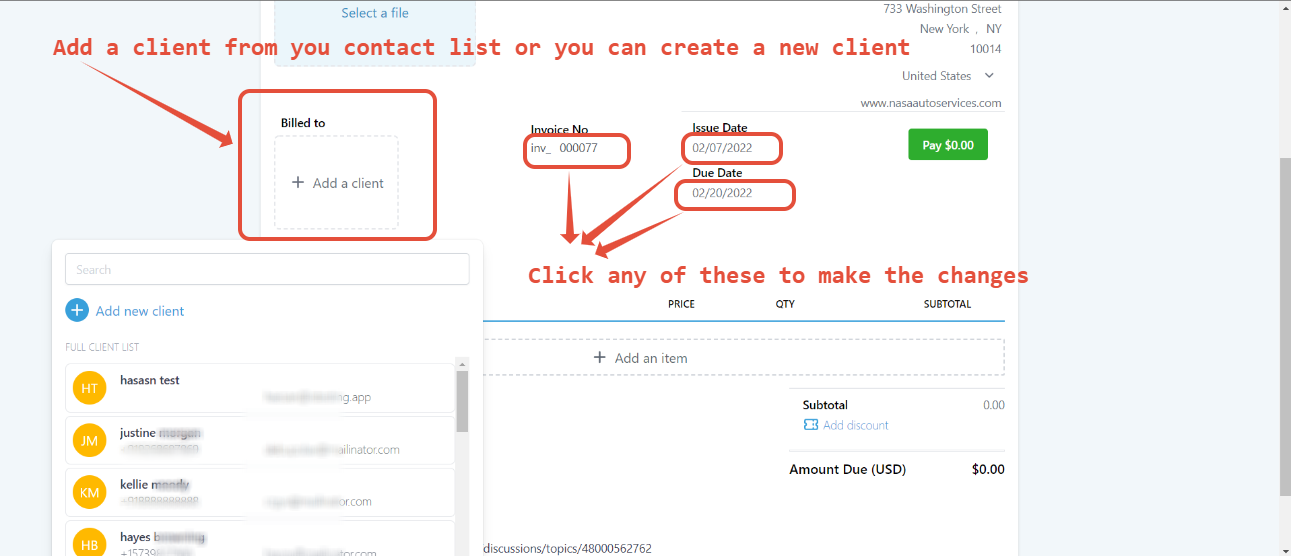
** Step 3: Then you can add the client and edit the Invoice number, Issue, and Due dates. **
** Step 4: Click add an item to add the products that you have created on your products tab ****
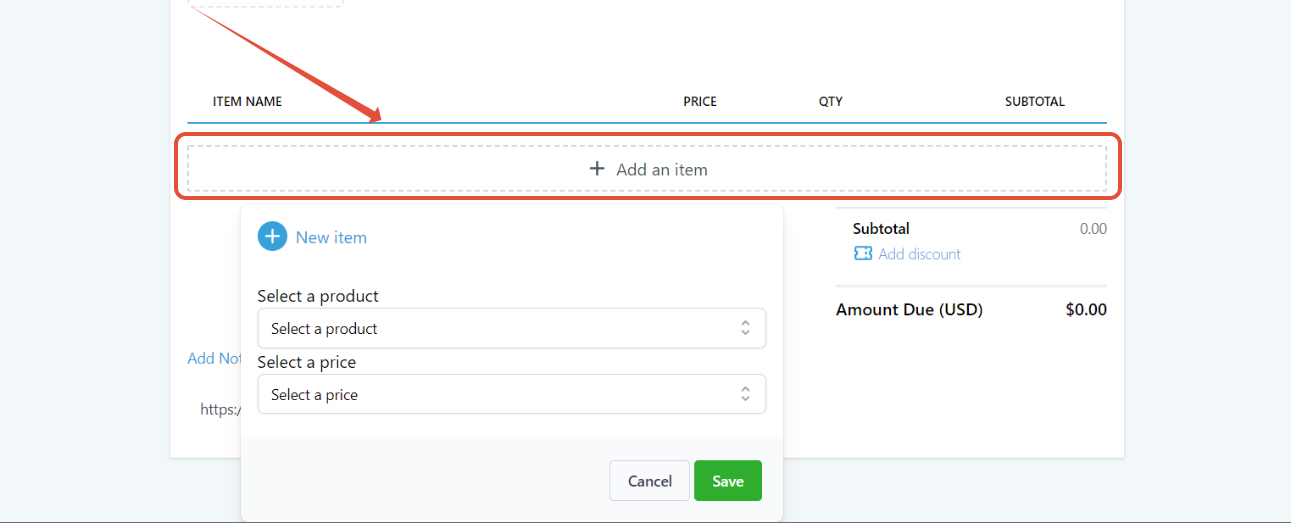
**** Step 5: Once you will add the product it will allow you to edit the price edit quantity as well
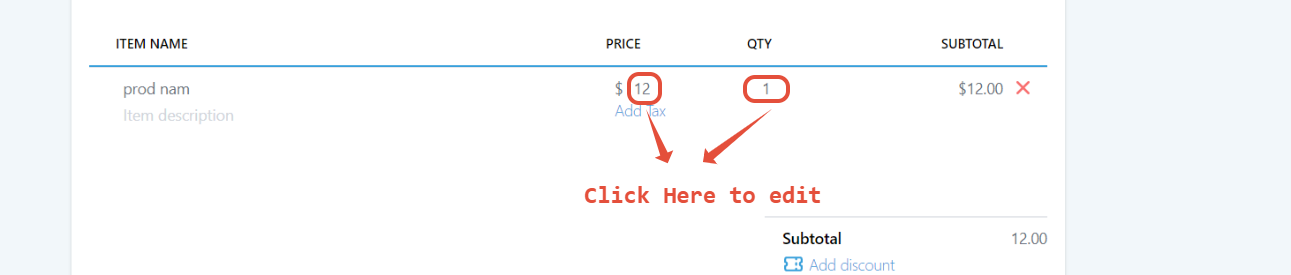
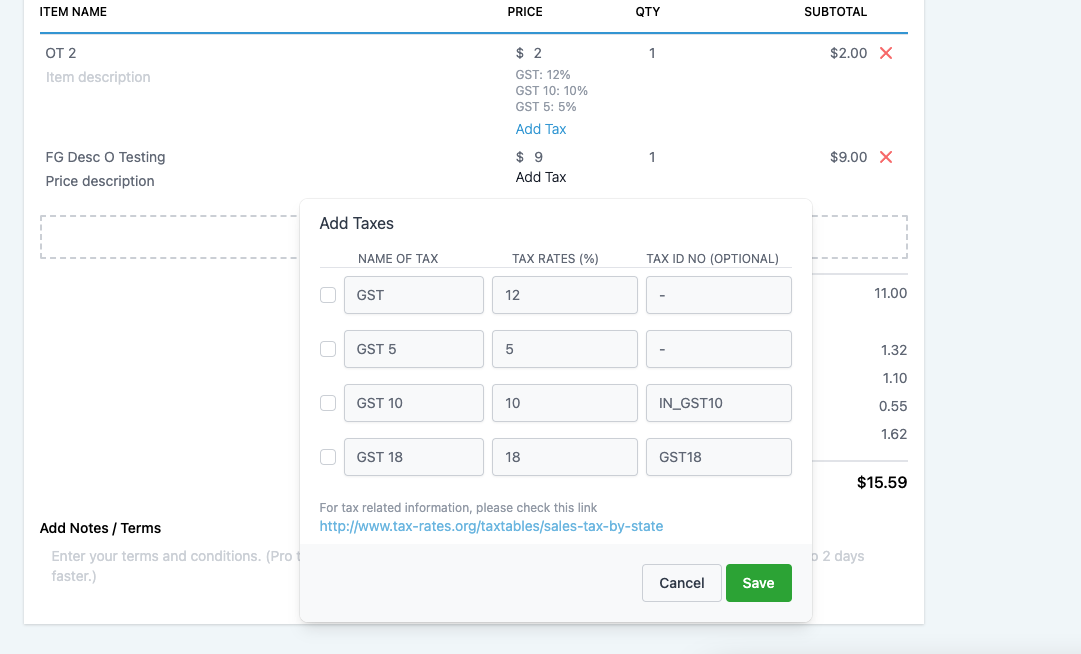
How to add taxes to your invoice
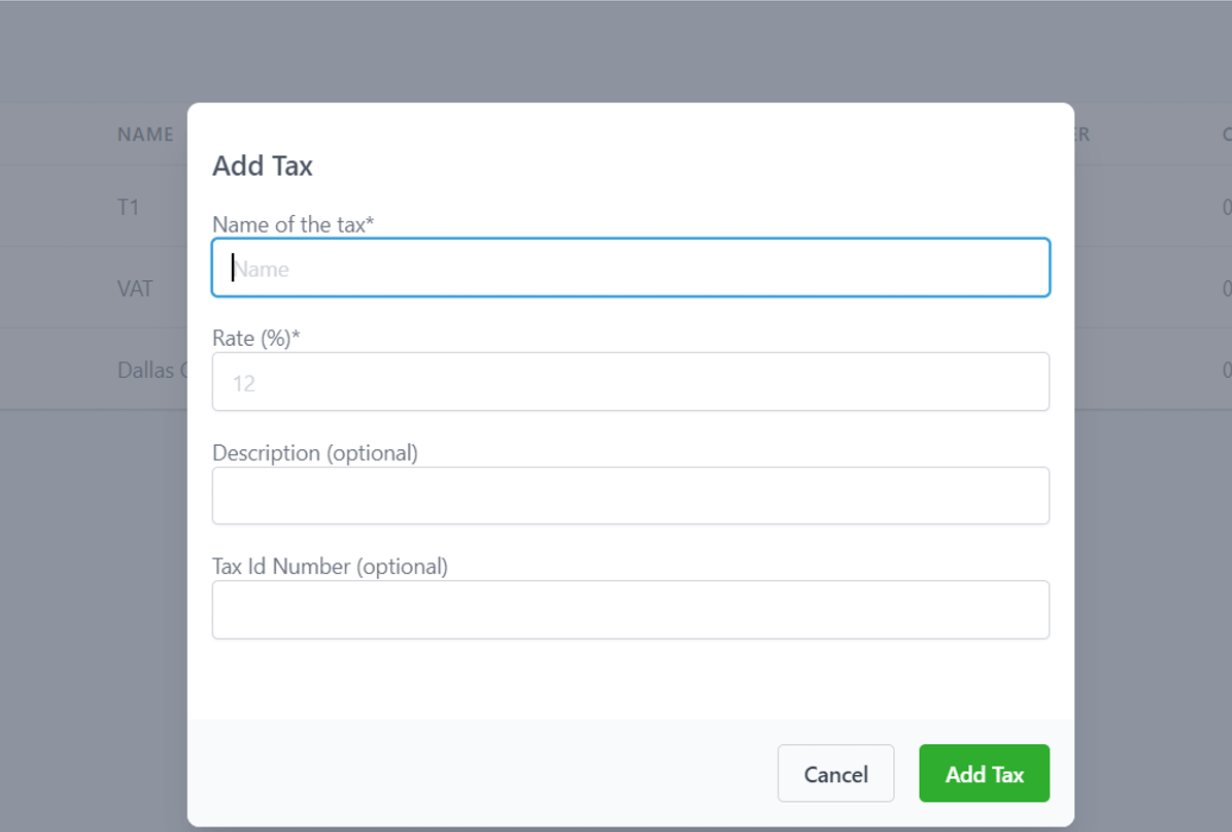
Step1: Click on Tax Settings… 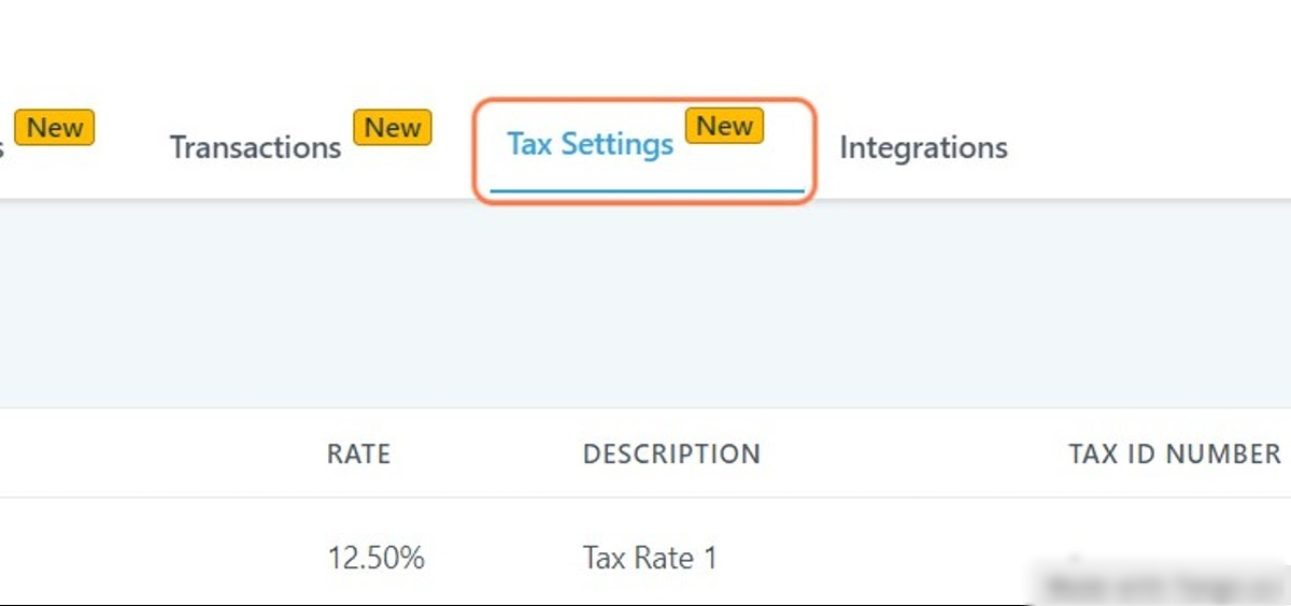 Step 2: Click on Add Tax
 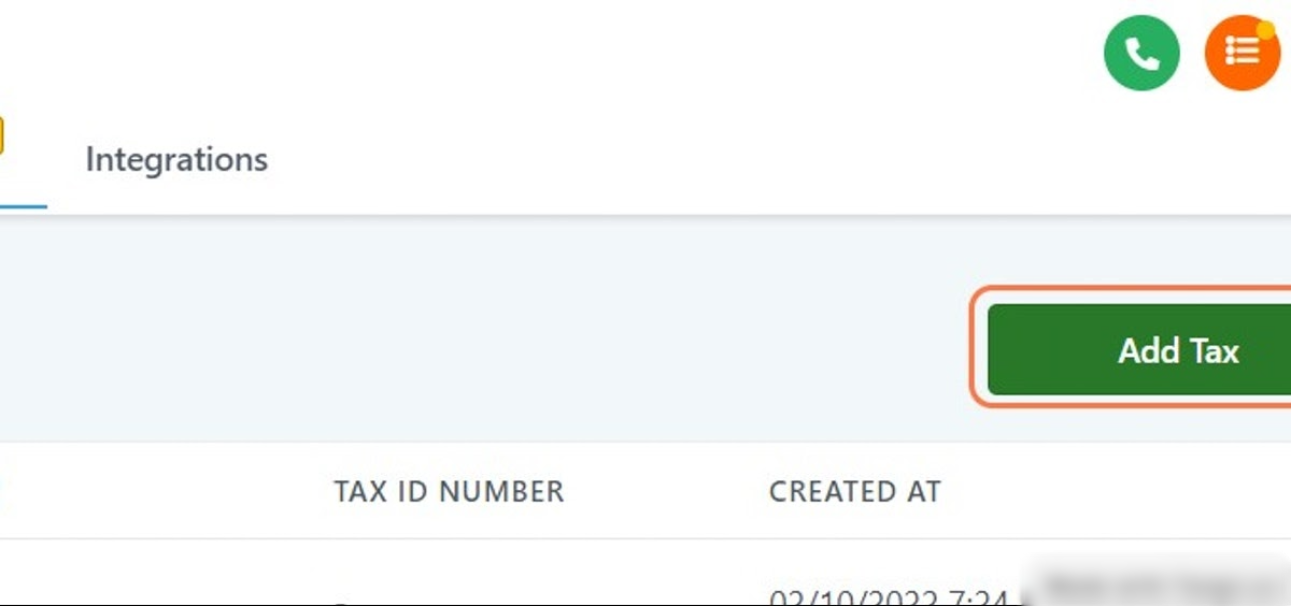 1. Add the name of the Tax
2. Add rate in %
3. Add a description or Tax id number
1. Add the name of the Tax
2. Add rate in %
3. Add a description or Tax id number
**
**
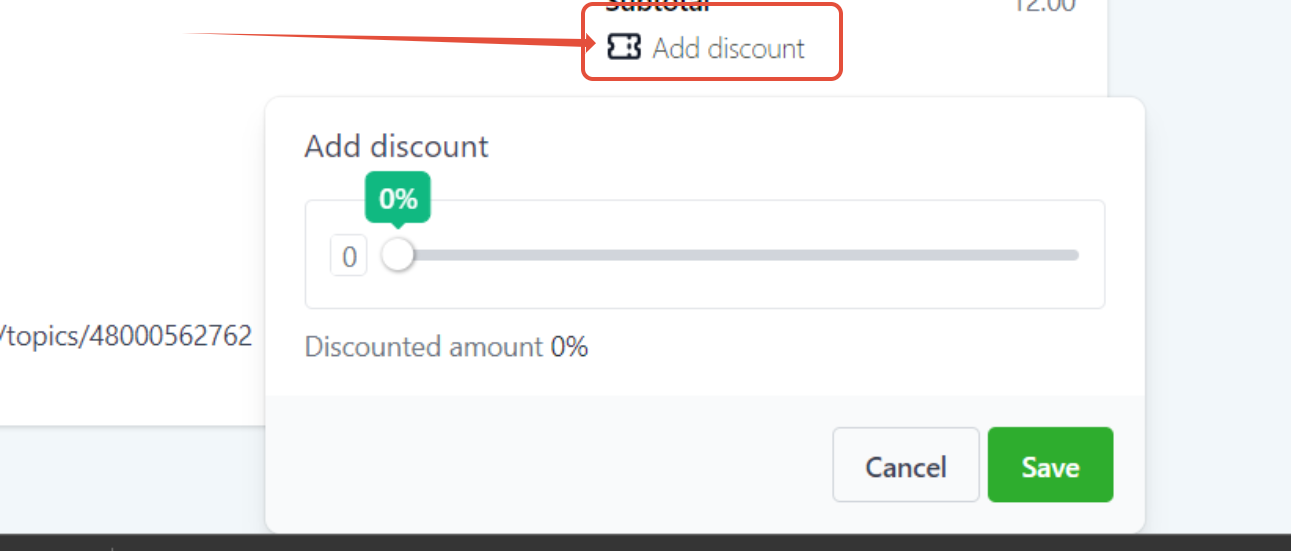
How to add a discount to your invoice
You can add a discount to this invoice by clicking on the “add discount” icon **
**
How to send an invoice
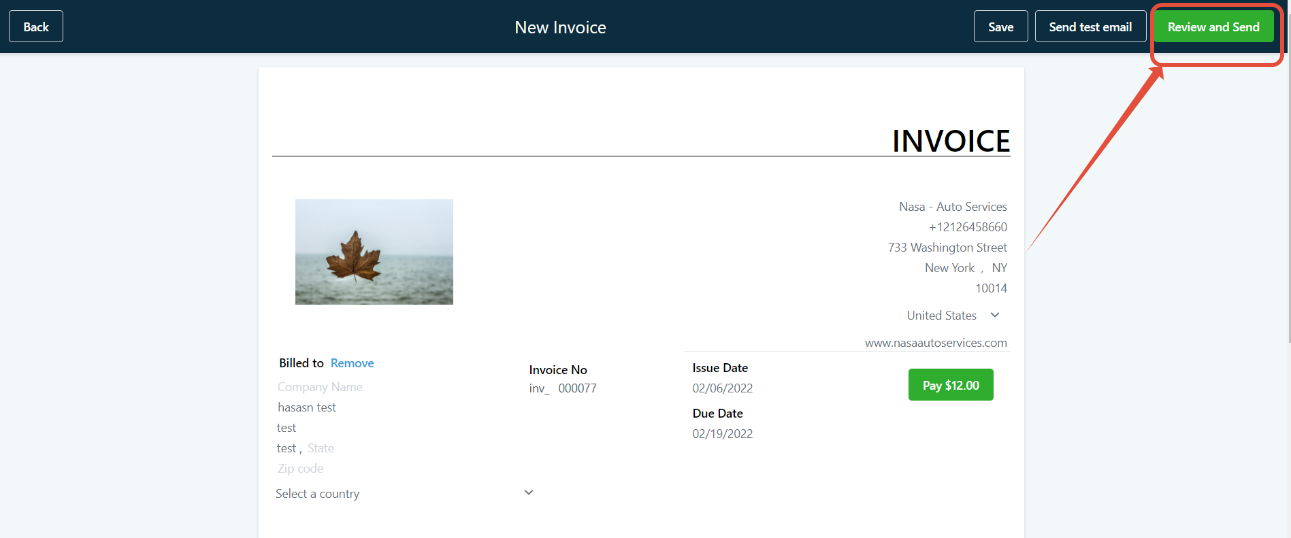
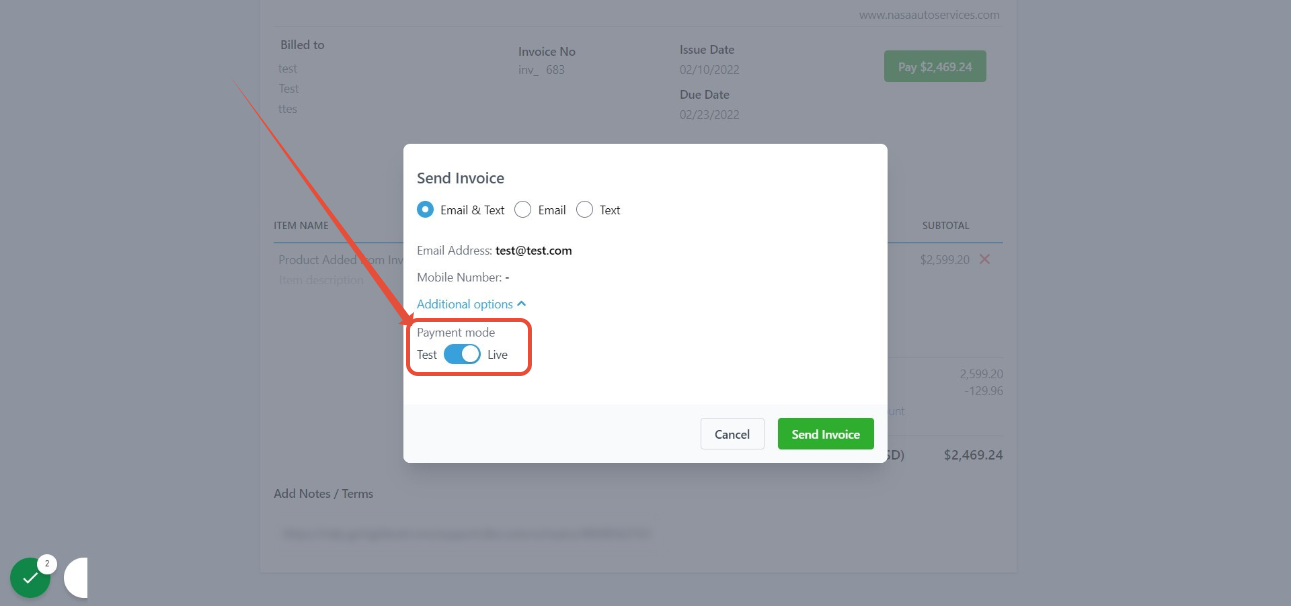
Step 1: Once you create the invoice now you can send that to your client using the green button on top right corner. **
** Step 2: You can send the invoice through email and text as you want and also you can send that on test mode as well. Click on the advanced option to switch to the live and test mode. **
**
How to check the status of your invoices
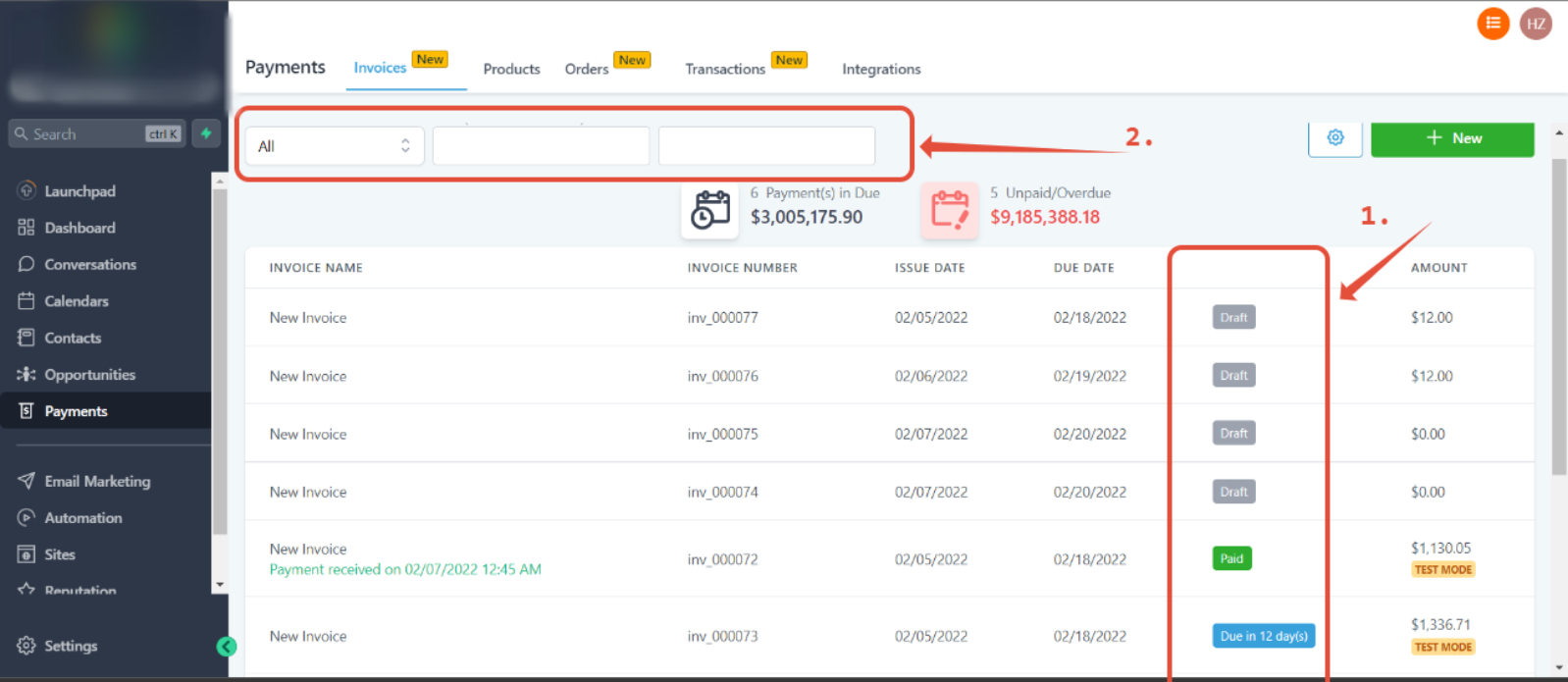
Step 1: Go to the Invoices tab where you will see the list of invoices and their statuses.
Step 2: You can filter the invoices by status and date range as well **
**
Invoices can also be found in the Transaction tab.
You can also look for successful, or failed transactions related to invoices. You can directly open the invoices as well. Payments > Transactions **
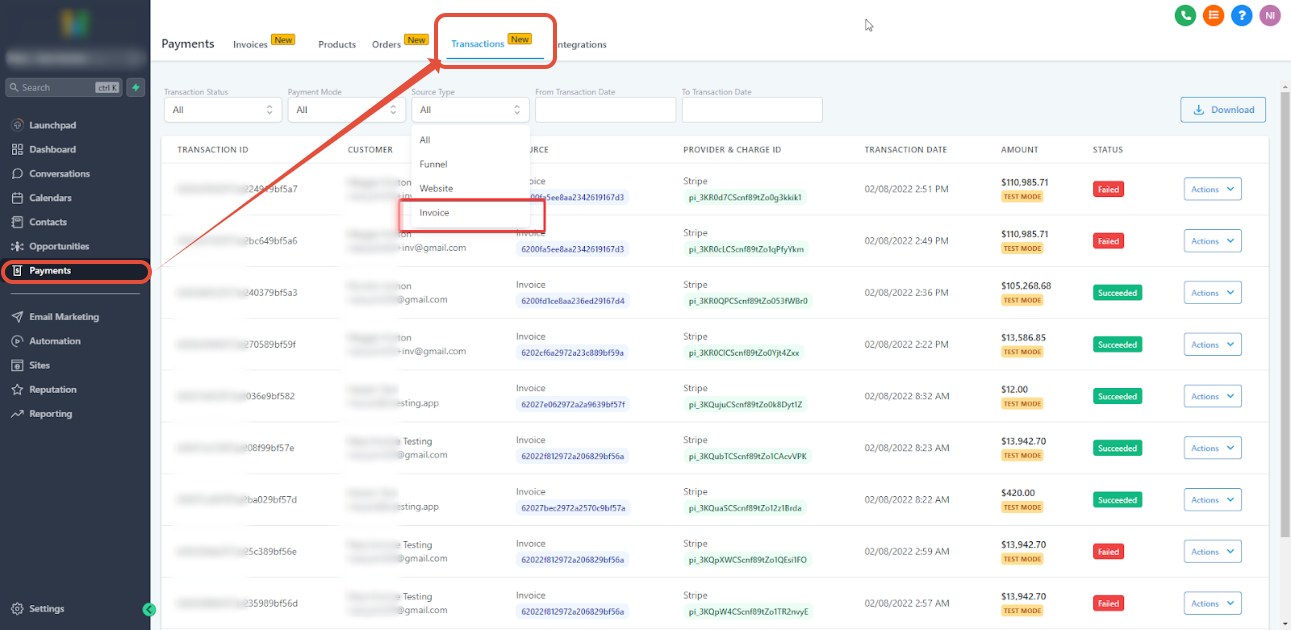
** Notes: The transaction tab is only available in the new UI
Relevant Help Docs:
Common uses cases for Payments and Invoices How to create invoices in Patient Copilot (Mobile App) How To Create Recurring Invoices Auto Payments in Recurring Templates** **