
Domain Removal Blocked Due to Active Campaign Assignment
Email Infrastructure How to Unlink a Domain From Active Campaigns Before Deleting It Step-by-step guide to safely remove a domain that’s still tied to scheduled campaigns — without breaking anything in-flight. What You’ll Learn If you’re trying to delete a domain from your system but get an error saying it’s still linked to an active campaign, don’t worry. This guide walks you through unlinking the domain from every campaign it’s tied to, so you can remove it cleanly — without affecting deliverability or any campaign that’s currently sending. Setup Guide Step-by-step: Unlink, then delete Follow these seven steps in order. The whole process takes under two minutes. 1
Try deleting the domain
Click Delete Domain for the domain you want to remove. If the domain is tied to a campaign, you’ll see an alert letting you know it can’t be deleted yet. Error Message “The domain is currently assigned to a scheduled Campaign Domain (except test campaign). Try again after the campaign has finished sending, or remove the domain from the Campaign Domain (except test campaign).”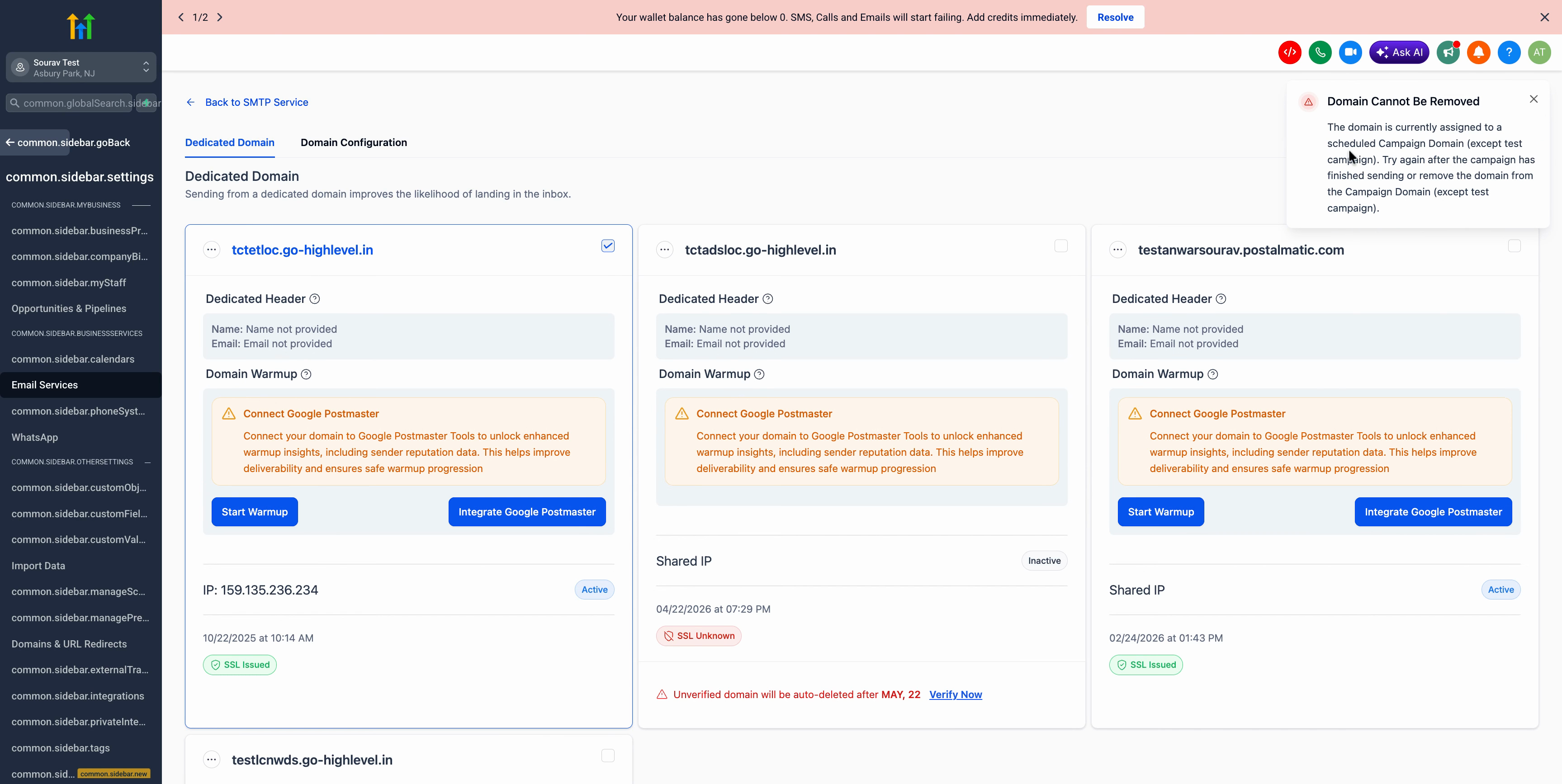 2
2
Go to the Domain Configurator Open the Domain Configurator option in your menu. Find and select the domain that’s causing the deletion error.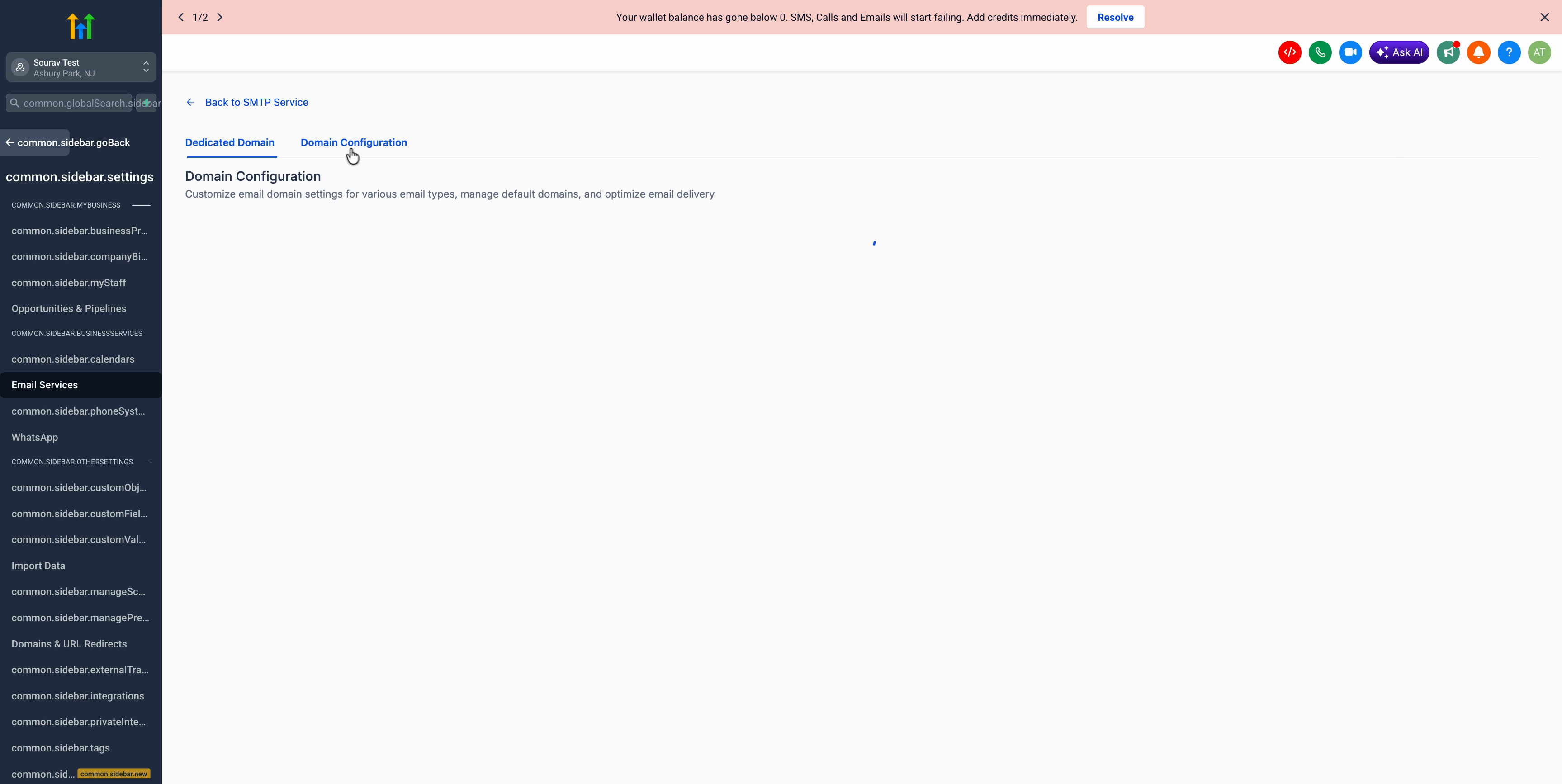 3
3
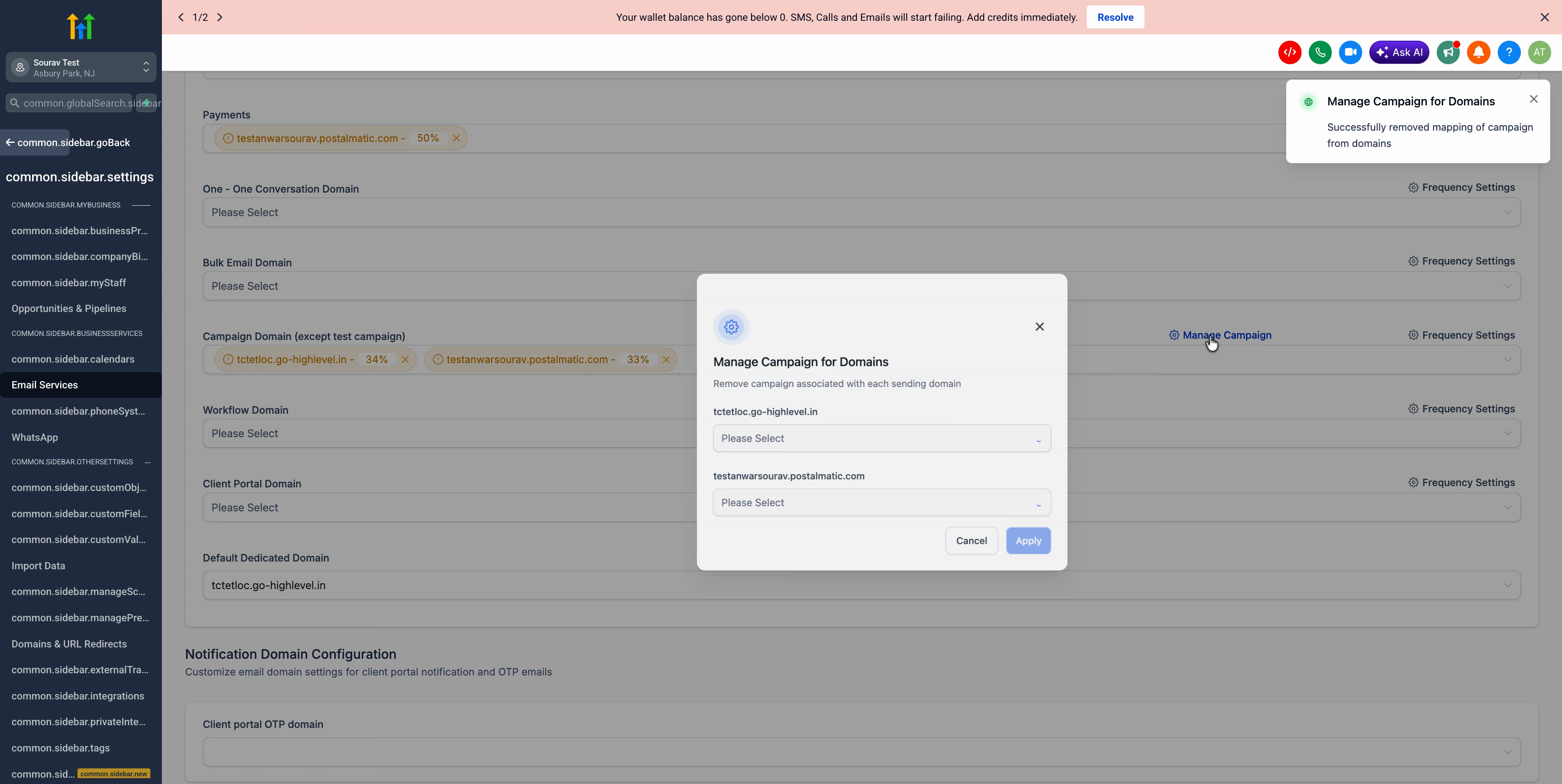
Open Manage Campaign
Click Manage Campaign for that domain to view all campaigns currently linked to it.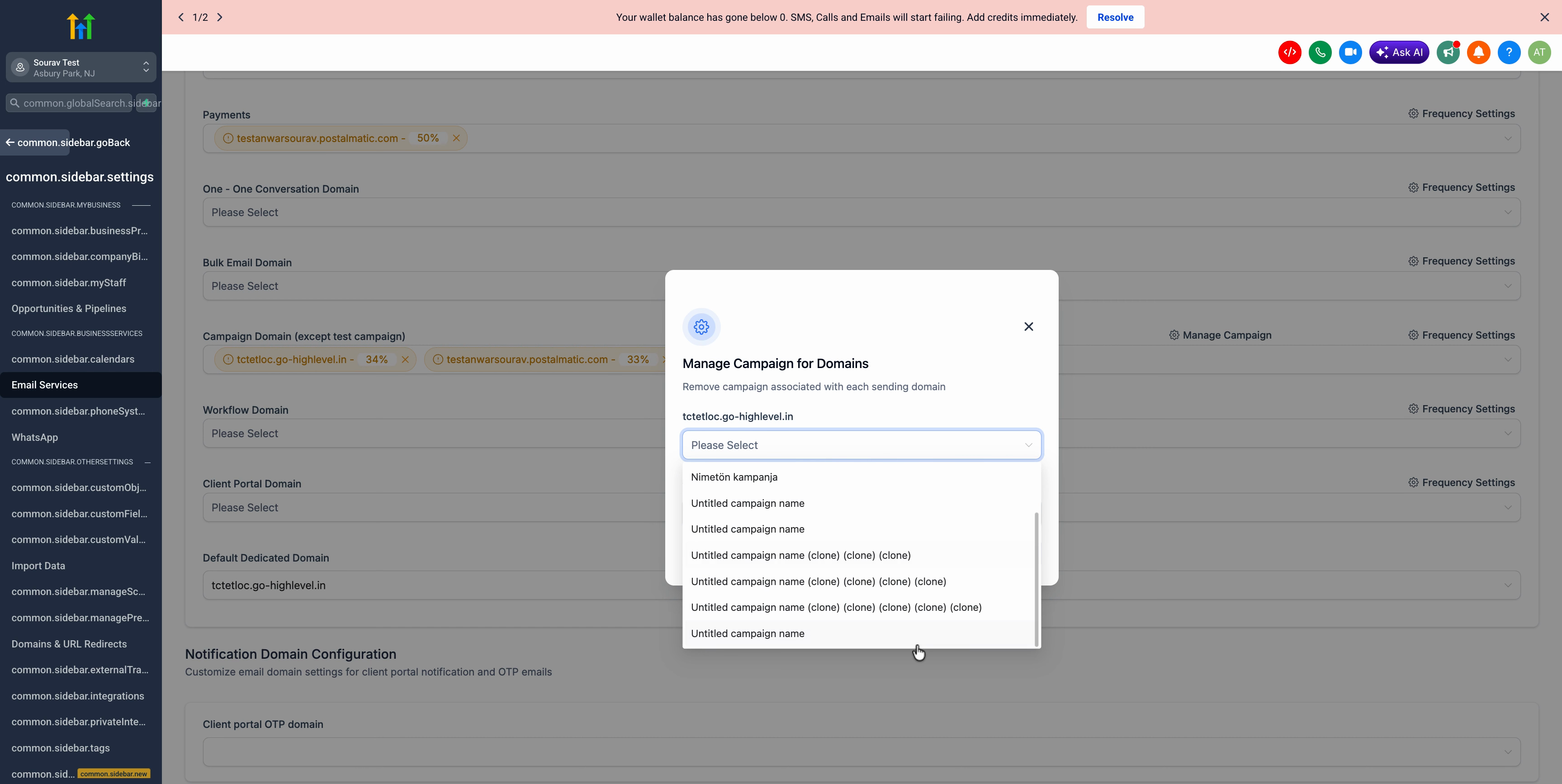 4
4
Unlink the domain from all campaigns
Select all campaigns associated with the domain, then use the Remove option to unlink your domain from every campaign in the list. Heads Up Make sure to remove the domain from every campaign shown — missing even one will block the delete in the next step.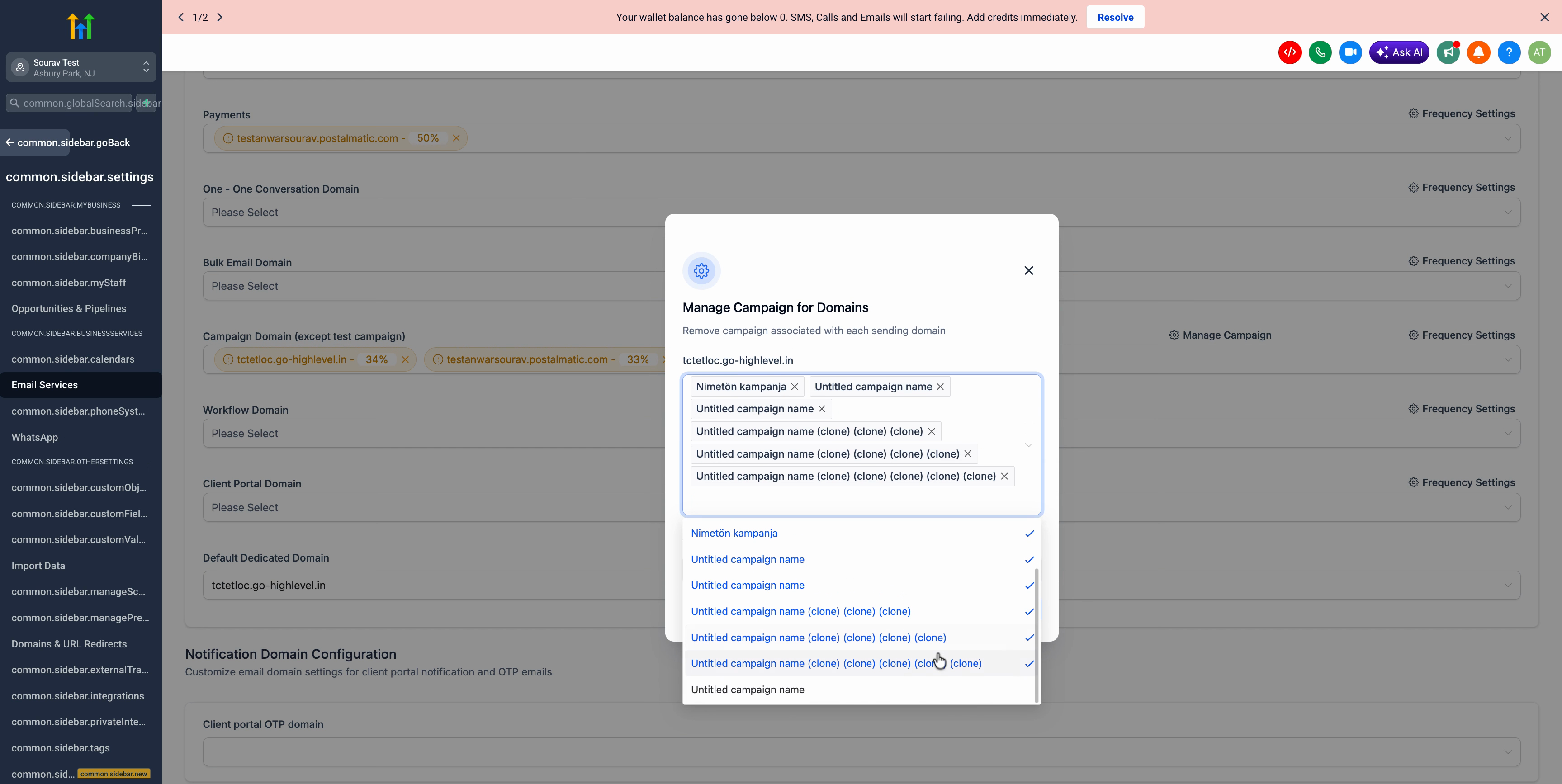 5
5
 7
7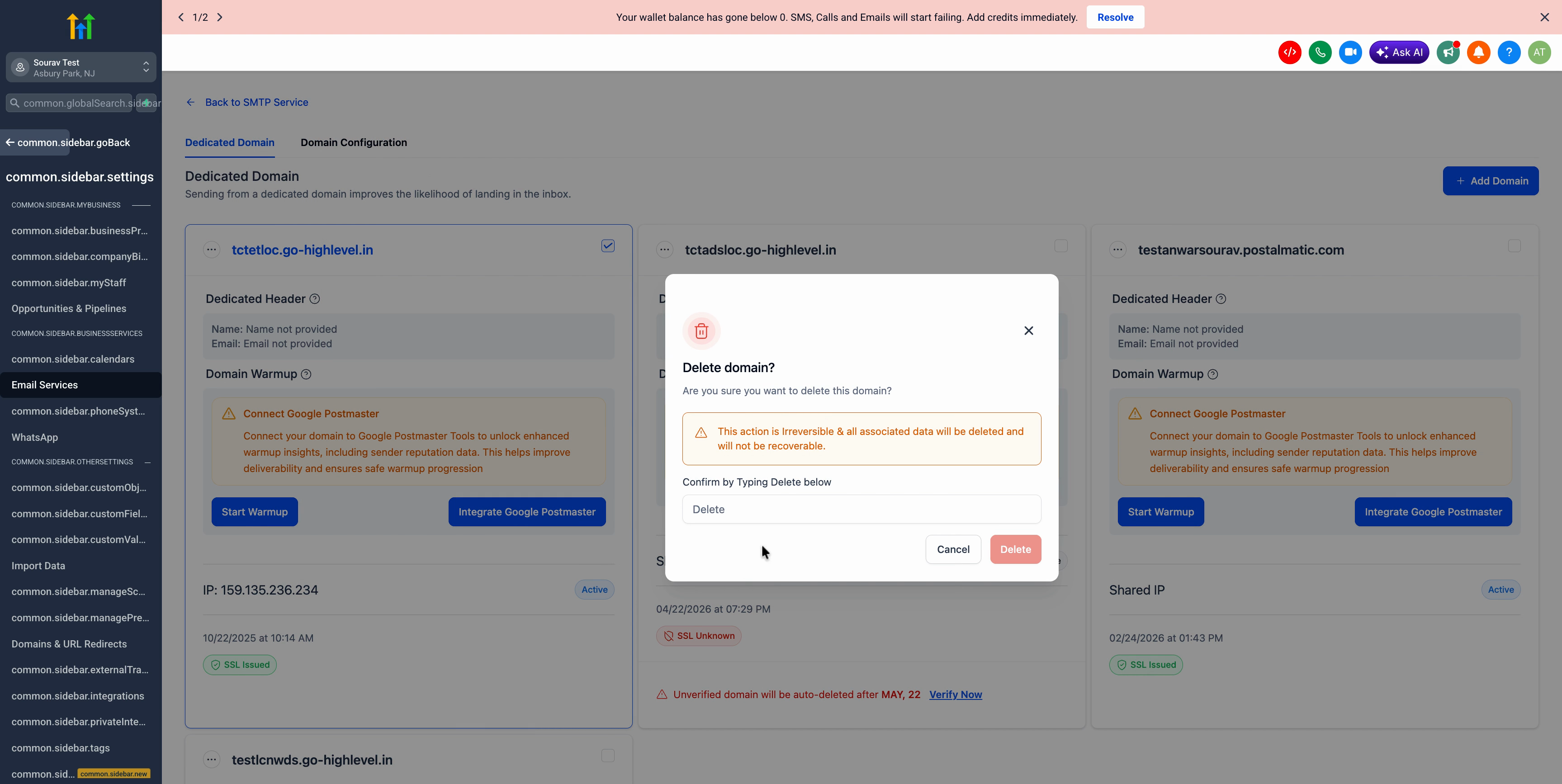 Was this article helpful? That’s Great! Thank you for your feedback Sorry! We couldn’t be helpful Thank you for your feedback Feedback sent We appreciate your effort and will try to fix the article