
Workflow Action - Call
What is the Call Workflow Action?
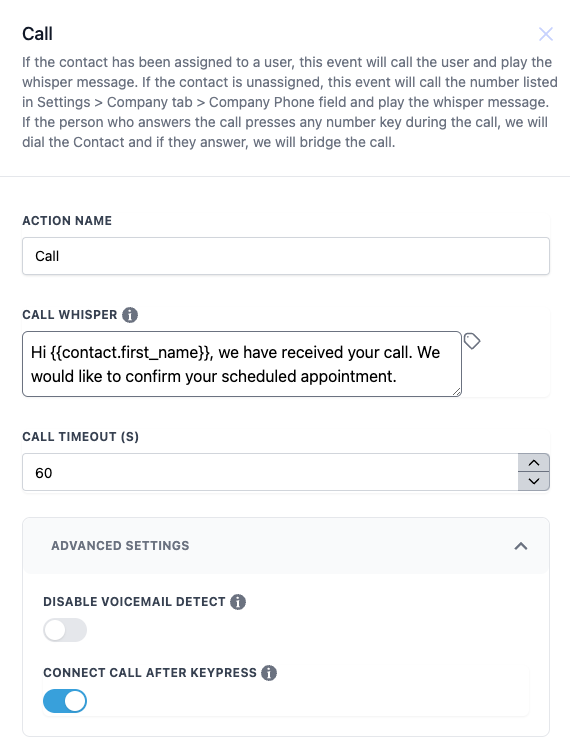
The Call action within a workflow is used to initiate a call to either the assigned user or a designated number. This feature includes playing a whisper message, which provides information before the call connects. Additionally, it offers advanced settings such as voicemail detection and options for connecting the call after a keypress.
Action Name Call
Action Description
The Call action allows users to automatically initiate a call as part of a workflow. Depending on whether the contact has been assigned to a user or not, it will call the user or a default company number. A whisper message can be played before the call is connected, and the workflow can handle voicemail detection to ensure the call is not connected to a voicemail.
Action Details
| Field | Description | Mandatory |
| Action Name | The name for this specific call action. | Yes |
| Call Whisper | A short message that will be played to the receiver before the call is connected. Custom values can be used to personalize the message. This message will play up to three times. | No |
| Call Timeout (s) | The maximum number of seconds to wait before terminating the call attempt if not connected. | Yes |
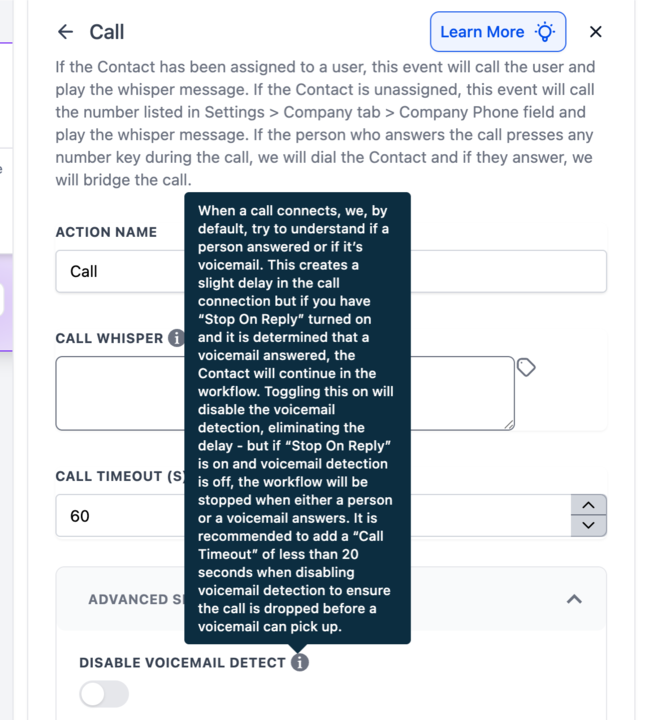
| Disable Voicemail Detect | If enabled, the system will not attempt to detect voicemail. This setting is useful to reduce the delay caused by voicemail detection, but it might lead to voicemail connections being treated as normal calls. Recommended for shorter call timeouts. | No |
| Connect Call After Keypress | If enabled, the call will only connect after the receiver presses a key. This is useful to confirm that a live person has answered the call. | No |
How to Configure this Workflow Action
- Add the Call Action: In your workflow, select the Call action from the list of available actions.
- Set Action Name: Provide a name for this action, such as “Customer Support Call.”
- Enter Whisper Message: Type the message you want the receiver to hear before connecting. Use custom values if necessary.
- Set Call Timeout: Define the time in seconds for the call to attempt connection before ending.
- Configure Advanced Settings: Decide whether to enable voicemail detection or require a keypress to connect the call.
- Save the Configuration: Once all settings are configured, save the action.
Disable Voicemail Detect
See this article Stop On Response and Disable Voicemail Detect for details on the interaction between the workflow setting Stop on Response and the Call action setting Disable Voicemail Detect. Note that what the Business does in the Call action is irrelevant to Stop on Response and Disable Voicemail Detect. The Business will be called first; if the Business doesn’t answer, the workflow will continue, if the Business does answer, and the Contact then doesn’t answer, the workflow will continue. Only the Contact (or the Contact’s voicemail) is relevant to Stop on Response/Disable Voicemail Detect. When a call connects, we, by default, try to understand if a person answered or if it’s voicemail. This creates a slight delay in the call connection but if you have “Stop On Reply” turned on and it is determined that a voicemail answered, the contact will continue in the workflow. Toggling this on will disable the voicemail detection, eliminating the delay - but if “Stop On Reply” is on and voicemail detection is off, the workflow will be stopped when either a person or a voicemail answers. If you have the Workflow Setting Stop On Reply ON (and Disable Voicemail Detect OFF), and the Call action calls the business who answers but the lead does not, the workflow will carry on.
Example Workflow
Workflow Configuration Example:
- Trigger: “Appointment Confirmed” - When an appointment status changes to confirmed.
- Action: “Call” - A call is initiated to the assigned user to remind them of the upcoming appointment.
- Action Name: “Appointment Call Reminder”
- Call Whisper: “You have a new appointment scheduled with [Contact Name] at [Appointment Time]. Press any key to confirm.”
- Call Timeout: 30 seconds
- Disable Voicemail Detect: Enabled (for quicker connection)
- Connect Call After Keypress: Enabled (to ensure the call connects to a person) Some Triggers to Use with This Action (But not limited to) 1. Appointment Confirmed: Automatically call the assigned user when an appointment is confirmed.
- Lead Form Submitted: Initiate a call when a lead’s submits a form, such as “First Contact Form” This configuration will ensure that users are proactively contacted when critical events, such as confirmed appointments or lead status changes, occur, allowing for better customer engagement and timely responses.