
Share Calendar Links from Mobile App
You can share the links of your calendars to potential leads and customers. Links to all the calendars under a particular subaccount can be accessed from the calendars page. You can choose to share a scheduling link, permanent link, or a one-time link based on the circumstance.
- Calendar selector - Tap on the share icon on the top right of the calendars page to open up the calendar selector, You can choose between calendars and groups.
- Share scheduling links - Upon selecting a calendar or a group, you can choose to copy and share the scheduling link as well as the permanent link.
- Share one-time link - Available only for calendars, you can opt to share a one-time link that will expire after a single access.
Make sure to have your preferred mobile app (Patient Copilot, Patient Copilot, or Whitelablled) on your device.
Head over to the calendars section on the bottom bar of the app. On the top right of the screen, you will see the share icon. Tap on it to open up the selector. | 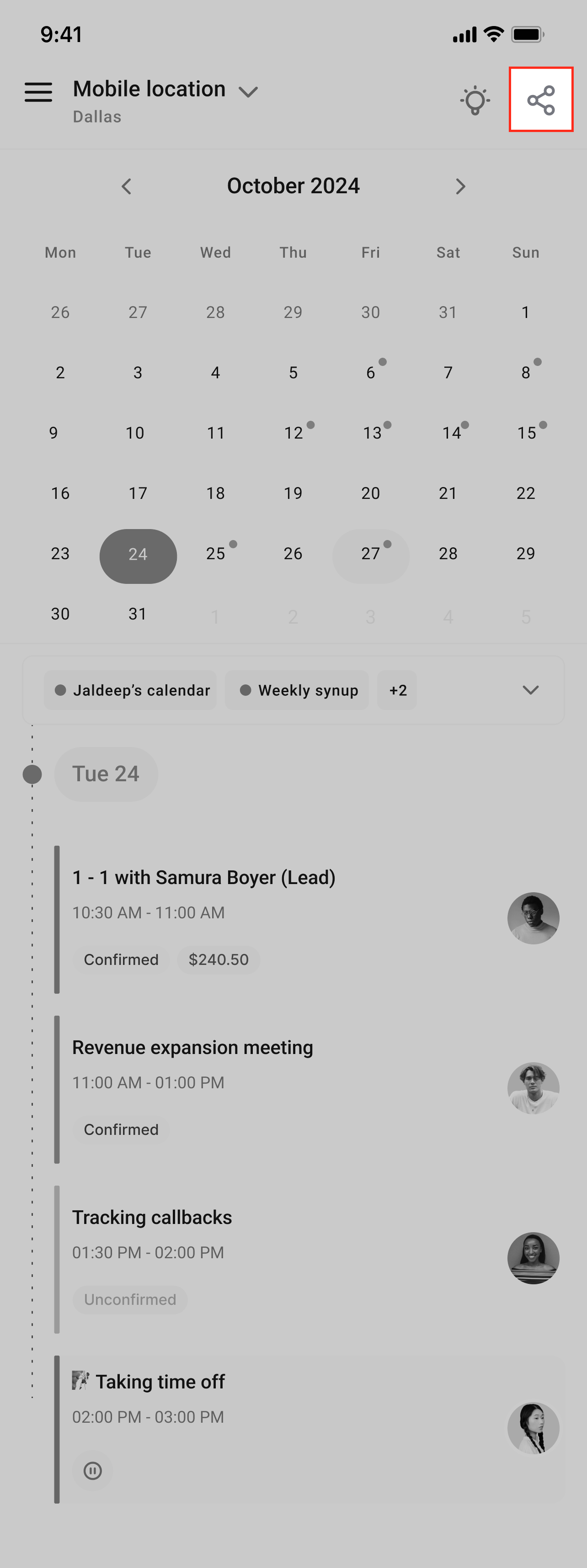 |
| Select a Calendar or a Group. Use the search if you have a lot of calendars. | 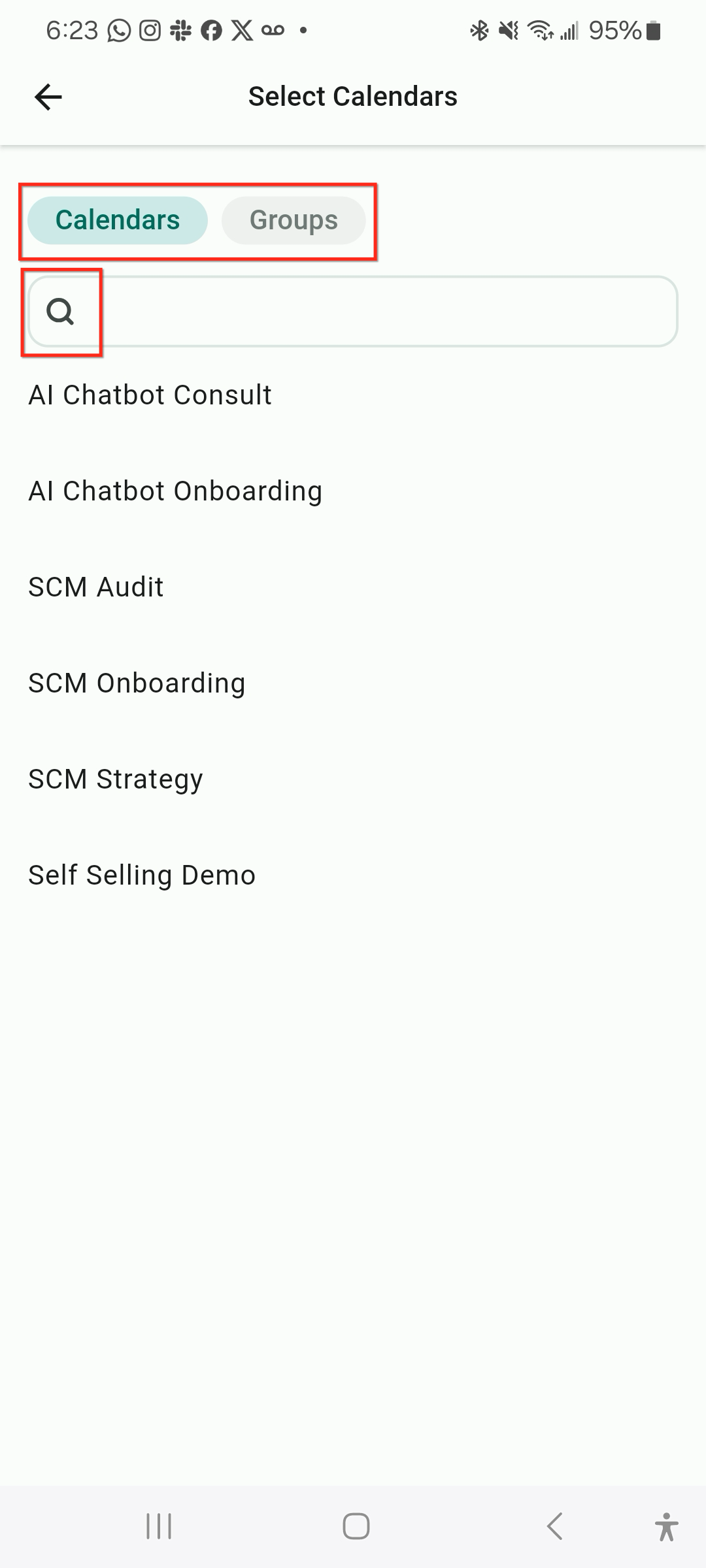 |
If you selected a calendar, you can choose to share a scheduling link, a permanent link, or a one-time link. If you selected a group, you can choose to share a scheduling link or a permanent link. You can tap on Share, which will then copy the link of the calendar to your device’s clipboard. Feel free to share your link across your preferred communication channels! | 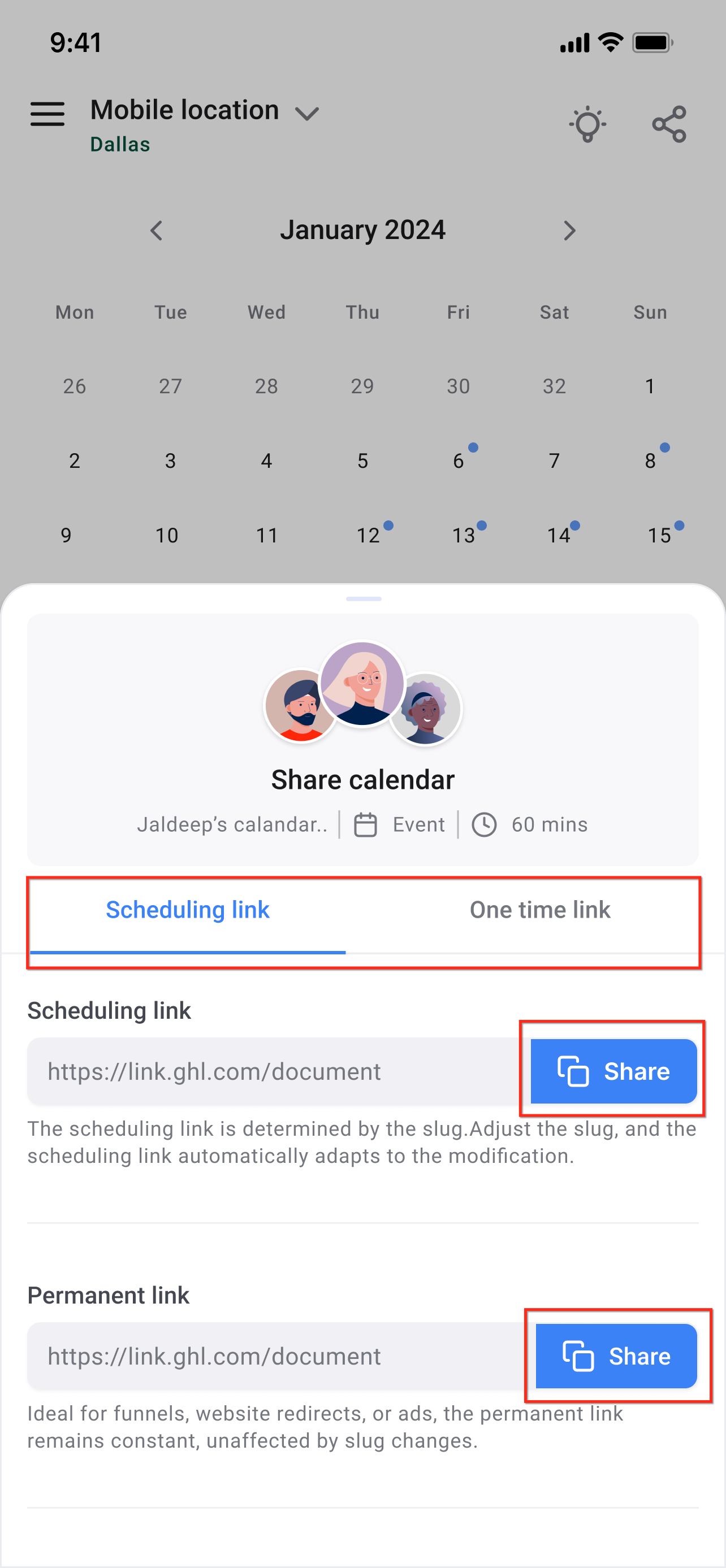 |