
Setting Up SMTP Providers
Email Services
SMTP Setup Guide Everything you need to configure, test, and troubleshoot your SMTP provider integration with Patient Copilot. ⚠️ Before You Use SMTP — Read This We have direct integrations with both Google and Outlook. If you’re sending through these providers, please use those integrations instead of SMTP. If you choose to use SMTP, you do so at your own discretion. SMTP is an advanced use case and not how most users should send email through Patient Copilot. Support is provided on a best-effort basis.
Sender Email Address Configuration Limitation
If you are using an SMTP provider, make sure the sender email you mask here matches the email you integrated with. Learn more on how to configure the sender’s email address here.? If the sender’s email does not match the SMTP integrated email, or if the sender’s email is not verified with your SMTP provider, the email will fail to deliver.
How to Test Your SMTP Integration
When sending an email, update the sender’s email address so it matches the integrated SMTP email. In manual conversation, the sender email defaults to your login email. You’ll need to change it to match the SMTP integrated email. By default it will show your login email: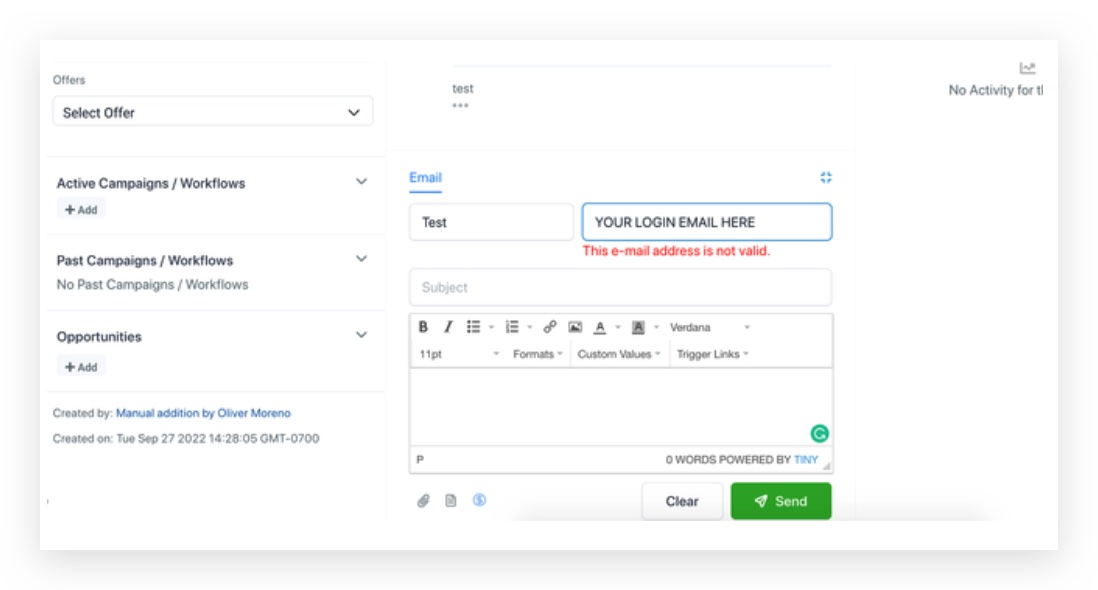
Workflow / Email Statistics Via SMTP, we currently receive only sent, open, click, and bounce events. A delivered event is not available from the SMTP provider. ℹ️ Because of this limitation, the system marks an email as delivered only after an open event is received. We highly recommend setting up Mailgun or Email System to get full sending statistics. Learn more about Troubleshooting Email Stats.
Why SMTP Emails Are Stuck in “Sent” Status With SMTP, we only receive sent, open, click, and bounce events. A delivered event is not available from the SMTP provider. Because of this limitation, the system marks an email as delivered only after an open event is received. That’s why the email initially shows as sent. Once the recipient opens the email, the status updates accordingly.
Common Issues When Setting Up SMTP Providers 1 Make sure Email Re-Billing is disabled while making changes to the default provider. 2 Try testing your SMTP credentials using the GMass SMTP Test tool: gmass.co/smtp-test
Help Docs for SMTP Providers
Setting Up Amazon SES
Follow these steps when configuring Amazon SES as your SMTP provider: 1 Use the correct server name listed on the SMTP Settings page. 2 Use port 465. 3 Use the IAM Username & Password you created (save these — you cannot view them again). 4 Use the Amazon AWS Root User Email Address. Amazon SES Resources
Setting Up Outlook / Microsoft Office 365
It is common to see an “Authentication unsuccessful” error even with two-step verification disabled. Microsoft changed its security requirements — third-party apps now require SMTP Authentication to be explicitly enabled. ? Microsoft Guide: Enable SMTP Authentication If the above guide does not resolve your issue, please reach out to Outlook support to get the account authenticated.
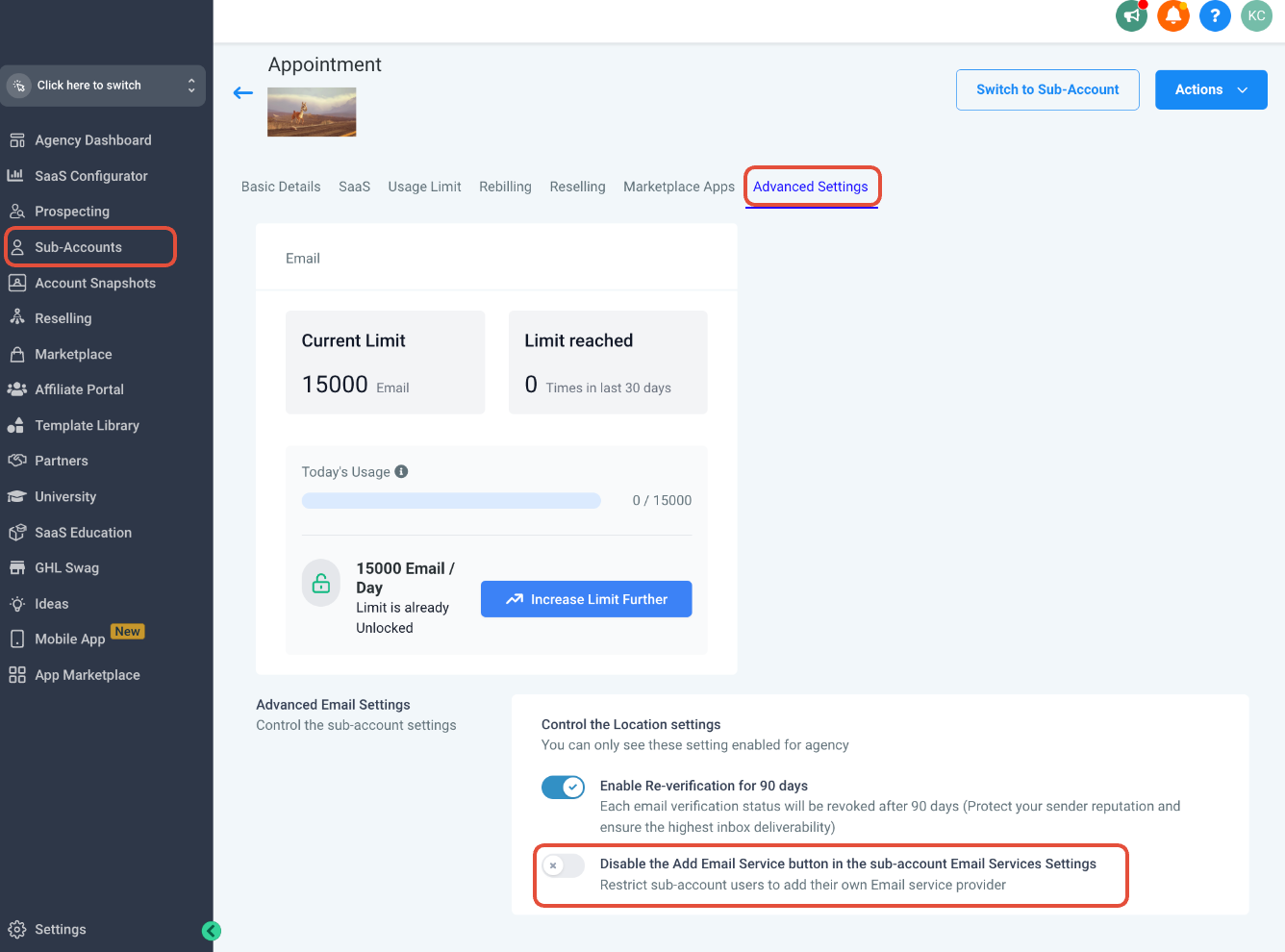
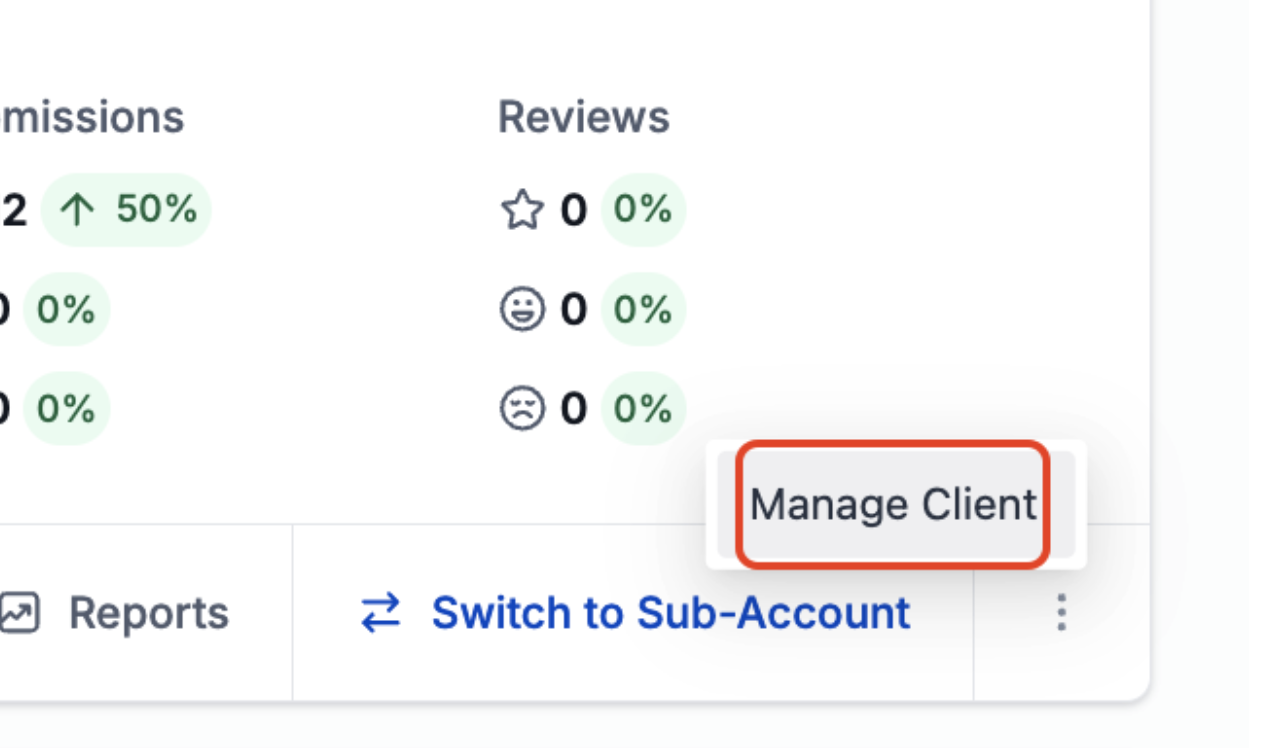 Click on Advanced Settings and make sure “Disable the Add Email Service button in the sub-account Email Services Settings” is turned off.
 Q How many SMTP service providers can we have on a sub-account? A sub-account can have multiple SMTP service providers. However, the same SMTP credentials cannot be added more than once — using the same email ID with different integrations is not allowed. Additionally, the same provider (e.g., Gmail) cannot be added twice. Was this article helpful? That’s Great! Thank you for your feedback Sorry! We couldn’t be helpful Thank you for your feedback Feedback sent We appreciate your effort and will try to fix the article