
Missed Call WhatsApp Back — Overview & Setup
Missed Call WhatsApp Back automatically messages callers on WhatsApp when their call isn’t answered, helping teams re-engage faster—without building workflows. Enable it in the Phone System and customize a friendly, on-brand follow‑up that can include variables like the business name or booking link. Ideal for locations where WhatsApp response rates outperform SMS.
**What is Missed Call WhatsApp Back? **
Missed Call WhatsApp Back is a Phone System capability in Patient Copilot that sends a WhatsApp message to a contact after a call is classified as “missed.” It’s designed to close the post‑call gap so leads get a quick acknowledgment and a next step, improving conversion and customer experience.
**Key Benefits of Missed Call WhatsApp Back **
Understanding the benefits clarifies when to use WhatsApp versus SMS and how this feature impacts speed‑to‑lead and customer satisfaction.
- Instant Engagement: Contacts get a timely WhatsApp message right after a missed call.
- No Workflows Required: Quick to configure and active within minutes—no automations needed.
- Higher Readability: WhatsApp often sees stronger open/reply rates compared with SMS.
- Brand Consistency: Customize wording to match brand voice and include helpful links.
- Personalization: Insert dynamic details like business name or booking link.
- Operational Efficiency: Reduced manual work (bold): Fewer callbacks missed; clearer next steps for the contact.
**Prerequisites **
Verifying prerequisites avoids common setup failures and delivery issues.
- A WhatsApp‑enabled number connected to the sub‑account (WhatsApp must be active and in good standing).
- The user configuring the feature must have permission to access Settings → Phone System.
- Contacts must be reachable on WhatsApp; otherwise, the message won’t deliver via WhatsApp.
- Ensure your business has appropriate consent to message contacts on WhatsApp.
**How To Set Up Missed Call WhatsApp Back **
Knowing the exact navigation path reduces confusion with similarly named SMS features. A clear, step‑by‑step setup ensures the feature is enabled correctly and the message is on‑brand before going live.
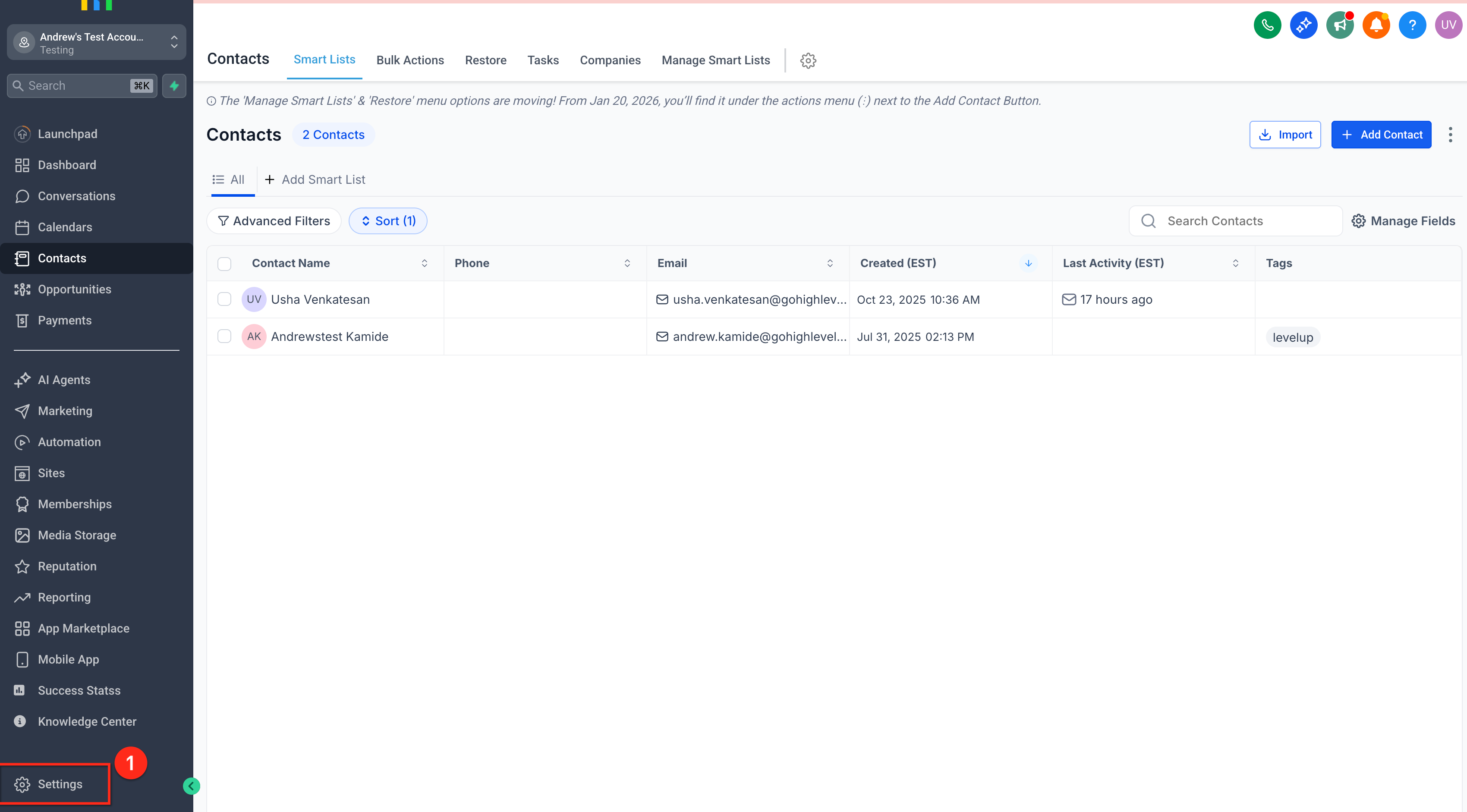
- Go to Settings → Phone System → Voice → Voicemail & Missed Call TextBack > Missed Call Textback.
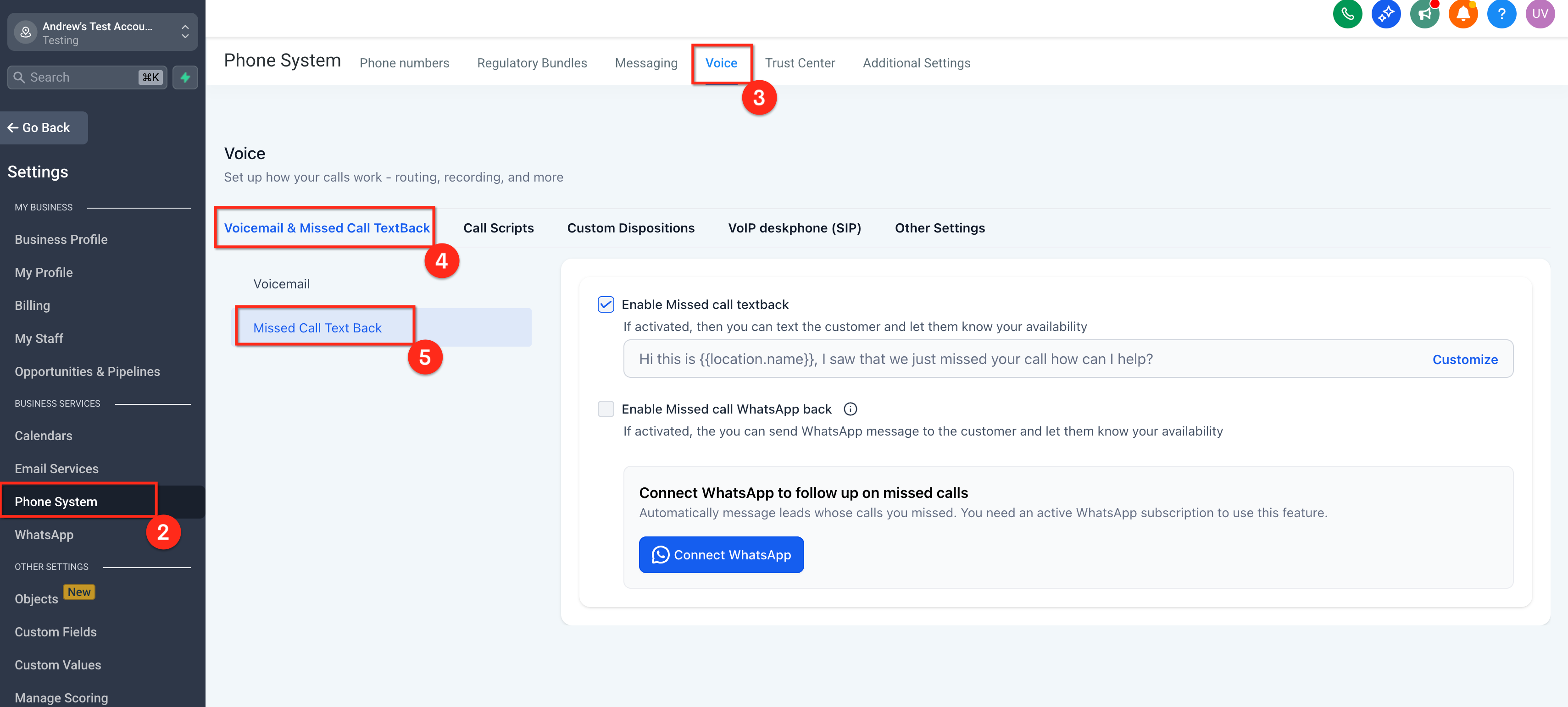
- Toggle Missed Call WhatsApp Back to On.
- Click Customize and review the prefilled text.
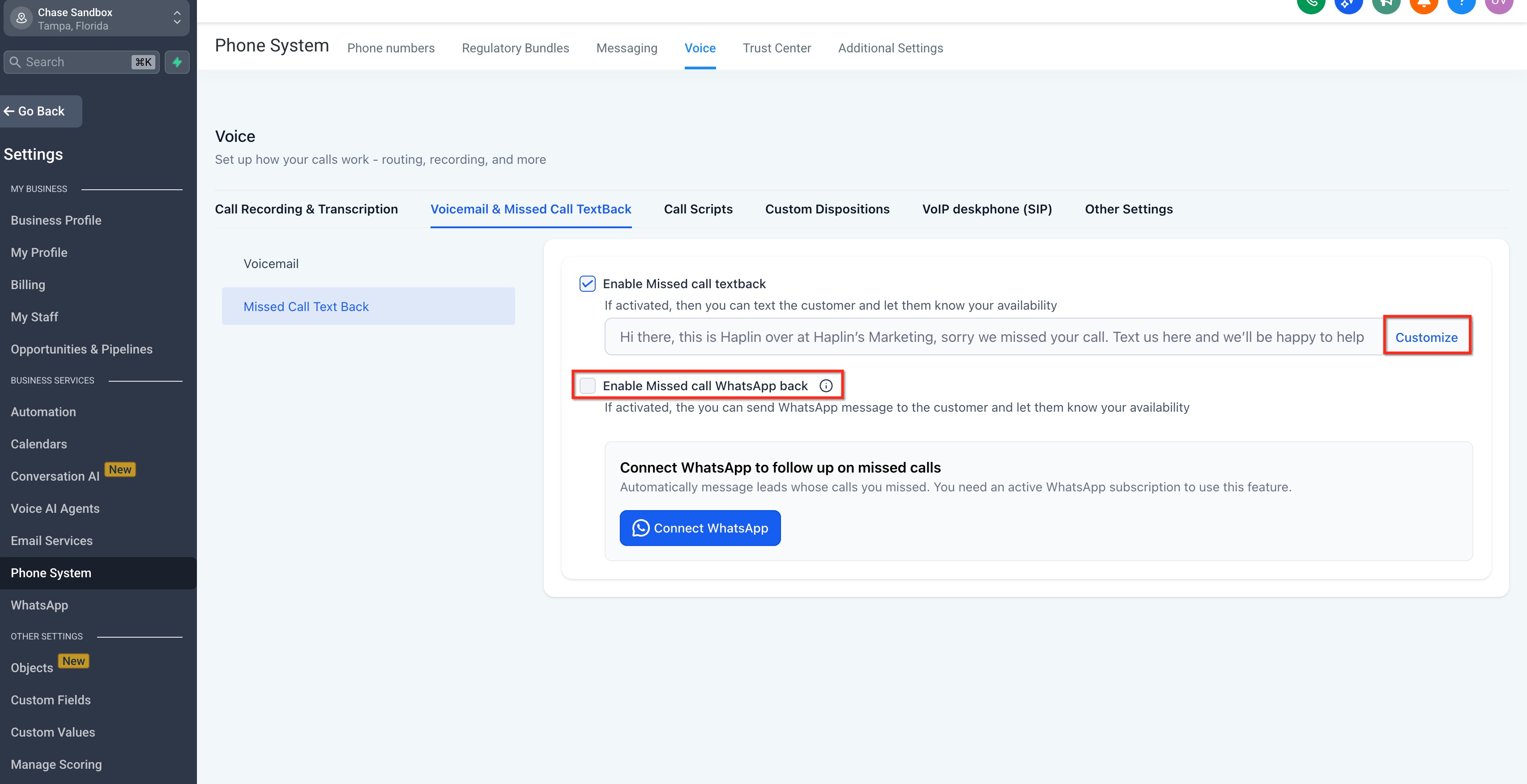
- Insert variables as needed (e.g., {location_name}, {booking_link}). Keep the tone helpful and concise.
- Save your changes.
- Place a test call (see Testing & Validation below) to confirm the WhatsApp message sends and renders as expected.
Default WhatsApp Message & Personalization Variables
Starting from a prefilled message speeds up launch while variables ensure relevant, human‑sounding replies.
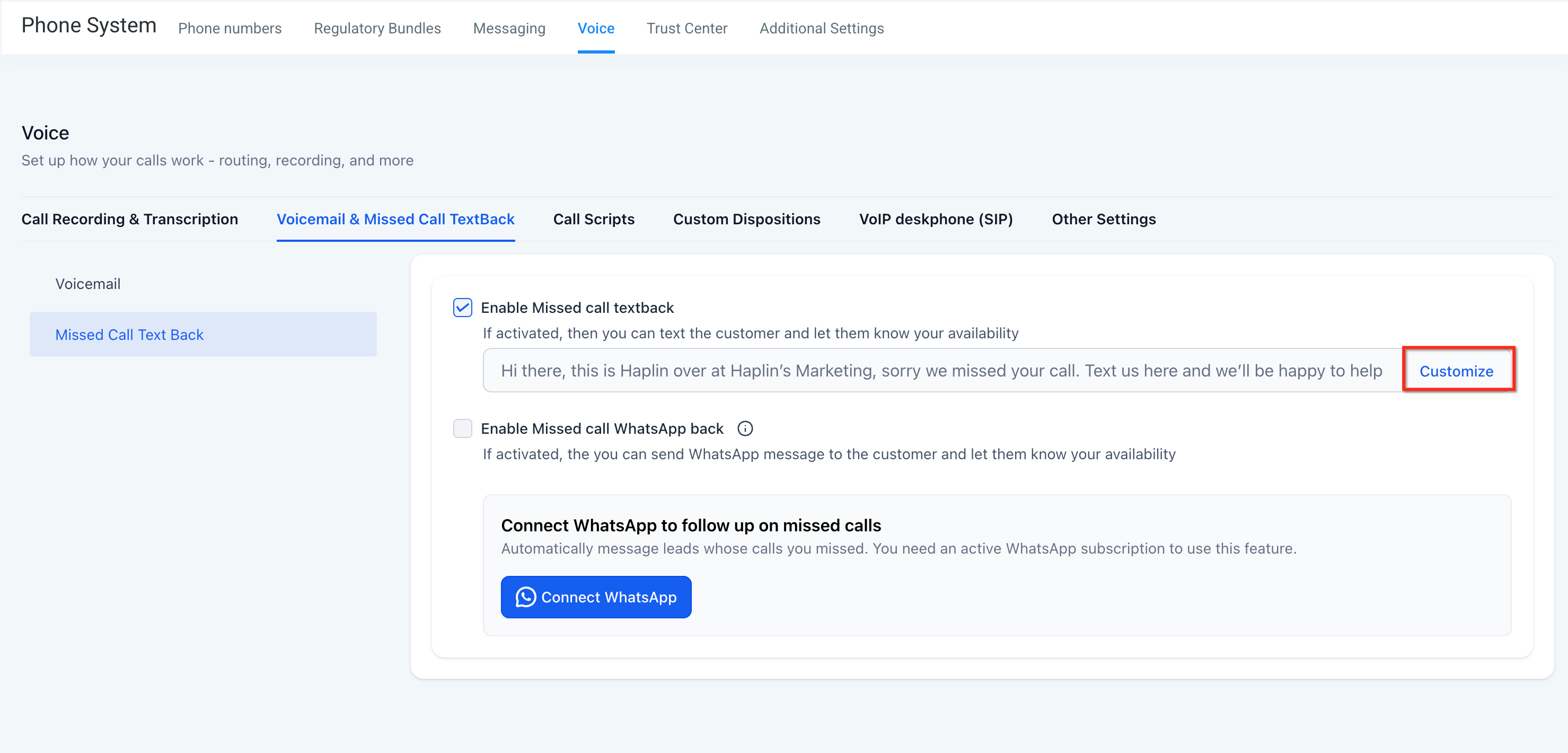
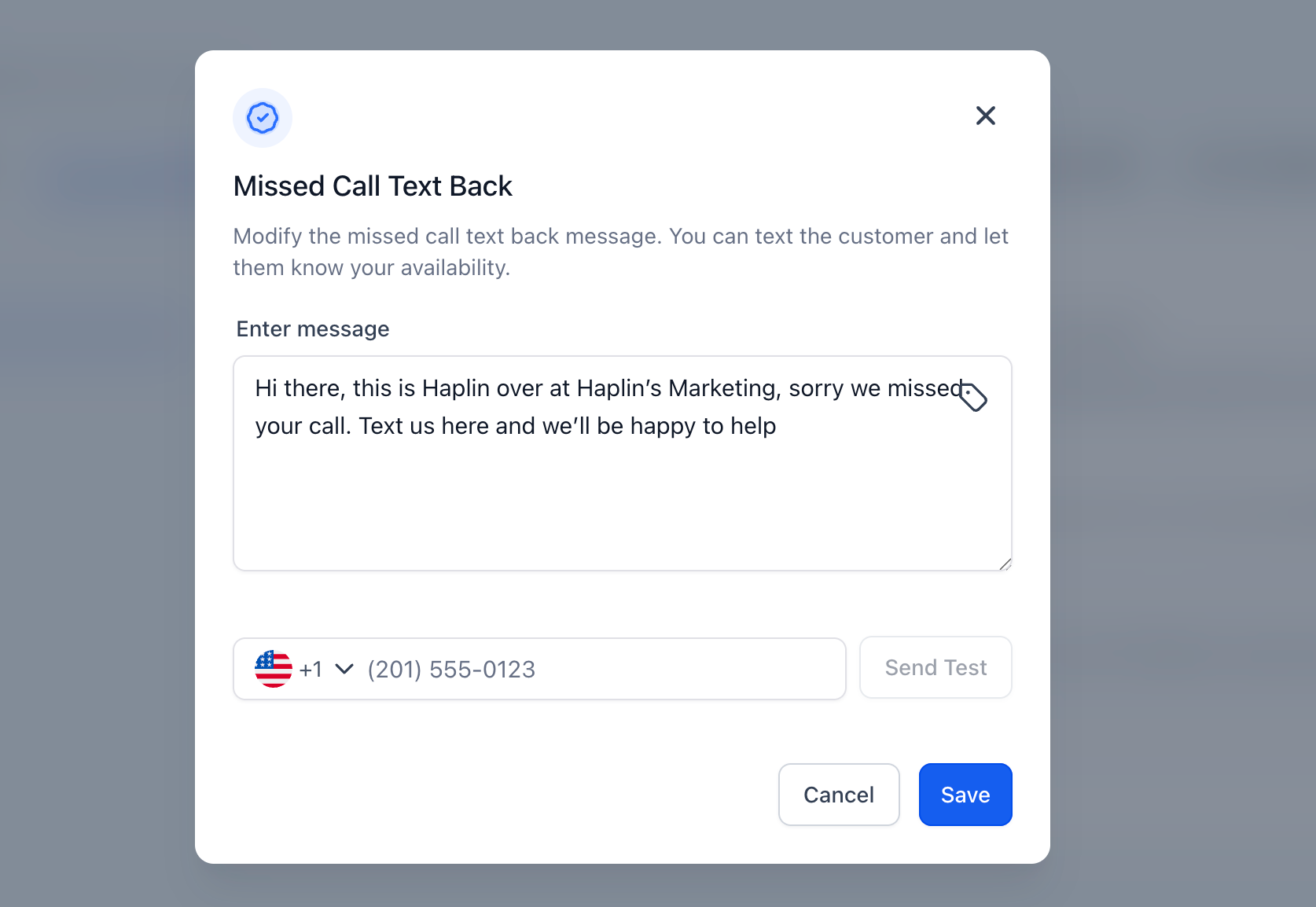
- Prefilled Message: > “Hi this is {{location.name}}, I saw that we just missed your call. How can I help?”
- Customization: Message body is editable directly within the Missed Call Textback area (not in WhatsApp → Templates).
- Supported variables (Examples):
- {agent_name} – Inserts the assigned agent’s name when available.
- {booking_link} – Inserts a scheduling link you’ve configured for the location.
- {business_hours} – Inserts a human‑readable summary of open hours.
- {location_name} or {{location.name}} – Inserts the current location’s name.
Troubleshooting
Quick diagnostics reduce downtime and help teams resolve common errors without support tickets.
- No Message Sent: Confirm WhatsApp is connected for the sending number and the toggle is enabled.
- Variables Unresolved: Verify the variable syntax and that values exist (e.g., a booking link is configured).
- Duplicate Messages: Check for overlapping SMS Textback or workflows that send on missed calls.
- Contact Didn’t Receive: Ensure the contact uses WhatsApp and hasn’t opted out; verify number formatting (including country code).
- After‑Hours Messaging Concerns: If you don’t want messages sent after hours, disable during those times or manage with call routing and schedules.
Frequently Asked Questions
**Q: Can I enable WhatsApp Back without enabling SMS Missed Call Textback? **
A: Yes. You can enable WhatsApp Back on its own or alongside SMS; avoid duplicates by choosing a single primary channel. **Q: Where do I edit the message body? **A: Inside Settings → Phone System → Voice → Missed Call Textback. Do not edit this message in WhatsApp → Templates. **Q: Does it send during off hours? **A: Yes, if a call is marked missed. Add {business_hours} to inform the contact, or adjust call routing if you prefer different behavior. **Q: What if the contact isn’t on WhatsApp? **A: The WhatsApp message will not deliver. Consider enabling SMS Missed Call Textback or a fallback workflow if desired.
Related Articles
- Set Up WhatsApp for a Sub‑Account
- Missed Call Textback (SMS) — Overview & Setup
- WhatsApp Template Basics & Best Practices
- Troubleshoot WhatsApp Delivery & Statuses Was this article helpful? That’s Great! Thank you for your feedback Sorry! We couldn’t be helpful Thank you for your feedback Feedback sent We appreciate your effort and will try to fix the article