
Account Billing Dashboard
This article provides a comprehensive guide to managing billing within Patient Copilot sub-accounts. Learn how to handle subscriptions, payments, and wallet balances effectively using the intuitive interface designed for seamless financial management.
Overview of Billing Dashboard
The Billing section within each sub-account serves as the central hub for all financial activities. It offers a user-friendly interface to: 1. Manage Subscriptions 2. Payment Methods 3. Billing Information 4. Transaction History 5. Wallet Balances. This centralized approach ensures that all billing-related tasks are accessible and manageable in one place. To access the Billing Dashboard, go to Settings > Billing.
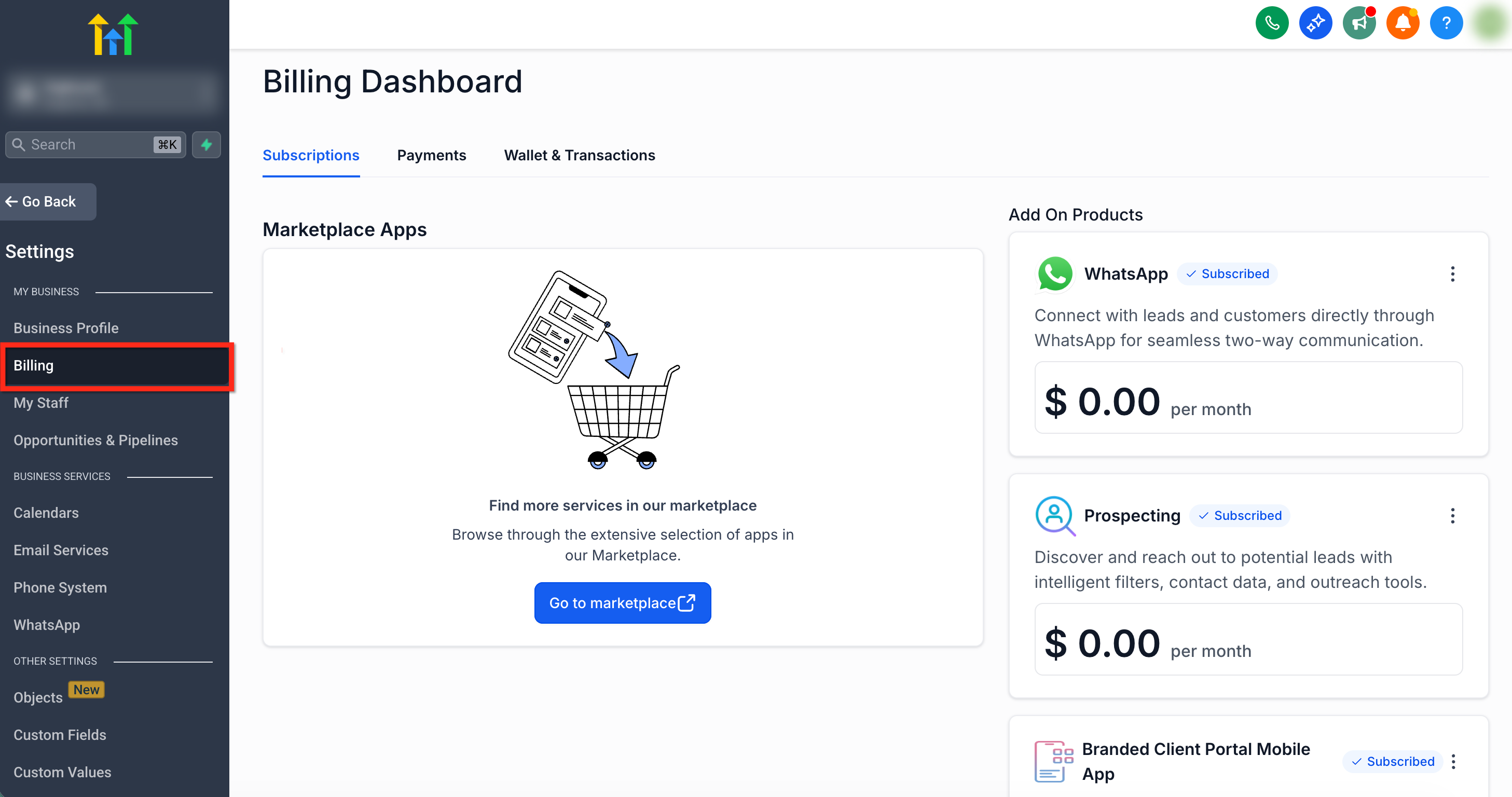
Manage Subscriptions
In the Billing section, you can oversee all active subscriptions associated with the sub-account, including:
- Marketplace App Subscriptions: Oversee subscriptions for various marketplace applications integrated into your workflow. This consolidated view allows for efficient monitoring and management of all your subscriptions.
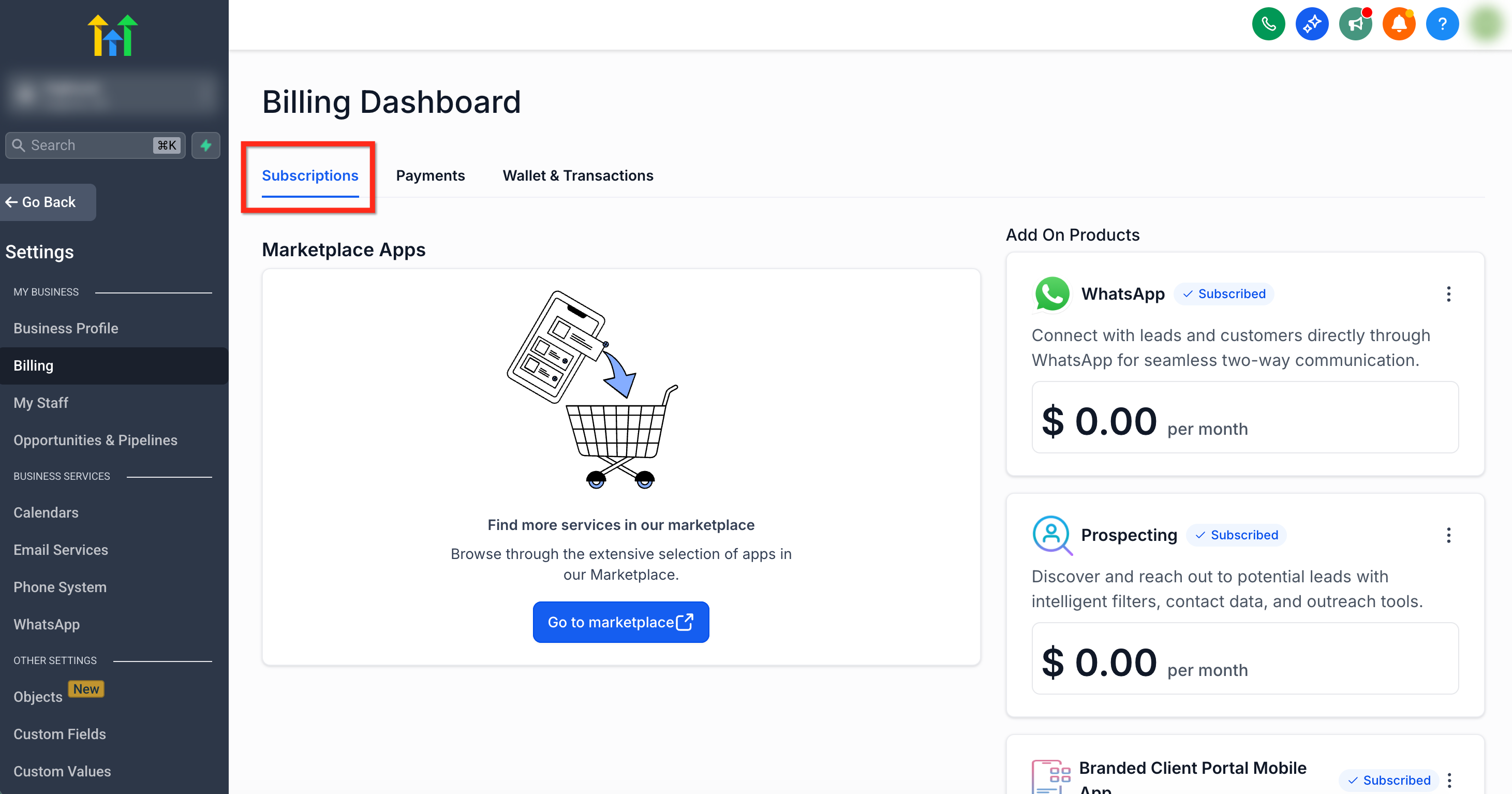
Payment Methods
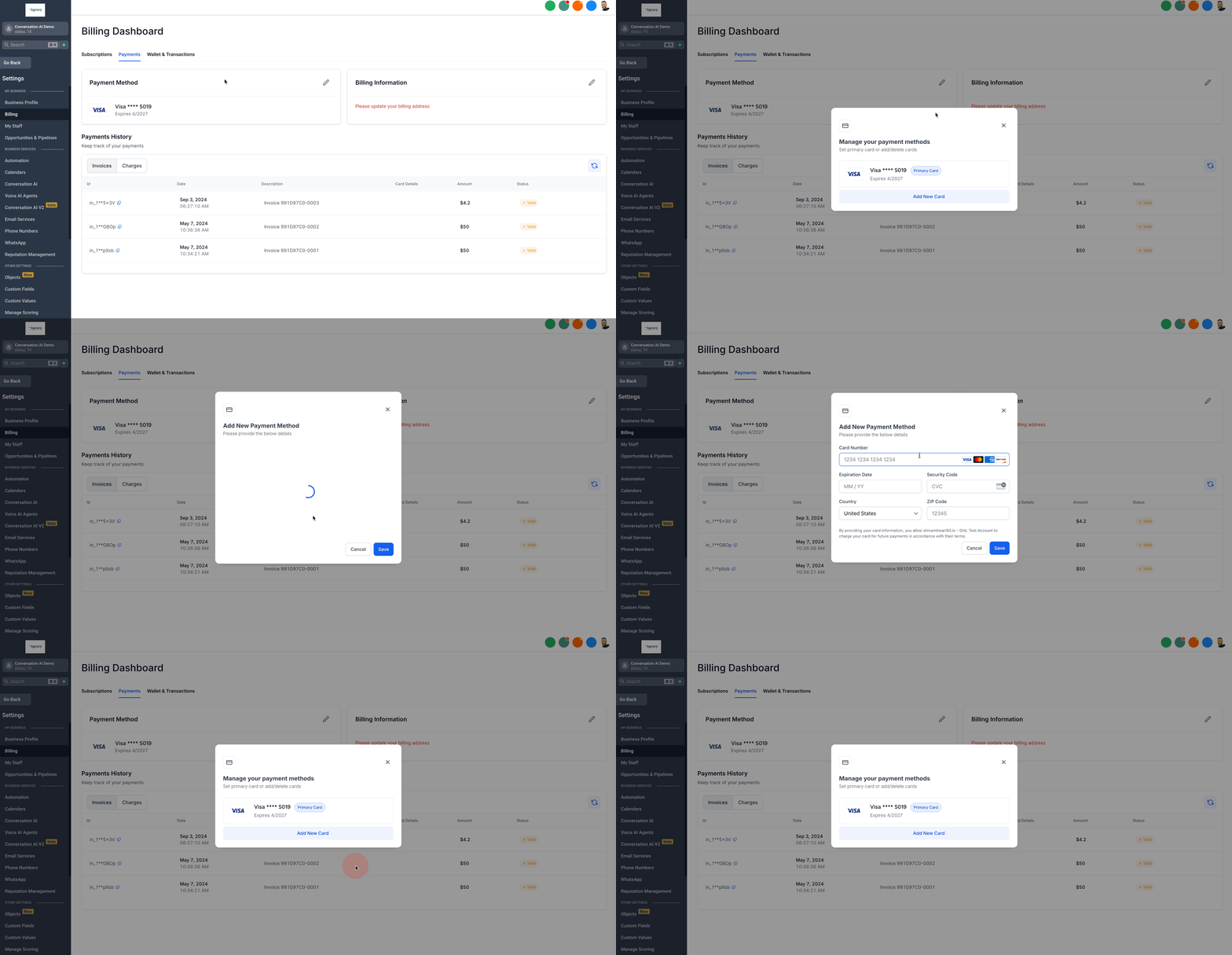
The Payment Methods area enables you to:
- Add New Cards: Introduce new payment methods as needed.
- Delete Existing Cards: Remove outdated or unused payment methods.
- Set Primary Card: Designate a default card for all transactions to ensure seamless billing processes. This flexibility in managing payment methods ensures that your billing preferences are always up to date.
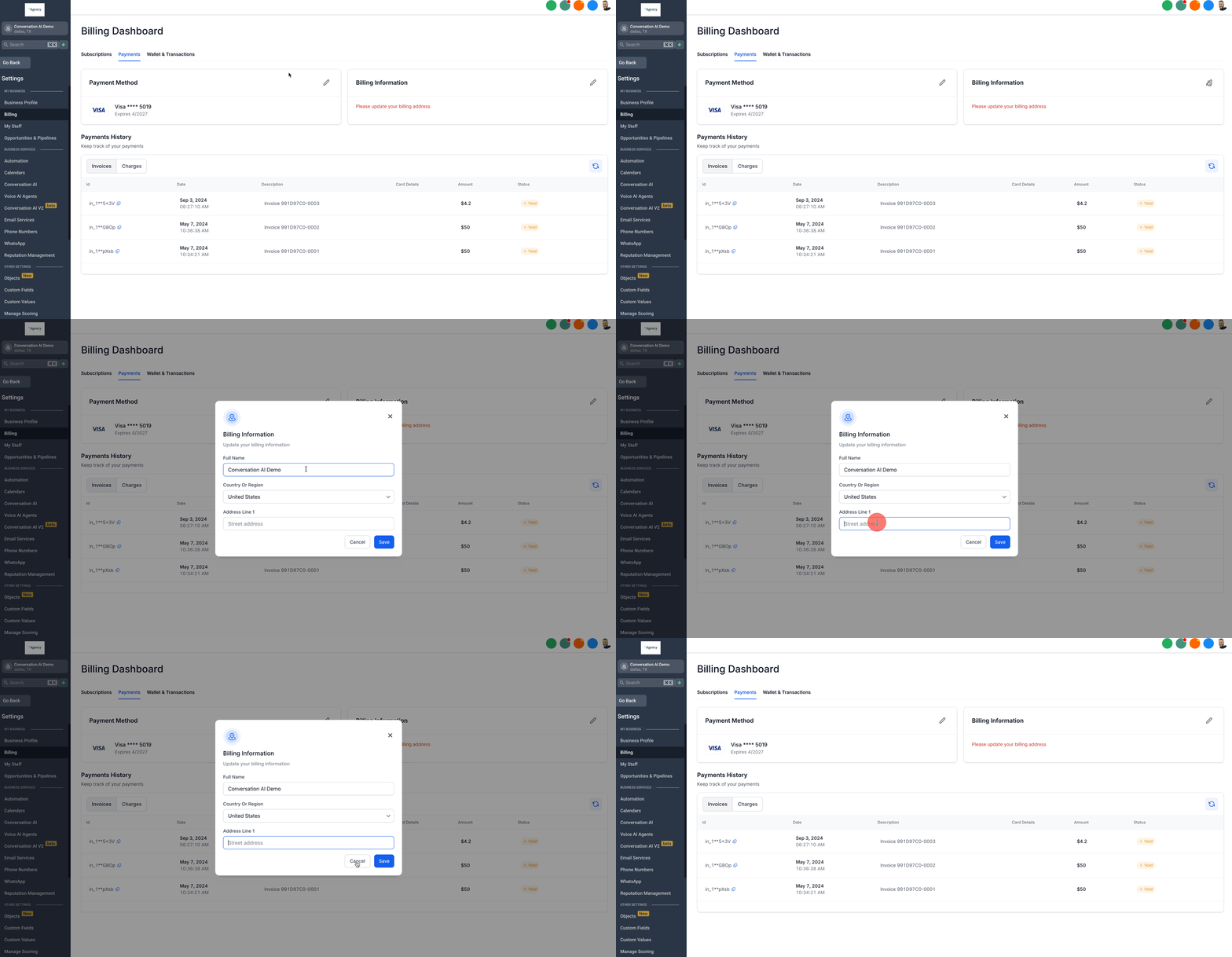
Update Billing Information
Maintaining accurate billing information is crucial for compliance and successful transactions. Within the Billing section, you can:
- Update Billing Address: Modify your billing address to reflect current information, which is essential in regions where accurate billing details are mandatory for recurring products. This feature empowers you to keep your billing information current without external assistance.
View Charges and Transaction History
Transparency in financial transactions is vital. The Billing section provides:
- Detailed Charges Overview: Access a comprehensive list of all charges incurred.
- Invoices: View and download invoices for your records.
- Transaction History: Review past transactions to monitor spending and manage finances effectively.
Understanding Wallet Balances
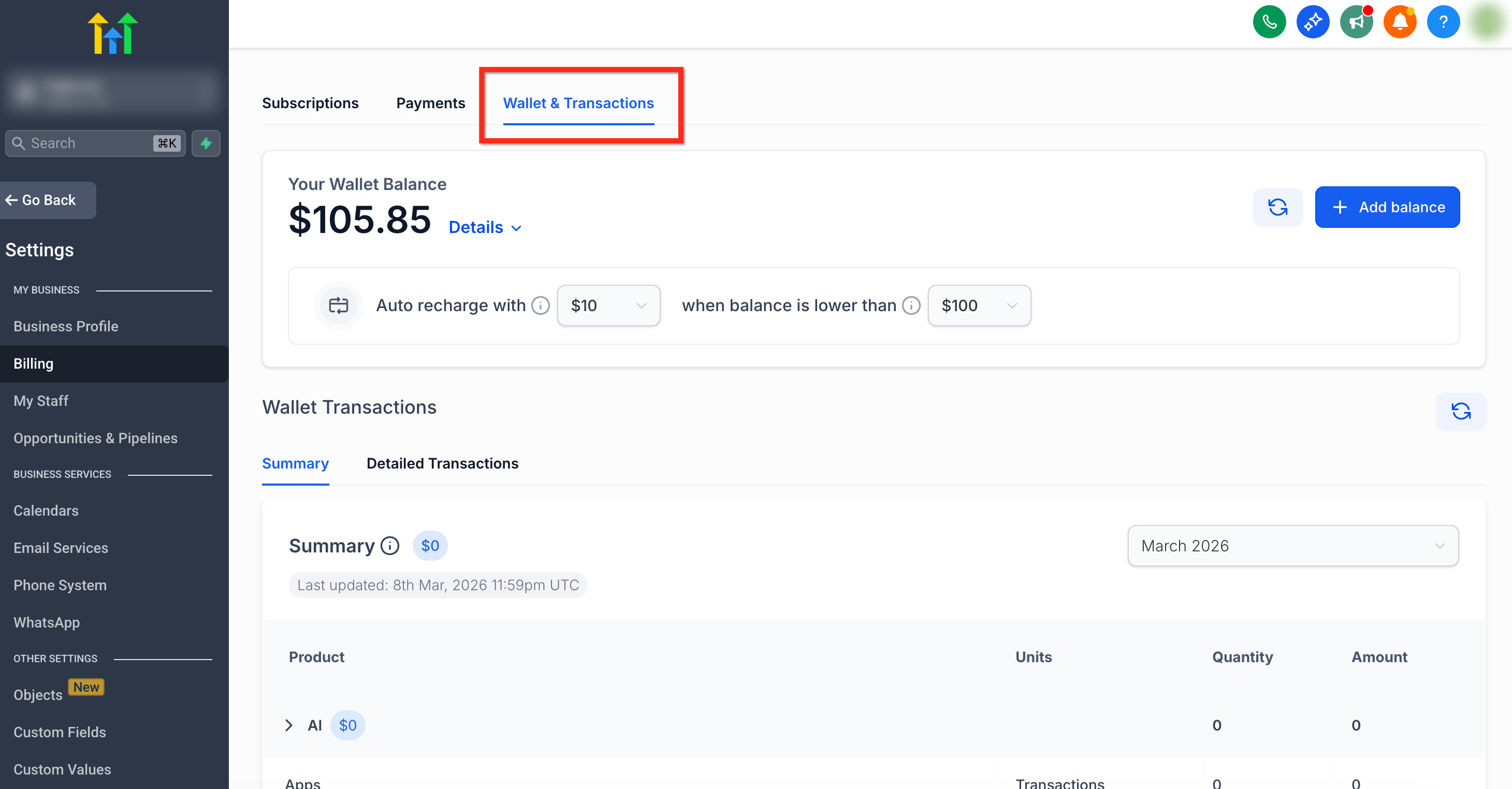
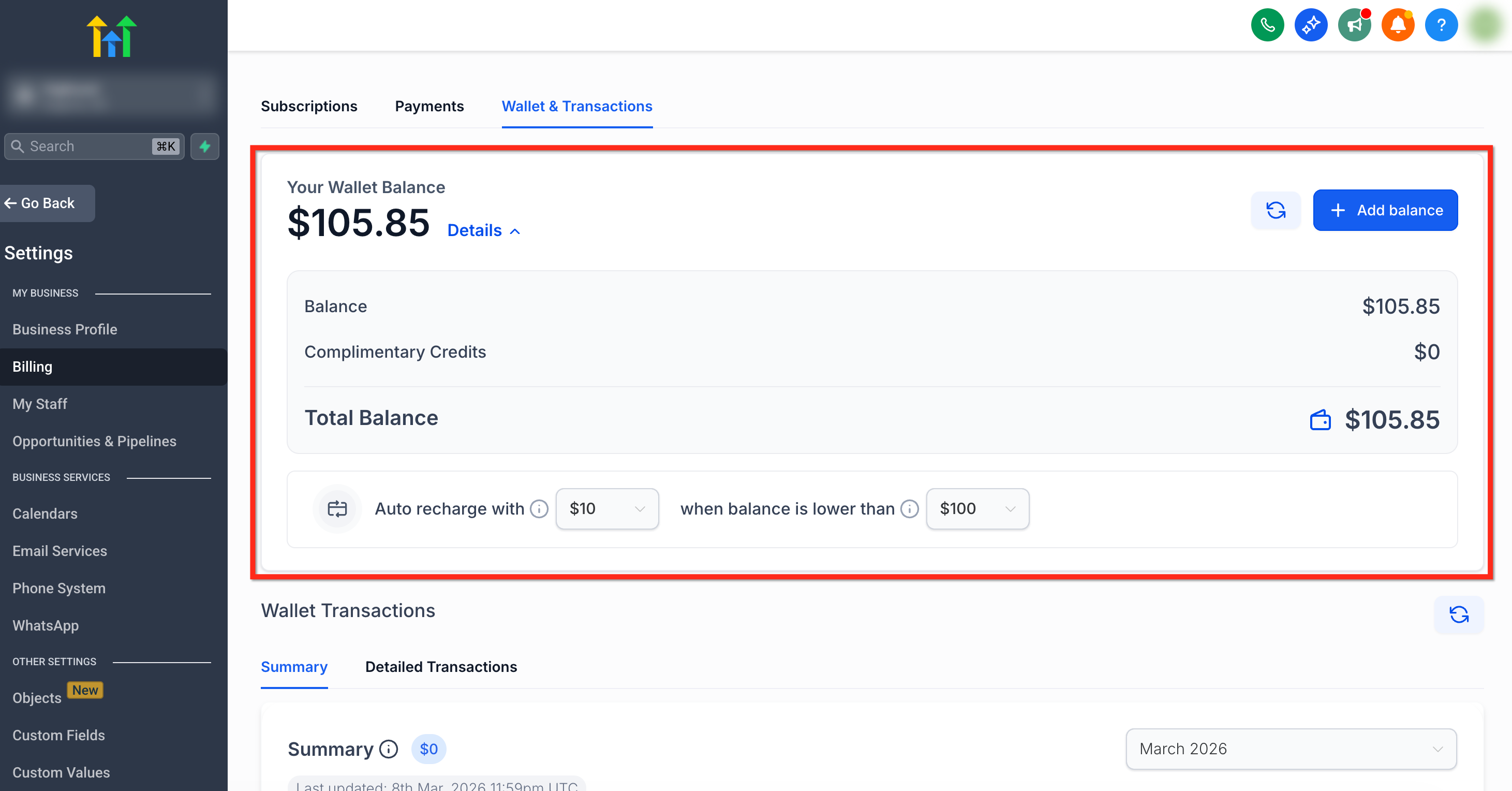
The Wallet feature allows you to add a bulk amount of money to your account in a single transaction, and that money is then converted into credits. When you use services that would cost your account money, you would spend credits instead. Once your wallet credits go below a certain amount (determined by the account user/owner), your default credit card will automatically be charged and more credits will be added to your wallet, preventing any interruption from paid services. Some of the benefits of the wallet system are:
- View Current Balance: See your available funds at a glance.
- Monitor Complimentary Credits: Track any complimentary credits provided.
- Manage Funds: Add funds to your wallet to ensure uninterrupted services.
Frequently Asked Questions
Q: How can I add a new payment method? Navigate to the Payment Methods section within the Billing area, click on ‘Add New Card,’ and enter the required card details. Q: Is it possible to have multiple active subscriptions? Yes, you can manage multiple subscriptions, including Marketplace apps, all from the Subscriptions section. Q: How do I update my billing address? In the Billing section, locate the Billing Information area and click on ‘Edit’ to update your billing address. Q: Where can I view my past invoices? Access the Charges and Transaction History section within Billing to view and download past invoices. Q: How do I add funds to my wallet? In the Wallet section, click on ‘Add Funds’ and follow the prompts to add the desired amount to your wallet balance.